Prerequisites
User must have Settings access rights.
Bank account details must be available before initiation.
Navigation Path
Settings → Company Setup → Bank Master
Step-by-Step Procedure
Step 1: Access the Application
Log in to the application using valid credentials.
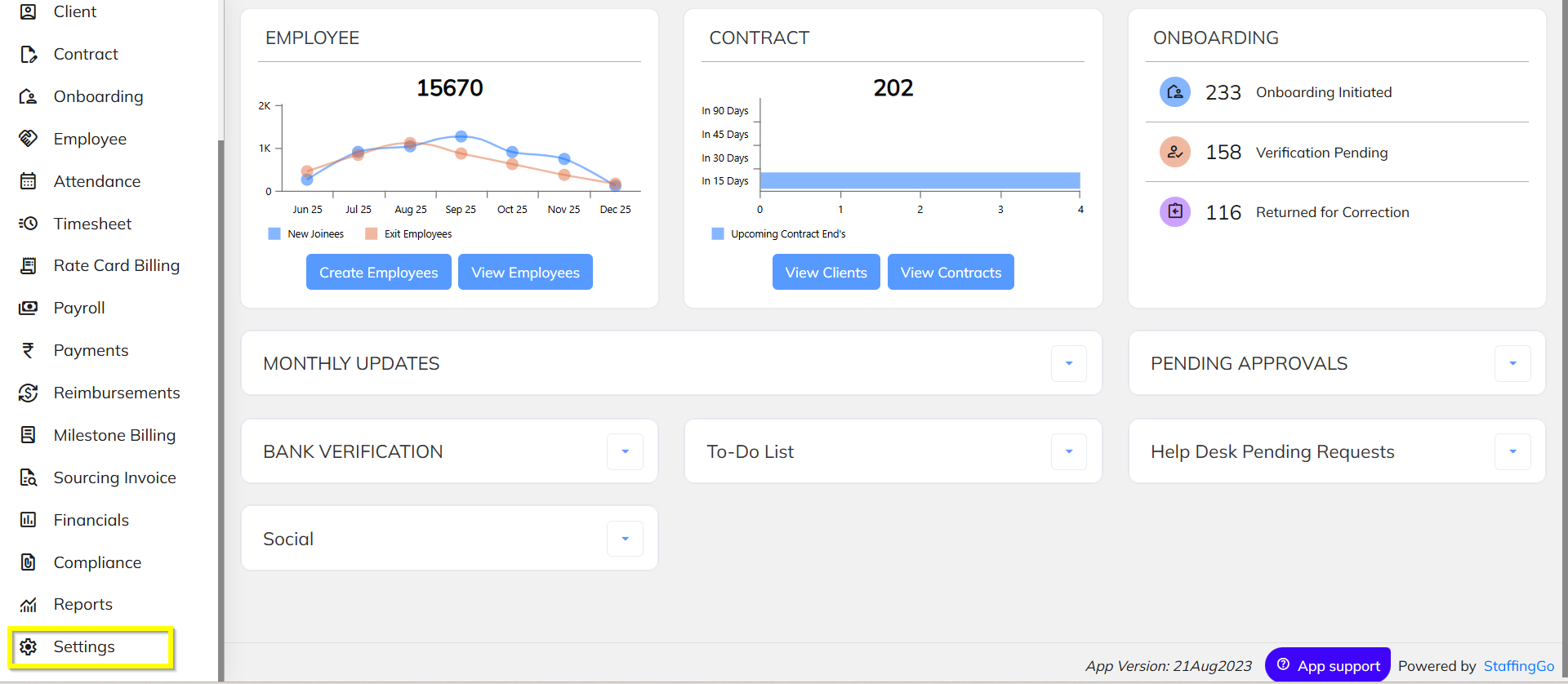
Step 2: Navigate to Settings
From the main menu, click on Settings.
Step 3: Open Company Setup
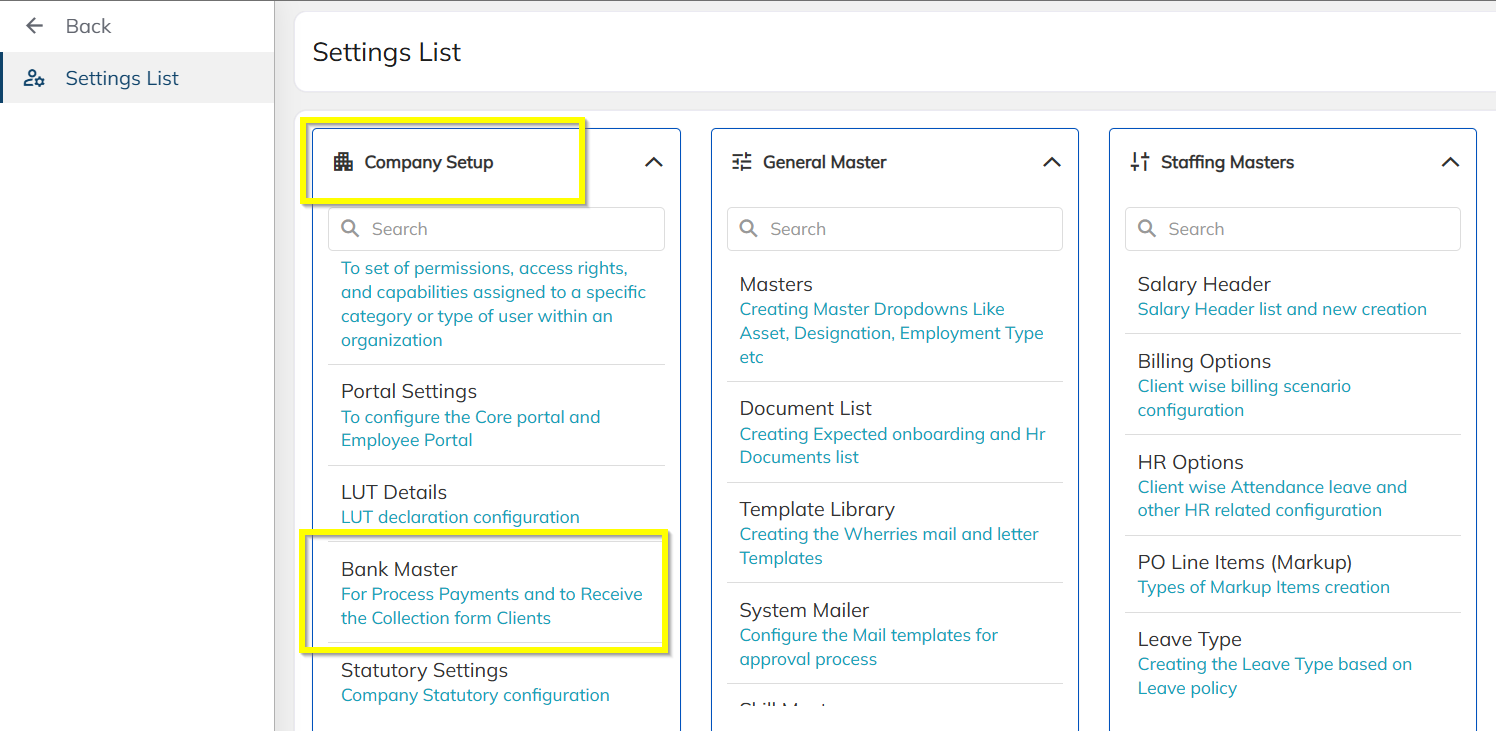
Under Settings, select Company Setup.
Step 4: Open Bank Master
Click on Bank Master to view the list of configured banks.
Step 5: Add New Bank Account
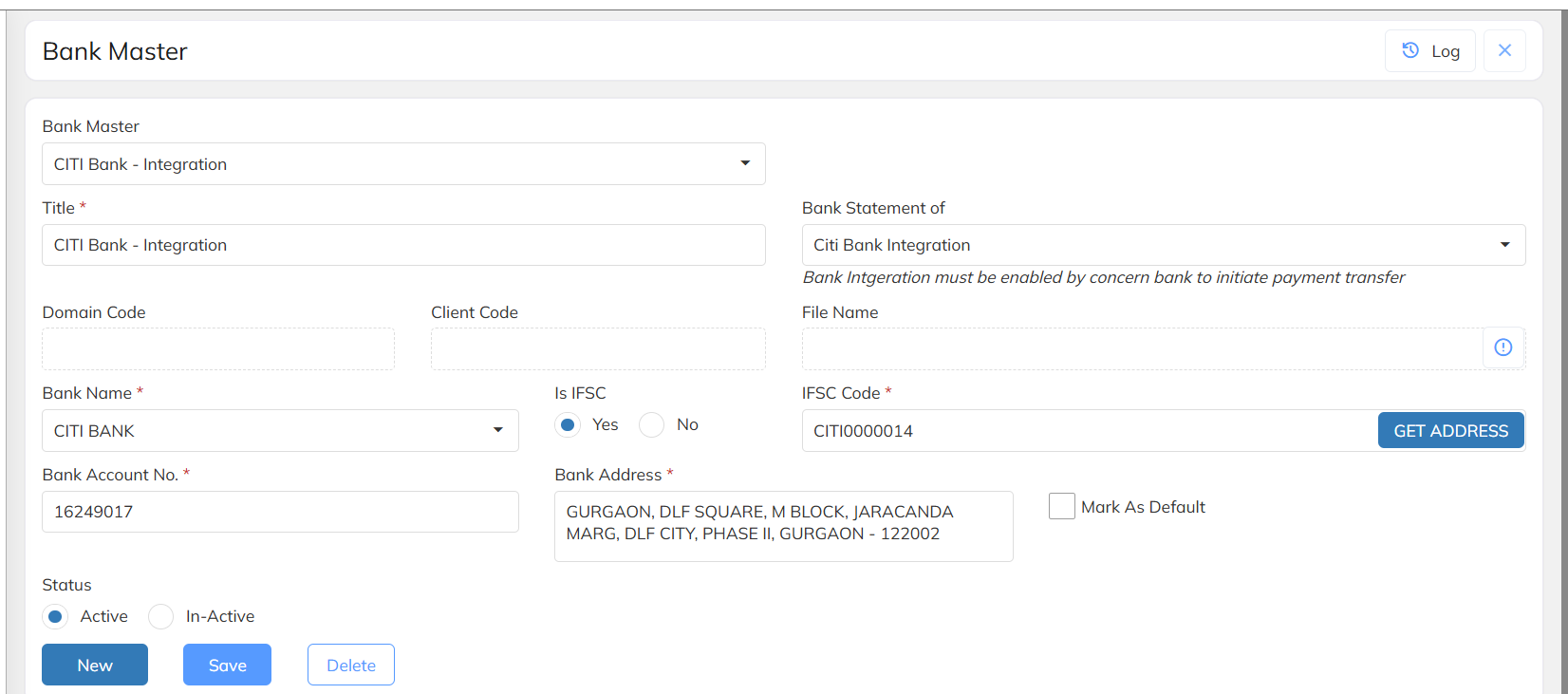
Click on Add New Bank (or equivalent action button).
Enter the required bank details, including:
Bank Name
Account Holder Name
Account Number
IFSC Code
Branch Name
Locate the Bank Statement Type field.
Select Integration Bank from the dropdown list if the bank is to be used for bank statement integration.
Step 6: Save Bank Details
Review all entered details for accuracy.
Click Save to complete the configuration.
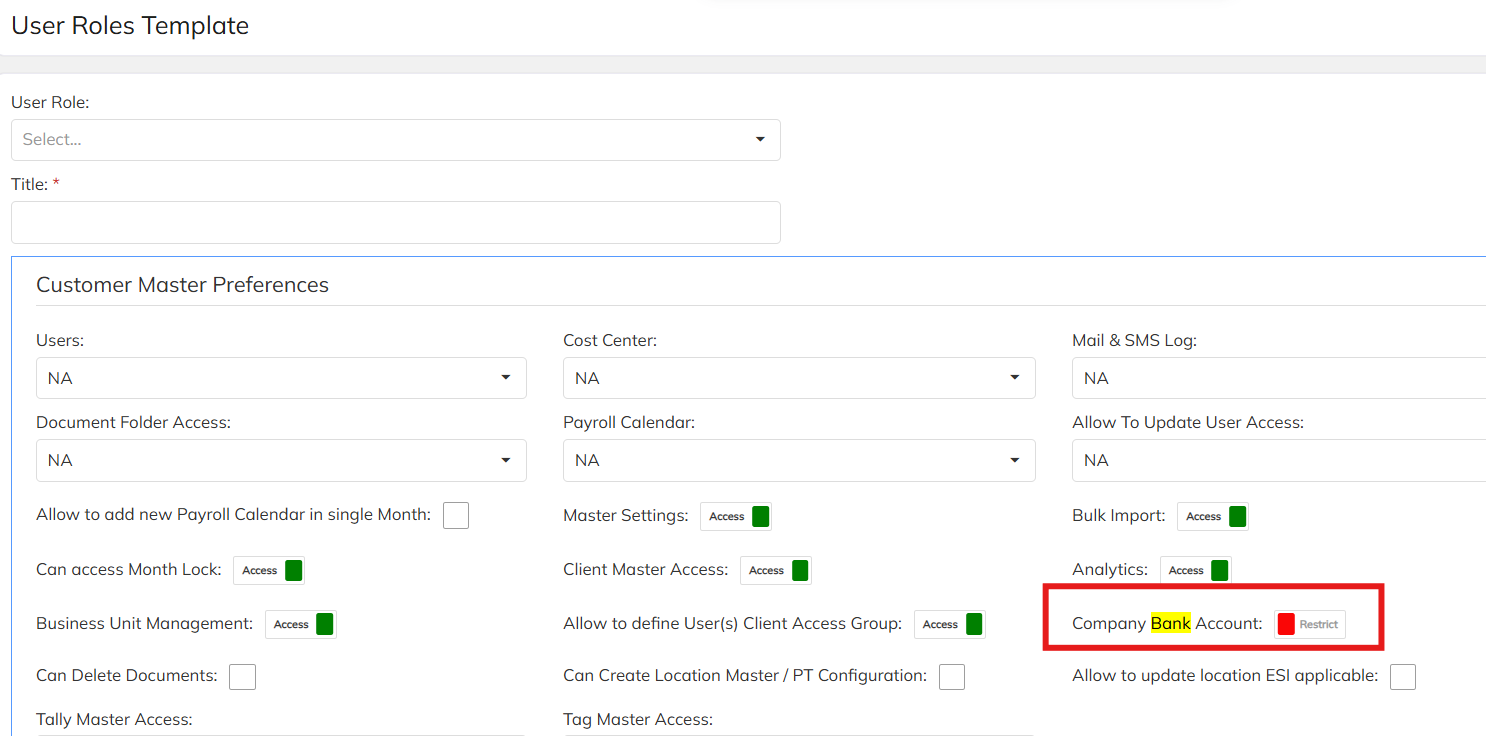
Note : IT is an access based activity. User should have bank master access in their login.
Was this article helpful?
That’s Great!
Thank you for your feedback
Sorry! We couldn't be helpful
Thank you for your feedback
Feedback sent
We appreciate your effort and will try to fix the article