Log in to the ESS portal using your credentials.
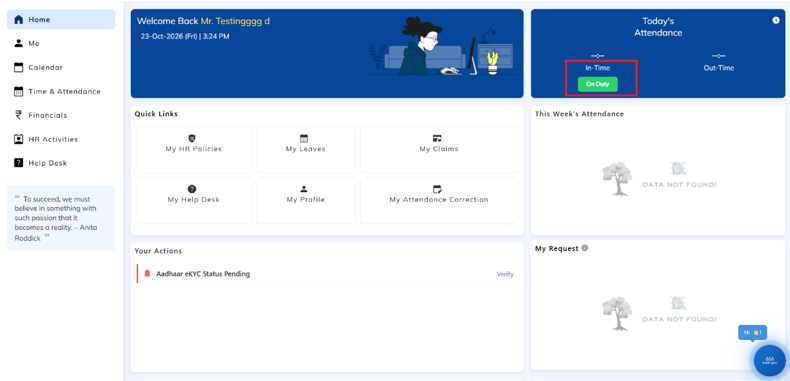
Navigate to the Home section.
Click the On Duty button to log in and mark your attendance.
Once you log in, the Off Duty button will automatically appear.
To log out, click the Off Duty button to mark your logout time.
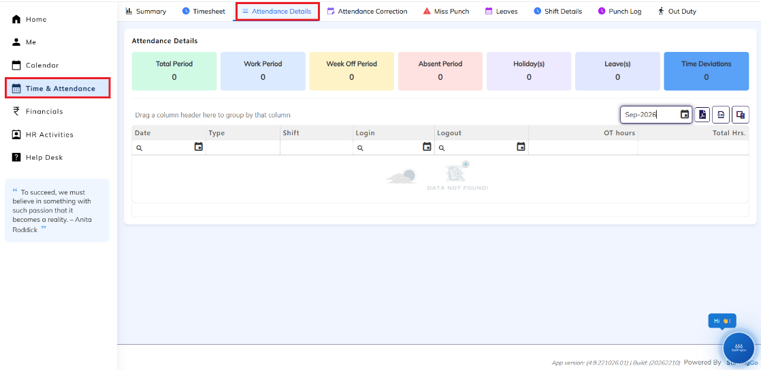
Navigate to the Time & Attendance section.
Click on Attendance Details.
You can view your attendance details day-wise.
Select the required Month and Year from the dropdowns.
The attendance details for the selected month and year will be displayed.
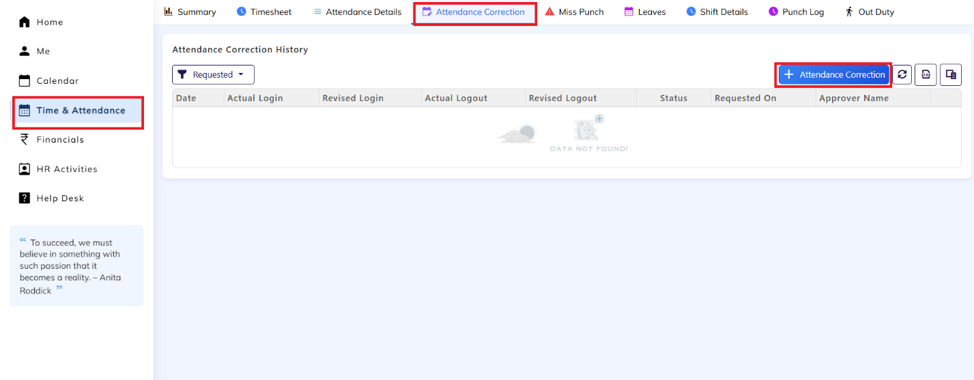
Navigate to the Time & Attendance section.
Click on Attendance Correction.
Click on the Add (+) icon to raise a new attendance correction request.
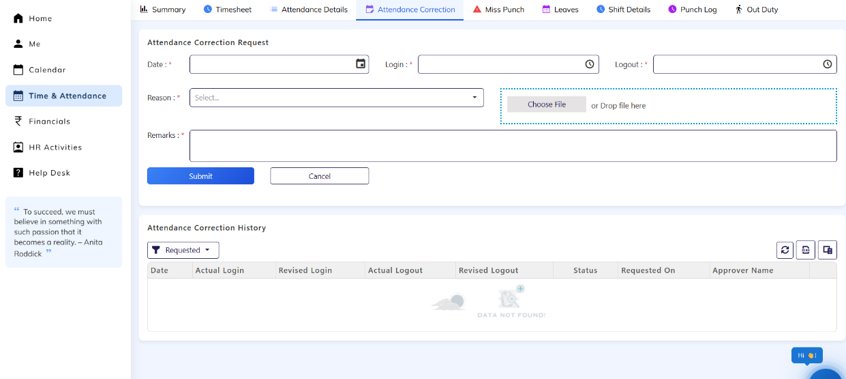
Select Date: Choose the date for which you want to raise an attendance correction request.
Enter Login and Logout Time: Mention the correct login and logout times.
Select Reason: Choose the appropriate reason from the dropdown.
Attach File: Upload a supporting document, if applicable.
Enter Remarks: Add the necessary details in the remarks field.
Submit Request: Click on Submit to raise the attendance correction request.
View Request History: Below, in the Attendance Correction History section, you can view all the attendance correction requests you have raised.
Navigate to the Time & Attendance section.
Click on Leaves.
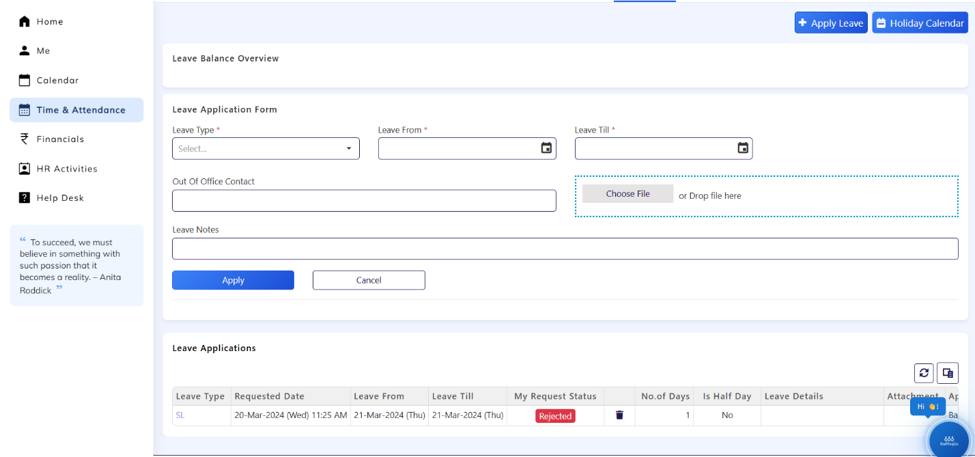
Click on Apply Leave to raise a new leave request.
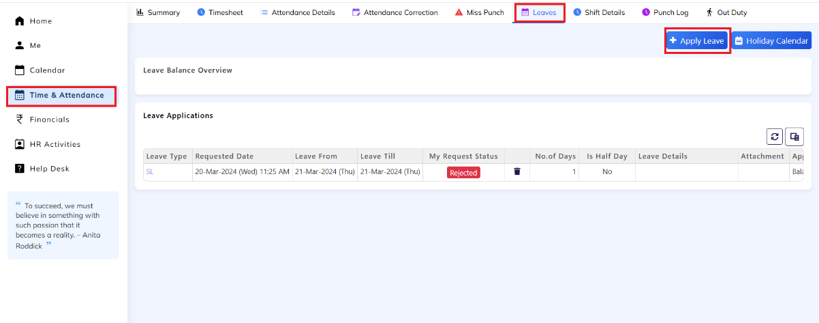
Select Leave Type: Choose the appropriate leave type from the dropdown.
Select Leave Dates: Choose the Leave From and Leave Till dates.
Enter Contact Details: Mention your out-of-office contact number.
Attach File: Upload a supporting document, if applicable.
Add Notes: Enter the necessary details in the notes field.
Apply Leave: Click on Apply to submit your leave request.
View Leave Applications: Below, in the Leave Applications section, you can view your submitted leave requests and their current status.
Navigate to the Time & Attendance section.
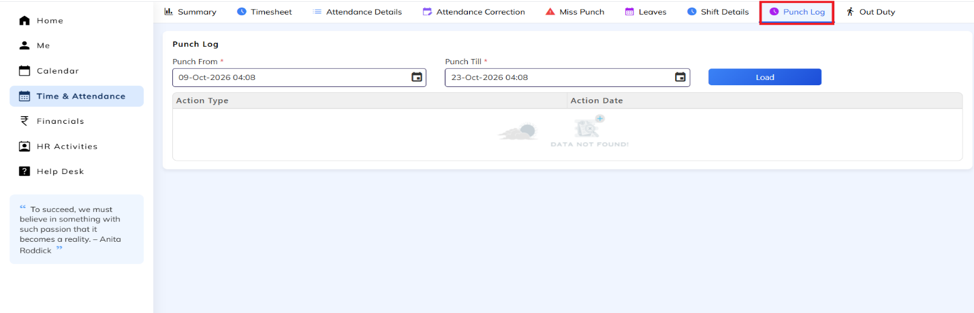
Click on Punch Log to view your punch details.
Select the Punch From and Punch Till dates.
Click on Load to retrieve the records.
You can view the punch log details for all days within the selected date range.
Was this article helpful?
That’s Great!
Thank you for your feedback
Sorry! We couldn't be helpful
Thank you for your feedback
Feedback sent
We appreciate your effort and will try to fix the article