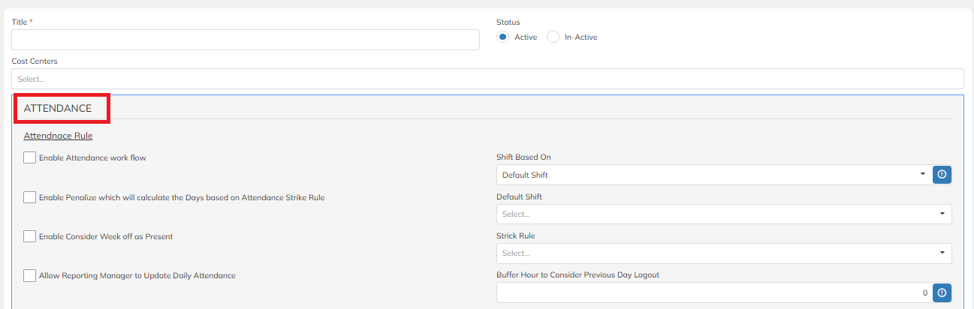
Title: In the Title field, enter the HR Option name. You may include the Contract Code along with the HR Option name for easy identification.
Cost Centers: Select the Cost Centre(s), if applicable.
Attendance:
Enable Attendance work flow: Enable this option to activate the attendance workflow and align employee attendance based on the configured workflow.
Enable penalize which will calculate the days based on Attendance Strike rule: Enable this option to calculate attendance deductions or penalties based on the mapped Attendance Strike Rule.
Enable Consider Week off as Present: Enable this option to treat scheduled week-off days as Present for attendance calculation.
Allow reporting manager to update daily attendance: Enable this option to allow reporting managers to update employees' daily attendance.
Shift based on: Select the method used to determine the employee's shift. Available options include:
- Default Shift
- Nearest Shift
- Contract Shift
Default shift: By clicking on this dropdown the user will be able to select the Default shift type which will be applicable to all the contract in which the HR Option is mapped.
Strick rule: One can select the right applicable Strick Rule from the options.
Buffer Hour to consider previous day logout: Specify the buffer time after midnight during which an employee's logout will be treated as the previous day's logout for attendance calculation.
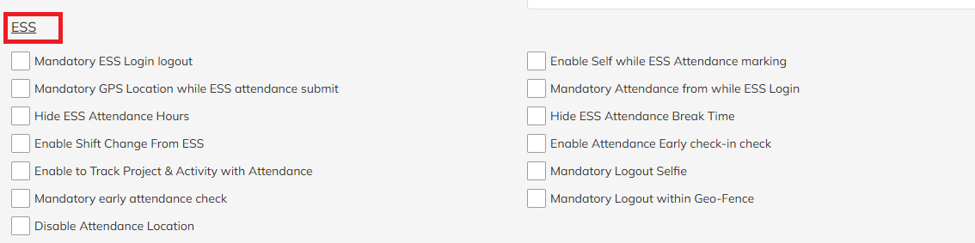
ESS:
Mandatory ESS Login logout: Enable this option to make ESS login and logout mandatory for attendance marking.
Mandatory GPS location while ESS attendance submit: Enable this option to require employees to enable GPS location while submitting attendance through the ESS portal.
Hide ESS Attendance Hours: Enable this option to hide attendance hours from employees in the ESS portal.
Enable shift change from ESS: Enable this option to allow employees to request or update their shift through the ESS portal, subject to the configured approval workflow.
Enable to track project & activity with attendance: Enable this option to allow employees to select and track the project and activity while marking attendance.
Mandatory early attendance check: Enable this option to require employees to complete an early attendance check based on their assigned shift timings.
Disable attendance location: Enable this option to disable location validation while marking attendance from the ESS portal.
Enable self while ESS Attendance marking: Enable this option to require employees to capture a selfie while marking attendance through the ESS portal.
Mandatory attendance from while ESS login: Enable this option to require employees to mark their attendance immediately after logging in to the ESS portal.
Hide ESS Attendance break time: Enable this option to hide attendance break time details from employees in the ESS portal.
Enable attendance early check -in-check: Enable this option to allow employees to check in before their scheduled shift start time based on the configured early check-in settings.
Mandatory logout selfie: Enable this option to require employees to capture and submit a selfie while logging out from the ESS portal. Logout will be completed only after the selfie is successfully submitted.
Mandatory logout within geo fence: Enable this option to require employees to log out within the configured geo-fence location. Employees will not be able to log out if they are outside the defined geo-fence boundary.

ESS Attendance Input:
Restrict to mark attendance on Holiday & Week off : Enable this option to prevent employees from marking attendance on holidays and scheduled week-off days.
Min. Days before to apply shift change: Specify the minimum number of days in advance that an employee must apply for a shift change.
Hide Employee Shift Details: Enable this option to hide employees' shift details in the ESS portal.
Hide Employee Punch Log Details: Enable this option to hide employees' punch-in and punch-out log details in the ESS portal.
Enable Reporting Manager to Update Bulk Shift Roster in ESS: Enable this option to allow reporting managers to update shift rosters for multiple employees through the ESS portal.
Ignore Total Hours Validation in Attendance Correction: Enable this option to allow attendance correction requests without validating the total working hours.

Face recognition:
Mandatory Face Recognition for Attendance: Enable this option to require employees to complete face recognition before marking attendance. Attendance cannot be successfully recorded until face recognition is completed.
Mandatory Face Recognition Approval for Attendance: Enable this option to require approval of the captured face recognition before the attendance is considered valid.
Restrict Attendance Correction Until Face Recognition Approval: Enable this option to prevent employees from submitting or processing attendance correction requests until the face recognition approval is completed.

ESS Approvals:
Mandatory Reporting Manager's Approval for Attendance: Enable this option to require employees' attendance to be approved by their reporting manager before it is considered valid.
Enable Shift Change Approval: Enable this option to require approval for employee shift change requests as per the configured workflow.
Allow Reporting Manager to Update Team Shift Details: Enable this option to allow reporting managers to update the shift details of employees reporting to them.
ESS Timesheet:
Mandatory Login & Logout for ESS Timesheet Submission: Enable this option to require employees to complete both login and logout before they can submit their timesheet through the ESS portal.

ESS Attendance Punch:
Attendance Punch Type: Select the attendance punch method applicable to employees. Available options are:
- Multiple Punches: Employees can mark multiple punch-in and punch-out entries in a day.
- 2 Punch: Employees can mark only one punch-in and one punch-out per day.
- Single Punch: Employees can mark only a single attendance punch (check-in) per day.
Mandatory Selfie While Attendance Punch: Enable this option to require employees to capture a selfie while marking attendance. Attendance will not be recorded unless the selfie is successfully captured.
Disable Attendance Punch from ESS: Select the appropriate option to disable attendance punching from the ESS portal. Employees will not be able to view or use the attendance punch feature based on the selected setting.
Attendance Punch Type Based On: Select the basis on which the attendance punch type will be determined, as per the available configuration options.
Mandatory Geo-Fence Check While Attendance Punch: Enable this option to require employees to be within the configured geo-fence location while marking attendance. Attendance can only be punched if the employee is within the permitted geo-fence area.

ESS Attendance correction:
Allow Attendance Correction on Holidays & Week Offs: Enable this option to allow employees to raise attendance correction requests for holidays and scheduled week-off days.
Restrict Attendance Correction (Parent at Config): Enable this option to restrict employees from submitting attendance correction requests through the ESS portal.
Restrict Previous Days' Attendance Corrections To: Specify the maximum number of previous days for which employees are allowed to submit attendance correction requests. Attendance corrections will not be permitted for dates older than the configured limit.
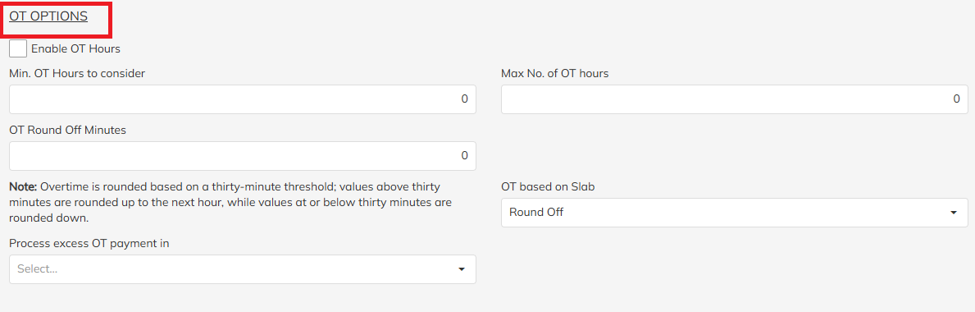
OT Options:
Enable OT Hours: Enable this option to calculate and process employees' overtime hours.
Minimum OT Hours to Consider: Specify the minimum overtime hours required for OT to be considered for calculation.
Maximum OT Hours: Specify the maximum overtime hours that can be considered for OT calculation.
OT Round-Off Minutes: Specify the round-off value (in minutes) to be applied while calculating overtime hours.
OT Based on Slab: Enable this option to calculate overtime based on the configured OT slab rates.
Process Excess OT Payment In: Select the salary component in which excess overtime payment should be processed during payroll.
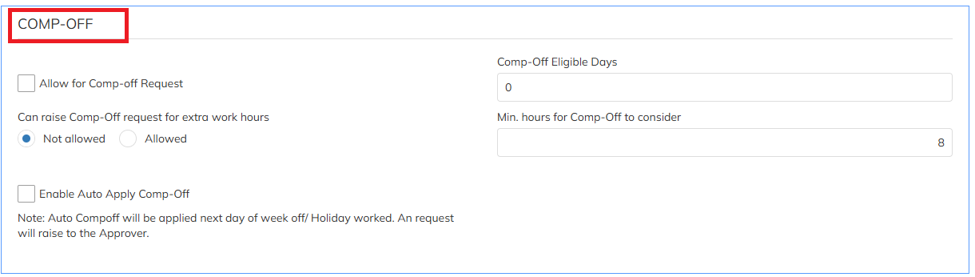
COMP- OFF:
Allow Comp-Off Requests: Enable this option to allow employees to raise Comp-Off requests, subject to the configured eligibility criteria.
Allow Comp-Off Requests for Extra Work Hours: Enable this option to allow employees to raise Comp-Off requests based on eligible extra working hours.
Comp-Off Eligible Days: Specify the maximum number of days within which an employee can apply for a Comp-Off request.
Minimum Hours for Comp-Off Eligibility: Specify the minimum number of extra working hours required for an employee to become eligible for a Comp-Off.
Enable Auto Apply Comp-Off: Enable this option to automatically create or apply eligible Comp-Off requests based on the configured Comp-Off rules.
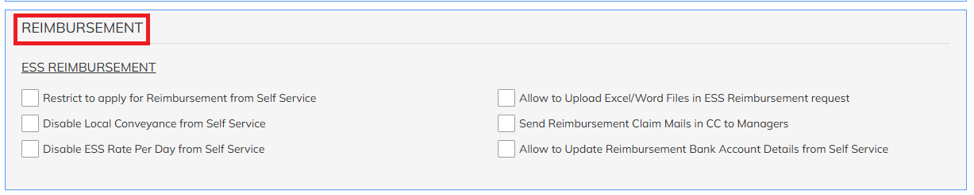
REIMBURSEMENT:
ESS Reimbursement:
Restrict Reimbursement Requests from Self Service: Enable this option to prevent employees from submitting reimbursement requests through the ESS portal.
Disable Local Conveyance from Self Service: Enable this option to prevent employees from submitting local conveyance reimbursement requests through the ESS portal.
Disable ESS Rate Per Day from Self Service: Enable this option to hide or restrict the Rate Per Day option while employees submit reimbursement requests through the ESS portal.
Allow Upload of Excel/Word Files in ESS Reimbursement Request: Enable this option to allow employees to upload Excel and Word documents as supporting attachments while submitting reimbursement requests.
Send Reimbursement Claim Emails in CC to Managers: Enable this option to send reimbursement claim notification emails to employees' reporting managers in CC.
Allow Employees to Update Reimbursement Bank Account Details from Self Service: Enable this option to allow employees to update their reimbursement bank account details through the ESS portal.
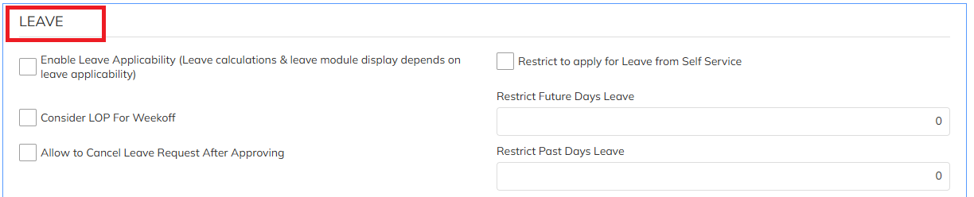
LEAVE:
Enable Leave Applicability (Leave Calculations & Leave Module Display): Enable this option to activate leave applicability. Leave calculations and the Leave module in the ESS portal will be available only when this option is enabled.
Consider LOP for Week Off: Enable this option to treat scheduled week-off days as Loss of Pay (LOP) when they fall under applicable leave deduction conditions.
Allow to Cancel Leave Request After Approving: Enable this option to allow employees to cancel leave requests even after they have been approved, subject to the configured workflow.
Restrict to apply leave from Self service: Enable this option to prevent employees from applying for leave through the ESS portal.
Restrict Future Days Leave: Specify the maximum number of future days for which employees are allowed to apply for leave.
Restrict Past Days Leave: Specify the maximum number of past days for which employees are allowed to submit leave requests.

ESS:
Hide Leave from Dashboard: Enable this option to hide the Leave section and leave-related information from the ESS dashboard.
Allow to Show Leave Without Pay (LOP) While Applying Leave: Enable this option to display the Leave Without Pay (LOP) option when employees apply for leave through the ESS portal.
Allow Reporting Manager to Submit Leave: Enable this option to allow reporting managers to submit leave requests on behalf of their team members.
Use Leave Within Expiry Month: Enable this option to allow employees to utilize their leave balance until the leave expiry month.
Hide Leave Balance Summary: Enable this option to hide the leave balance summary from employees in the ESS portal.
Exclude Week Off & Holiday in LOP Leave Request: Enable this option to exclude scheduled week-offs and holidays while calculating Loss of Pay (LOP) for leave requests.
Restrict Half-Day Leave: Enable this option to restrict employees from applying for half-day leave.
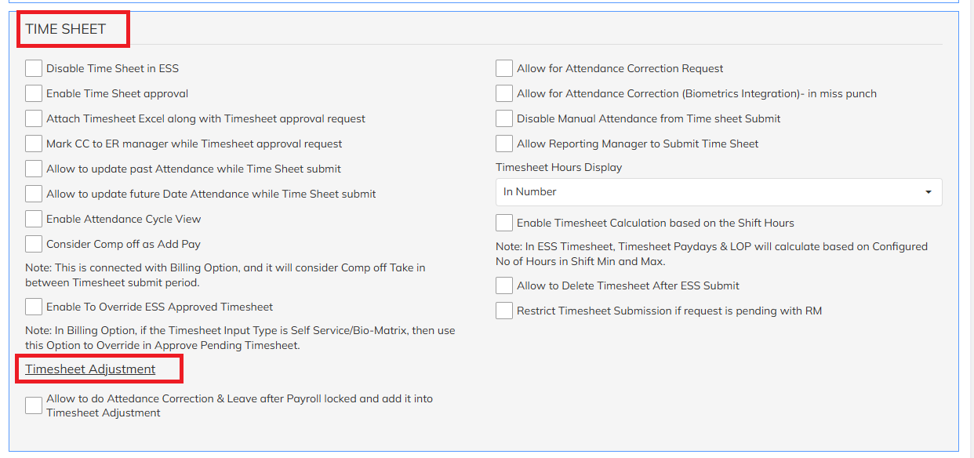
Timesheet:
Disable Timesheet in ESS: Enable this option to hide and disable the Timesheet module in the ESS portal.
Enable Timesheet Approval: Enable this option to activate the timesheet approval workflow before timesheets are processed.
Attach Timesheet Excel with Timesheet Approval Request: Enable this option to attach the timesheet Excel file to the timesheet approval request email.
Mark CC to ER Manager While Timesheet Approval Request: Enable this option to send the timesheet approval request email with the Employee Relations (ER) Manager in CC.
Allow to Update Past Attendance While Timesheet Submit: Enable this option to allow employees to update past attendance while submitting their timesheet.
Allow to Update Future Date Attendance While Timesheet Submit: Enable this option to allow employees to update attendance for future dates while submitting their timesheet.
Enable Attendance Cycle View: Enable this option to display attendance based on the configured attendance cycle in the Timesheet module.
Consider Comp-Off as Add Pay: Enable this option to treat eligible Comp-Off as Add Pay during timesheet and payroll processing.
Enable Override of ESS Approved Timesheet: Enable this option to allow authorized users to modify timesheets even after they have been approved through the ESS portal.
Allow Attendance Correction Request: Enable this option to allow employees to submit attendance correction requests through the Timesheet module.
Allow Attendance Correction (Biometric Integration – Miss Punch): Enable this option to allow employees to raise attendance correction requests for missed biometric punches.
Disable Manual Attendance from Timesheet Submit: Enable this option to prevent employees from manually updating attendance while submitting their timesheet.
Allow Reporting Manager to Submit Timesheet: Enable this option to allow reporting managers to submit timesheets on behalf of their team members.
Timesheet Hours Display: Select the format in which timesheet hours should be displayed in the Timesheet module.
Enable Timesheet Calculation Based on Shift Hours: Enable this option to calculate timesheet hours based on the employee's assigned shift hours.
Allow to Delete Timesheet After ESS Submit: Enable this option to allow employees to delete a submitted timesheet, subject to the configured workflow and permissions.
Restrict Timesheet Submission if Request is Pending with Reporting Manager: Enable this option to prevent employees from submitting a new timesheet while a previous timesheet request is pending approval with the reporting manager.
Timesheet Adjustment:
Allow to do attendance correction & leave after payroll locked and add it into timesheet adjustment: Enable this option to allow employees to submit attendance correction and leave requests even after payroll has been locked. Approved changes will be captured and reflected in the Timesheet Adjustment process.
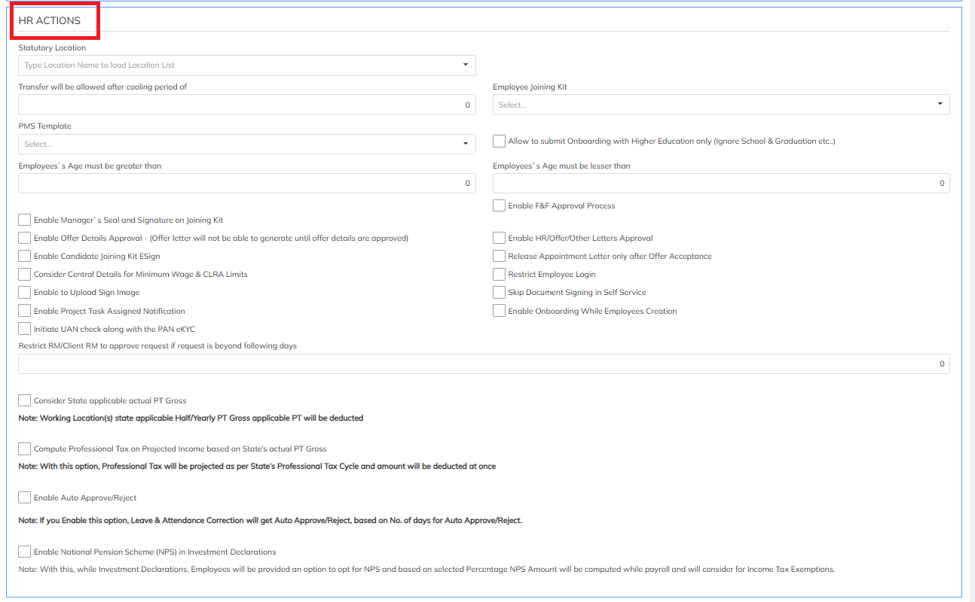
HR Actions:
Statutory Location: Select the statutory location applicable to the contract or employees for statutory compliance calculations.
Transfer Allowed After Cooling Period Of: Specify the minimum cooling period (in days) that must elapse before an employee transfer can be initiated.
PMS Template: Select the Performance Management System (PMS) template to be mapped to the contract.
Employee's Age Must Be Greater Than: Specify the minimum age required for employee eligibility.
Enable Manager's Seal and Signature on Joining Kit: Enable this option to include the mapped manager's seal and signature in the employee joining kit.
Enable Offer Details Approval: Enable this option to require approval of offer details before an offer letter can be generated.
Enable Candidate Joining Kit Sign: Enable this option to allow candidates to electronically sign the joining kit.
Consider Central Details for Minimum Wage & CLRA Limits: Enable this option to consider centrally configured minimum wage and CLRA limit details during processing.
Enable Upload of Signature Image: Enable this option to allow employees to upload their signature image through the portal.
Enable Project Task Assigned Notification: Enable this option to notify employees whenever a project task is assigned to them.
Initiate UAN Check Along with PAN eKYC: Enable this option to perform UAN verification simultaneously with PAN eKYC verification.
Restrict RM/Client RM to Approve Requests Beyond Specified Days: Specify the maximum number of days within which the Reporting Manager (RM) or Client RM can approve requests. Approval will not be allowed beyond the configured limit.
Consider State Applicable Actual PT Gross: Enable this option to calculate Professional Tax (PT) based on the actual PT Gross applicable to the employee's state.
Compute Professional Tax on Projected Income Based on State's Actual PT Gross: Enable this option to project the annual Professional Tax based on the employee's projected income and the state's applicable PT Gross, and deduct PT accordingly.
Enable Auto Approve/Reject: Enable this option to automatically approve or reject requests based on the configured workflow rules.
Enable National Pension Scheme (NPS) in Investment Declarations: Enable this option to allow employees to declare National Pension Scheme (NPS) investments in the Investment Declaration module.
Employee Joining Kit: Select the joining kit template to be mapped to the contract.
Allow Onboarding Submission with Higher Education Only: Enable this option to allow candidates to submit onboarding by providing only higher education details, while ignoring school, graduation, and other educational qualifications.
Employee's Age Must Be Lesser Than: Specify the maximum age limit for employee eligibility.
Enable Full & Final (F&F) Approval Process: Enable this option to activate the approval workflow for the Full & Final settlement process.
Enable HR/Offer Letter Approval: Enable this option to require approval before generating HR letters and offer letters.
Release Appointment Letter Only After Offer Acceptance: Enable this option to allow the appointment letter to be released only after the candidate has accepted the offer letter.
Restrict Employee Login: Enable this option to prevent employees from logging in to the ESS portal.
Skip Document Signing in Self Service: Enable this option to skip the document signing process in the ESS portal.
Enable Onboarding During Employee Creation: Enable this option to automatically initiate the onboarding process while creating a new employee.

PROBATION OPTIONS:
Notice Period Type: Select the type of notice period applicable to employees, as per the organization's policy.
Notice Period: Specify the number of days for which the notice period will be applicable to employees.
Enable Probation Period: Enable this option to activate the probation period for employees based on the configured settings.
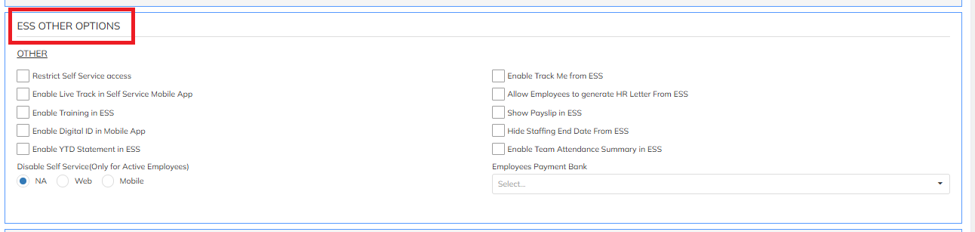
ESS OTHER OPTIONS:
OTHER
Restrict Self Service Access: Enable this option to prevent employees from accessing the Employee Self Service (ESS) portal.
Enable Live Track in ESS Mobile App: Enable this option to allow the Live Track feature in the ESS mobile application.
Enable Training in ESS: Enable this option to make the Training module available to employees in the ESS portal.
Enable Digital ID in Mobile App: Enable this option to allow employees to access their Digital ID through the ESS mobile application.
Enable YTD Statement in ESS: Enable this option to allow employees to view and download their Year-to-Date (YTD) Statement from the ESS portal.
Disable Self Service (Only for Active Employees): Enable this option to disable ESS access only for active employees.
Enable Track Me from ESS: Enable this option to allow employees to use the Track Me feature from the ESS portal or mobile application.
Allow Employees to Generate HR Letters from ESS: Enable this option to allow employees to generate configured HR letters directly from the ESS portal.
Show Payslip in ESS: Enable this option to allow employees to view and download their payslips from the ESS portal.
Hide Staffing End Date from ESS: Enable this option to hide the employee's staffing end date in the ESS portal.
Enable Team Attendance Summary in ESS: Enable this option to allow reporting managers to view the attendance summary of their team members in the ESS portal.
Employee Payment Bank: Select the bank account that will be considered as the default payment bank for employee salary disbursement.

RESIGNATION:
Enable Resignation in ESS: Enable this option to allow employees to submit resignation requests through the Employee Self Service (ESS) portal.
Allow Manager to Update Last Working Day and Notice Recovery Period: Enable this option to allow reporting managers to update an employee's last working day and notice period recovery details during the resignation process.
Allow Manager to Update Employment Status: Enable this option to allow reporting managers to update the employee's employment status.
Resignation Template: Select the resignation template to be mapped to the applicable HR Option (Contract).
Exit Interview Template: Select the exit interview template to be mapped to the applicable HR Option (Contract) for use during the employee exit process.

FLEXI WEEK OFF :
Enable Flexi Week-Off While Timesheet Submit: Enable this option to allow employees to apply for a Flexi Week-Off while submitting their timesheet.
Restrict Future Date Flexi Week-Off Requests: Enable this option to prevent employees from applying for Flexi Week-Offs for future dates.
Allow Reporting Manager to Apply Flexi Week-Off Without Approval: Enable this option to allow reporting managers to apply Flexi Week-Offs for employees without requiring an approval workflow.
Restrict Past Date Flexi Week-Off Requests: Enable this option to prevent employees from applying for Flexi Week-Offs for past dates.
Allow Employees to Apply Flexi Week-Off Without Approval: Enable this option to allow employees to apply for Flexi Week-Offs without requiring approval.
Number of Days to Apply Flexi Week-Off in Advance: Specify the maximum number of days in advance that employees can apply for a Flexi Week-Off.

GATE PASS:
Enable Gate Pass: Enable this option to allow employees to raise Gate Pass requests through the Employee Self Service (ESS) portal.
Allow Past-Dated Gate Pass: Enable this option to allow employees to submit Gate Pass requests for past dates.
Include Gate Pass in Total Hours: Enable this option to include approved Gate Pass duration while calculating the employee's total working hours.
Allow Gate Pass Per Month (in Minutes): Specify the maximum Gate Pass duration (in minutes) that an employee can avail in a month.
Gate Pass Eligible Per Day: Specify the maximum number of Gate Pass requests or the maximum Gate Pass duration allowed per day, as per the organization's policy.
Minimum Gate Pass Request (in Minutes): Specify the minimum Gate Pass duration (in minutes) required for an employee to submit a Gate Pass request.
Was this article helpful?
That’s Great!
Thank you for your feedback
Sorry! We couldn't be helpful
Thank you for your feedback
Feedback sent
We appreciate your effort and will try to fix the article