
Consultant Age Validation – Configuration Steps

Created by Mahesh Narala, Modified on Fri, 6 Feb at 5:19 PM by Mahesh Narala

Consultant Age Validation – Configuration Steps

  1. Go to Settings / Masters

    • Navigate to:
      Settings→ Staffng Masters→ HR Options

  2. Click on created HR Option 

    • Navigate to:
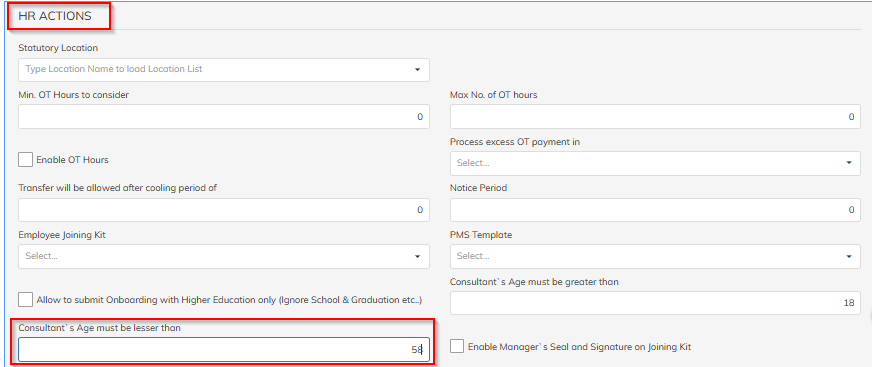
      Settings→ HR Actions section->Under Consultant's Age must be lesser than->Enter the Maximum Allowed Age (e.g 60 Years)->System will calculate from DOB entered and through error


  3. Save

    • Click on Save Save

  4. Map created HR options under client contract level

    Navigate to:
    Contract→ Search client→Click on Contract→Click on edit contract details


How System Will Work

  • While creating or onboarding a consultant:

    • System calculates age from DOB

    • If Age > Configured Limit, system will:

      • Show error:
        “Consultant age exceeds the allowed limit”

      • Prevent saving (if mandatory rule enabled)


Was this article helpful?

That’s Great!

Thank you for your feedback

Sorry! We couldn't be helpful

Thank you for your feedback

Let us know how can we improve this article!

Select at least one of the reasons
CAPTCHA verification is required.

Feedback sent

We appreciate your effort and will try to fix the article