Overview
This document explains the process to update Purchase Order (PO) details for employees in bulk using the import functionality available in the application.
Steps to Update PO to Employee in Bulk
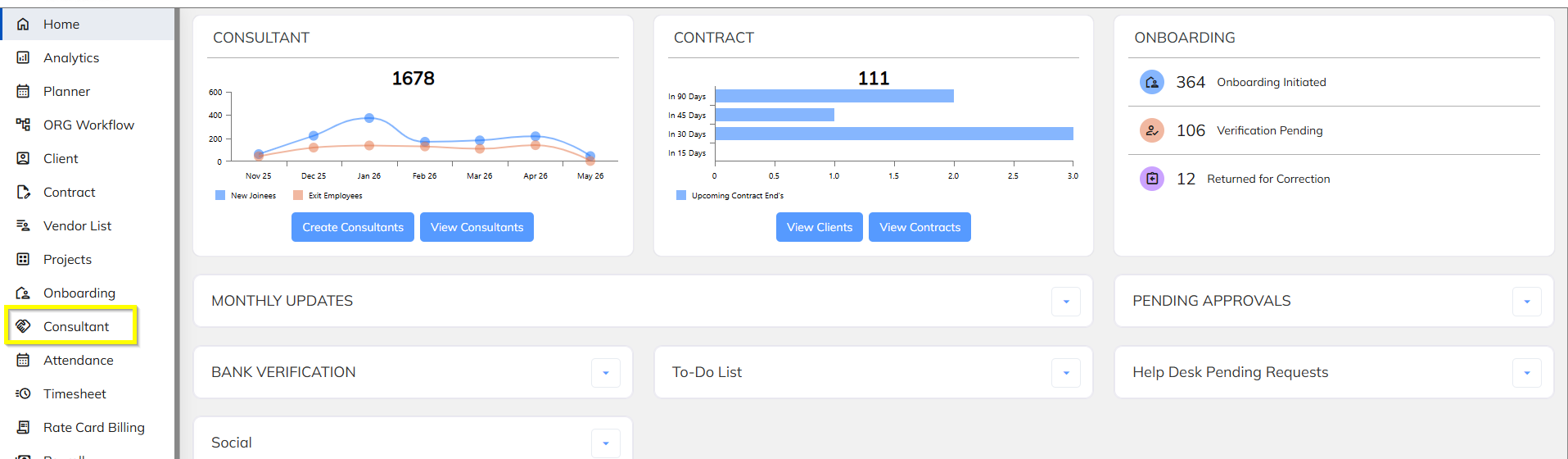
Step 1: Navigate to Consultant Module
Login to the application and navigate to the Consultant module from the main menu.
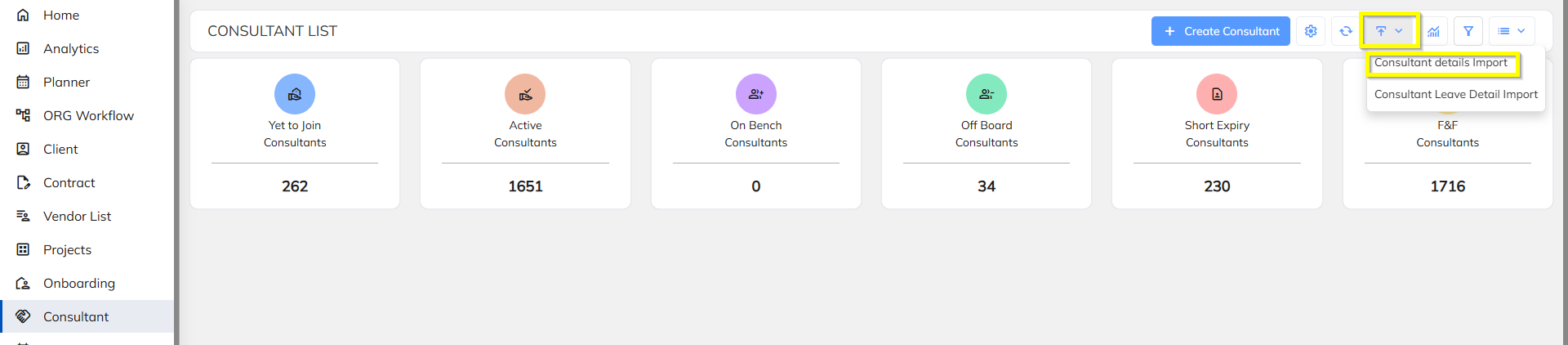
Step 2: Click on Import Button
Click on the Import button and select Consultant Details Import option.
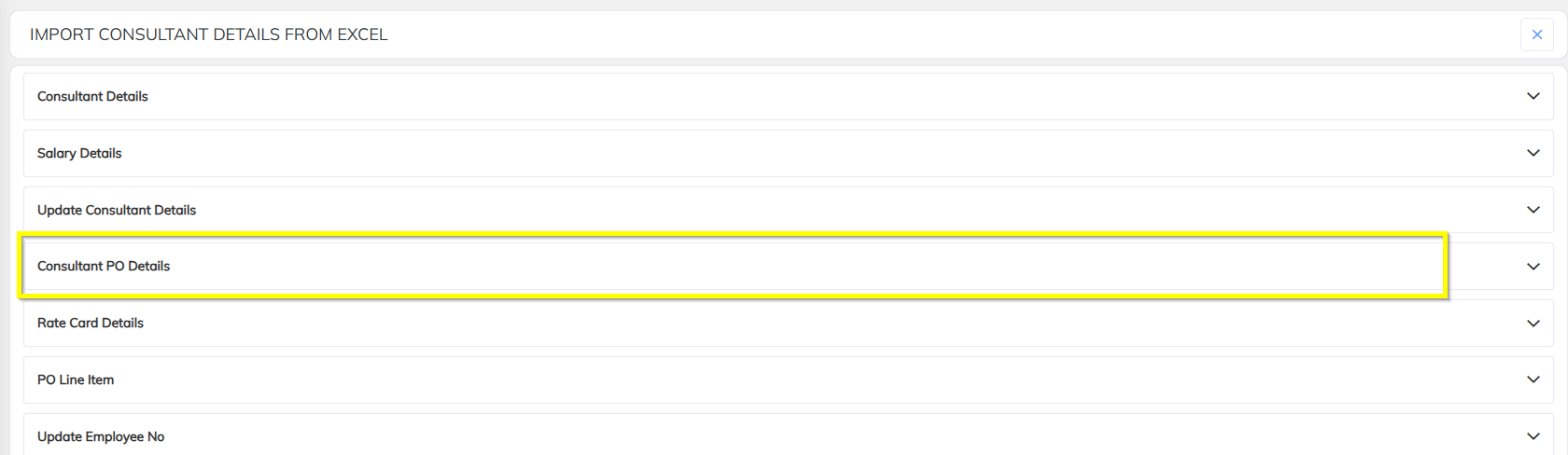
Step 3: Select Consultant PO Details
In the Consultant Details Import screen, select the option Consultant PO Details.
Step 4: Download Sample Excel Template
Click on Download Sample Template and fill in all the required details in the Excel file.
Required details generally include:
- Employee Code
- PO Number
- Start Date
- PO budget
- Quantity


Step 5: Upload the Excel File
Once the Excel file is completed and verified, upload the file into the application using the upload option.

Step 6: System Validation
After uploading the Excel file, the system will validate all the data provided in the sheet.
The system checks:
- Mandatory fields
- Employee existence
- PO mapping validation
- Data format validation
- Duplicate entries
If any validation errors are found, the system will display the error details for correction.
Step 7: Click on Import
Once all records are validated successfully, click on the Import button to complete the PO mapping process.
Important Note
The PO Number being used for mapping must already be mapped at the Contract Level.
If the PO Number is not mapped at the contract level, the system will not allow PO mapping for employees.
Was this article helpful?
That’s Great!
Thank you for your feedback
Sorry! We couldn't be helpful
Thank you for your feedback
Feedback sent
We appreciate your effort and will try to fix the article