PO Applicability:
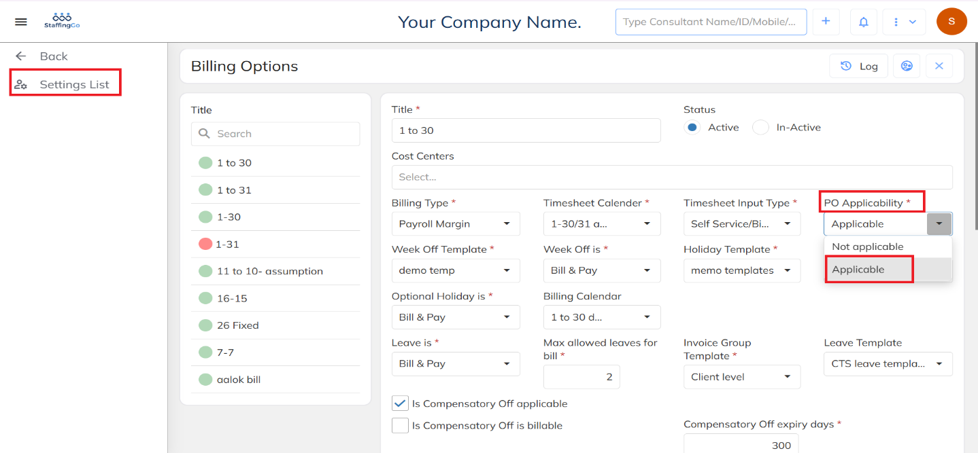
- Navigate to Settings and, under Staffing Masters, click on Billing Options.
- In Billing Options, ensure that the PO Applicability field is set to Applicable.
PO Items Mapping at the Contract Level – Manual Method
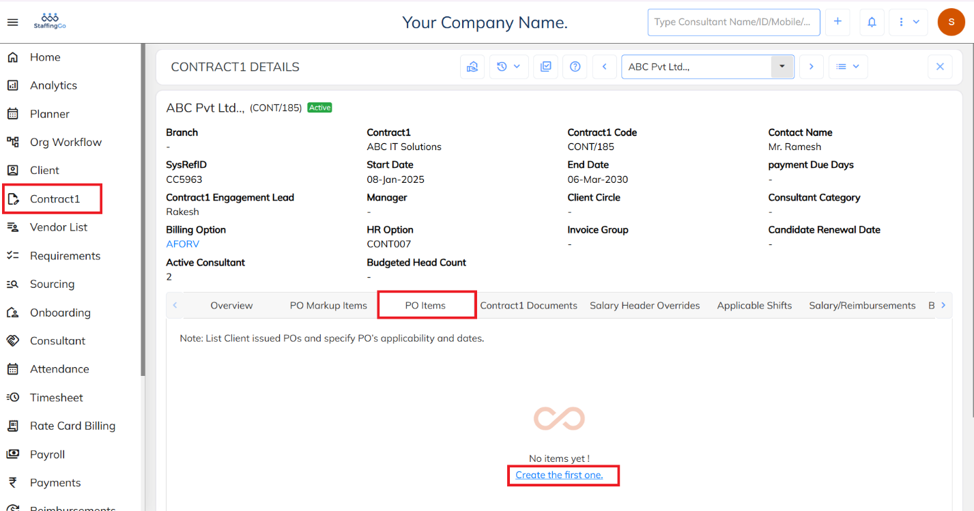
- Navigate to Contracts and select the required Contract.
- Open the PO Items tab and click Create New to add a new PO Item mapping.
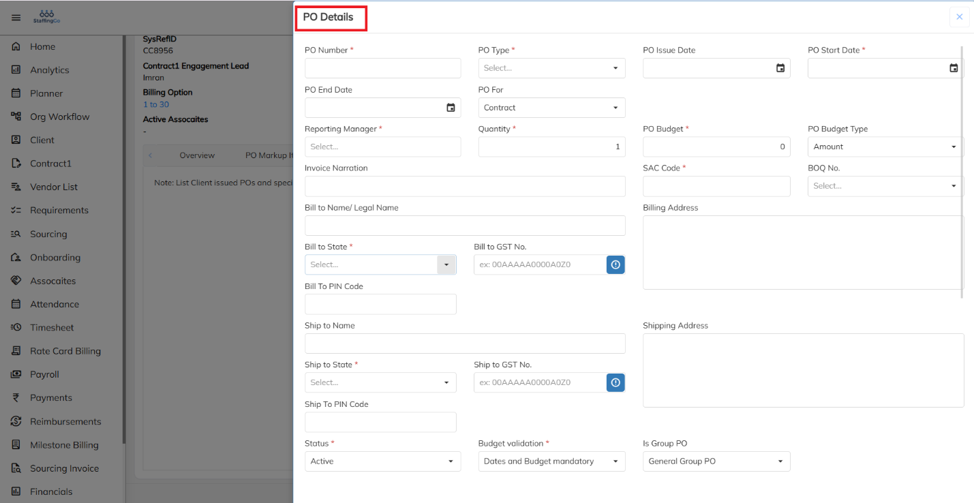
- Fill in the required details and click on save.
- Bulk Way:
Navigate to Contract section, click on Import option.
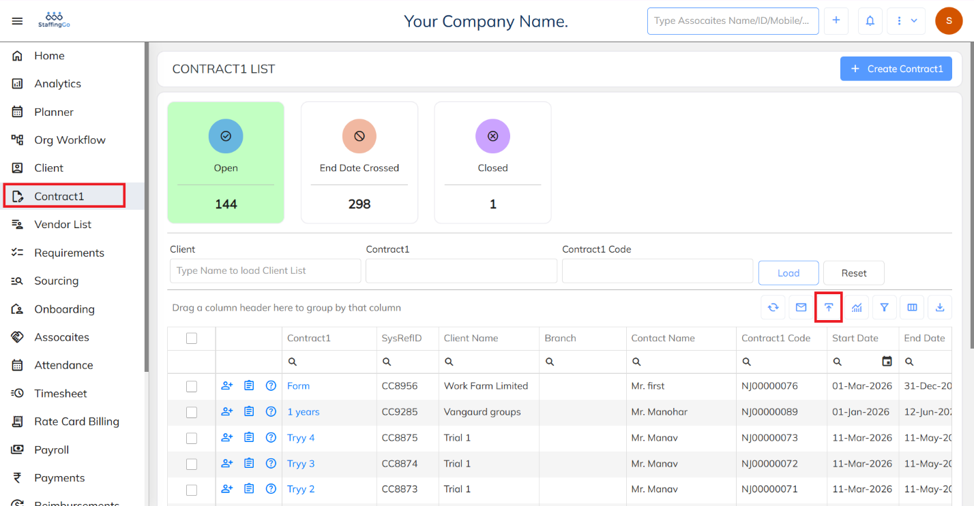
- Click on PO Items, download the sample excel template.
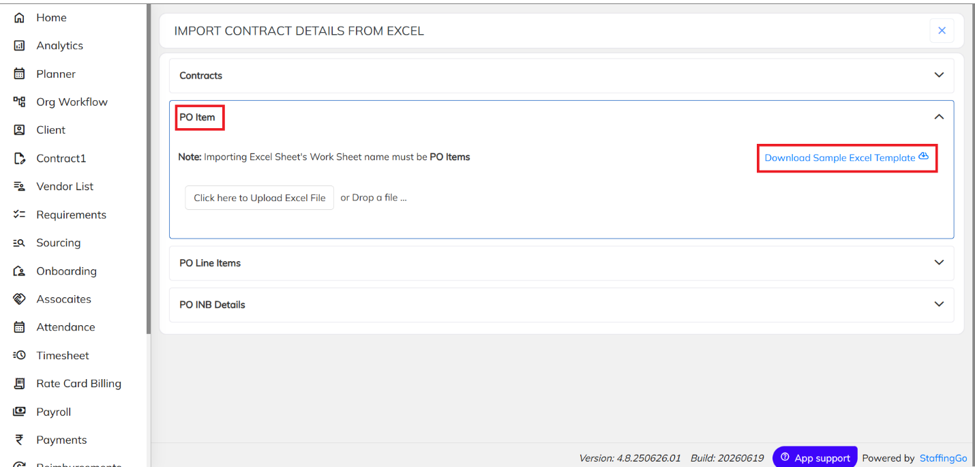
- Fill in the Required details.

- Once you fill in the details, import the excel sheet.

- Update PO to Employee:
- Manual Way:
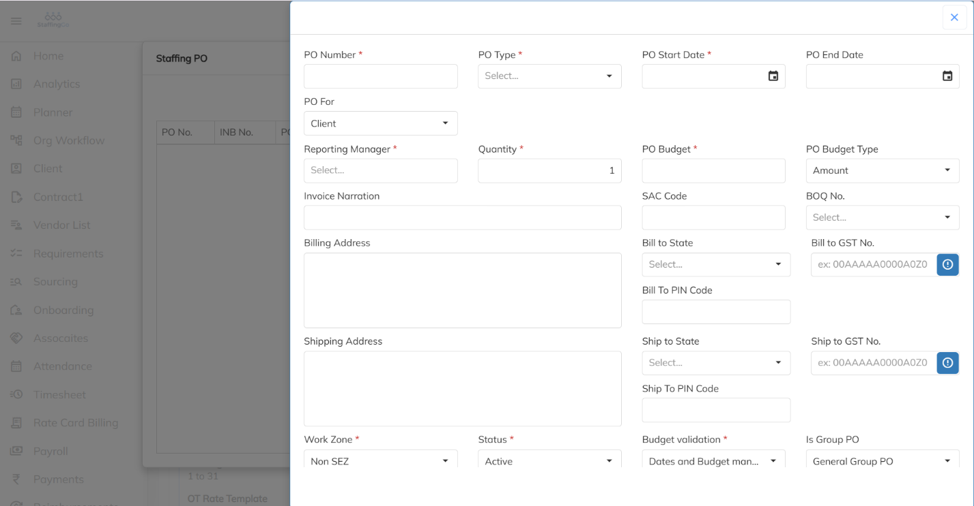
- Navigate to the Associate/Consultant section, open Staffing Details, and click the drop-down option.
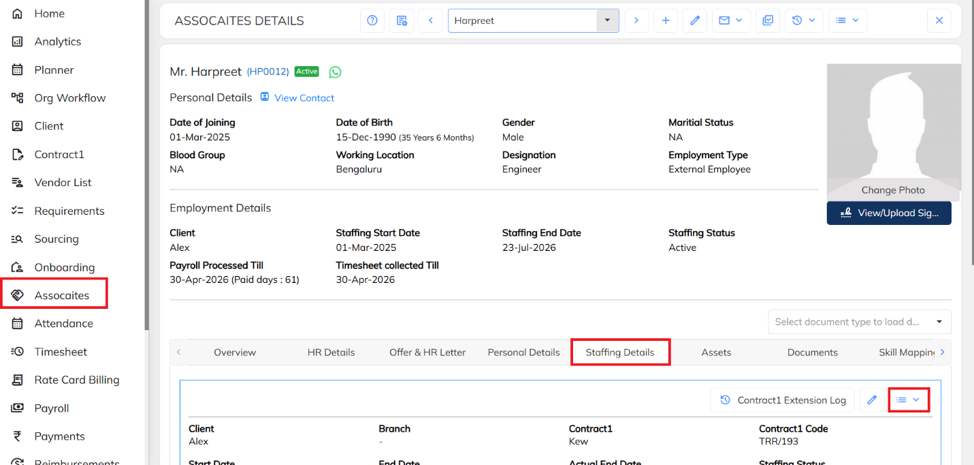
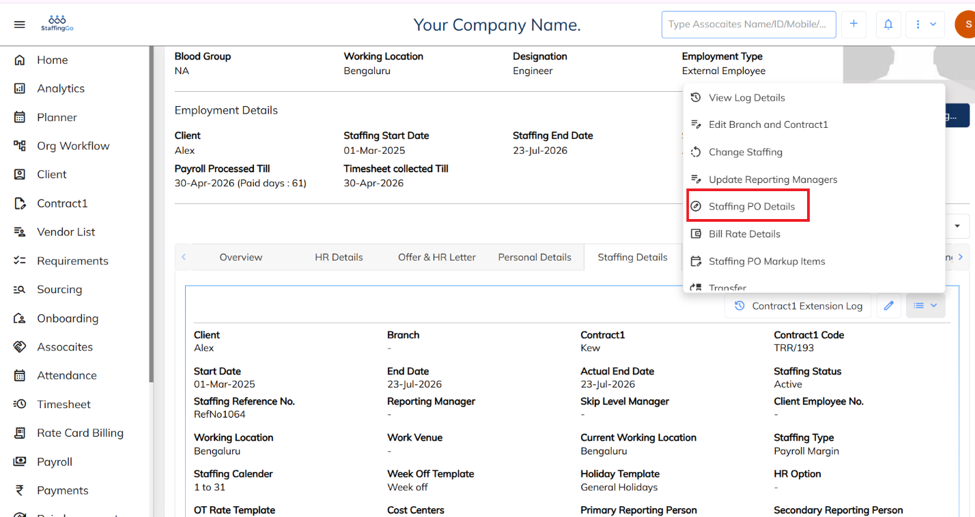
- Click on Staffing PO Details from the drop-down menu.
- Click on select PO to add PO item.
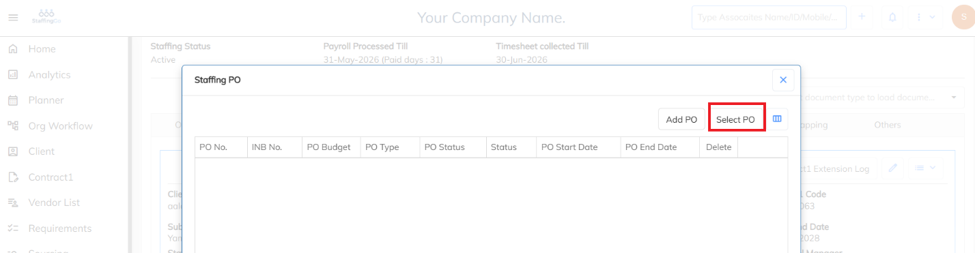
- Fill in the required details and save.
- Bulk Update PO to Employees
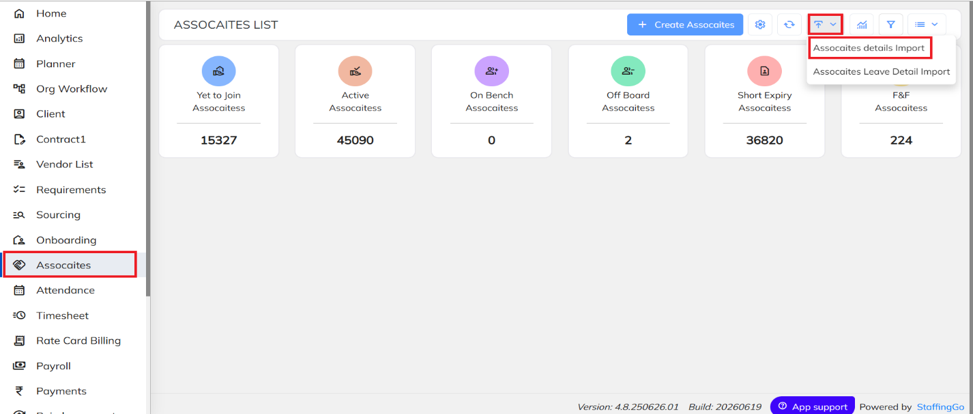
- Navigate to the Associate/ Consultant section and click on Import, Select Associate details import.
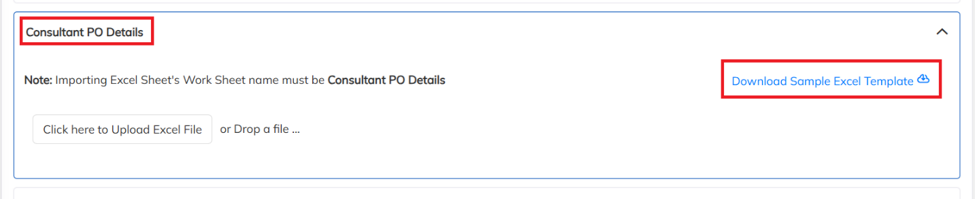
- Navigate to Consultant PO details, download the sample excel template.
- Fill in the required details.
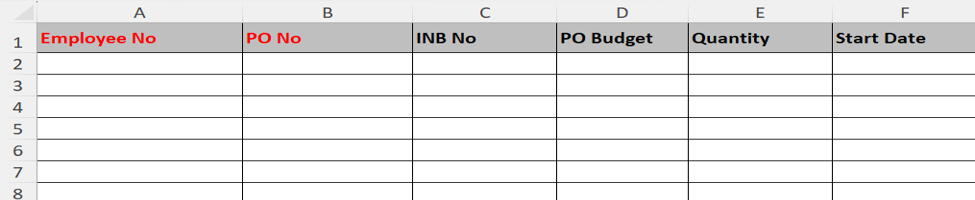
- Once you fill in the details, import the excel sheet.

- PO Refresh Process & Access configuration.
Use the PO refresh option in payroll, Rate card & financial level during late PO mapping / PO not reflect cases after processing the payroll & rate card time sheet. PO refresh option is based on the access applicability. If the user having the access then only can able do the activity.
Po refresh access in the user role template:
- In the User role template, User mapped template need to enable with can refresh PO applicability option which available under Payroll module. Refer the screenshot.
For each access configuration need to re login to application.
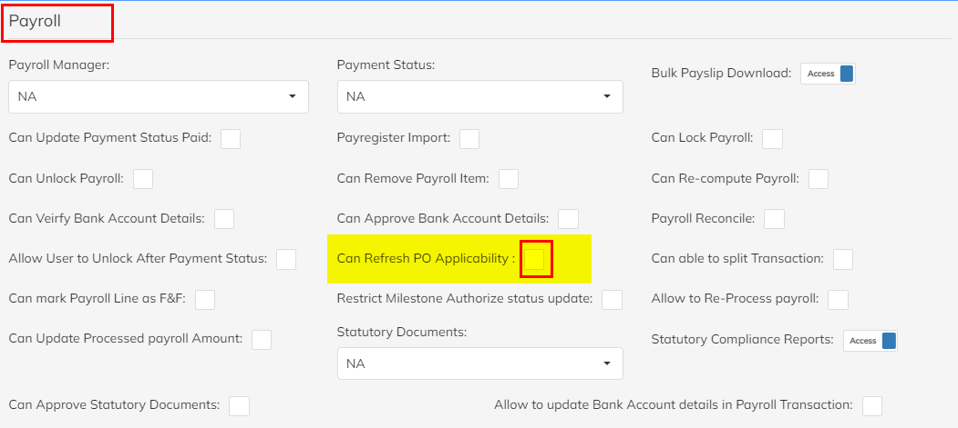
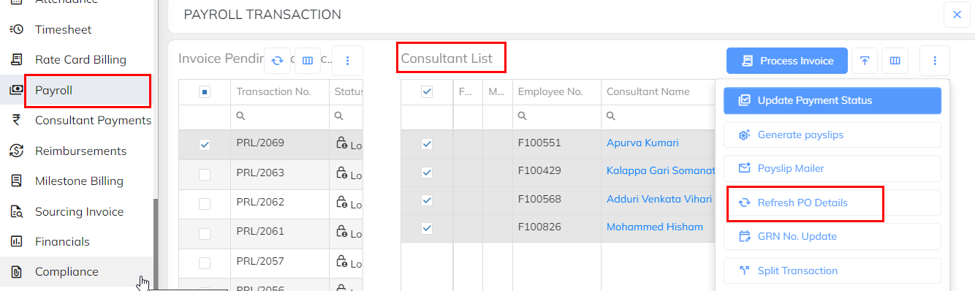
- PO Refresh functionality availability location in the application:
In Payroll & Financial Module: After payroll process under each employee line item PO refresh option is available (Lock ending & Locked status) Refer the screenshot.
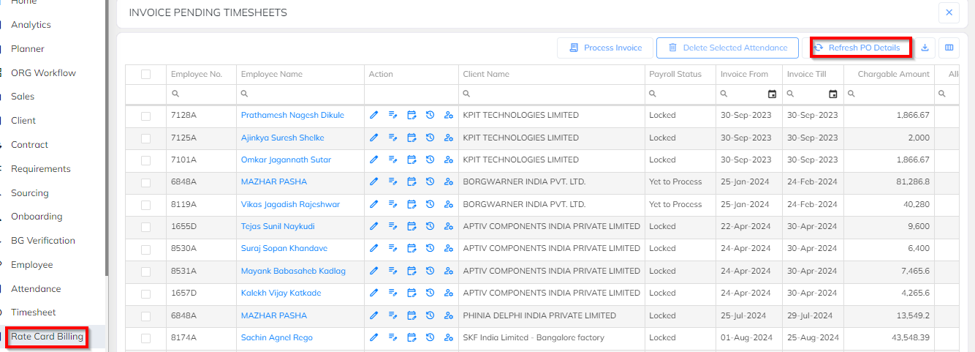
- In Rate Card Module:
After Rate card time sheet process PO refresh functionality is available. Refer the screenshot.
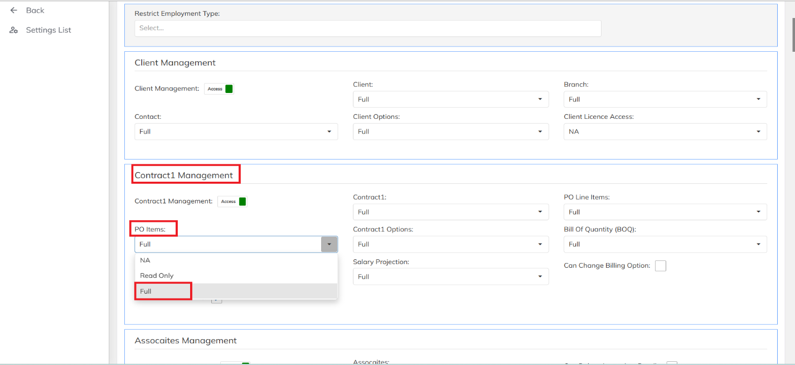
- Access Configurations:
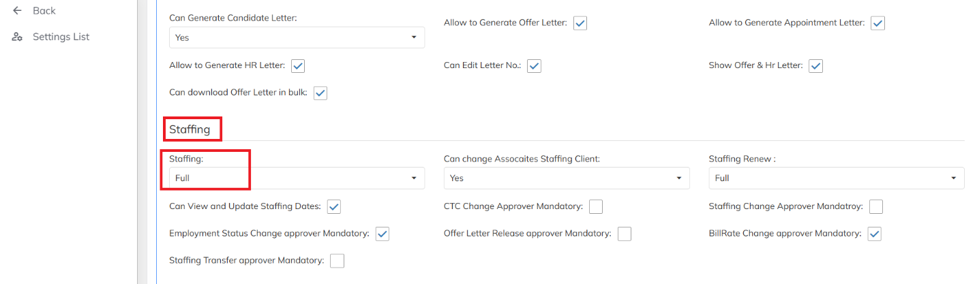
Navigate to Settings > User Role Template, select the required role template, and ensure the Contract Management → PO Items field is set to Full.
- The PO Balance should be available while raising an invoice. Additionally, the Purchase Order (PO) must be mapped at both the Contract and Employee levels.
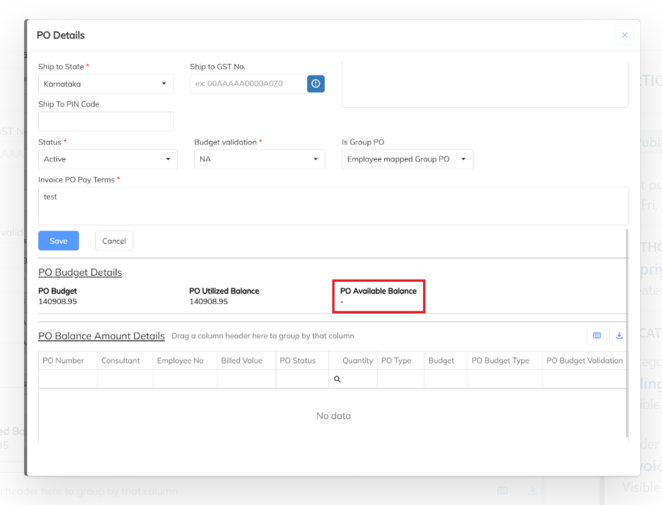
- The "Invalid Mandatory PO to Bill Process Enabled, PO Not Available" error occurs when the PO has an Available Balance of zero under the PO Details section.
Was this article helpful?
That’s Great!
Thank you for your feedback
Sorry! We couldn't be helpful
Thank you for your feedback
Feedback sent
We appreciate your effort and will try to fix the article