Section 1:
Steps to generate employee-related letters directly from the Employee Self Service (ESS) portal without any HR intervention.
Please follow the steps below for admin user configuration:
Step 1:
Login to the Core/Admin application portal using your credentials.
Step 2:
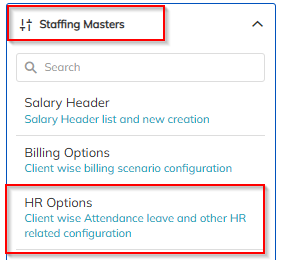
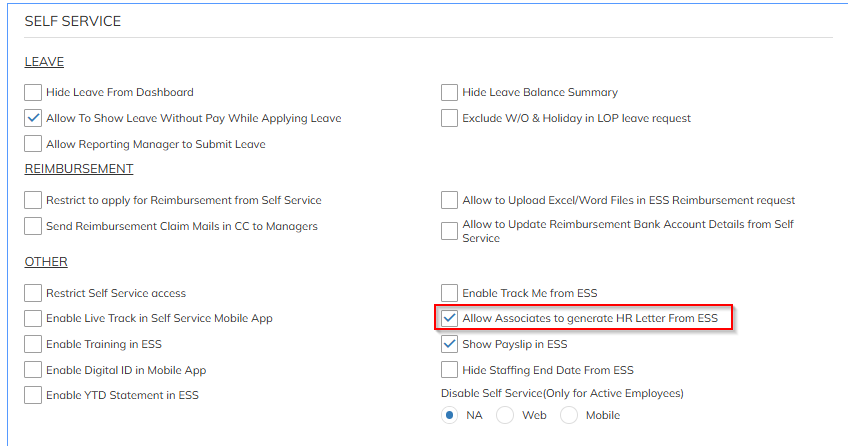
From the main menu, navigate to Settings → Staffing Master → HR options → Click on HR options Template → Enable Allow Associates to generate HR Letter From ESS → under Self service section
Step 3:
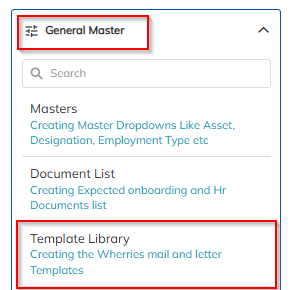
From the main menu, navigate to Settings → General Master → Template Library → under Letter Type select HR Reference Letter → Configure letter → Enable with Allow Associates to generate directly for self service(ESS) to do letter generation from ESS portal(WEB+MOBILE Application) as shown in below snapshot

Section 2:
Please follow the steps below to generate employee-related letters directly from the ESS Portal for employees:
Step 1:
Login to the Employee Self Service (ESS) portal using your credentials.
Step 2:
From the main menu, navigate to Me → My Documents(or the respective menu option available).

Step 3:
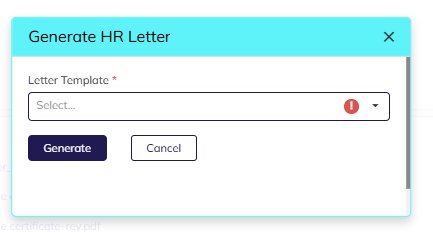
Click on the “Generate HR letter” button to create a new letter request.
Step 4:
From the Letter Type dropdown, select the required letter (e.g., Bonafide Letter, Employment Letter, etc.).
Step 5:
Click on Generate Letter to view or download the document.
Step 6:
The generated letter will be available for download in PDF format. You may also access it later under the My Documents section for reference.
Was this article helpful?
That’s Great!
Thank you for your feedback
Sorry! We couldn't be helpful
Thank you for your feedback
Feedback sent
We appreciate your effort and will try to fix the article