Login Credentials
Connect Portal -https://smartping.live/entity/login
STPL Login
Login ID – info@staffinggo.in
Password – Bot@123456789
OTP will be received to info@staffinggo.in, Pritesh sir will provide the OTP for the same.
SMS Gateway Portal
URL - https://www.smsgatewayhub.com
Login ID – Staffinggo
Password – Support@123
SMS Template Approval from DLT Portal (Connect Portal)
Navigate to https://smartping.live/entity/login
Click on Login & Register button.
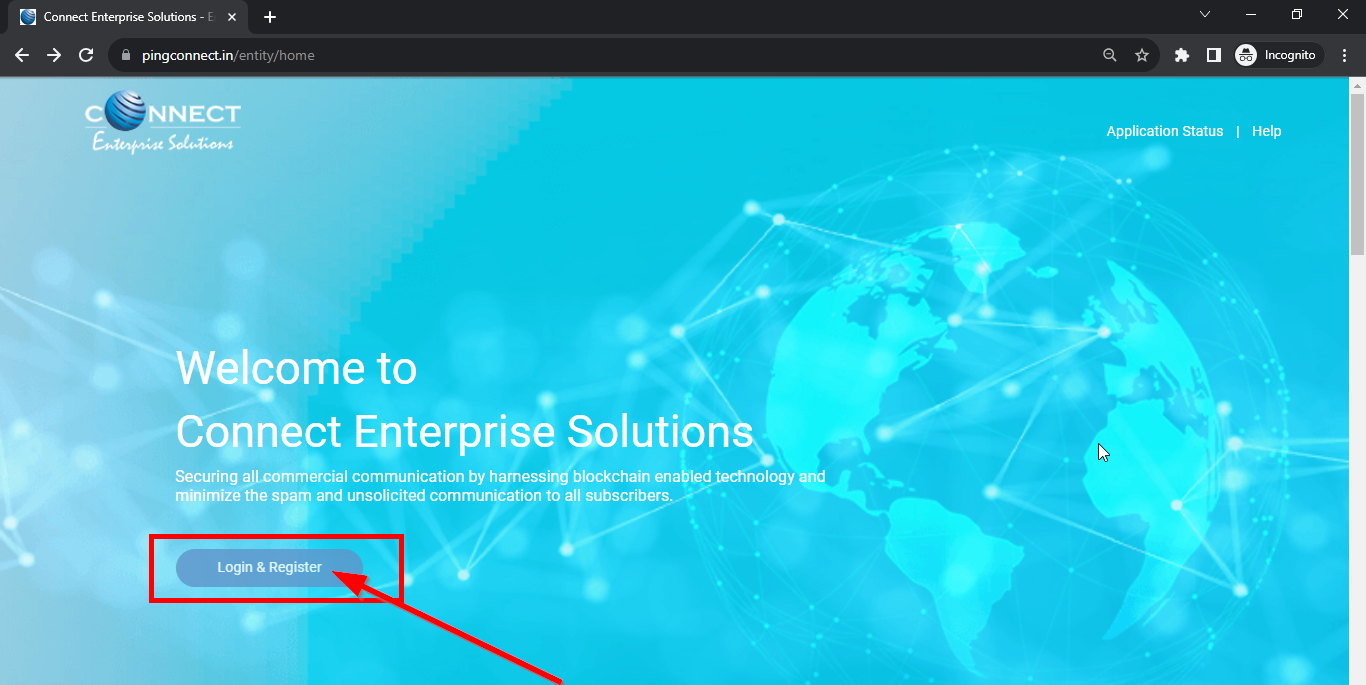
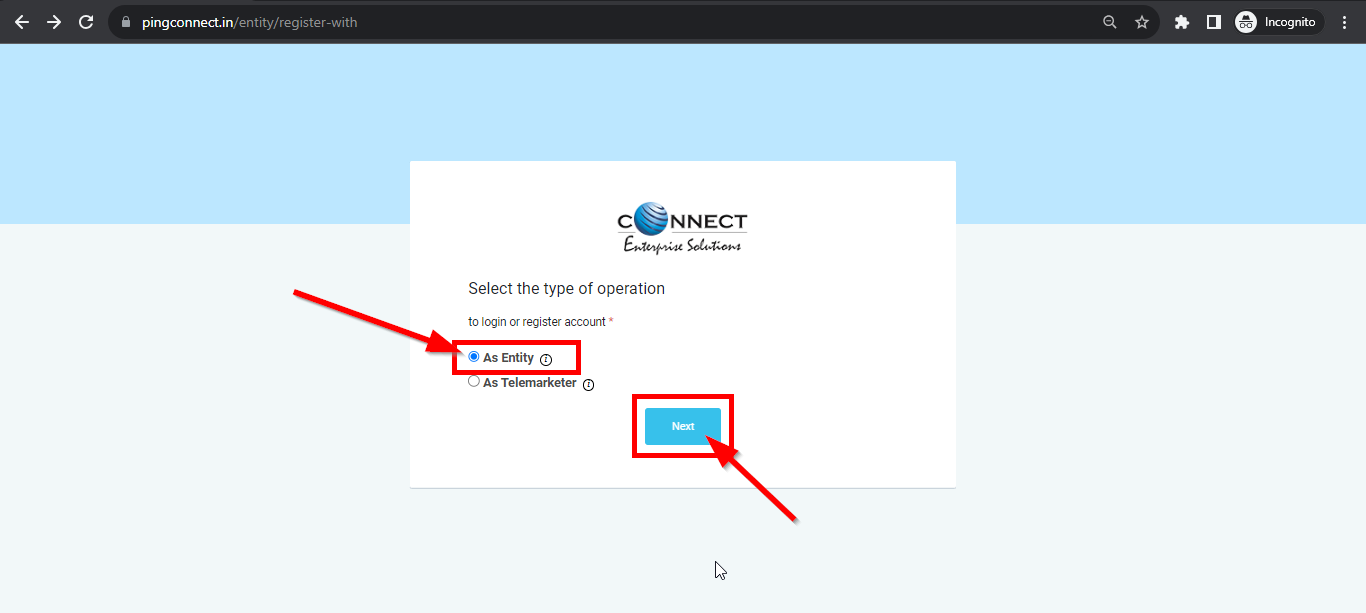
Click on Login/Signup button to Login or register yourself as Entity/Telemarketer
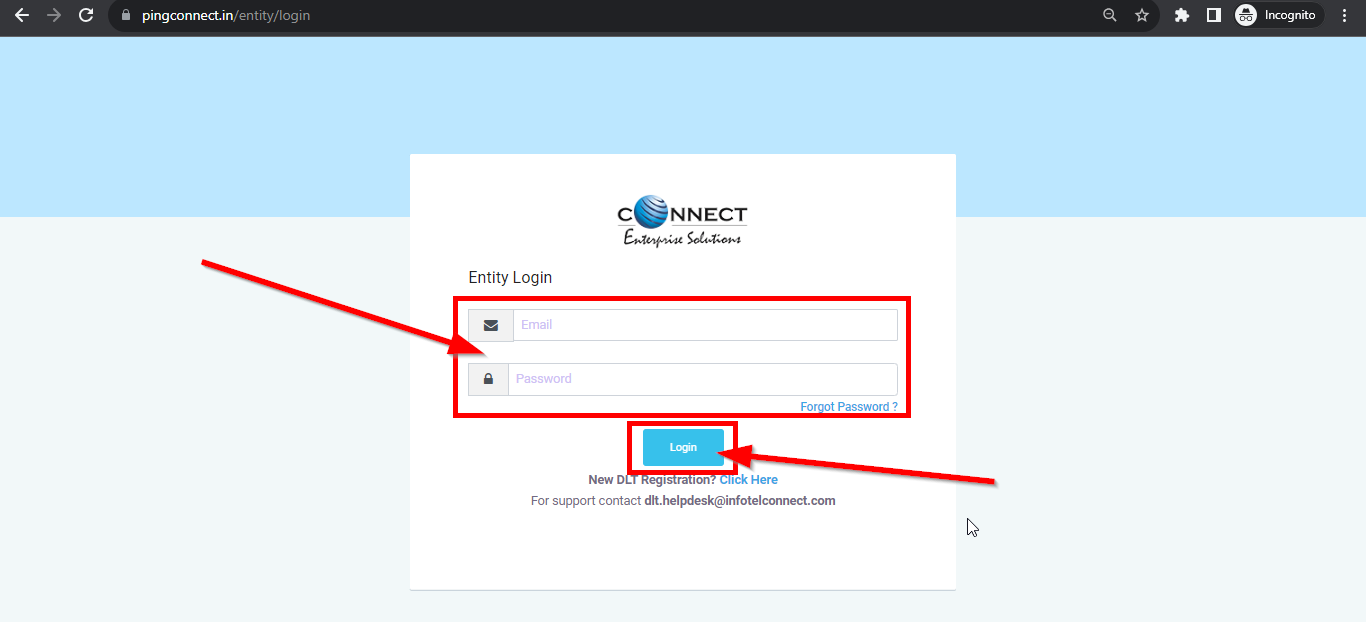
Enter the Email ID & Password and Click Login Button to access the panel.
You have to complete the Two Way Authentication Process by submitting the OTP received on option chosen

TEMPLATE – CREATION OF NEW TEMPLATE
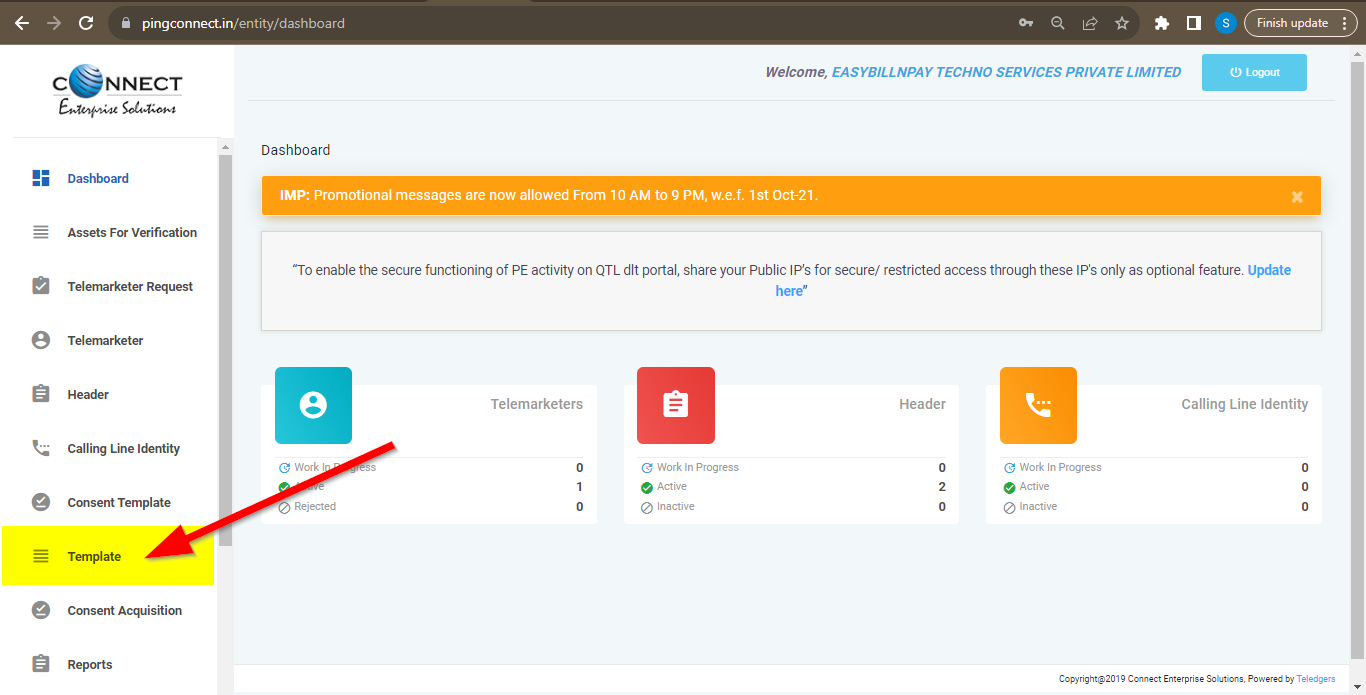
In the Entity portal on the side bar click on the Templates option to view the page.
In the Template page click on Add New Template button to create new Templates.
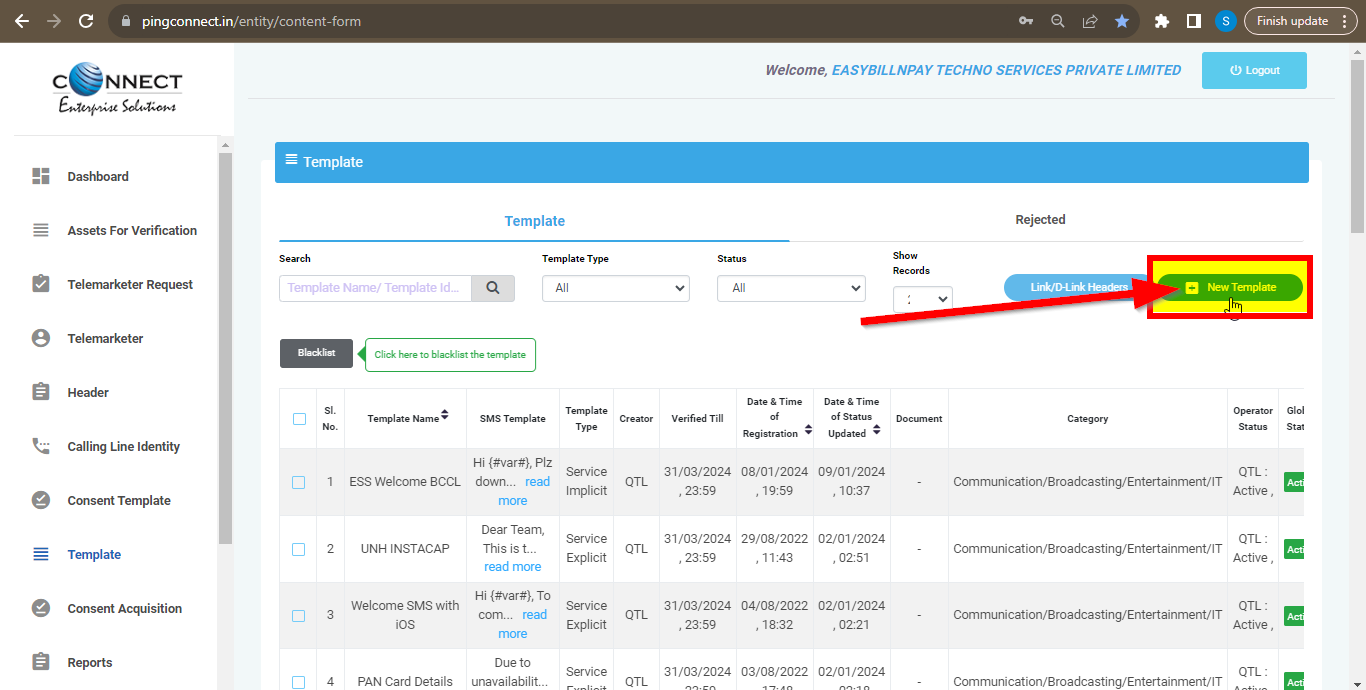
Fill an appropriate Template name basis on the business requirement in the Template Name column
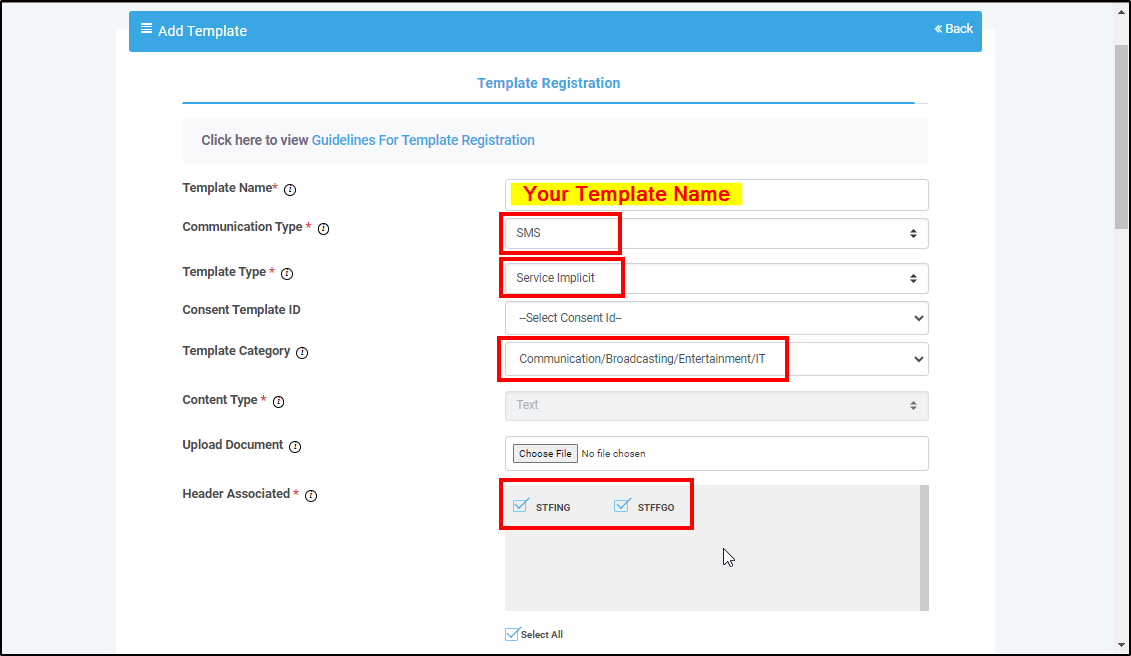
In the Communication Type column select the “SMS” type of
Note: There are two option, One is SMS and another is Call, Currently SMS is only available for selection.
In the Template Type select “Service Implicit “option:
Skip Consent Template ID option.
Note ; Consent Template ID is not mandatory for Transactional and Service Implicit commercial communications.
In the Template Category column select any of the Category from the dropdown list as given which is appropriate for the Template to be created.
In the Content Type dropdown “TEXT” or “UNICODE” option will be auto fetched basis on the selection of language for the content.
NOTE:(Any language other than English will be taken as Unicode)
TEMPLATE – CREATION OF CONTENT
In the Content creation section there are two options available:
• Copy/Paste Message
• Create New Message(Type)
Select any of the option basis on the requirement of content creation.
In the Copy/Paste Message option, copy any message and create the required content for the Template.
In the Create New Message option, type the required content.
In the Create New Message Box type the required content and to add variables there are options available on the panel.
Fill the sample content of the template created.
Press Submit button to confirm and send the request for approval by the Operator.
Follow the below steps by referring the screenshot attached below to:

Instructions:
a) Copy/Paste Option:
1. Copy your desired message for the content template and paste it in the message box area.
2. Select the word(s) which you want to convert into a variable.
3. Click on the variable button, or You can write/Paste {#var#}.
4. Click on "Submit" button for submission of the Content Template request.
b) Create New Message Option:
1. Type the desired message for the content template in the message box.
2. To add variables, click on the “Add Variable” button or write {#var#}.
3. In case you wish to add a variable after typing the text messages, place the cursor wherever the variable(s) need to be added and click on the “Add Variable” button or write {#var#}.
4. Click on "Submit" button for submission of the Content Template request.
EDIT – TEMPLATE REQUEST
Template can be edited if it’s in pending state. Click on Template edit button. Pre-filled form will appear and the Entity can make the changes accordingly and Re-submit the same for approval with same Reference id.

RE-SUBMISSION – TEMPLATE REQUEST
Under Rejected section, click on Re-Submit button. Pre-filled form will appear. The Entity can make the changes and resubmit the same for approval.

SMS Template Configuration in SMS Portal (SMS Gateway Portal)
Navigate to https://www.smsgatewayhub.com/
Login to SMS DLT approval Portal with the given credentials below.
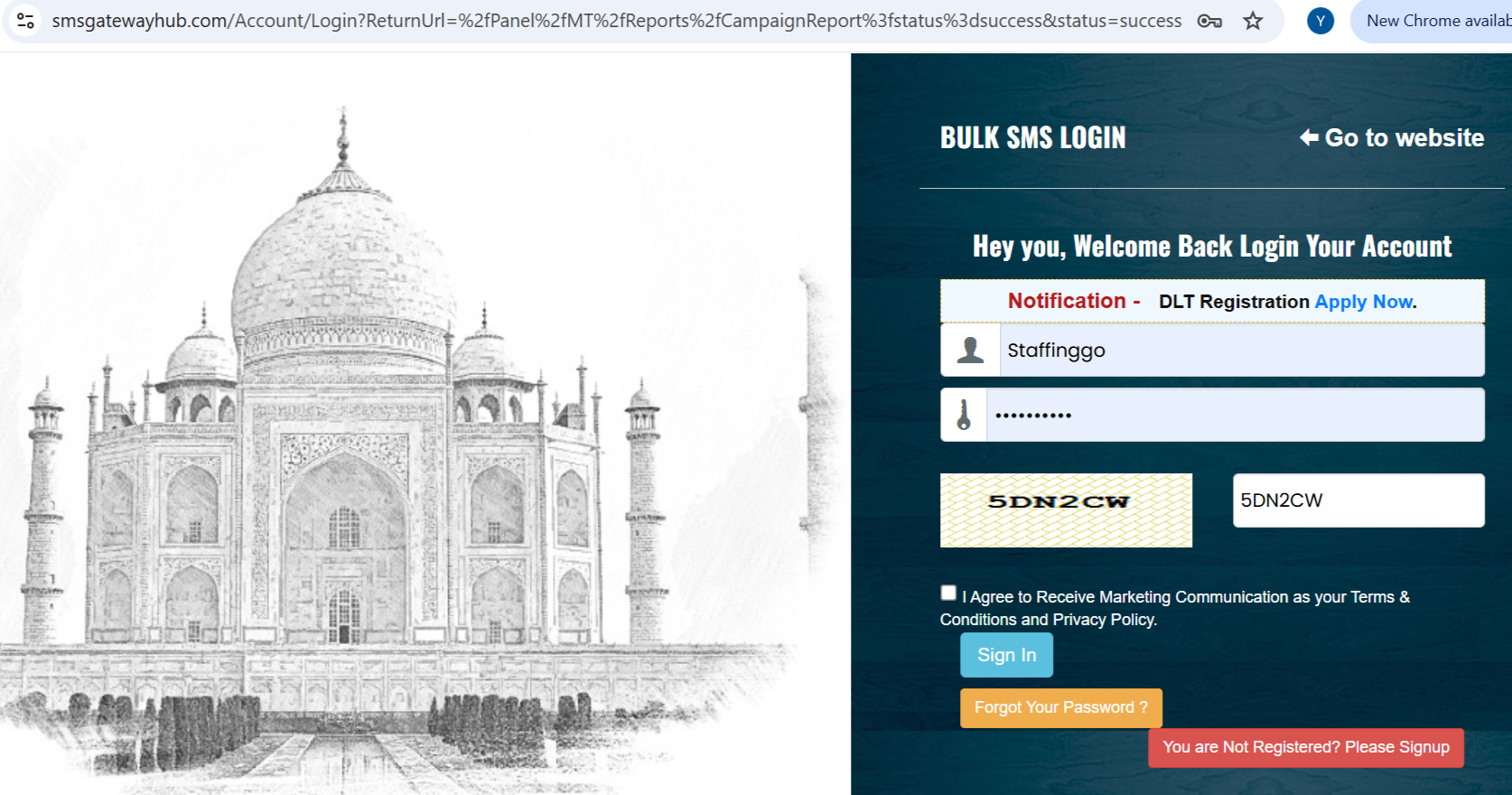
TEMPLATE – CREATION OF NEW TEMPLATE
Navigate to dashboard once login to SMS gate way.
Click on “Resources” and Select “ Templates” option to add the Approved SMS template from smartping.
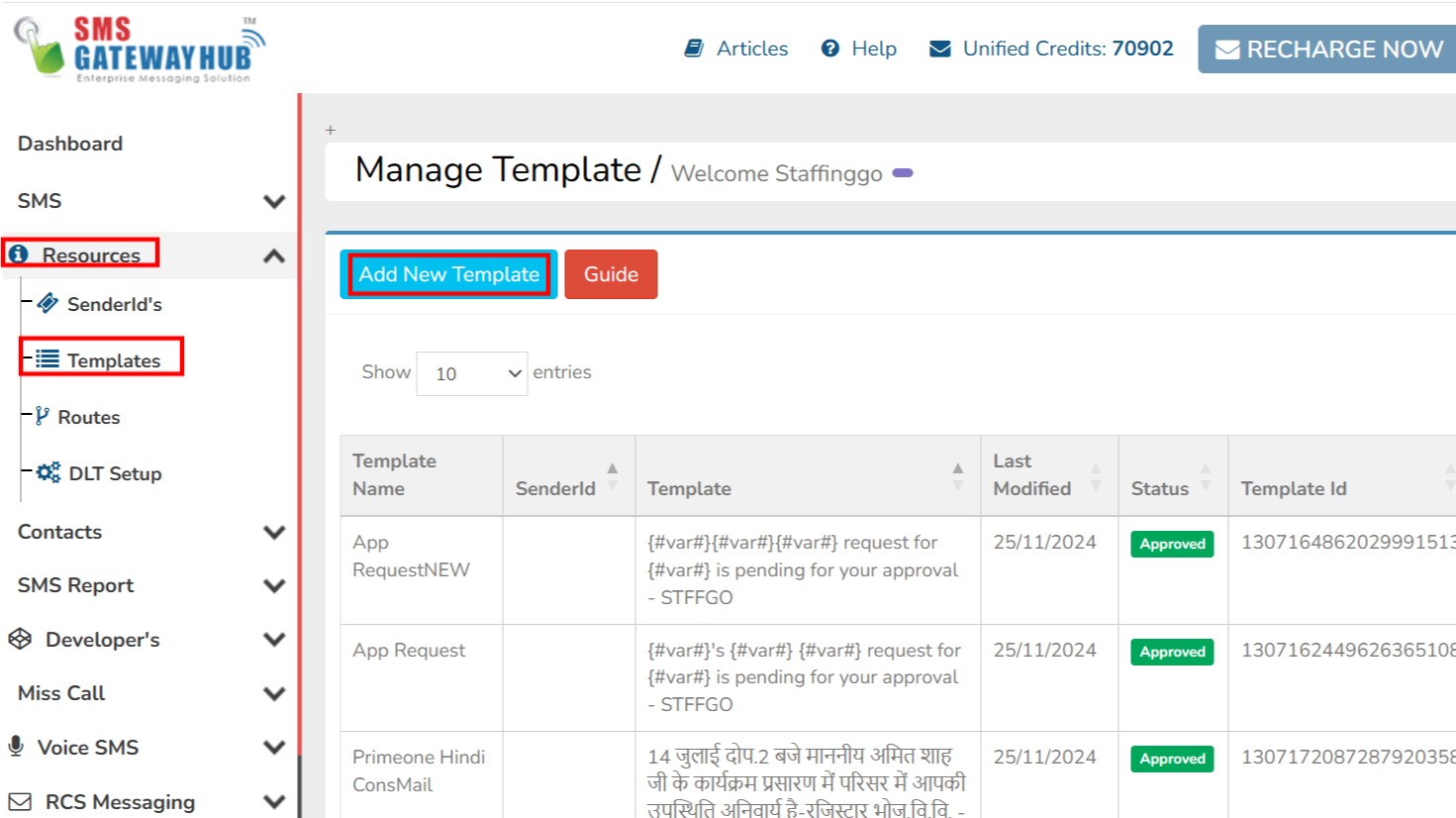
Click on “ Add New Template” option.
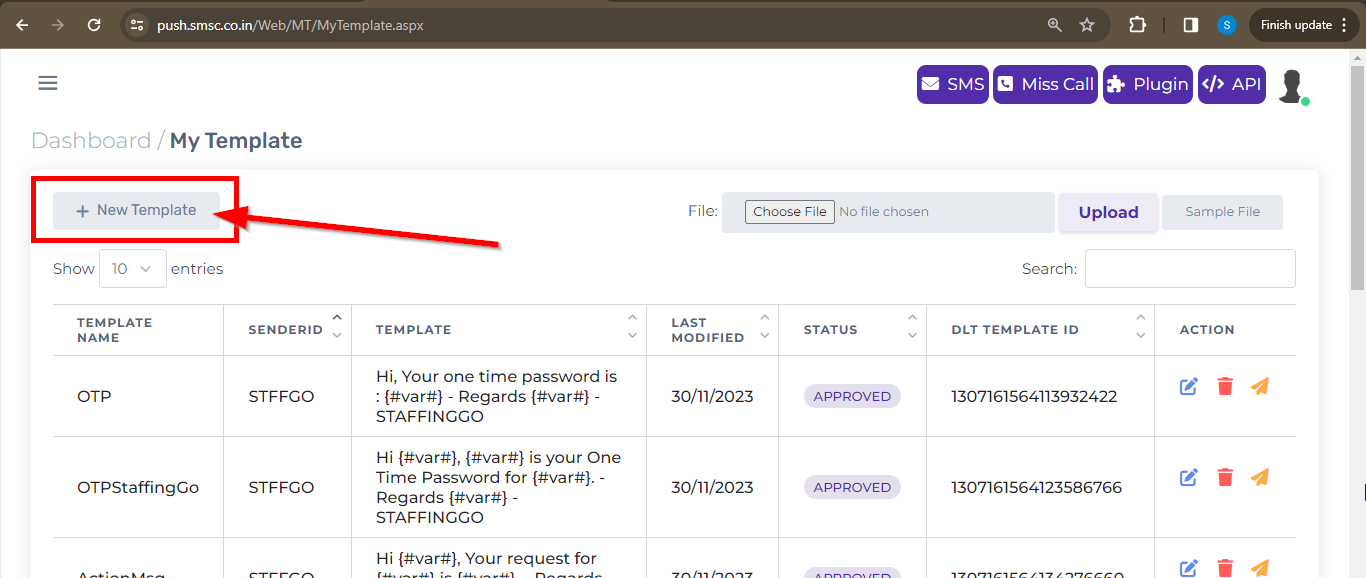
Fill all the details by referring the below points:

Sender ID – Select the sender ID. Sender ID is the name that is displayed as the sender of the SMS message to the receiver of the SMS message.
Template Name – Enter the template name in the Template name field.
Template – Go to Connect Portal, navigate to the approved template section and click on read more, Copy the approved template text and Paste the template text in this field.
DLT Template ID – DLT Template ID is a unique identifier assigned to your template once the DLT platform approves it.
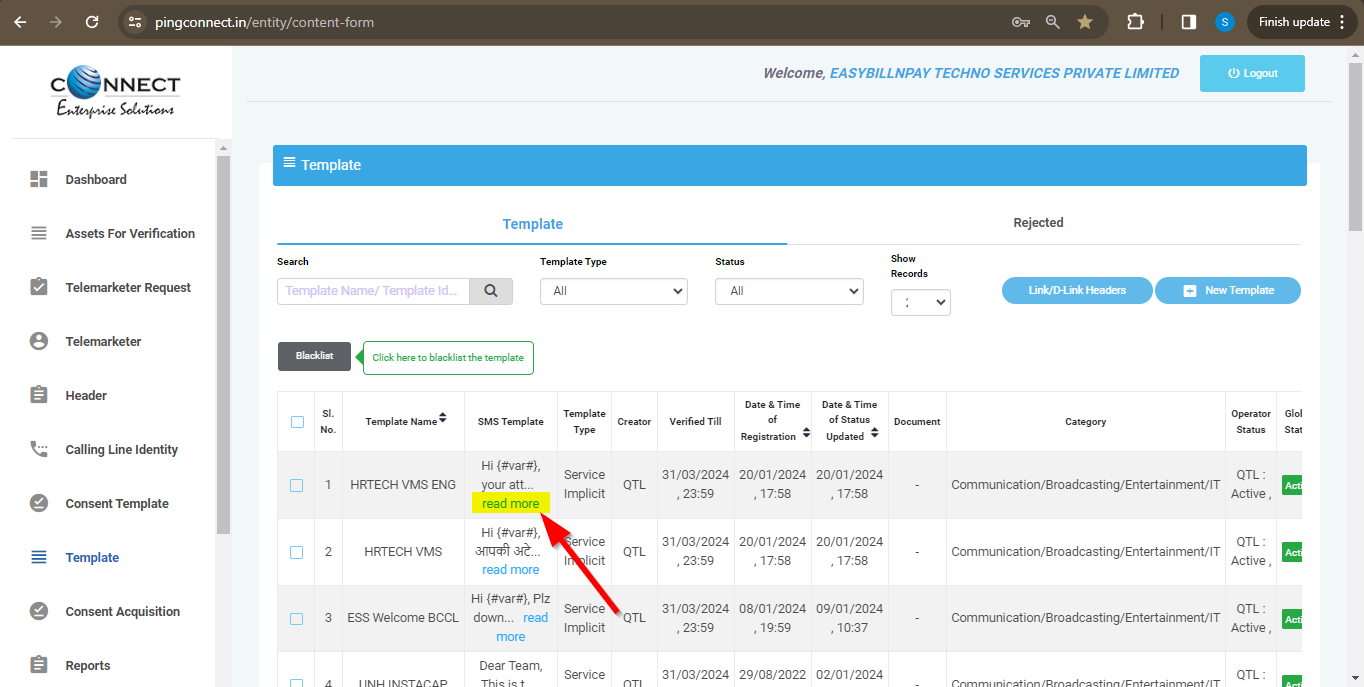

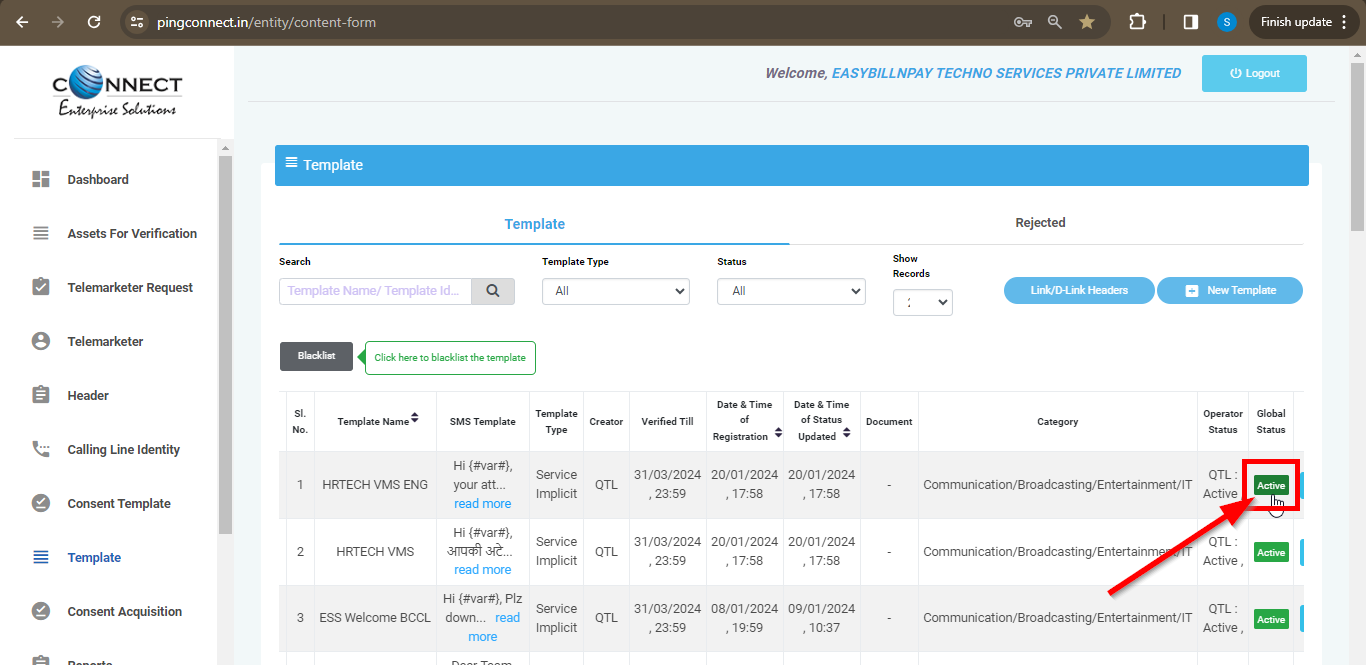
Enter the template ID in this field, this will be available in Connect portal in the approved template level. As highlighted in the screenshot, click on Active , Template details tab gets opens, copy the template ID from the Template ID section and Paste it in DLT Template IT field.

Once all 4 fields have been filled, Click on Save button.
Now the SMS template will be ready use, copy the approved template and use it in the StaffingGo application, Use tags in place of variables (var#), Also Please note; Even if we add a single space, any character or special characters, the SMS will be getting delivered to the Employees.
Was this article helpful?
That’s Great!
Thank you for your feedback
Sorry! We couldn't be helpful
Thank you for your feedback
Feedback sent
We appreciate your effort and will try to fix the article