Follow the below mentioned steps to configure the Client Letter in the application. In order any specific inspection letter for audit / Client submission purpose we can use the Letter generation under the client level.
Navigate to >>Setting >> General master >> Templated library >> Chose the Template type/Letter type drop down as Client Letter which needs to configure in the application.

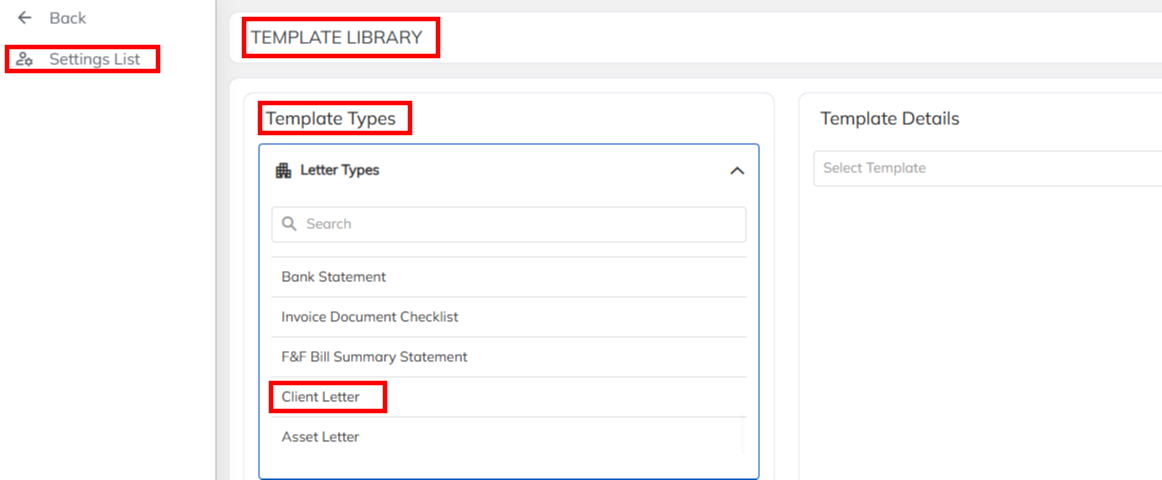
For Example to configure the new client letter
- Select the Template type as client Letter >> Click on + Add New>> Create the Template Title with new Letter name ( Client short name / Category wise letter name)

- Prepare the word Letter documnets with replacing the data supporting TAGs and align the word document with standard formatting in-order to get the proper alignment in the PDF copy and upload under the choose file and save.
- Use the TAGs , which replaced the Client details in the application during letter generation. Example : In the place of Client Name {{CurrentDate}},{{ClientName}},{{ClientAddress}},{{MonthYear}}etc.
- Navigate to Client Module >> Select the specified Client and Navigate to Documents option and Click on Generate Letter option
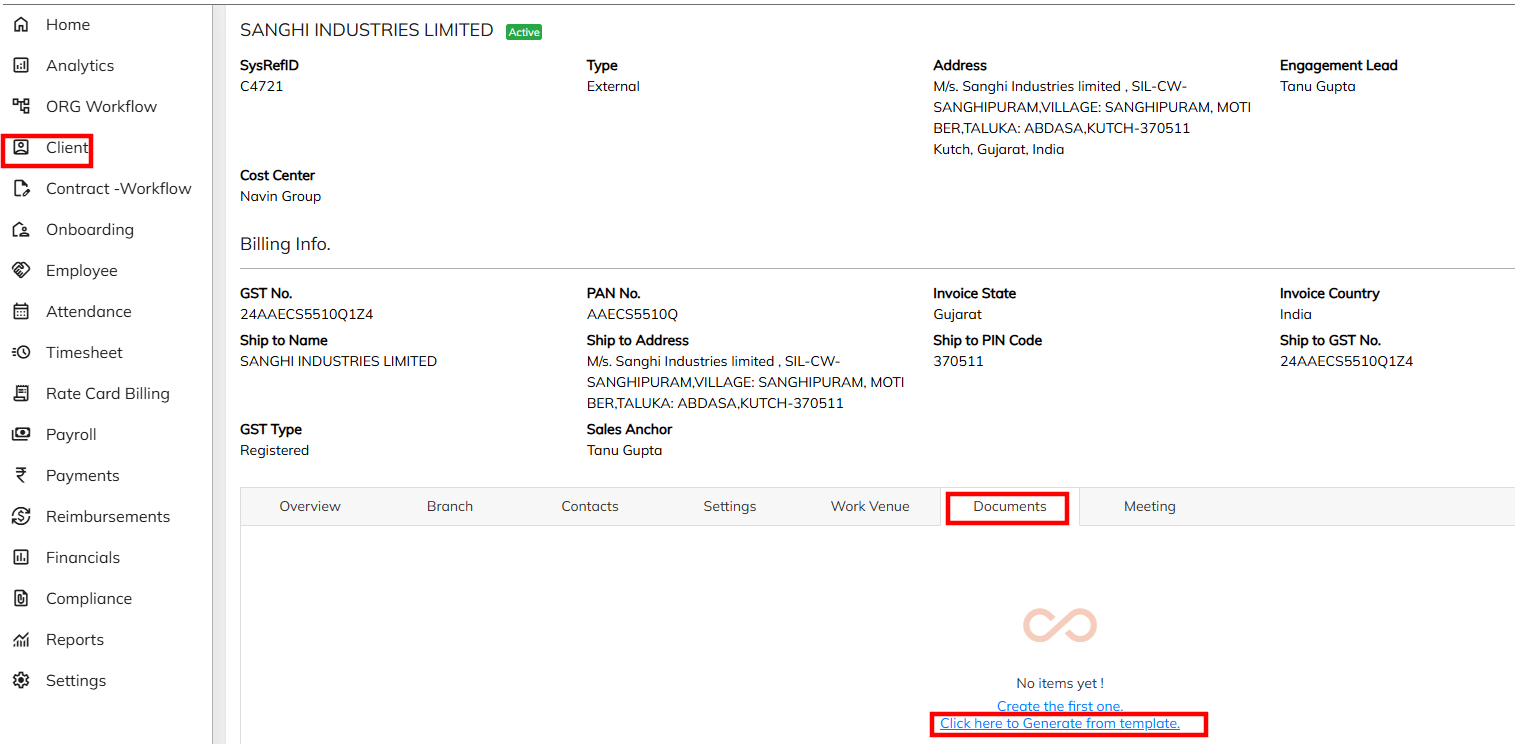

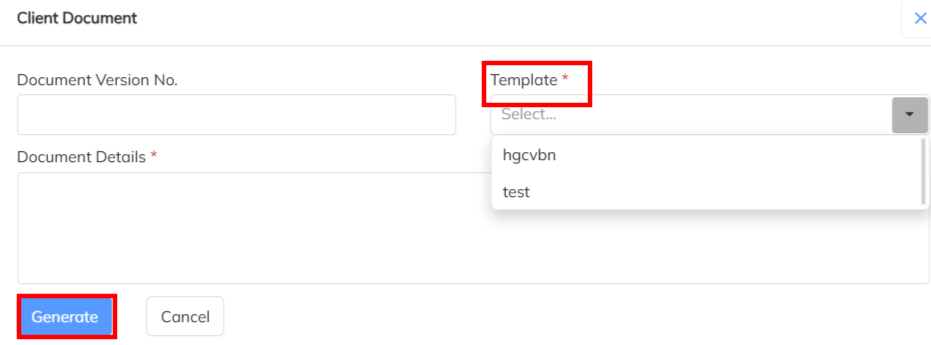
- Select the Letter template and generate . Generated Letter can download and same as available in the application with all time.
Was this article helpful?
That’s Great!
Thank you for your feedback
Sorry! We couldn't be helpful
Thank you for your feedback
Feedback sent
We appreciate your effort and will try to fix the article