An Increment Letter is a formal communication from the employer to an employee, notifying them about a salary increase. It specifies the new salary, effective date, and acknowledges the employee’s contribution or performance.
Below are the steps on how one can create and configure Increment letter in Staffinggo through Manual and Bulk options:
Steps to Create a Increment Letter:
- Settings >> General Master >> Template Library
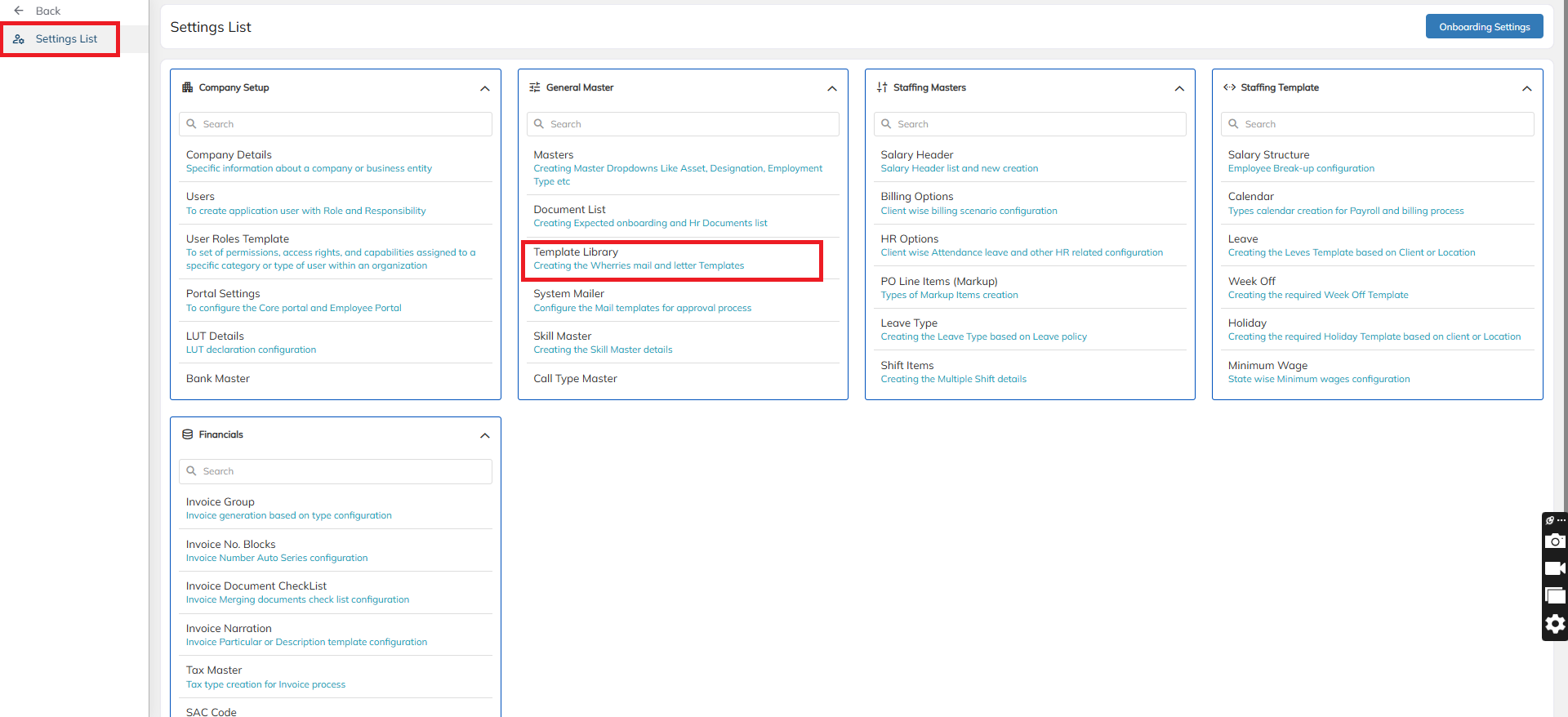
- Choose the Template Type dropdown as Increment Letter to begin the configuration.
For example, to configure a new Increment Letter:
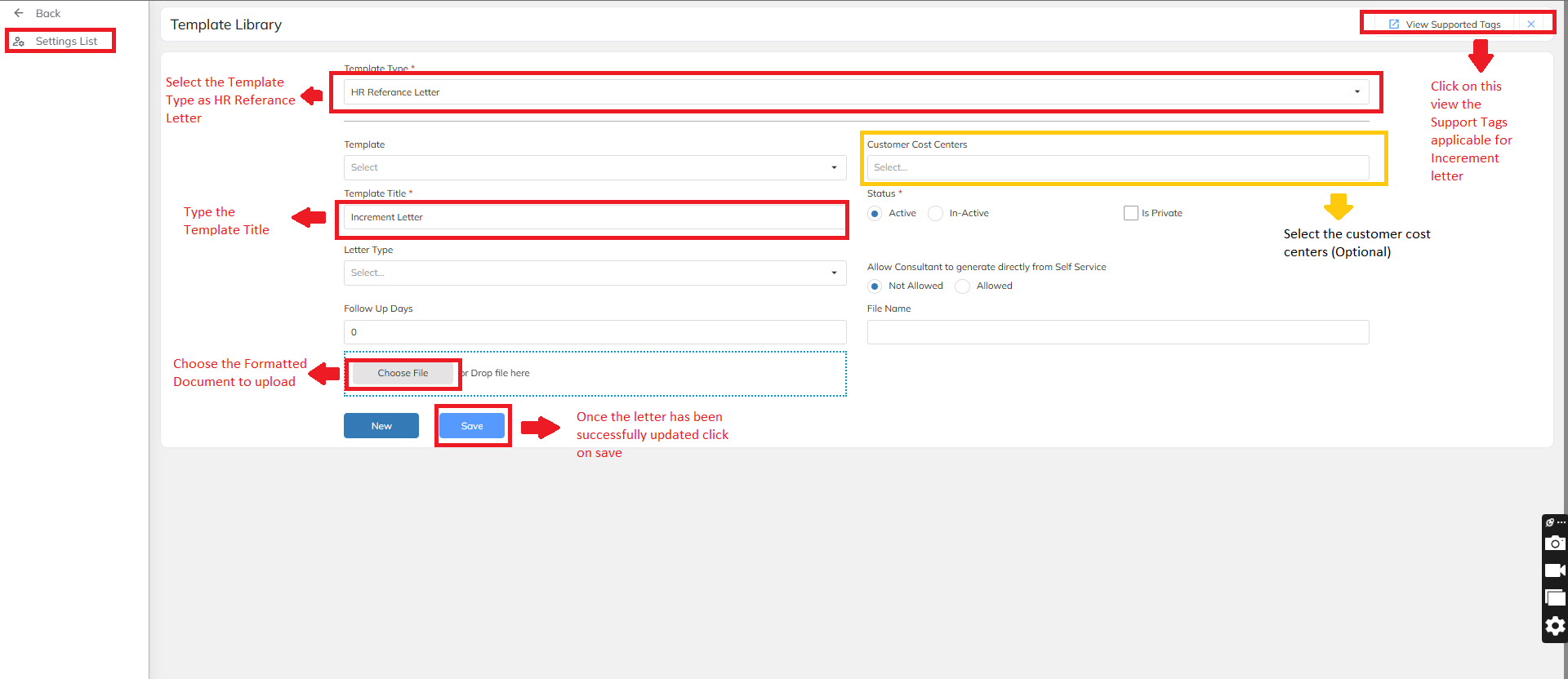
Select the Template Type as HR Reference Letter
Create a Template Title with a relevant name for the letter (e.g., Client Short Name / Designation-wise Increment Letter)
Prepare the Word Document:
Use standard formatting and structure in the Word file to ensure proper alignment in the final PDF output.
Replace employee-specific data with system-recognized supporting TAGs (e.g.,
{{ConsultantName}},{{Designation}},{{IncrementDate}}etc.)
Refer to the Sample Tags:
A full Tag List is available in the application. Use the View Support Tag option on the same letter configuration screen to access it.
Upload the Word Document:
Once the template is ready with the required tags and formatting, upload it using the Choose File option.
Click Save to store the template.
(Optional) Configure Employee e-Signature:
If digital signing is required, click on Configure Digital Sign / E-Sign option.
Enter the required e-sign details and click Save.
Steps to Generate a Increment Letter:
To Generate the Increment Letter at the Consultant/ Employee Level, Below are the steps:
- Login as an Administrator --> Click on Consultant
- Go to Consultant for whom you want to generate the letter
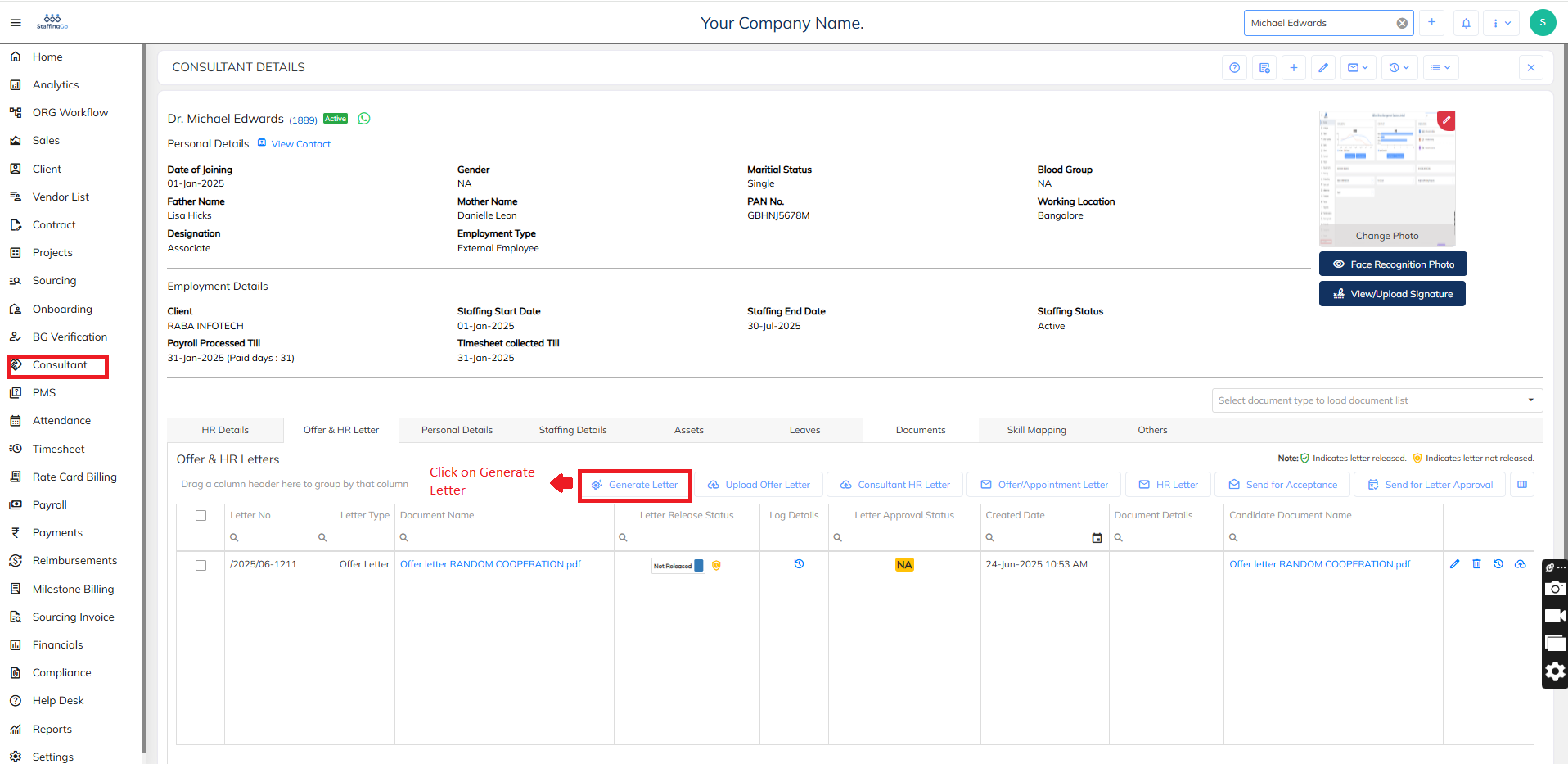
- Click on HR letter
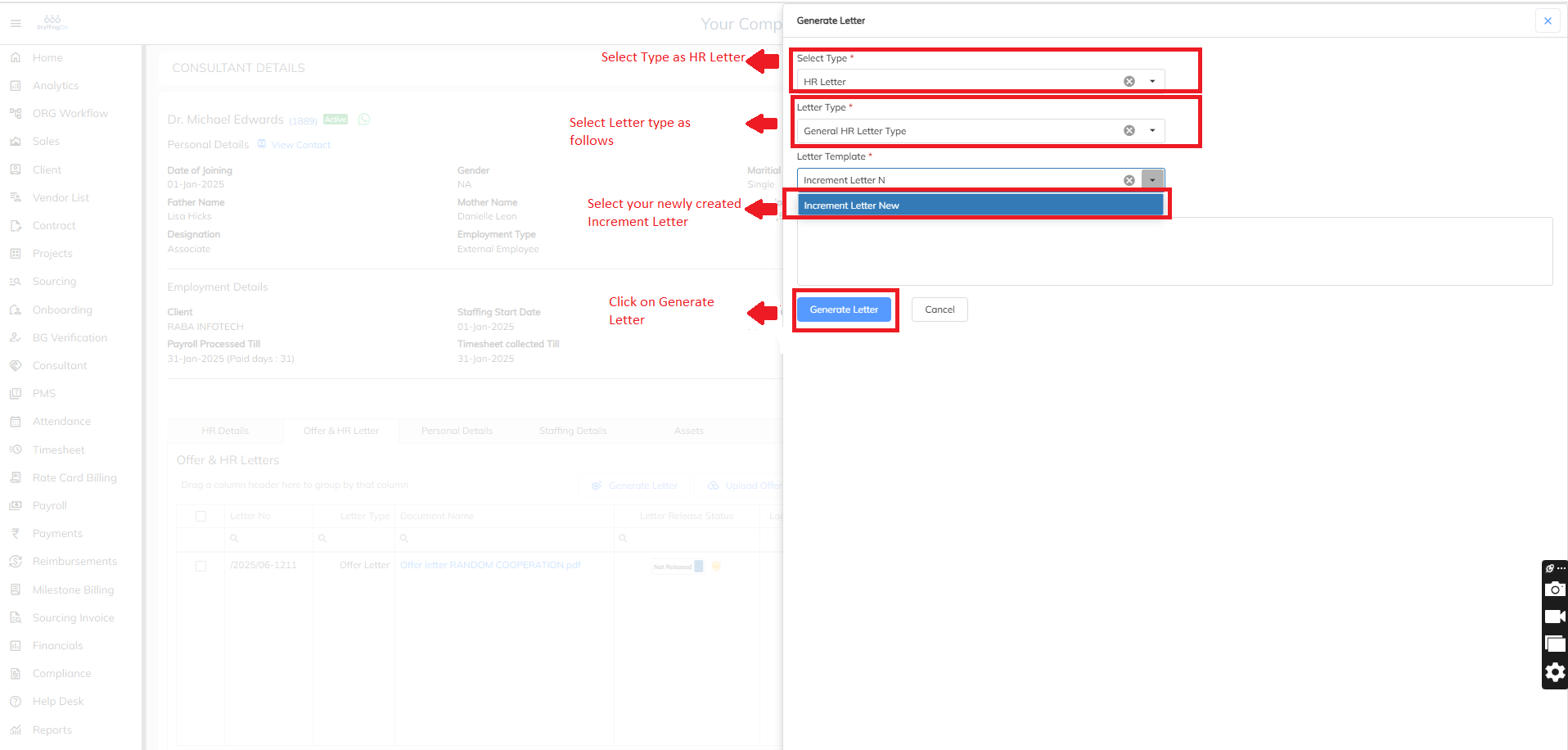
- Click on General HR Letter Type under Letter Type as shown below
- Then Click on Generate Letter as shown below
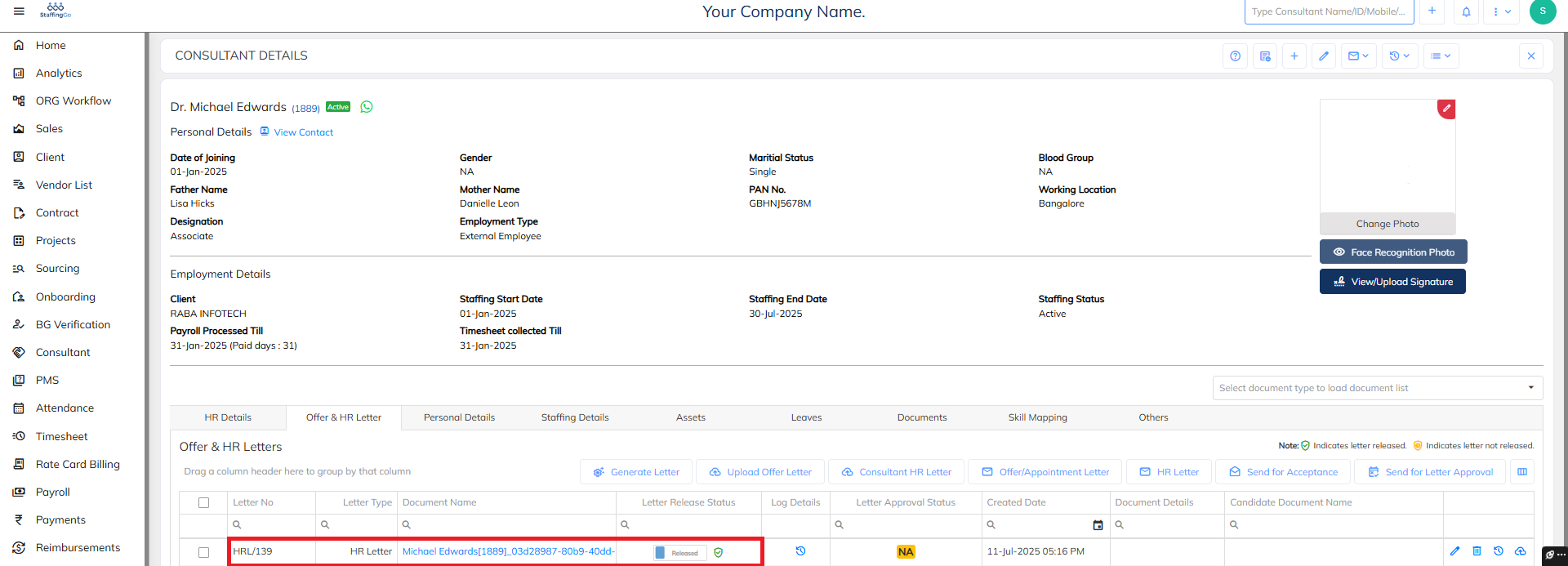
Once the Letter is Generated it will be appearing as below where then you can share the letter and update the status to released as shown
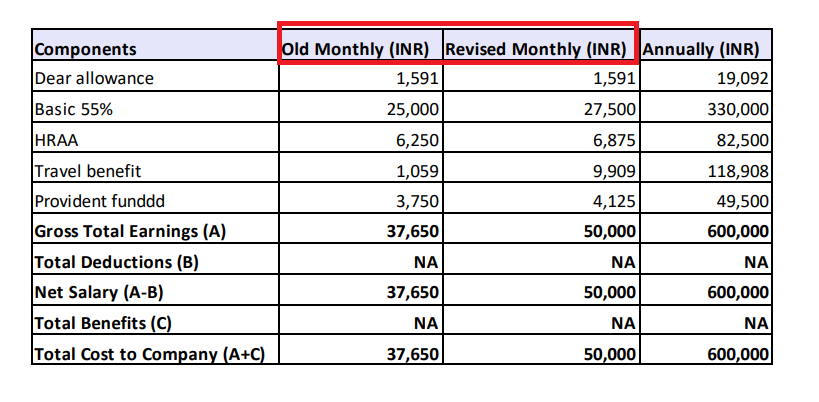
Once the letter has been generated, as shown in the image below, both the old CTC breakup and the new CTC breakup details will be displayed in the generated letter.
Use this tag from the tag list to display the Old vs. New CTC breakup information in the generated letter- {{SalaryTableWithPrev}}
Need Help?
If you have any doubts or need further assistance regarding client creation or any other feature, feel free to reach out to our support team at support@staffinggo.in. We’re here to help you!
Was this article helpful?
That’s Great!
Thank you for your feedback
Sorry! We couldn't be helpful
Thank you for your feedback
Feedback sent
We appreciate your effort and will try to fix the article