Overview:
In StaffingGo, Employee Number (Emp No.) generation can be configured based on multiple parameters to ensure flexibility and alignment with organizational requirements. This feature allows users to define how Employee Numbers are generated at various levels within the system.
Employee Number generation can be configured at the following levels:
- Master Level/ Default- All client employees code generation with same series continuation.
- Client Level - Client level configured EMP code series will generate.
- Contract Level - Contract level configured EMP code series will generate.
- Employment Type - Employment type based on the EMP code generation.
- Cost Center - Cost center level configured EMP Code will generate.
Follow the below mentioned steps to configure Employee Code Generation type & series set up in the application.
Step -1 : Employee Number generation based on category configuration
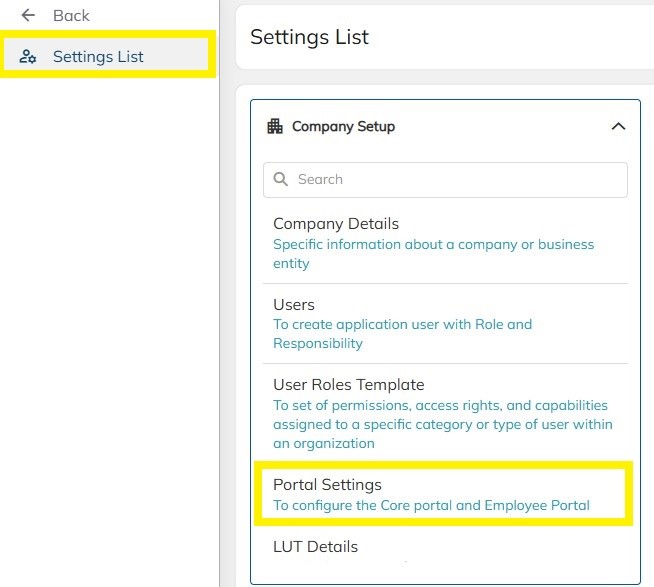
- Click on Settings --->Company Set Up-->> Portal Settings-->> Choose the Common setting -->> Select the Generate Employee Nos-- >> Choose the Employee Nos generate based on option
- Based on the choose EMP code generation category EMP series need to Set up.
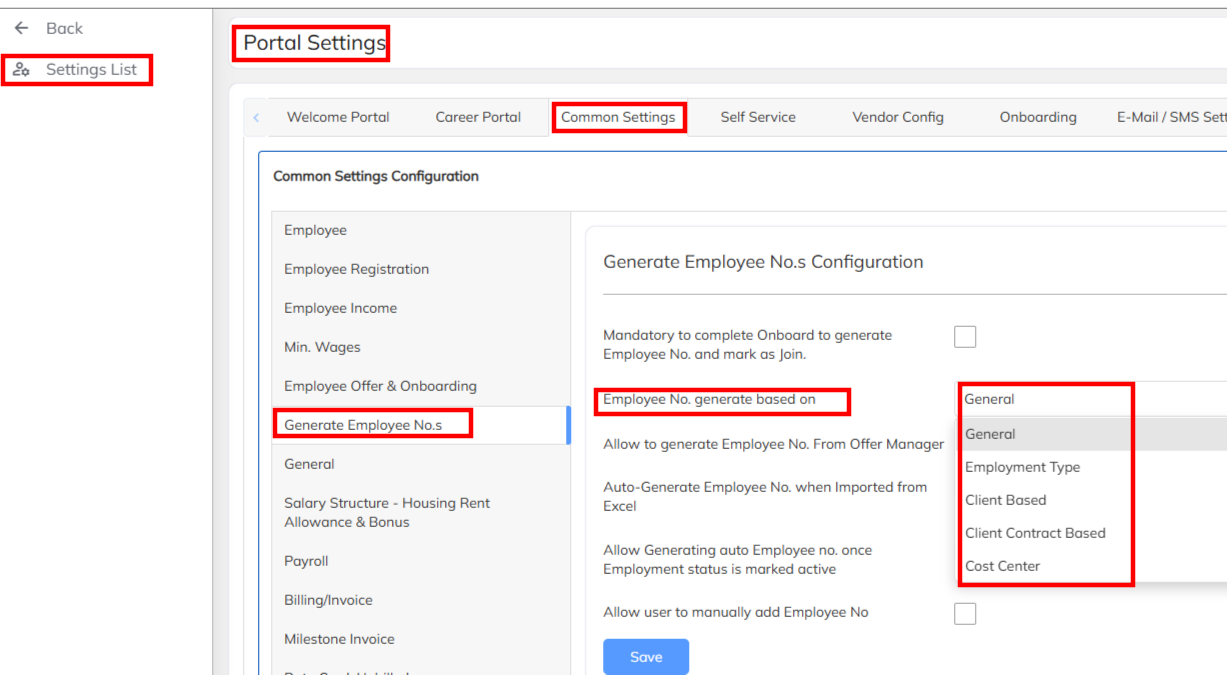
Once the configuration done in the above mentioned option, Employee Number configuration option will enabled in the particular module wise. Follow the below mentioned Employee code configuration based on the master level chooses option respectively.
A. Employee Code configuration - Master Level/ Default
- Navigate to settings -->Company Setup --> Auto Number
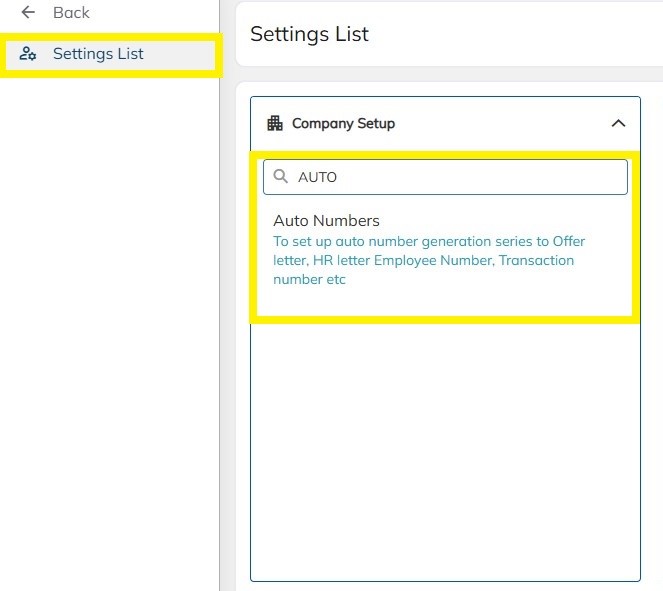
- Select the Consultant Employee No and setup the employee code series based on the the below format:
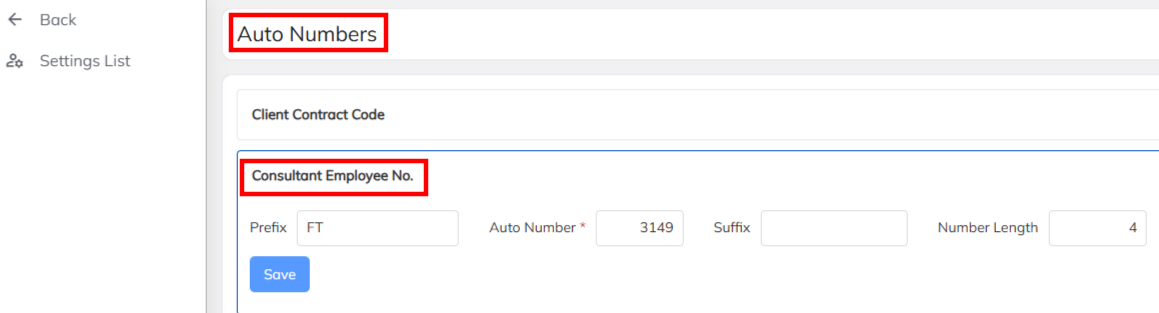
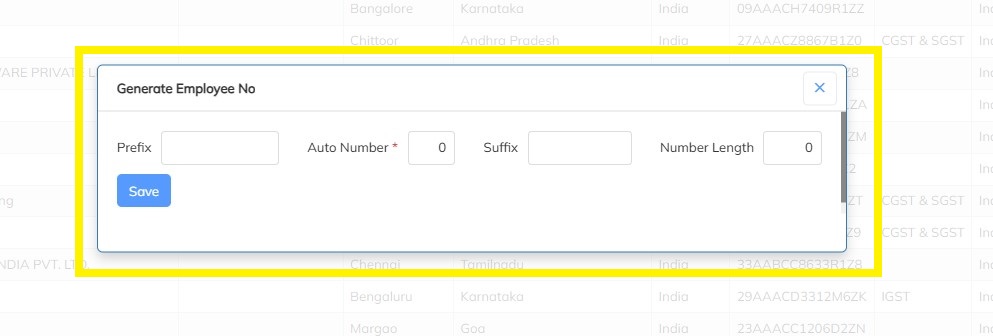
- Prefix: A static text added at the beginning of every Employee Number.
- Auto Number: The system-generated sequential number.
- Suffix: A static text appended to the end of the Employee Number (optional).
- Number Length: Defines the total number of digits in the Auto Number
- This would be applicable for all consultants irrespective of clients mapped and Click on Save.
B. Employee Code Configuration Client Level
- Navigate to selected client-->> Choose the Setting Option >> Select the Client Employee No Configuration and Set up the Employee Code series
- Mandatory to set up Employee code series under all client.
C. Employee Code Configuration Contract Level
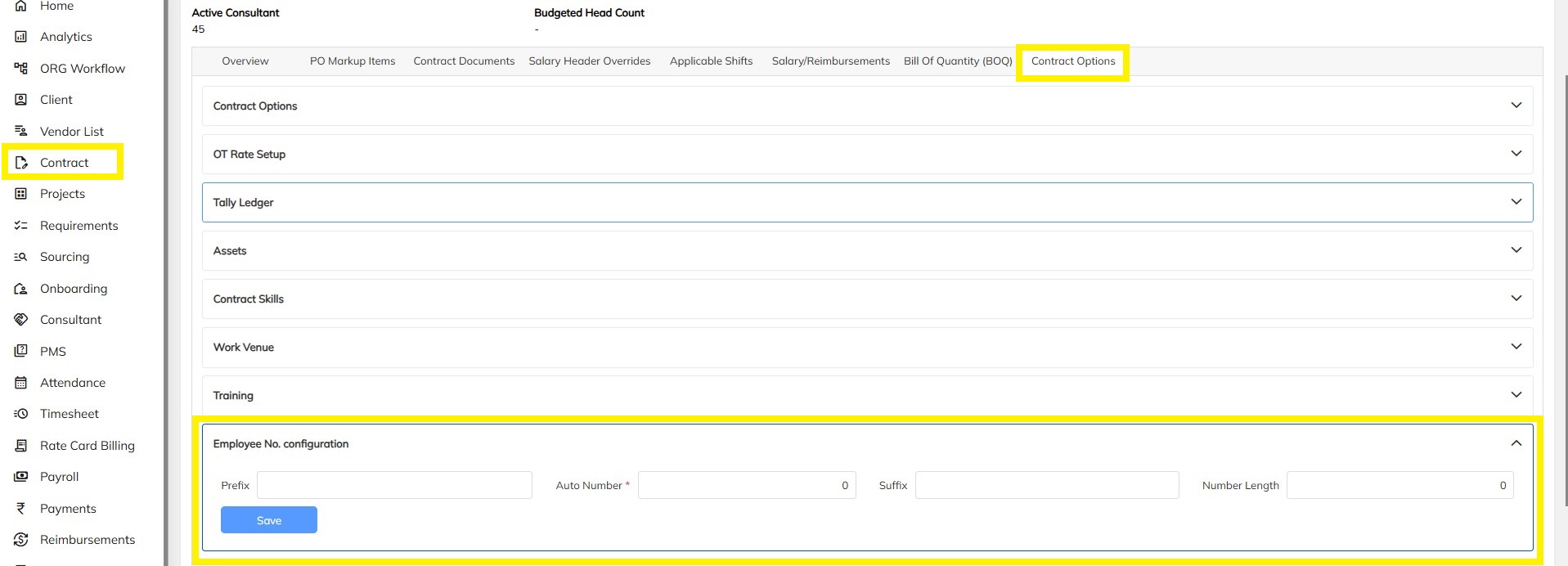
- Select client contract under contract module and choose the Contract options --> Click on Employee No. configuration section and Configure the Prefix, Auto Number, Suffix and Number length and Save
- Mandatory to set up the Employee code series under all contract.
D. Employee Code Configuration Based on Employment Type
- Navigate to Setting-->>Portal Setting -->>Common Settings-->>Select Generate Employee Nos--> Choose the Employment Type option. Once choose the employment type Employee No Configuration based on the employment type Tab will appear as shown below
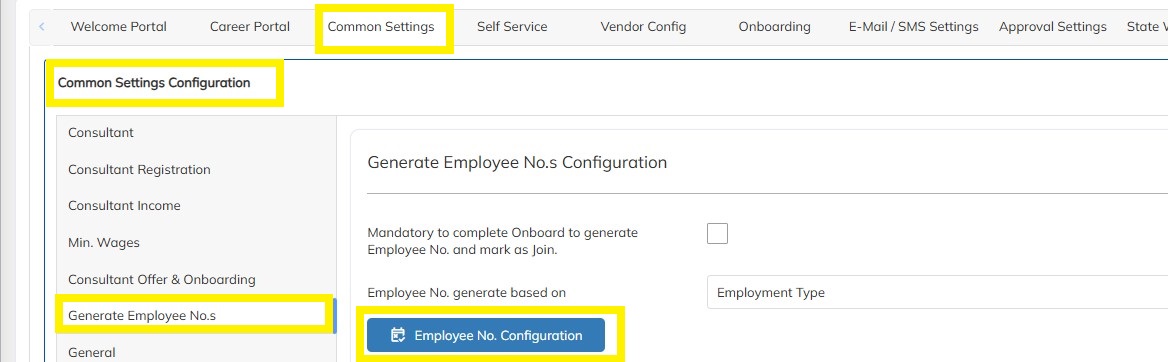
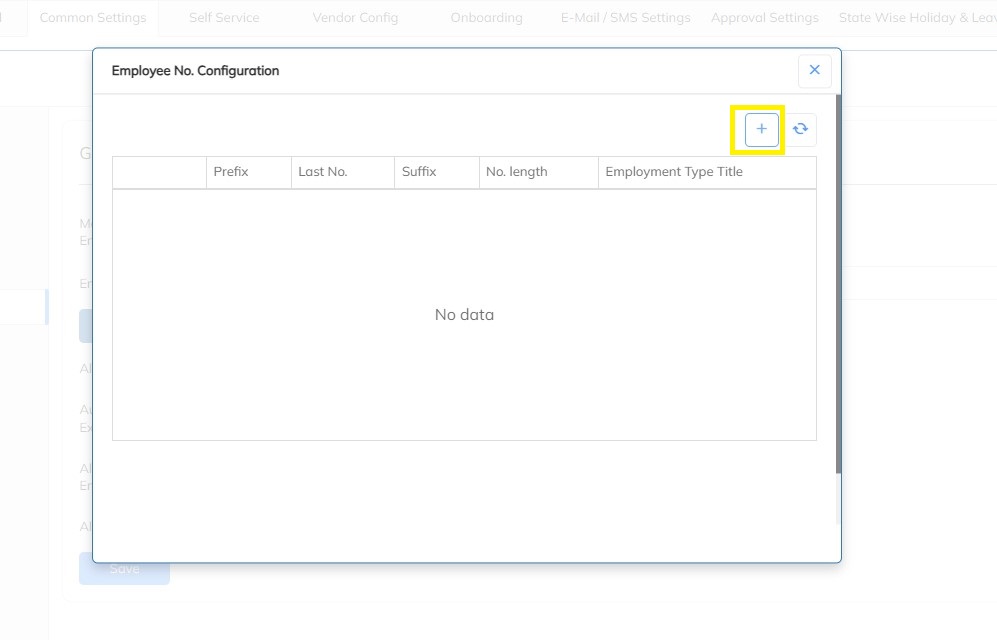
- Click on the Employee configuration Tab, Choose the employment type and Configure the Prefix, Auto Number, Suffix and Number length based on the various Employment Types created in the portal
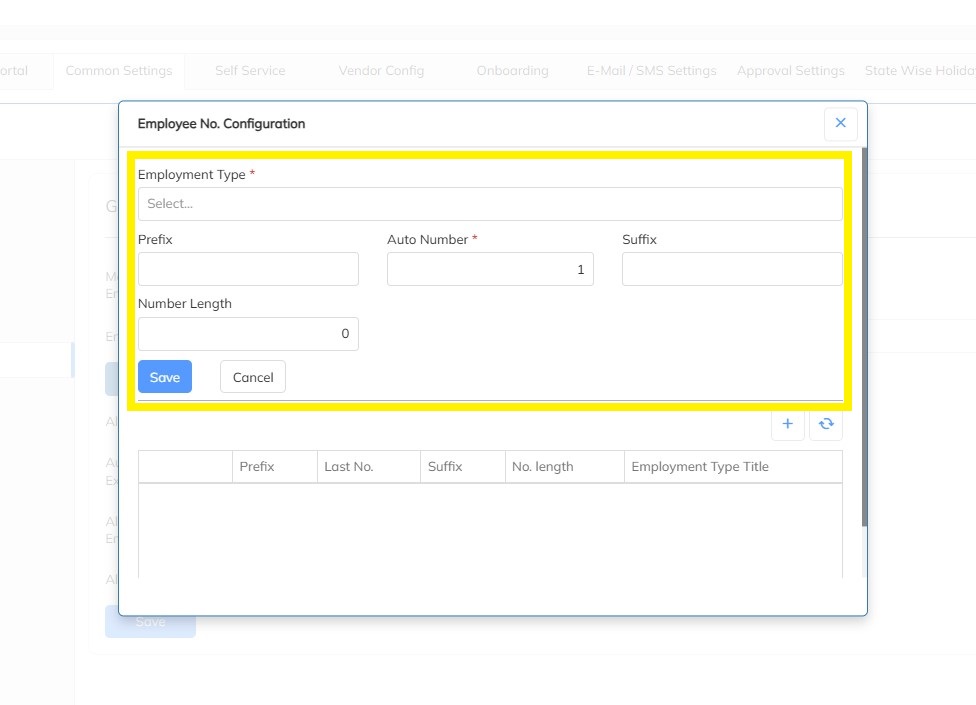
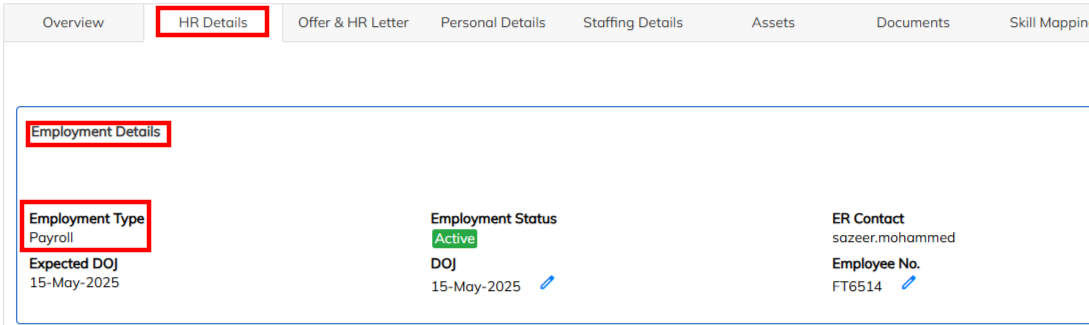
- Employment type need to allocate to employee under Employee HR details >> Employment details >>Employment type before Employee Number generation.
E. Employee Number Configuration Based on Cost Center Level
- Navigate to Settings --> Company Setup --> Select Cost center option
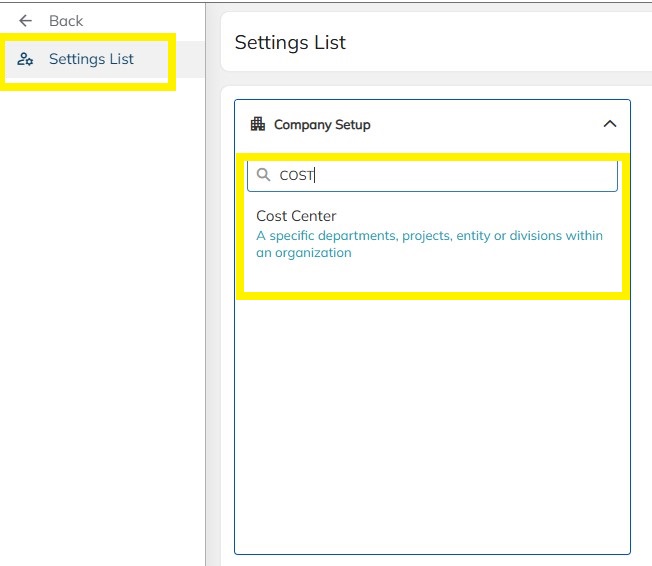
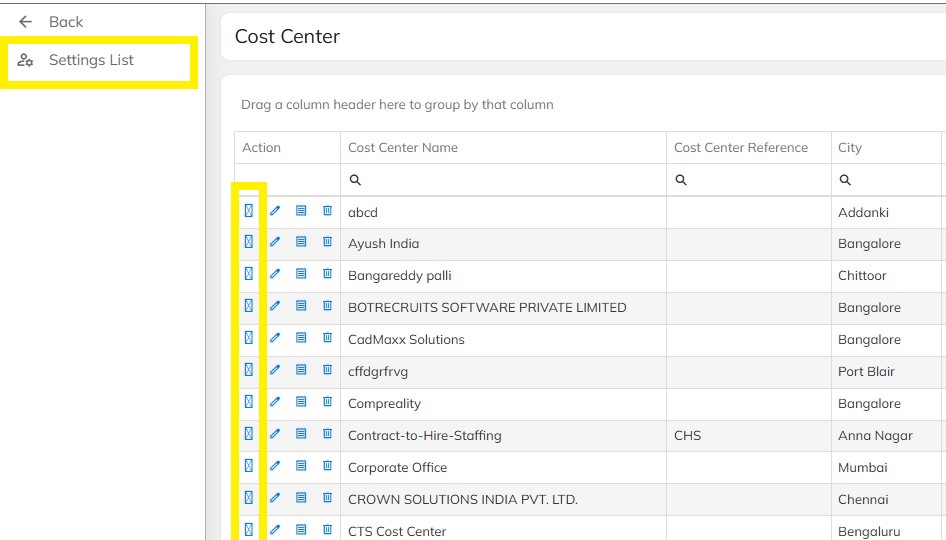
- Select the particular cost center to define the Employee Numbers configuration
- Click on Icon below to Configure the Prefix, Auto Number, Suffix and Number length based on various Cost Centers and then Click on Save.
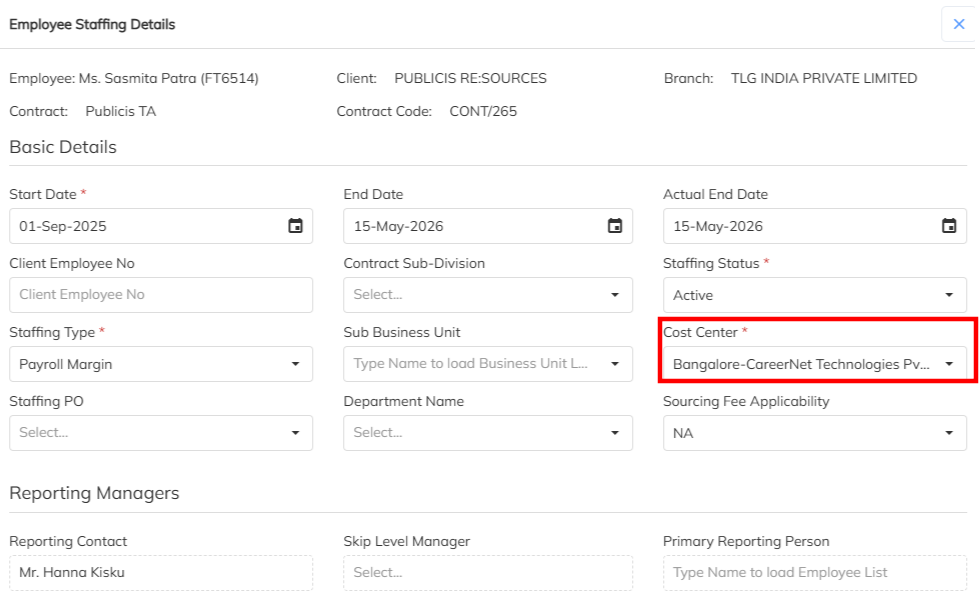
- Based on the employee mapped Cost center under Employee staffing details Employee code will generate. Before Employee code generate Mandatory to map the Cost center.
Was this article helpful?
That’s Great!
Thank you for your feedback
Sorry! We couldn't be helpful
Thank you for your feedback
Feedback sent
We appreciate your effort and will try to fix the article