Bonus Configuration and Calculation Logic
Objective
To define the configuration logic and computation method for Bonus within the payroll application, based on salary structure, statutory limits, and component placement.
Eligibility
• Bonus is applicable only if Basic salary ≤ ₹21,000, as per the Payment of Bonus Act, 1965.
• For employees with Basic salary > ₹21,000, bonus computation will be skipped automatically by the system.
Bonus Percentage
• Standard Rate: 8.33% (configurable based on organization policy)
Case 1: Bonus Included in Gross Salary
If the Bonus component is part of the Gross salary, it will be computed on Basic or Minimum Wages × 8.33%, provided Basic ≤ ₹21,000.
Example:
Basic = ₹18,000
Bonus = ₹18,000 × 8.33% = ₹1,499.40
Bonus Payable: ₹1,499.40
Case 2: Bonus Included in Employer Share (CTC Part)
If the Bonus component is included under the Employer share portion of CTC, computation logic remains the same: Basic or Minimum Wages × 8.33%, applicable till Basic ≤ ₹21,000.
Example:
Basic = ₹18,000
Bonus = ₹18,000 × 8.33% = ₹1,499.40
Bonus Provision (Employer Share): ₹1,499.40
Case 3: Bonus Not Included in Gross or Employer Share
If the Bonus component is not part of either Gross salary or Employer share, the system will compute Bonus Provision based on Basic + DA headers in Bonus register report.
Example:
Basic = ₹18,000
DA = ₹2,000
Bonus = (Basic + DA) × 8.33% = ₹20,000 × 8.33% = ₹1,666.00
Provisioned Bonus: ₹1,666.00
Case 4: Basic Salary Exceeds ₹21,000
If Basic > ₹21,000, the employee is not eligible for statutory bonus. The system will not compute or credit any bonus amount.
Example:
Basic = ₹22,000
Bonus = Not Applicable (as Basic > ₹21,000)
Bonus Payable: ₹0.00
Summary Table
Case | Bonus Component | Computation Basis | Condition | Bonus Calculation | Bonus Amount (₹) |
1 | In Gross Salary | Basic / Min Wage × 8.33% | Basic ≤ ₹21,000 | 18,000 × 8.33% | 1,499.40 |
2 | In Employer Share | Basic / Min Wage × 8.33% | Basic ≤ ₹21,000 | 18,000 × 8.33% | 1,499.40 |
3 | Not in Gross or Employer | (Basic + DA) × 8.33% | Basic ≤ ₹21,000 | 20,000 × 8.33% | 1,666.00 |
4 | Any | — | Basic > ₹21,000 | No computation | 0.00 |
Key Notes
• The bonus percentage and computation method can be configured in the system as per company policy.
• System validations ensure compliance with statutory limits under the Payment of Bonus Act.
• Any change in Basic or DA values will automatically update the Bonus computation during payroll processing.
Steps to configure Bonus header in application:
Step 1: Create and Configure Bonus Header
- Navigation Path:
Settings → Staffing Masters → Salary Header - Create a New Salary Header:
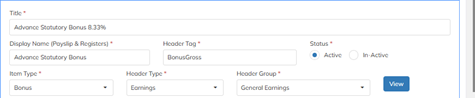
- Enter Title Name, Display Name, and Header Tag.
- Select Item Type as Bonus.
- Choose Header Tagas:
- Earnings, if Bonus is part of the Gross salary, or
- Employer Share, if Bonus is under the Employer contribution.
- Set Header Group as Earnings.
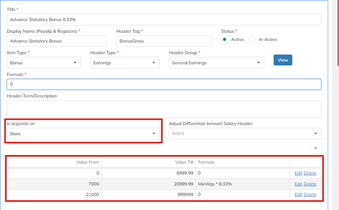
- Define Dependency and Formula:
- Select the Dependency Header (e.g., Basic or other relevant header).
- Define Bonus Slabs as per company policy.
- Enter the Formula based on Basic or Minimum Wages
- Formula Reference:
- The system automatically uses the Header Tag of the salary header linked to the employee’s Salary Structure for Bonus computation.
Step 2: Configure Minimum Wage (If Applicable)
- If Bonus is Calculated on Minimum Wages:
- Create a Minimum Wage header as a temporary header under Salary Header Master.

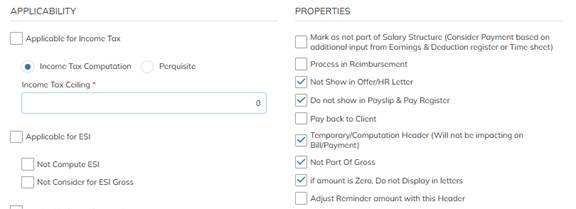
- Enable Required Properties:
- Enable the properties as shown in the configuration snapshot (e.g., Visible in Structure, Editable, Used in Formula, etc.).
- Add Header in Salary Structure:
- Include the Minimum Wage header in the Salary Structure.
- Map Minimum Wage Details to Employees:
- For Bonus calculations based on Minimum Wages, ensure that the Minimum Wage value is properly mapped to each employee.
Step 3: Bonus Report Verification
- Navigation Path:
Reports → Employee Reports → Bonus Register Report - Report Description:
- The Consultant Bonus Report is generated for consultants based on Bonus applicability as per their Salary Structure.
- The report displays Earned Bonus Gross, Actual Bonus Gross, and the corresponding Bonus Amounts within the selected month range.

Was this article helpful?
That’s Great!
Thank you for your feedback
Sorry! We couldn't be helpful
Thank you for your feedback
Feedback sent
We appreciate your effort and will try to fix the article