Invoice Raising – Bill & Ship Details Validation
1. Overview
In the StaffingGo application, users can group invoice details based on different grouping mechanisms while raising an invoice. Based on the selected grouping level, the application allows users to generate separate invoices.
Available Grouping Levels:
- Client Level
- Branch Level
- PO Level
- Cost Center Wise
- Employee Wise
- Working Location Wise
If the application displays an error indicating that Bill & Ship Details are missing, users must validate and update the required details based on the selected grouping level.
2. Purpose
This manual provides guidance on:
- Identifying the grouping level selected while raising an invoice.
- Navigating to the respective module based on the grouping level.
- Verifying the availability of Bill & Ship Details.
- Updating missing details.
- Successfully generating invoices after completing the required configuration.
3. Grouping-Level Validation
Before raising an invoice, identify the grouping level selected for invoice generation.
Navigate to the respective module or configuration based on the selected grouping mechanism.
Important: Bill & Ship Details must be available and correctly configured at the applicable grouping level to avoid validation errors during invoice generation.
4. Client-Level Validation
If the invoice is grouped at the Client Level, follow the steps below.
Step 1: Navigate to the Client Module
Navigate to the Client module in the StaffingGo application.
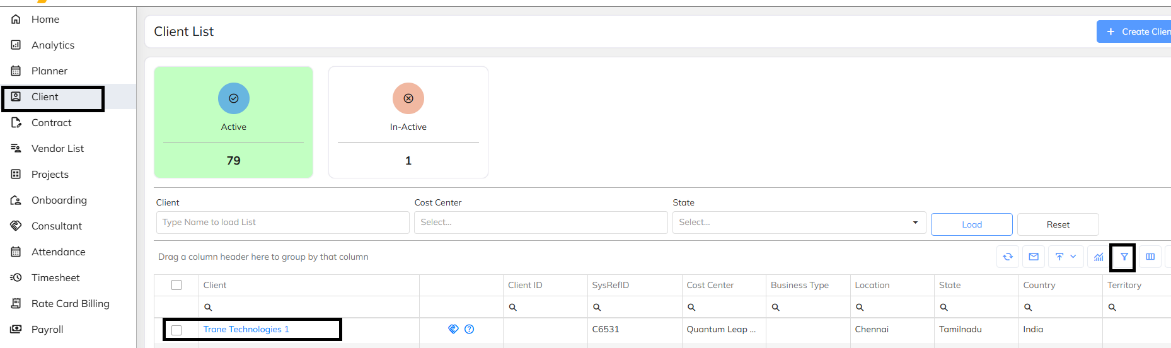
Step 2: Select the Client
Select the specific client for which the invoice is being raised.
Step 3: Click on Edit
Click the Edit button to open and view the client details.
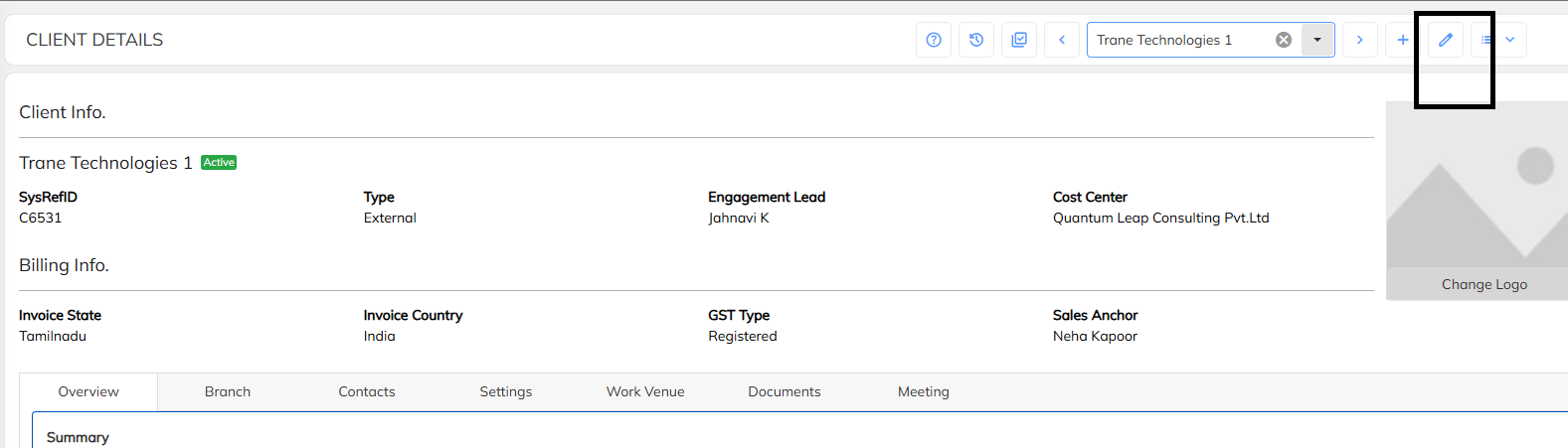
Step 4: Verify Bill & Ship Details
Review the client details and verify whether the required Bill & Ship Details are available and correctly configured.
Reference: The attached screenshots provide guidance on client-level navigation and configuration.
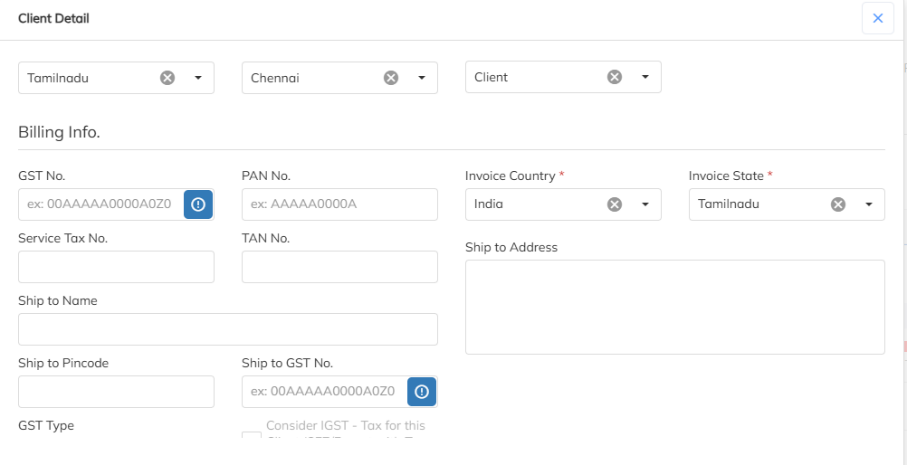
Update Missing Bill & Ship Details
If Bill & Ship Details are missing at the applicable grouping level:
- Open the respective Client / Branch / PO / Cost Center / Employee / Working Location details.
- Click the Edit button.
- Update the required Bill & Ship Details.
- Save the updated information.
- Return to the invoice-raising screen.
- Proceed with invoice generation using the selected grouping mechanism.
Important Validation
Bill & Ship Details must be validated according to the grouping level selected during invoice generation.
Examples:
- Client Grouping: Validate Client-level Bill & Ship Details.
- Branch Grouping: Validate Branch-level Bill & Ship Details.
- PO Grouping: Validate PO-level Bill & Ship Details.
- Cost Center Grouping: Validate the applicable Cost Center configuration.
- Employee Grouping: Validate the applicable Employee details.
- Working Location Grouping: Validate the applicable Working Location configuration.
If the required details are missing at the applicable grouping level, the application may display a validation error while raising the E invoice.
Note
The attached screenshots provide a reference for Client-level navigation. The same validation approach should be followed for the applicable grouping level, including Branch, PO, Cost Center, Employee, or Working Location.
Please ensure that Bill & Ship Details are validated and configured at the applicable grouping level before proceeding with invoice generation
Was this article helpful?
That’s Great!
Thank you for your feedback
Sorry! We couldn't be helpful
Thank you for your feedback
Feedback sent
We appreciate your effort and will try to fix the article