Training Objective
This training explains how the StaffingGo Attendance Management module captures attendance, processes biometric and mobile punches, applies shift rules, supports geo-fencing, and manages attendance regularization before payroll processing.
1. Attendance Flow
Attendance processing is managed through HR Options. Before attendance can be calculated, the Attendance Workflow must be enabled.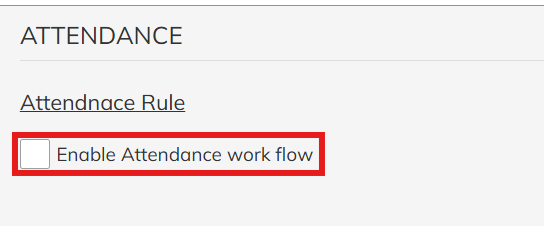
Attendance Capture Methods
StaffingGo supports three attendance modes:
Mode | Description |
Biometric | Attendance captured through biometric devices |
Mobile Attendance | Attendance captured through the mobile application |
No Punch | Employee automatically marked Present |
Important: Biometric attendance and Mobile attendance must not be enabled together for the same employee as both methods will conflict.
2. Biometric Attendance Processing
Biometric Punch Flow
- Biometric punches are received with approximately 5–10 minutes delay.
- System processes attendance only after punches are received.
Two Device Types
A. Separate IN & OUT Devices
- Device records both IN and OUT punches.
- Attendance is calculated immediately after both punches are available.
B. Single Punch Device
Only one punch is captured each time.
System automatically interprets:
- First Punch = IN Time
- Last Punch = OUT Time
Final attendance is calculated after the day ends or during the scheduler execution.
3. Mobile Attendance
Mobile attendance supports:
- Login Punch
- Logout Punch
- Multiple login/logout events during the same day
Optional configurations include:
- Geo Tagging
- Geo Fencing
- Selfie Capture

4. Punch Configuration
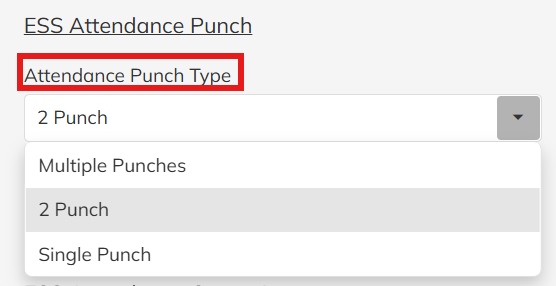
Attendance rules can be configured employee-wise.
Configuration | Behaviour |
No Punch | Employee marked Present every working day |
Single Punch | One punch is sufficient to mark attendance |
Two Punch | Both IN and OUT punches required |
5. Shift Management
Default shifts are configured under HR Options.
Shift can also be changed by:
- HR/Admin
- Reporting Manager
- Employee through ESS Shift Change Request
6. Shift Rules
Each shift defines:
- Working Hours
- Full Day Hours
- Half Day Hours
- Late Coming Grace Minutes
- Shift Start & End Time
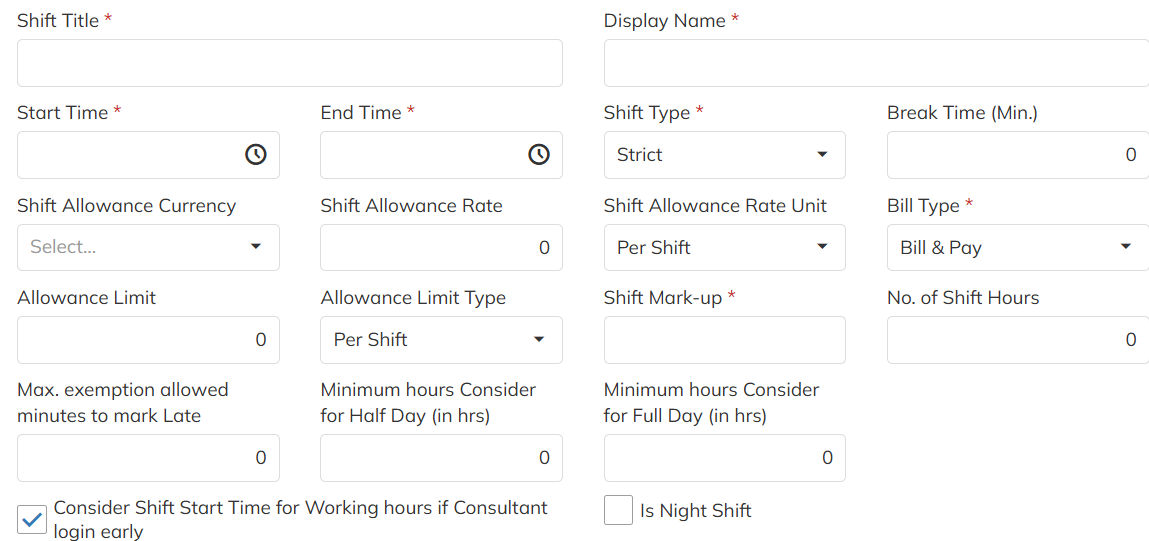
Attendance status is automatically calculated using these rules.
Possible attendance outcomes:
- Present
- Half Day Present
- Half Day Absent
- Absent
7. Late Coming Rules
Examples:
- 30 Minutes Late = Half Day
- 3 Late Arrivals = Half Day
Grace period is configurable per shift.
8. Day Shift vs Night Shift
Day Shift
Attendance can generally be processed after 12:00 PM, depending on scheduler timing.
Night Shift
Night shift processing continues until approximately 10:00 AM the next morning before attendance is finalized.
9. Auto Shift / Nearby Shift Allocation
StaffingGo supports automatic shift allocation.
When enabled:
- System identifies the nearest matching shift
- Employee attendance is processed against that shift
- Useful where employees work across multiple shift timings
10. Geo Tagging & Geo Fencing
Geo Tagging
Enabled by default.
Stores employee location while marking attendance.
Geo Fencing
Must be enabled separately.
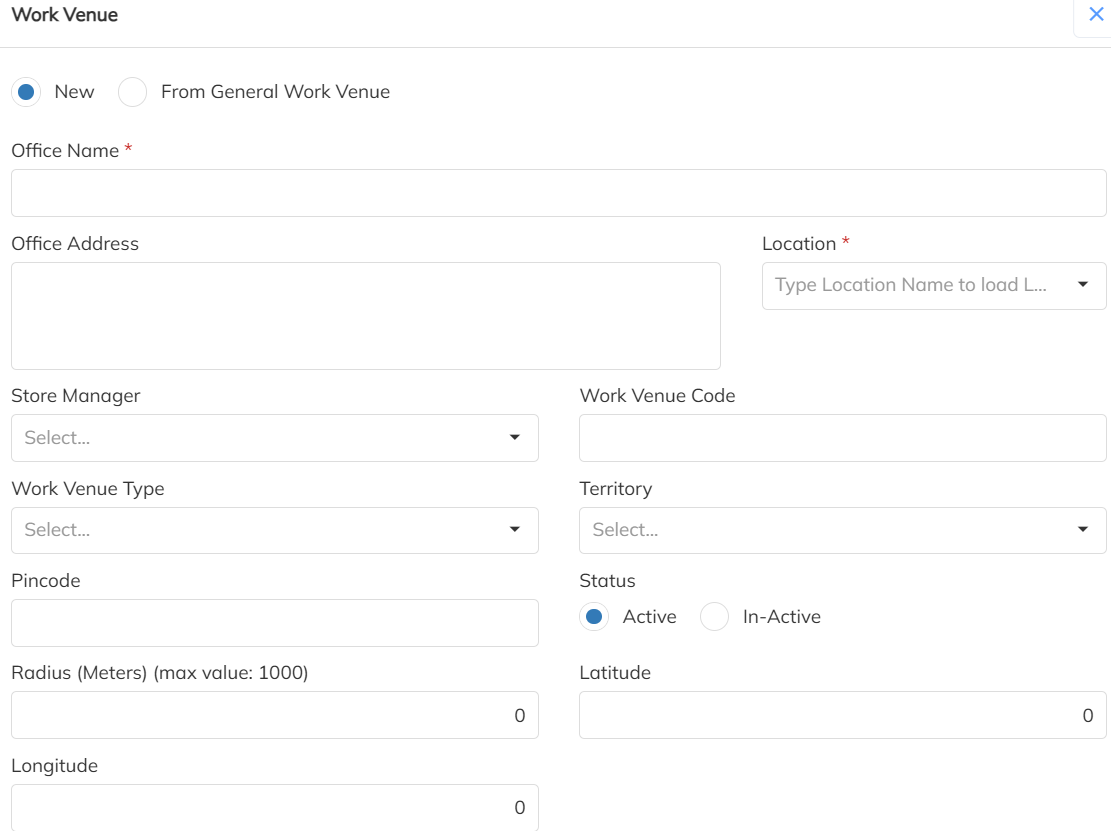
Each work location is configured using:
- Latitude
- Longitude
- Radius
Employees are mapped to a Work Venue.
When Geo Fence is enabled:
- Attendance can only be marked within the permitted location.
11. Selfie Attendance
Supported configurations:
- Selfie only
- Selfie + Geo Tag
- Selfie during Login
- Selfie during Logout
Useful for field workforce verification.
12. Week Off & Holiday Attendance
Attendance remains visible even on:
- Holidays
- Weekly Offs
If configured:
Working on Holiday/Week Off may generate:
- Comp Off
- Leave Credit
- Leave Encashment
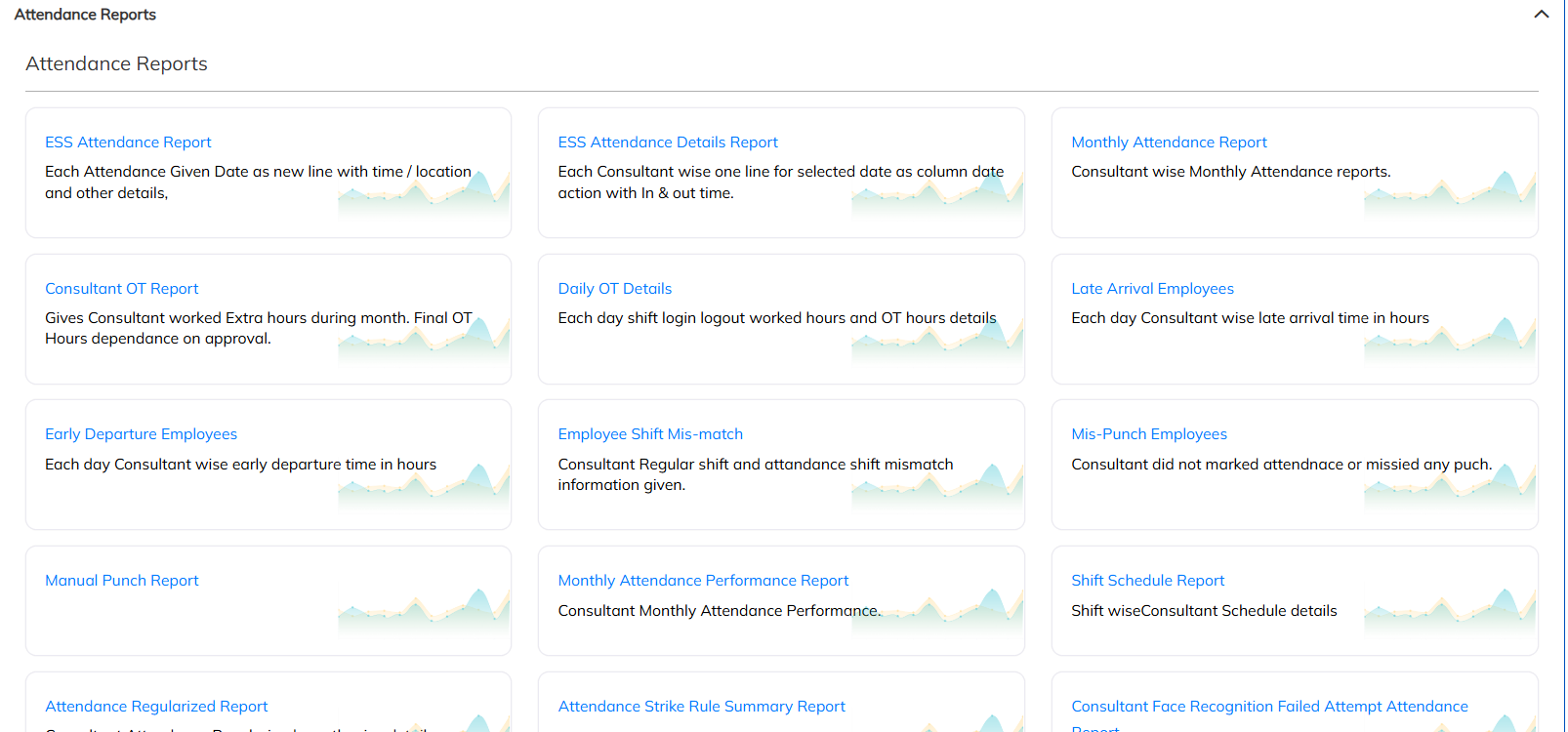
13. Attendance Reports
Available reports include:
- Daily Attendance Report
- Attendance Detail Report
- Detailed Attendance Report
- Mis Punch Report
Attendance labels (Present, Absent etc.) can be:
- Renamed
- Colour coded
14. Attendance Synchronization
Attendance Sync is required when:
- Employee joins with a backdated DOJ
- Historical attendance is missing
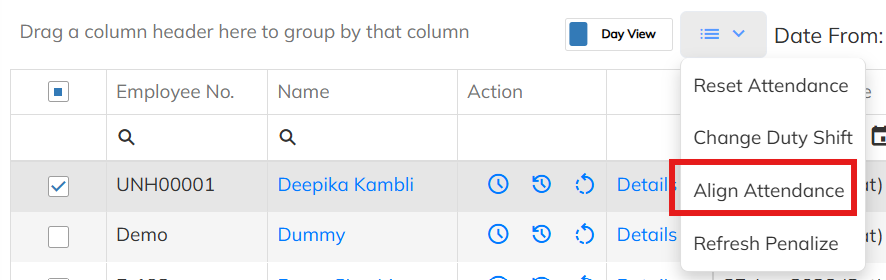
Run Attendance Sync from Attendance Manager.
15. Attendance Alignment
Attendance Alignment should be run whenever any attendance configuration changes.
Examples:
- Week Off Template
- Holiday Calendar
- Shift Assignment
- Employee Start Date
- Last Working Date
- Punch Configuration
- Attendance Rules
Alignment recalculates:
- IN Time
- OUT Time
- Working Hours
- Attendance Status
16. Attendance Regularization
Employees can submit attendance correction requests.
Examples:
- Missed Punch
- Wrong Punch
- Shift Correction
Regularization is allowed only before payroll processing.
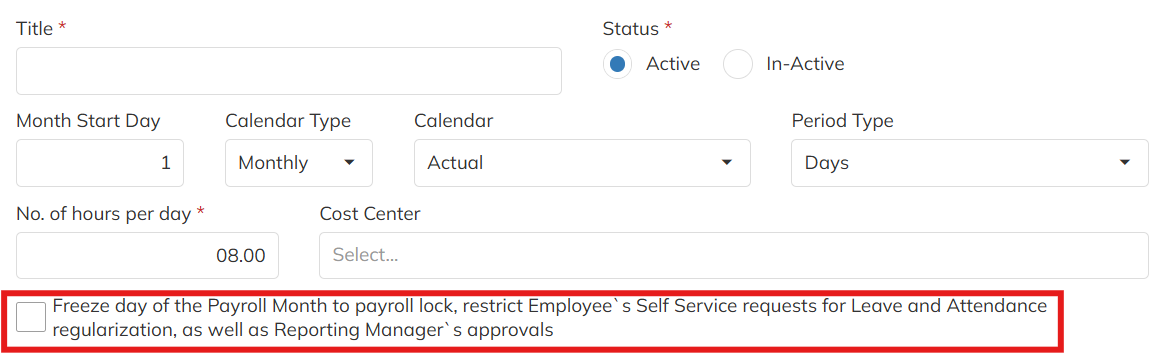
17. Payroll Cut-Off
Once attendance is consumed for payroll:
- Attendance cannot be modified
- Regularization requests are blocked
Payroll cutoff protects payroll accuracy.

18. Scheduler Behaviour
Attendance is not recalculated instantly.
Scheduler:
- Runs every 2–3 hours
- Processes completed shifts
- Applies rule changes after shift closure
Example:
Employee leaves at 2:00 PM
↓
Scheduler processes around 5:00 PM
↓
Attendance updated.
19. Important Configuration Changes
Whenever any of the following changes are made:
- Attendance Rule
- Shift Rule
- Holiday Calendar
- Week Off Pattern
- Employee Joining Date
- Last Working Date
- Punch Type
- Shift Mapping
The administrator must perform:
- Attendance Align
- Attendance Recalculation
Otherwise attendance will continue showing old values.
20. Best Practices
✔ Use only one attendance source (Biometric or Mobile).
✔ Configure correct punch mode for each employee.
✔ Verify shifts before attendance processing.
✔ Configure Geo Fence for field employees.
✔ Run Attendance Sync for backdated joining employees.
✔ Run Attendance Align after every attendance policy change.
✔ Complete all attendance regularization before payroll cutoff.
✔ Review scheduler timing before validating attendance.
Key Takeaways
- Attendance Workflow must be enabled before attendance calculation.
- Do not enable Biometric and Mobile attendance together.
- Shift rules determine Present, Half Day, and Absent status.
- Geo Fencing and Selfie attendance improve attendance authenticity.
- Attendance changes require Sync, Align, and Recalculation.
- Payroll cutoff prevents attendance modification after payroll processing.
- Auto Shift Allocation is available for dynamic shift assignment.
- Scheduler processes attendance periodically and does not update attendance instantly.
Action Items
Role | Action |
HR/Admin | Decide attendance mode (Biometric, Mobile, or No Punch) for each employee group. |
HR/Admin | Configure default shifts, grace periods, and half-day/full-day thresholds. |
HR/Admin | Configure Geo Fence locations (Latitude, Longitude, Radius) for each work venue. |
HR/Admin | Run Attendance Sync for backdated joins and Attendance Align after policy/template changes. |
Payroll/Admin | Define payroll cutoff dates and ensure attendance is finalized before payroll processing. |
HR/Admin | Review and enable Auto Shift/Nearby Shift Allocation where applicable. |
Note: Any change to attendance rules, shift configurations, holiday calendars, week-off templates, employee joining dates, or punch settings requires Attendance Alignment and Attendance Recalculation to ensure attendance records remain accurate.
Was this article helpful?
That’s Great!
Thank you for your feedback
Sorry! We couldn't be helpful
Thank you for your feedback
Feedback sent
We appreciate your effort and will try to fix the article