The Training and Assessment Module ensures that candidates undergoing onboarding and requirement allocation are properly trained and evaluated to meet internal policies and client-specific standards.
Training and Assessment Setup – Overview
In the StaffingGo application, the Training and Assessment module is configured to ensure that all required training programs and assessments are properly defined, mapped, and made visible to employees through the ESS (Employee Self-Service) portal. This setup enables employees to complete mandatory onboarding and requirement-specific evaluations in a structured and traceable manner.
To enable this functionality, the Training and Assessment module must be configured through five sequential setup steps within the StaffingGo system.
Step 1: Access-Based Configuration
Step 2: Assessment Template Creation
Step 3: Training Template Creation
Step 4: Contract level Mapping
Step 5: HR Option Enabling
Step 1: Access-Based Configuration
This step defines role-based access control for the Training and Assessment module. Appropriate permissions are assigned to HR, administrators, and relevant stakeholders to create, manage, and monitor training and assessment activities.
To provide access to the Training and Assessment module, follow the steps below:
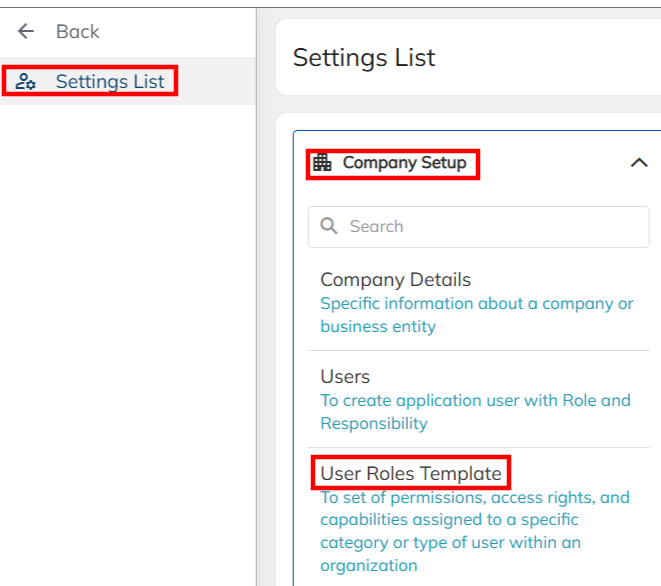
Navigate to Settings >> Select Company Setup.
Choose the user >> Mapped user role template for which user needs access to be enabled.
Enable the Training and Assessment option for the selected role >> Save the changes.(Once access enabled, user needs to re-login to the portal). Attached the snap Below.

Step 2: Assessment Template Creation
Assessment templates are created to evaluate candidates’ technical skills, functional knowledge, behavioral competencies, and policy understanding. These templates act as standardized evaluation frameworks used during onboarding and requirement-specific assessments.
To configure Assessment Template Creation, follow the steps below:
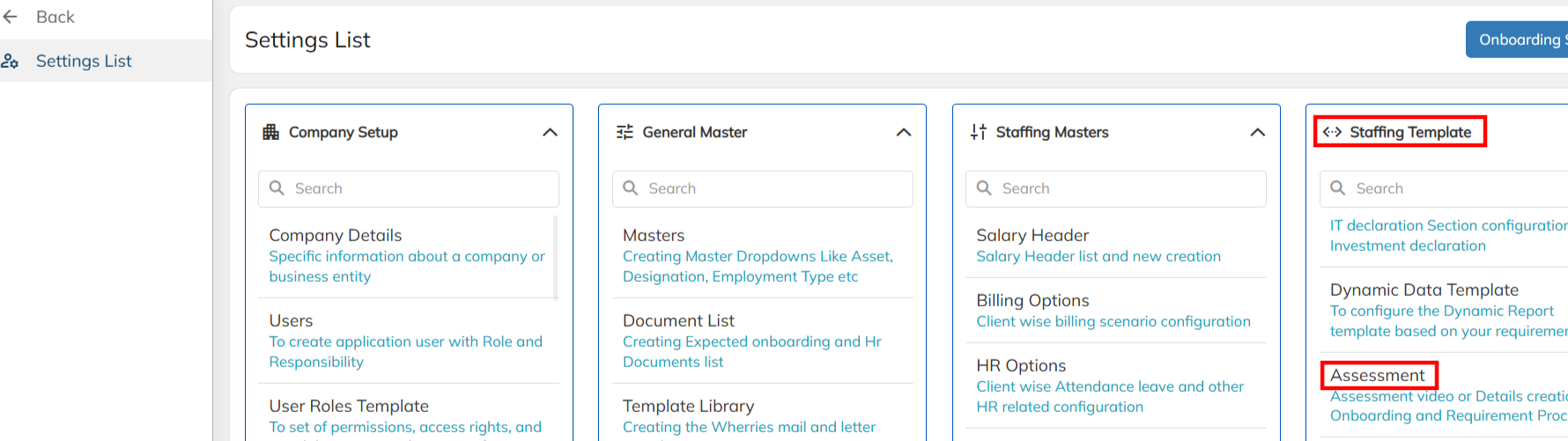
Navigate to Settings >> Select Staffing Template
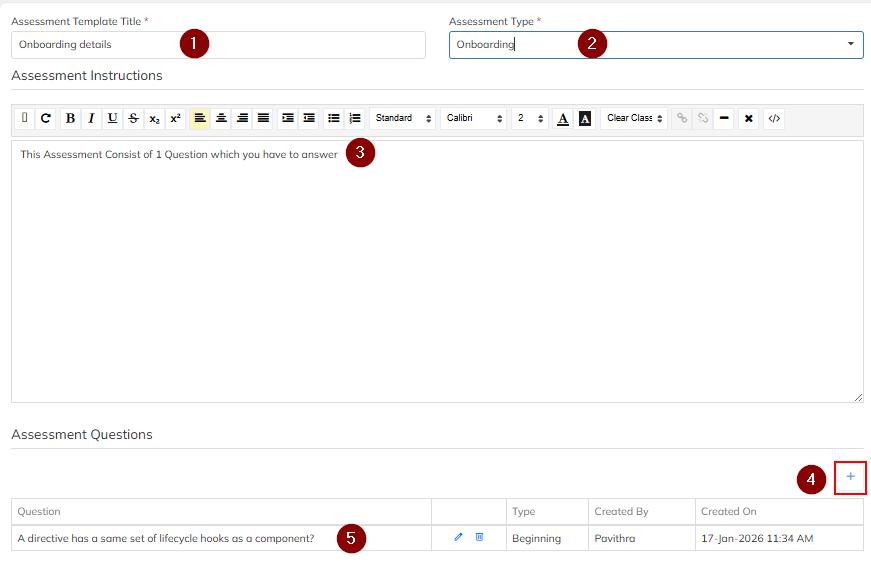
Choose the Assessment in search bar >> Configure the Assessment Template, Attached the snap Below.
1.Assessment Title : Mention the Assessment Title :
2.Assessment Type : Choose Assessment Type in dropdown
3.Enter the text to specify the Assessment details
4.once save the template >> Select "+" icon
5.By clicking on "+" icon Add the Assessment questions (Attached the snap Below)
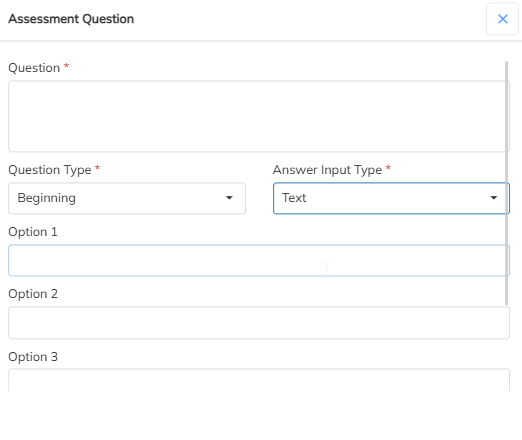
Once we click on "+" icon we will get the page as below for assessment question creation.
Step 3: Training Template Creation
Training templates are defined to structure learning content, modules, and completion requirements. These templates may include onboarding training, compliance training, or role-specific skill development programs.
To configure Training Template Creation, follow the steps below:
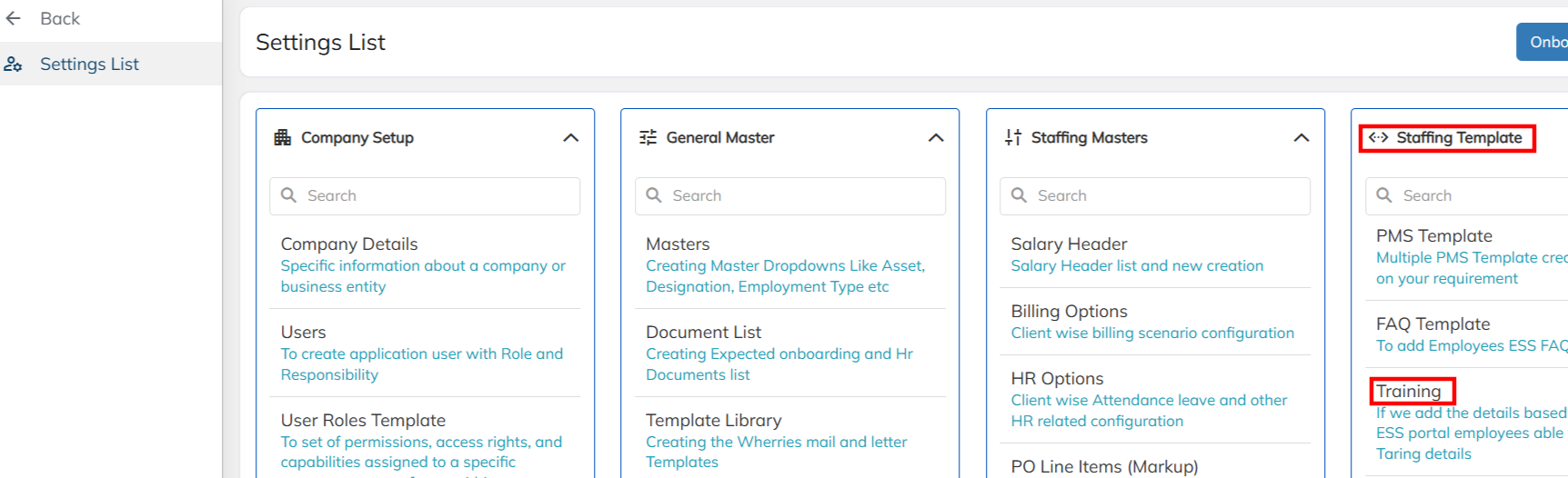
Navigate to Settings >> Select staffing Template
Choose the Training in search bar >> Configure the Training Template, Attached the snap Below.
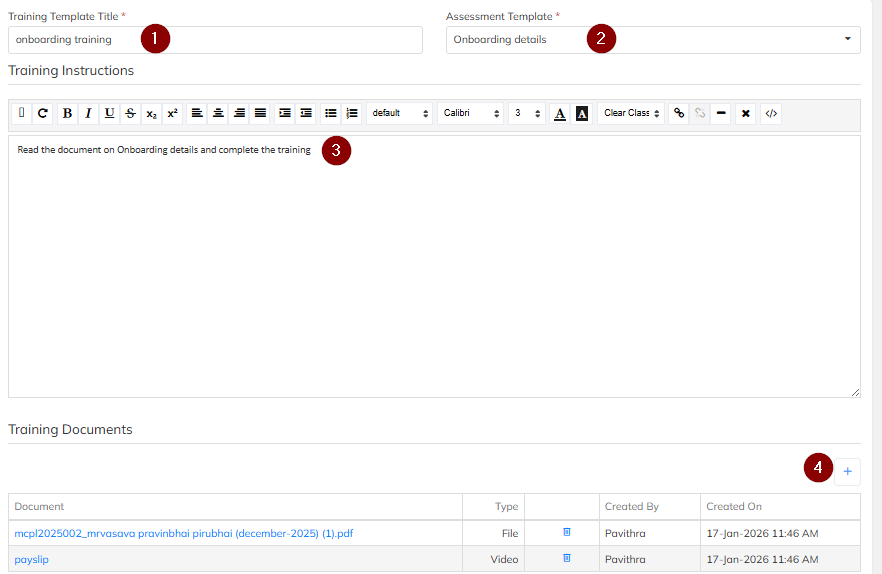
1.Training Title : Mention the Training Title :
2.Assessment Template : Choose Assessment Type in dropdown where assessment was created in Assessment template
3.Enter the text to specify the Training details
4.once save the template >> Select "+" icon
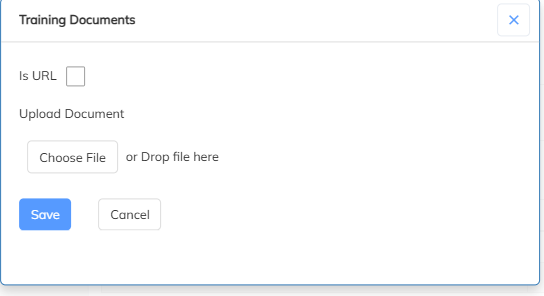
5.By clicking on "+" icon Add the Training details ( Link / Video/ PPT/ PDF) (Attached the snap Below)
Once we click on "+" icon we will get the page as below for Training question creation. (We can provide link or Doc. format)
Step 4: Contract Mapping
Training and assessment templates are mapped to specific clients, projects, or requirements in application This ensures that employees are assigned only the training and assessments relevant to their engagement.
To Map Training Template in contract level, follow the steps below:
Navigate to contract >> Select contract options
Choose training >> Add the Training template whatever we created at Master level.
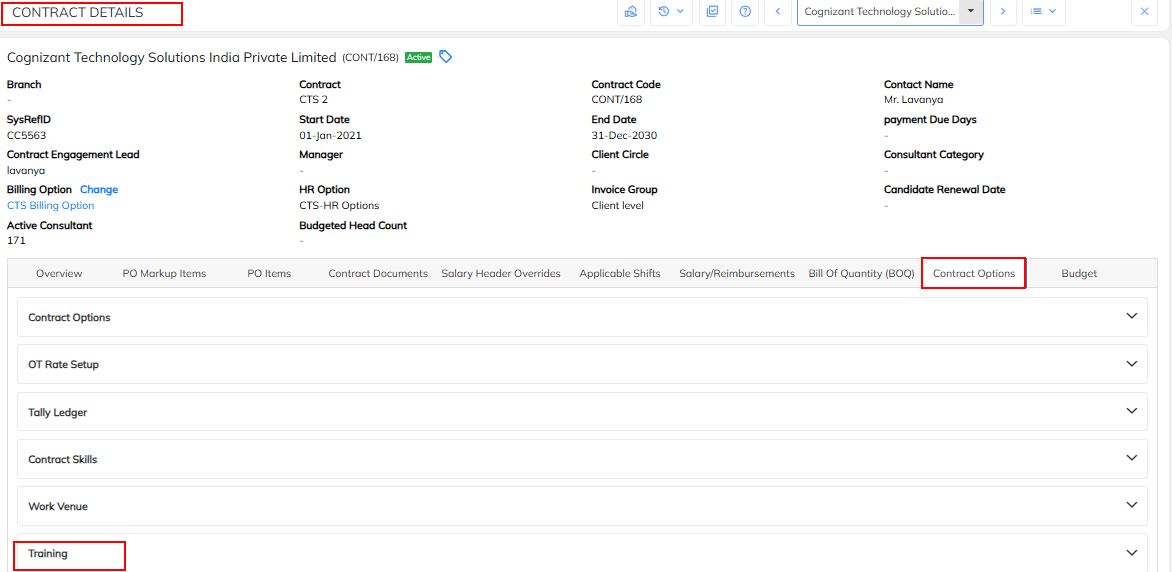
Click on "+" icon and add the Training template (Attached the snap below)

Step 5: HR Option Enabling
In this final step, HR option-level configuration options are enabled to activate and publish the mapped training and assessment modules in the ESS portal.
To Enable Training in ESS Portal in HR options follow the steps below:
Navigate to Settings >> Select Staffing Masters
Choose the HR Options in search bar >> Enable Highlighted section, Attached the snap Below.
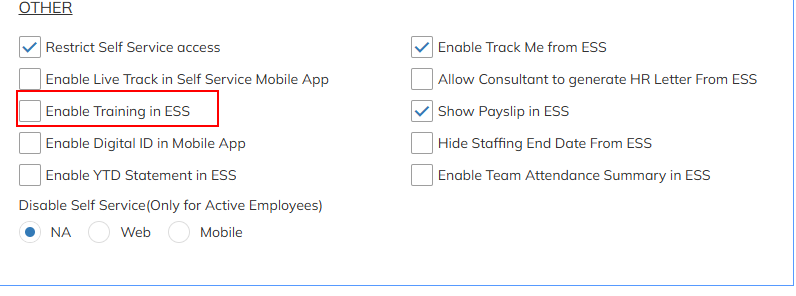
Once we enabled, Whatever the Template we created & mapped under contract level specified , Those details will reflect in ESS portal.
Visibility of Training and Assessment in WEB ESS Portal
Once the Training and Assessment module is fully configured and enabled in the application, it becomes accessible to employees through the ESS (Employee Self-Service) portal in a structured and role-specific manner.
How Training and Assessment Reflects in ESS Portal:
Module Availability in Web ESS Portal:
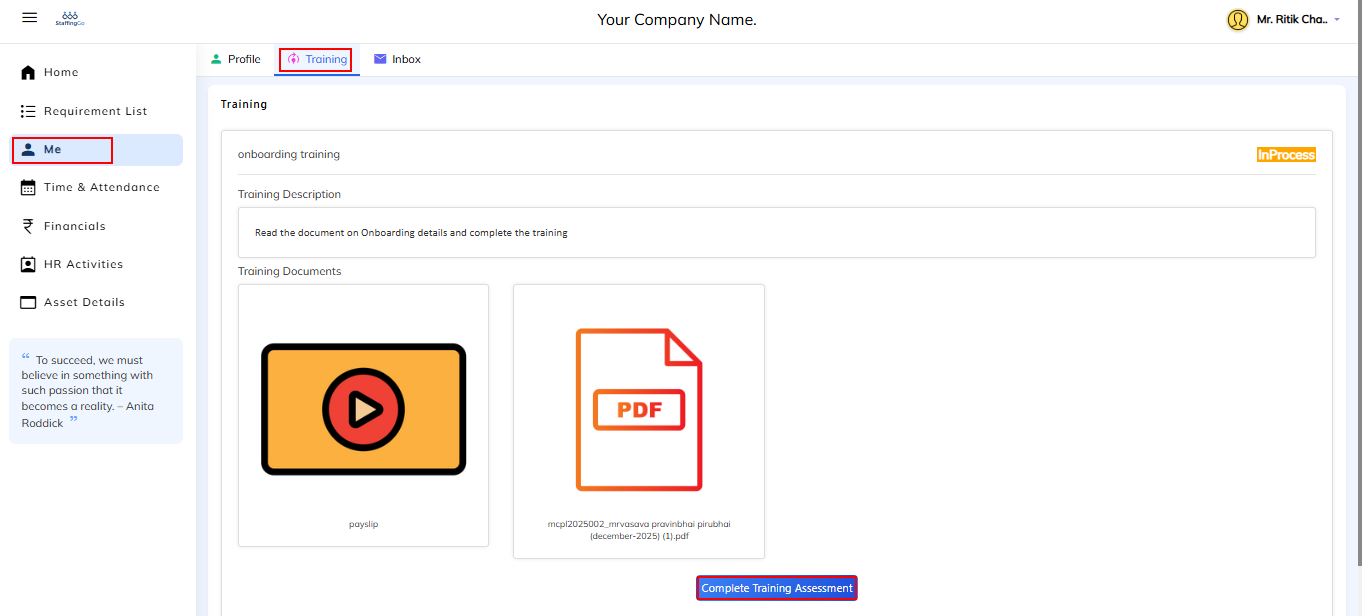
The Training and Assessment section appears in "ME" on the ESS dashboard for eligible employees, based on their assigned role and access permissions.
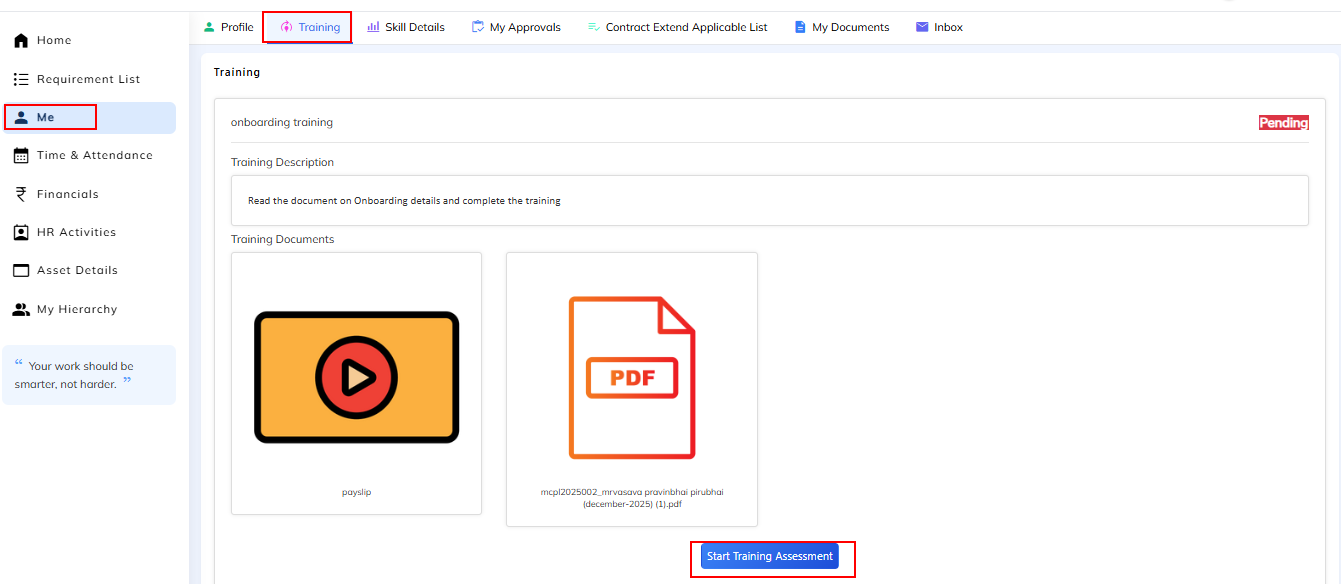
Employee can start the assessment by clicking on start assessment, once we clicked "YES " the page will re-direct to Assessment questions, Attached snap Below,
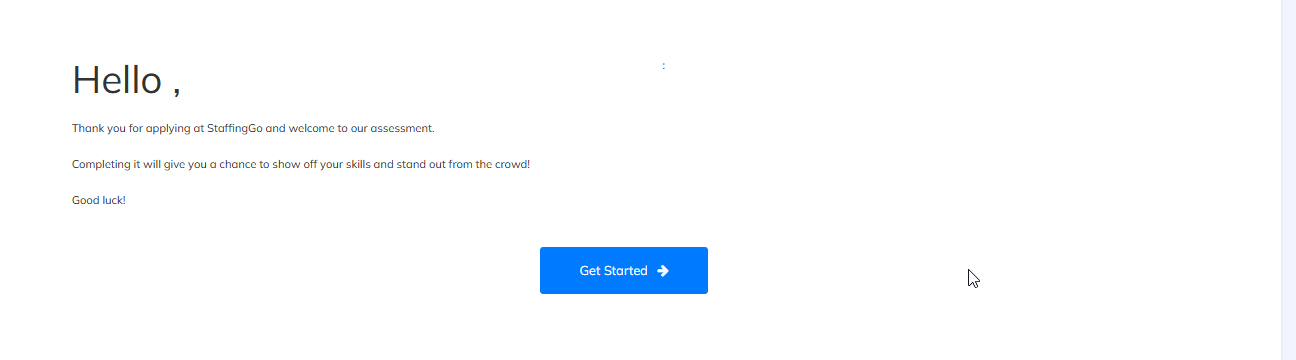
When employee will click on "GET STARTED", Assessment questions will open and Employee able to answer those questions
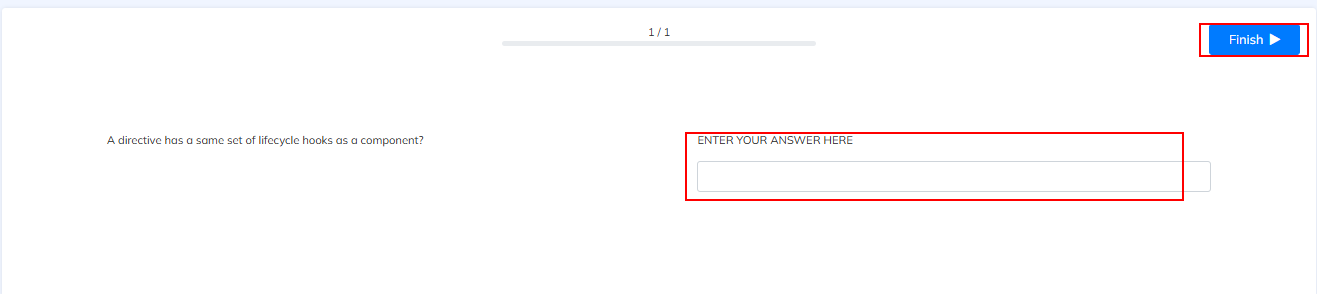
After answering the questions, will click on "FINISH". It will re-direct to rate the experience (This is optional)
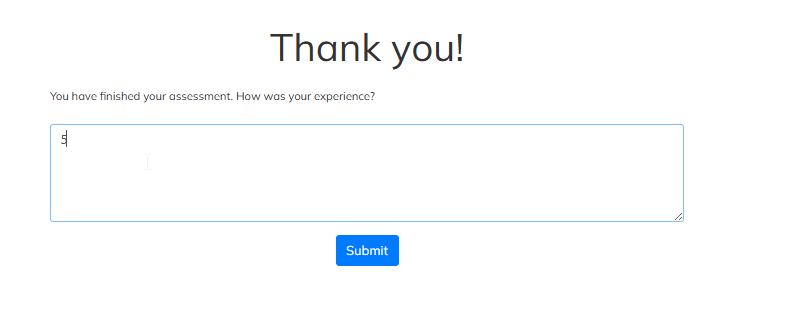
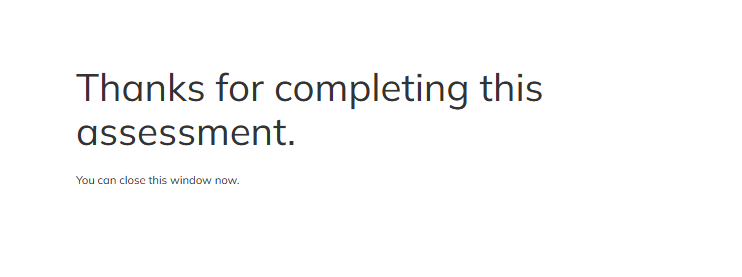
Once you rate the experience and submit , Your assessment will complete. Once employee completes the assignment they can close the window and click on complete Training Assessment .(Attached the snap Below)
Visibility of Training and Assessment in Mobile ESS Portal :
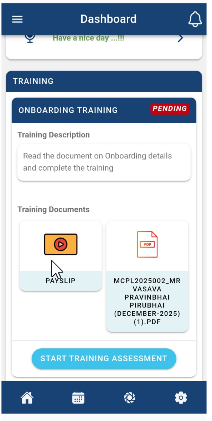
Module Availability in ESS Portal:
The Training and Assessment section appears in "DASHBOARD" on the ESS Portal based on their assigned role and access permissions.(Attached the snap below)
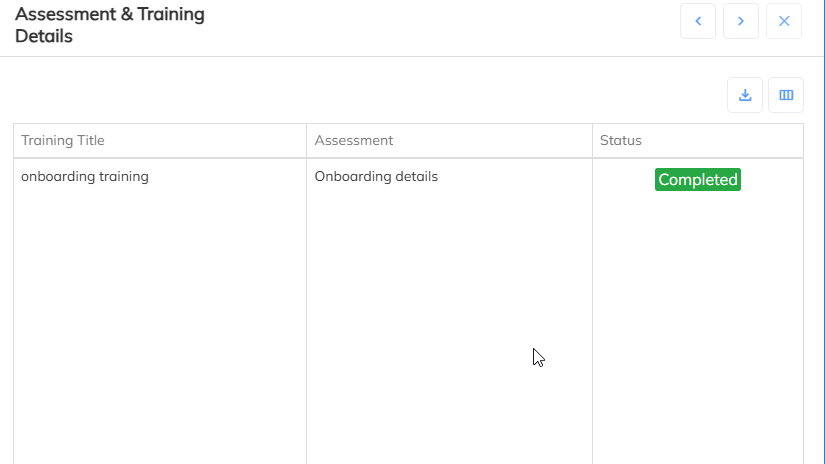
Once employee completed the Training Assessment HR can check in core application by opening the employee profile >> Clicking on Training and Assessment details (Attached the snap Below)
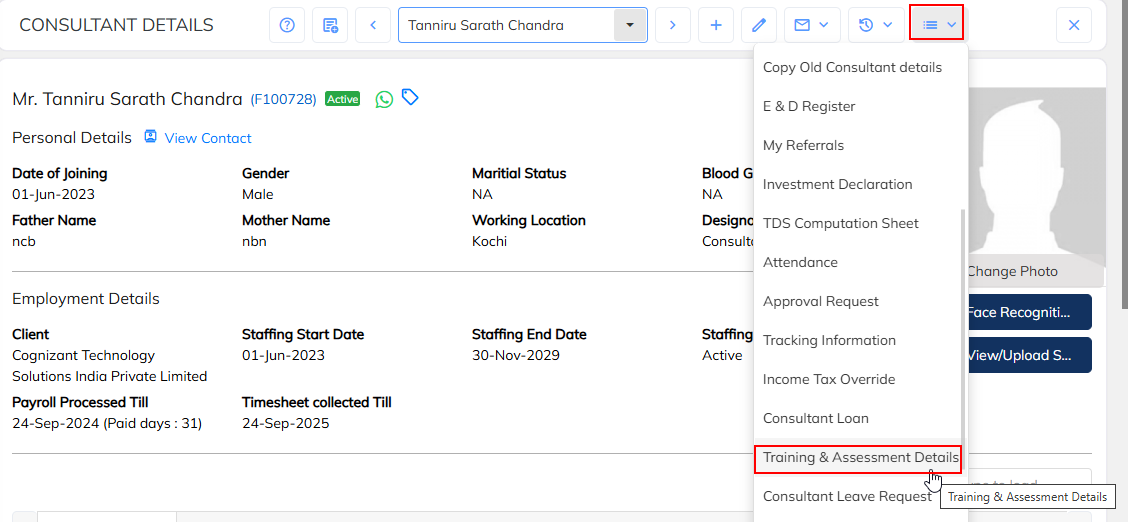
Once we clicked the option , Will get the details on Training and assessment details whether employee was completed or not.
Was this article helpful?
That’s Great!
Thank you for your feedback
Sorry! We couldn't be helpful
Thank you for your feedback
Feedback sent
We appreciate your effort and will try to fix the article