Shift Creation and Mapping in Core & Client Portal
1. Navigate to Shift Settings
Navigate to Settings → Attendance/ Leave → Shift Items.
This is where you can view existing shifts or create a New Shift.
 2. Create a New Shift
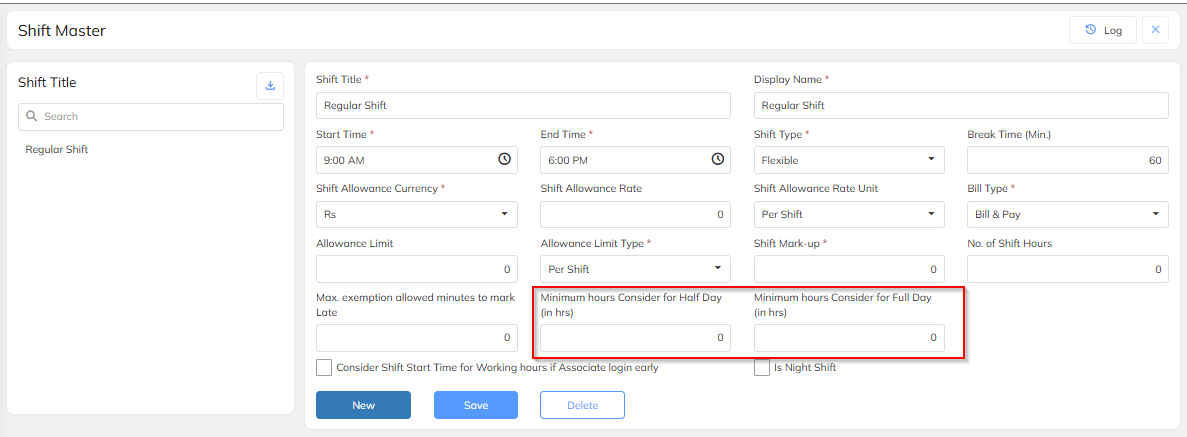
Click on Create New Shift.
Enter the Shift Name/Code (e.g., Day Shift, Night Shift).
Update Login Time and Logout Time.
Configure all applicable features/controls available under shift creation, such as:
Grace Period for Login/Logout
Break Hours / Meal Breaks
Late/Early Marking Parameters
Attendance rules as full present and half day present
Any other custom controls available in the portal.
3. Save and Map the Shift
After configuring, click Save.
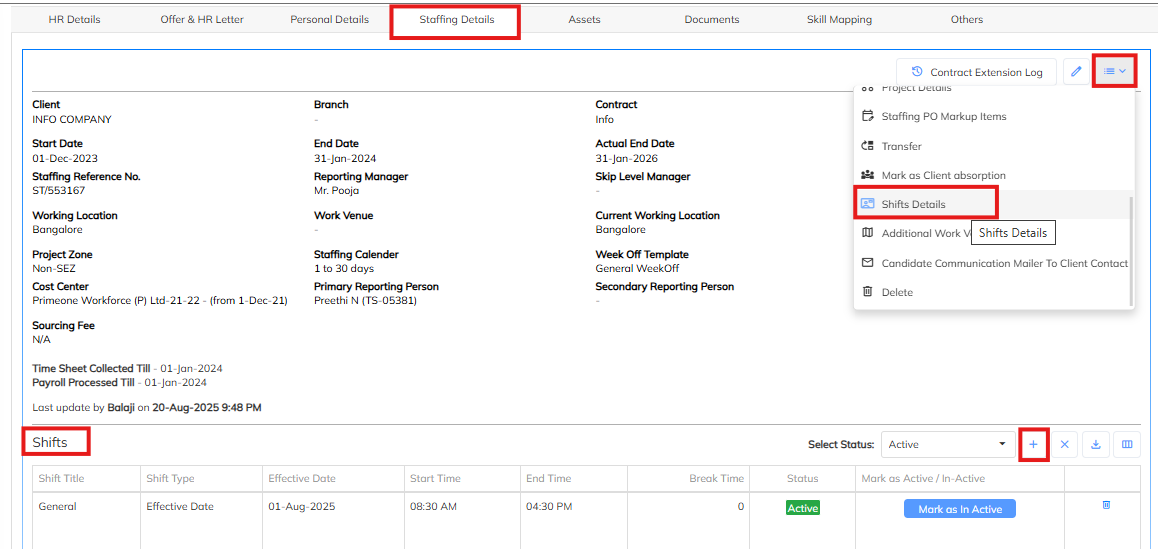
Navigate to Shift Mapping under Staffing Details.
Select the Employee(s), Department, or Client Project where the shift should apply.
Assign the newly created shift to the relevant group.
4. Shift Change Approval steps
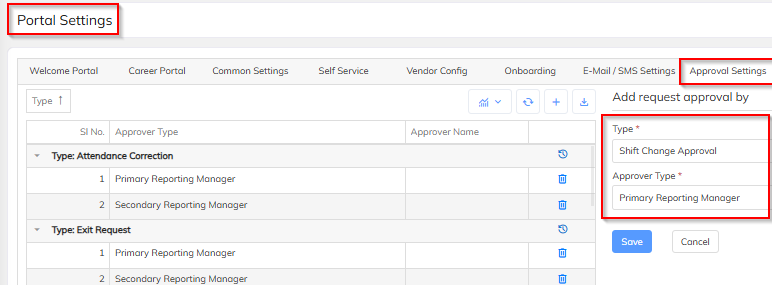
- Step 1 – Shift change approval matrix configuration in Admin and Employee raises Shift Change Request
- Login to the application with Admin / HR credentials.
- Navigate to Settings->Company setup->Portal settings->Approval settings->Click on “+"
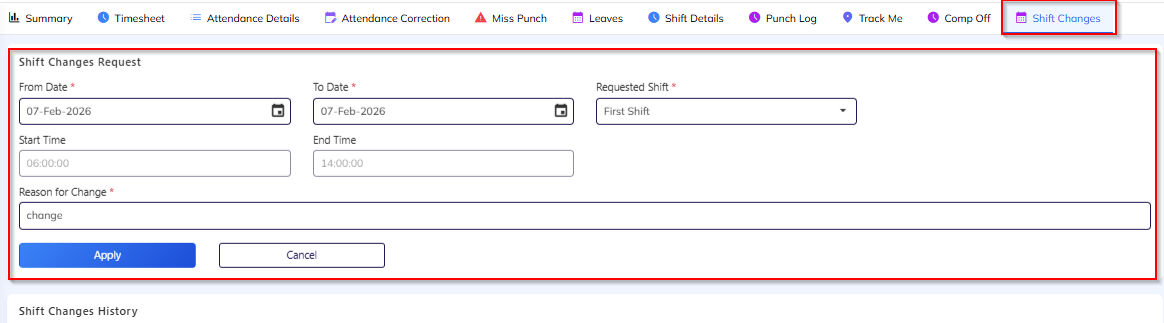
Login to ESS Portal / Mobile App
Go to Time & Attendance → Shift Changes
Click on “+ New Request”
Select:
Date / Date Range
Required Shift
Enter Reason for change / Remarks
Click Apply
The request will now go to the Reporting Manager for approval.
Step 2 – Reporting Manager reviews the request
Reporting Manager logs into ESS Portal
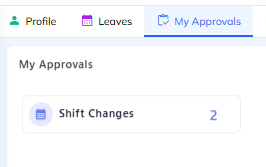
Navigate to My Approvals → Shift Change Requests
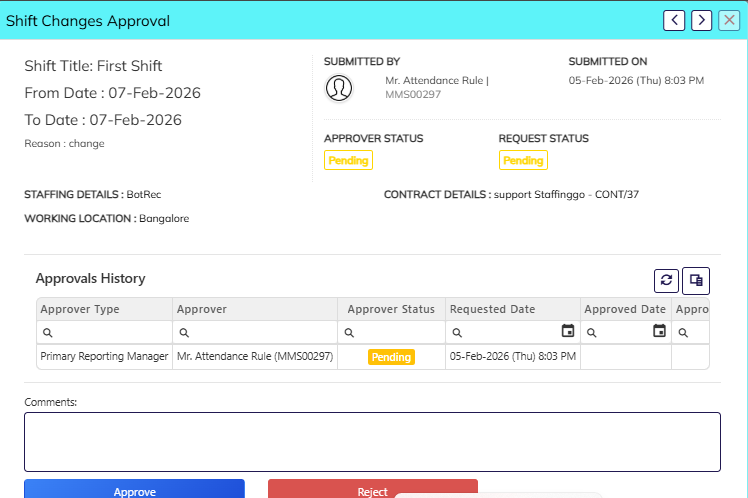
Open the employee request
Review:
Requested shift
Date(s)
Employee remarks
Click Approve or Reject
Step 3 – After Approval
Once approved:
The new shift is auto-updated in the employee’s attendance calendar
Late coming, early exit and working hours will be recalculated based on the new shift
Attendance for that date will align automatically with the approved shift
5. Attendance Strike rule creation
Login to the application with Admin / HR credentials.
Navigate to: Settings → Attendance/Leaves → Attendance Strike Rules Master.

Click on “New” Enter the Rule Name and save
Click on “+ Add” to create a new strike rule.
From the Strike Type dropdown select strike rule Example: Late Coming Strike Rule
Configure the Strike Conditions, such as:
Number of late marks
Half-day / absent occurrences
Missed punches
Any other violation criteria
Define the Strike Threshold, for example:
3 late marks with action type = 1 strike
3 strikes = 1 day leave deduction / LOP
Map created strike rule under HR options
6. Default shift and Strike rule to be mapped under HR options
Go to Settings → Staffing Masters → HR Options
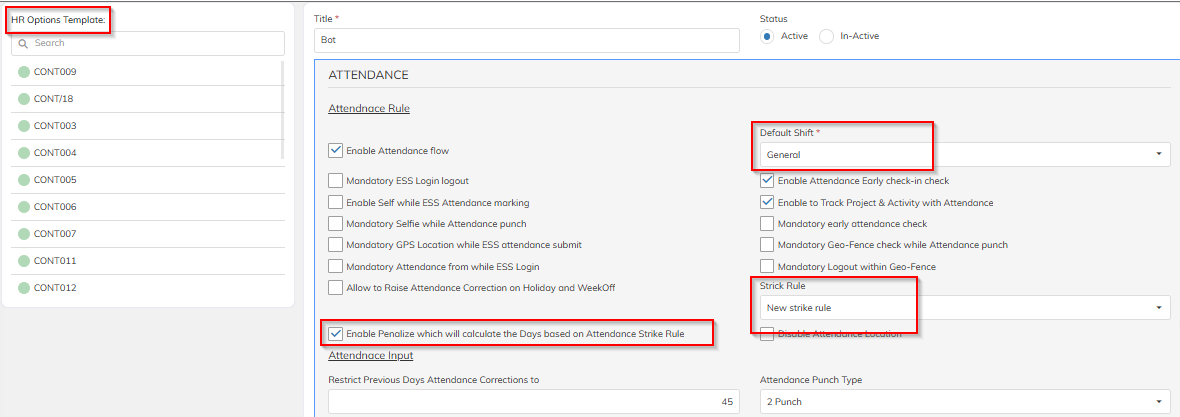 Once saved and mapped, the shift and strike rule becomes active for attendance and scheduling.
Was this article helpful?
That’s Great!
Thank you for your feedback
Sorry! We couldn't be helpful
Thank you for your feedback
Feedback sent
We appreciate your effort and will try to fix the article