Overview
After generating an invoice, it is important to sync the invoice documents and merge the required supporting documents before sharing them with the client.
The sync process fetches the generated invoice documents into the system, while the merge process combines the invoice with its supporting documents such as the Pay Register and Rate Card. Once merged, all documents can be viewed and downloaded from the Invoice Attachments section.
This process is applicable for both Payroll Invoices and Rate Card Invoices.
Step-by-Step Process
Step 1: Log in to the Admin Portal.
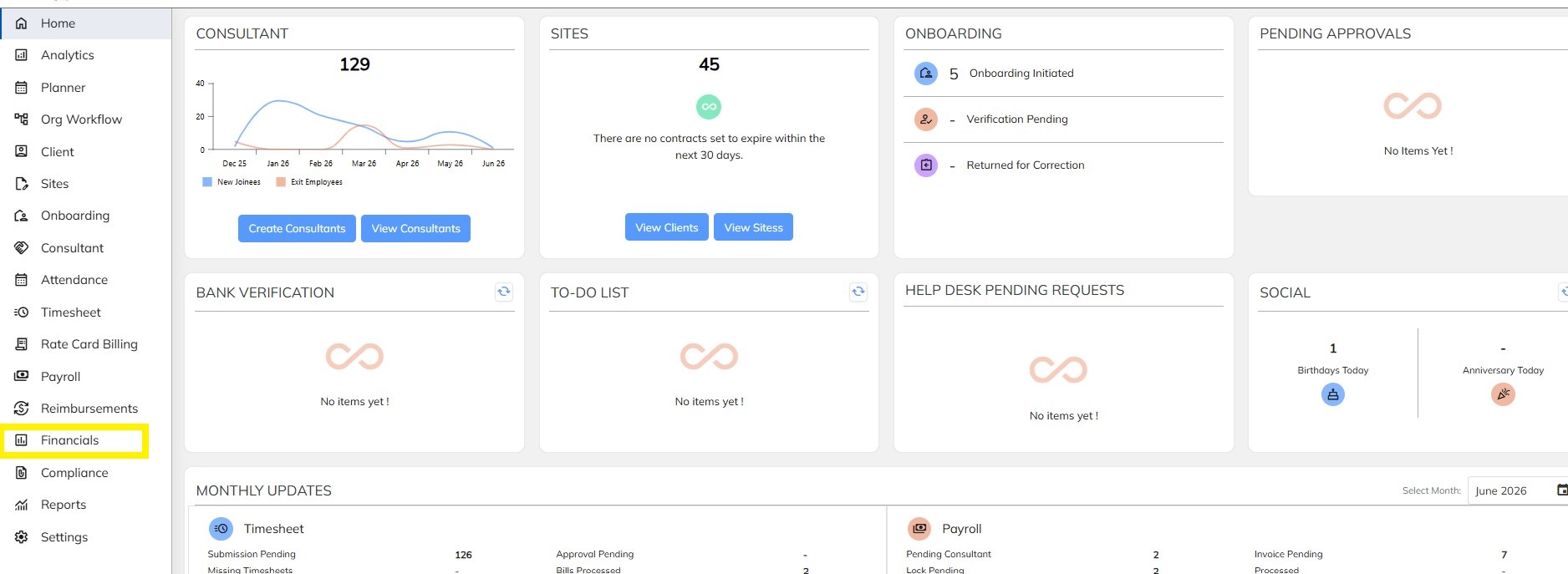
Step 2: Navigate to Financials → Processed Invoice.
Step 3: Select the appropriate invoice category — Payroll Invoice or Rate Card Invoice.
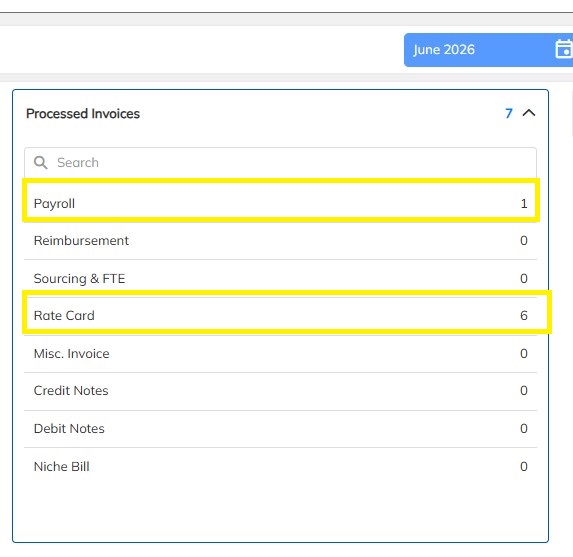
Step 4: Locate and open the invoice that has been generated.
Step 5: Click on the Document/File icon available against the invoice.
Step 6: Select Invoice Document Checklist.
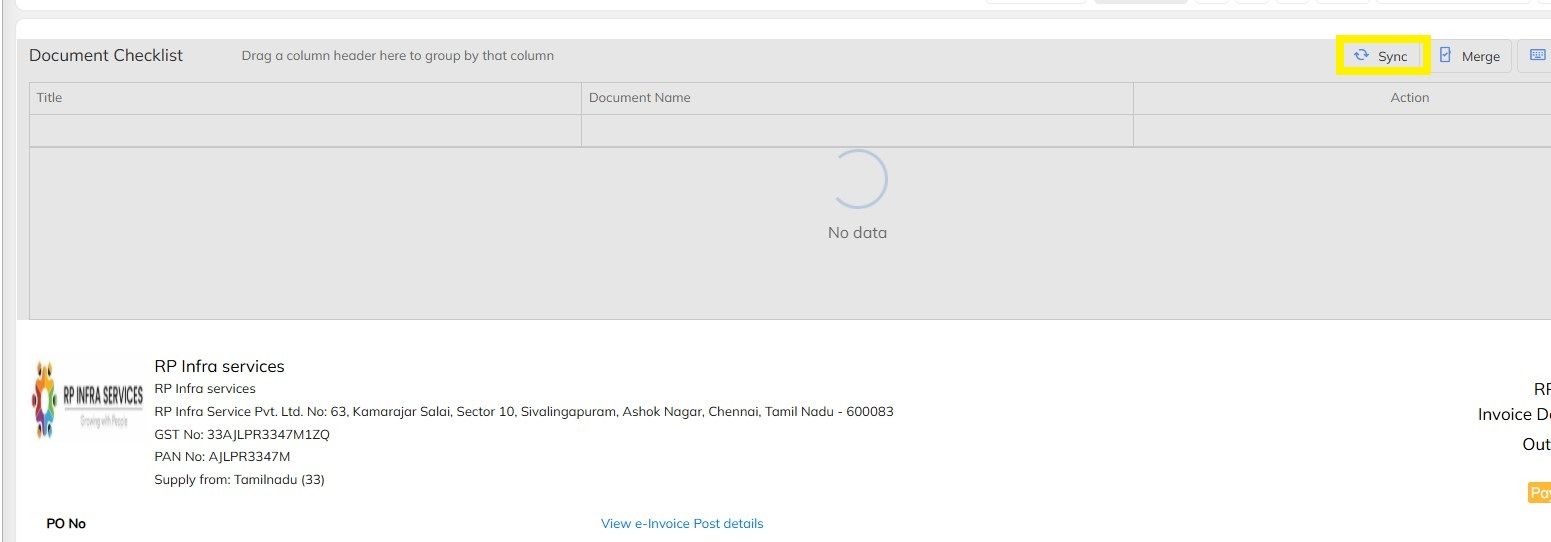
Step 7: Click on the Sync button.
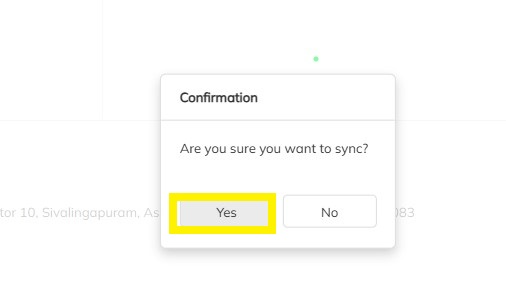
Step 8: Wait for the synchronization process to complete successfully.
Step 9: Verify that the generated document is visible in PDF format within the Invoice Document Checklist.
Step 10: Select the required documents and click on the Merge option.

Step 11: Wait for the merge process to complete successfully.
Step 12: Click on the Document/File icon again.
Step 13: Navigate to Invoice Attachments.
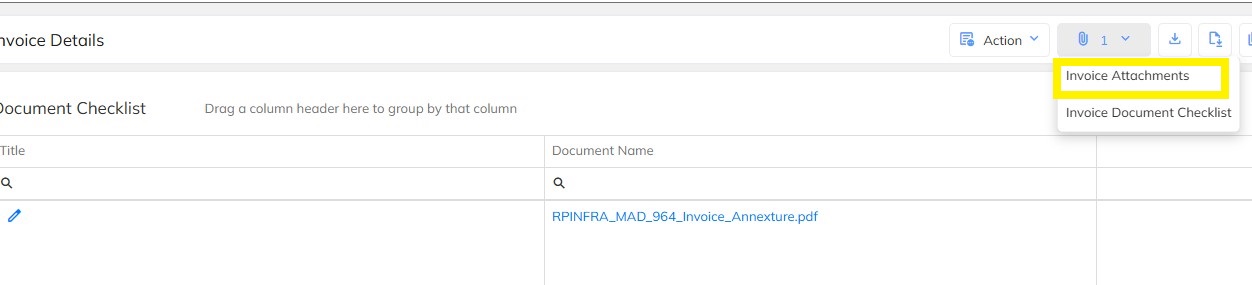
Step 14: Verify the merged document.
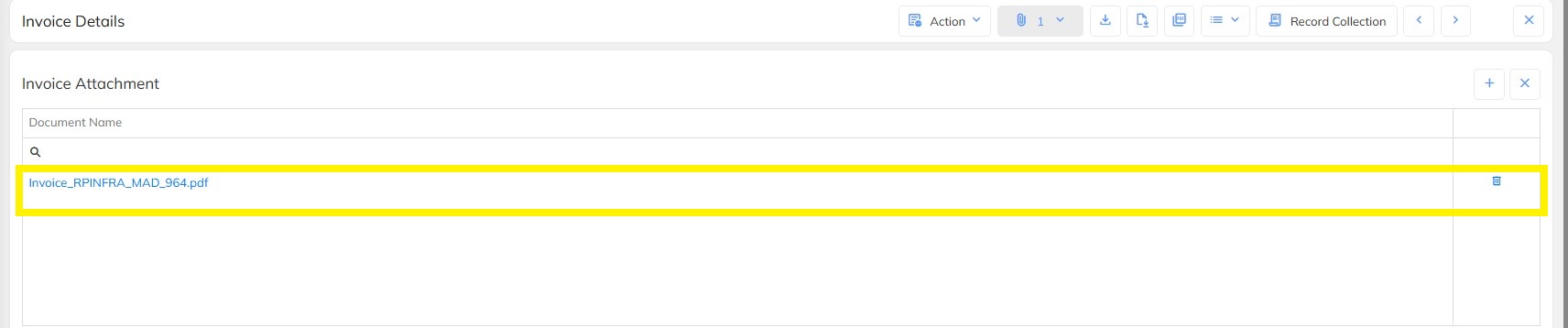
The merged document will contain:
- Generated Invoice
- Pay Register
Process Flow
Generate Invoice |
↓
Financials |
↓
Processed Invoice |
↓
Select Invoice |
↓
Invoice Document Checklist |
↓
Sync Documents |
↓
PDF Documents Available |
↓
Merge Documents |
↓
Invoice Attachments |
↓
Verify Merged File |
↓
Merged Invoice Ready for Download/Sharing |
Note: Always ensure that the Invoice Document Checklist is successfully synced before performing the merge operation. Only after successful synchronization will the required PDF documents be available for merging. |
Note: The final merged document can be verified from the Invoice Attachments section and will contain all supporting documents required for client submission. |
Was this article helpful?
That’s Great!
Thank you for your feedback
Sorry! We couldn't be helpful
Thank you for your feedback
Feedback sent
We appreciate your effort and will try to fix the article