This guide explains how to configure HSN / SAC codes at both System Level and Client Level.
Note:
If the HSN / SAC code is not configured at any level, the invoice will be BLANK as the HSN/SAC code.
1. System-Level Configuration (HSN / SAC Code)
System-level configuration applies globally unless a client-level SAC code is mapped.
Navigation Path
Settings → Financials → SAC Code
Steps
Navigate to Settings >>Select Financials>>Click on SAC Code.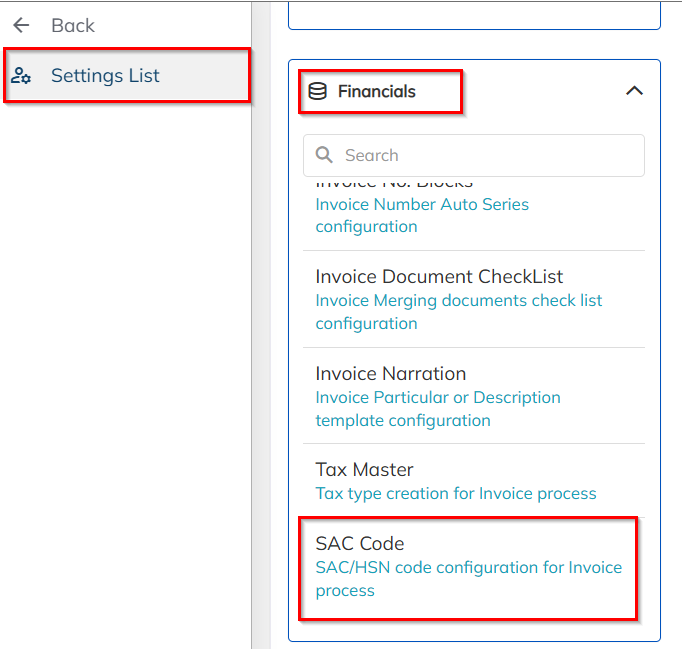
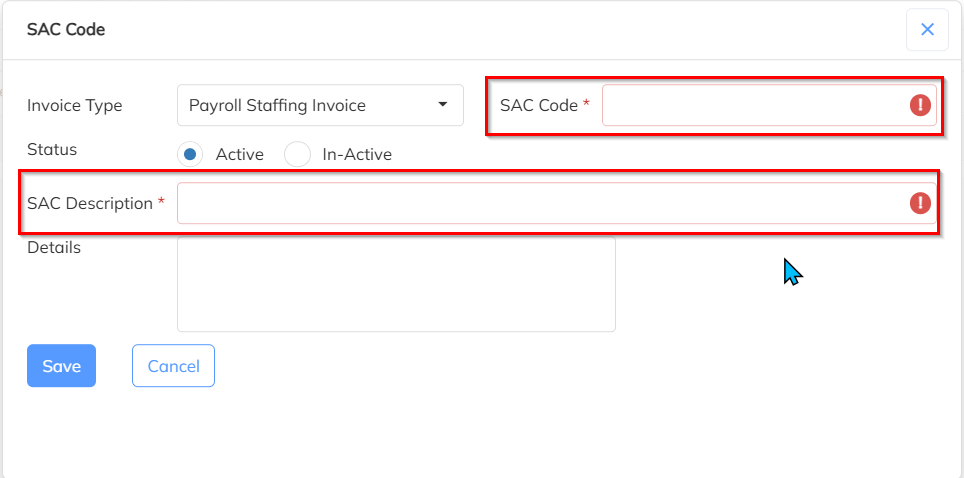
Click on the ‘+’ (Add) icon (Enter the required code details.) or Click on the Edit (✏️) icon (Update the required details.)>>After updating the information, click on Save.
2. Client-Level Configuration(HSN / SAC Code)
Client-level configuration overrides all other HSN/SAC configurations.
Note:
If a client is mapped with a client-level SAC code, the system will ignore all other HSN/SAC codes and generate invoices only with the mapped client-level code
Navigation Path
Client Module → Select Client → Settings → Invoice SAC Code
Steps
Go to the Client Module>>Select and open the required Client 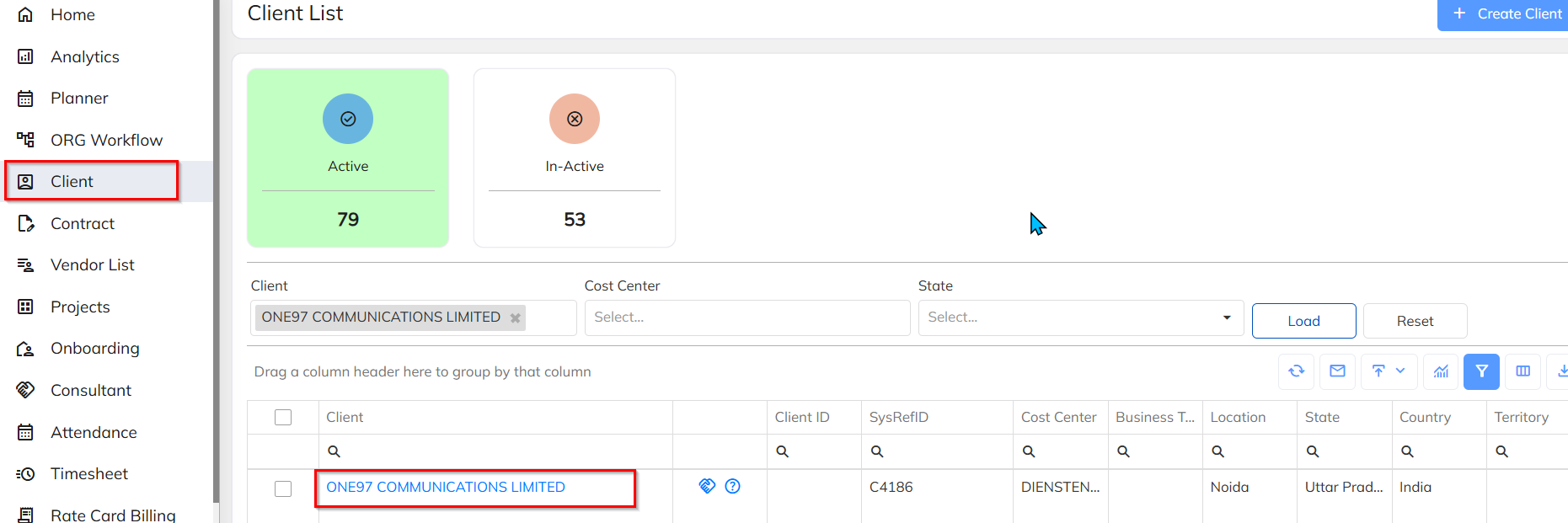
Go to the Settings tab >>Open Invoice SAC Code.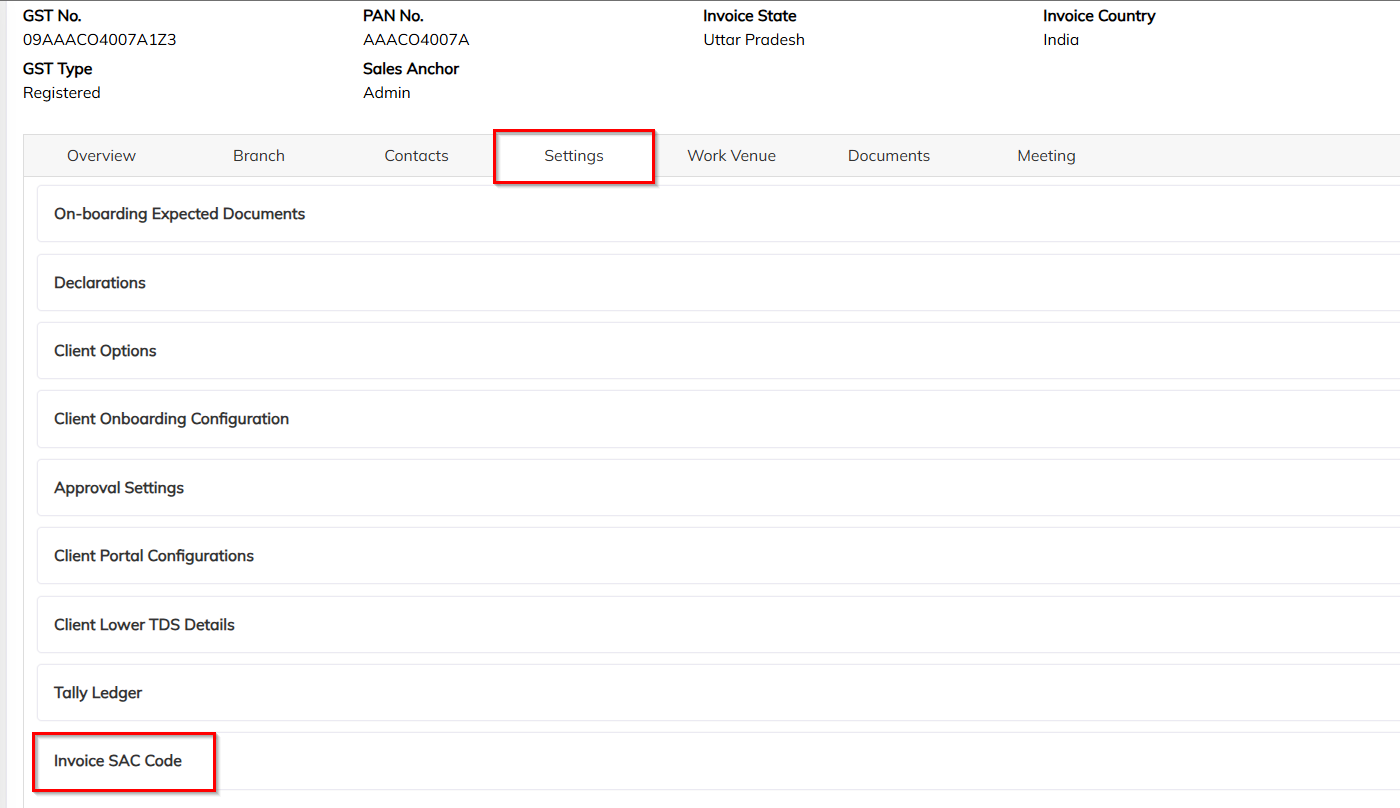
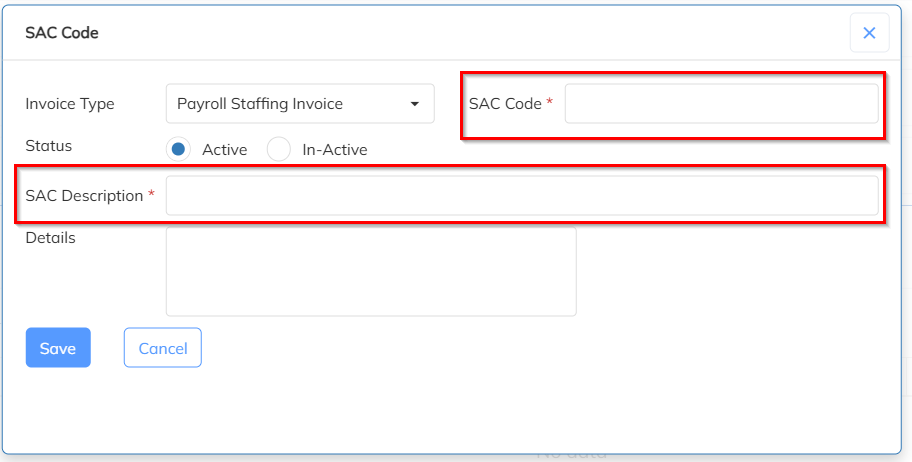
Click on the ‘+’ (Add) icon >>Enter the SAC Code number and Description>>Click on Save to apply the changes.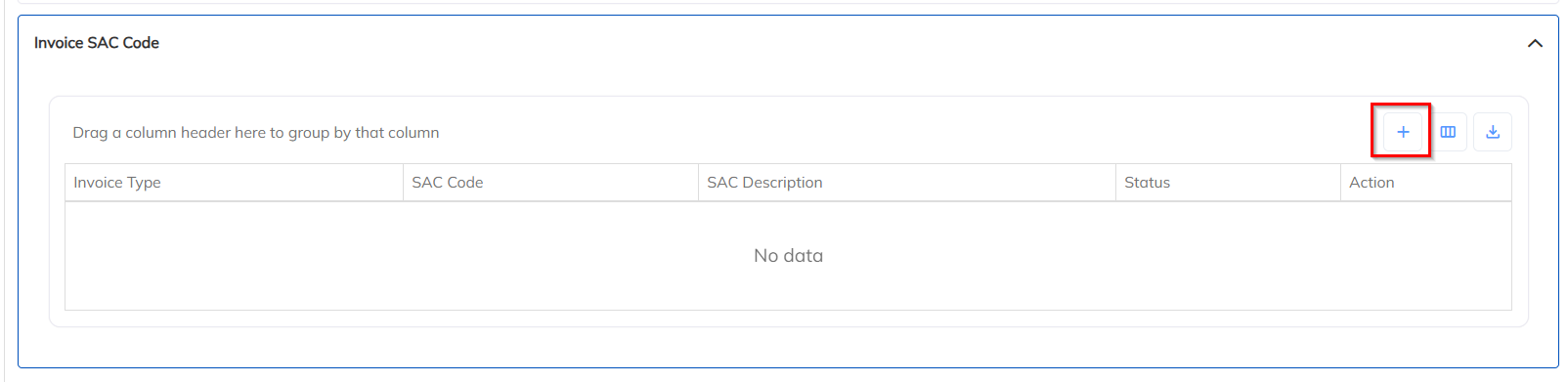
Was this article helpful?
That’s Great!
Thank you for your feedback
Sorry! We couldn't be helpful
Thank you for your feedback
Feedback sent
We appreciate your effort and will try to fix the article