Follow the below mentioned Steps to log in to the ESS Portal and how to apply for attendance correction if any punch or attendance record is missing or incorrect. It also includes steps to apply for leave raise through the ESS Portal.
1. ESS Portal Login
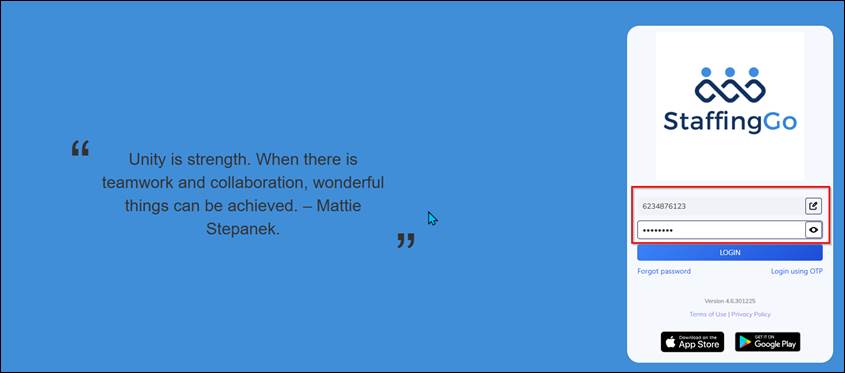
- Access ESS Web Portal using this link-https://emp.staffinggo.in/. For Mobile App download the StaffingGo Application in Play store https://play.google.com/store/search?q=staffinggo+ess+app&c=apps&
- Enter your registered Phone Number or Email ID.
- Enter your Password or Reset your password using forgot password OTP basis.
- Click on Login to access the portal.
Web Login
Mobile Login 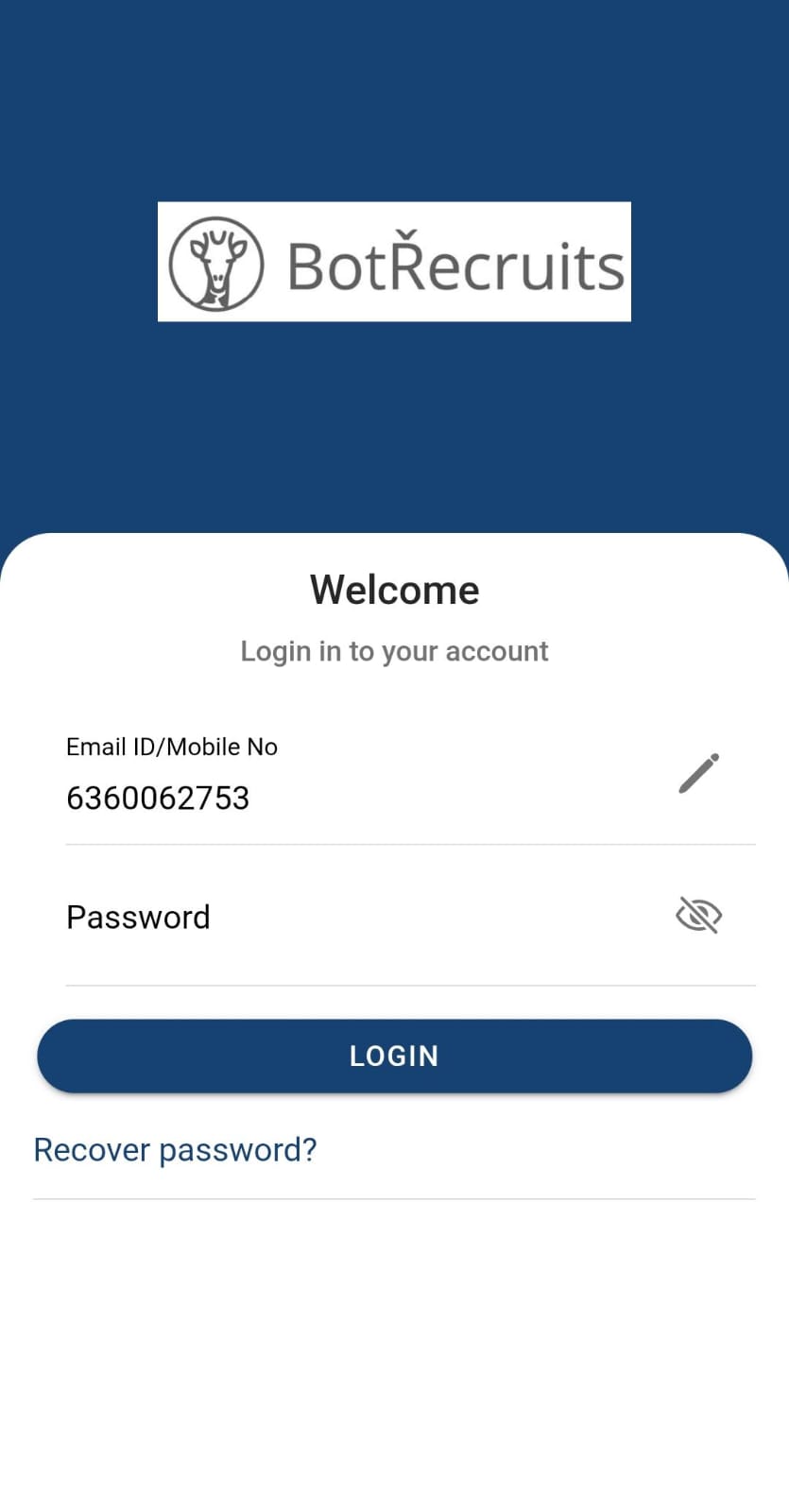
2. Attendance Correction/ Regularization Process
Follow the below mentioned steps to raise attendance regularization.
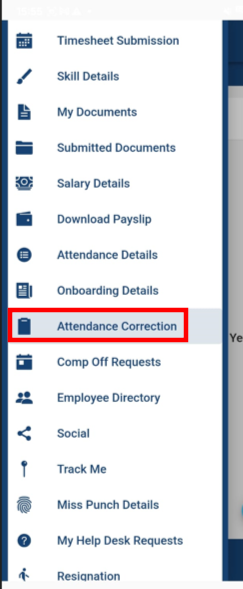
- Navigate to Time & Attendance Menu>> Select the Attendance Correction Option
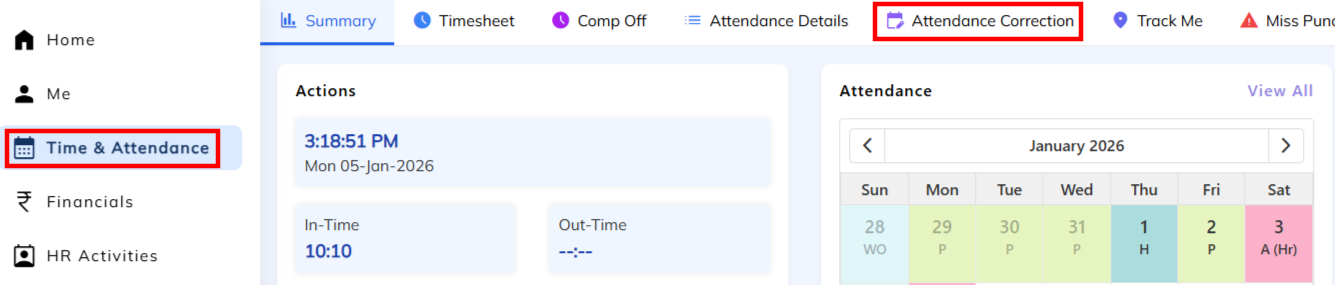
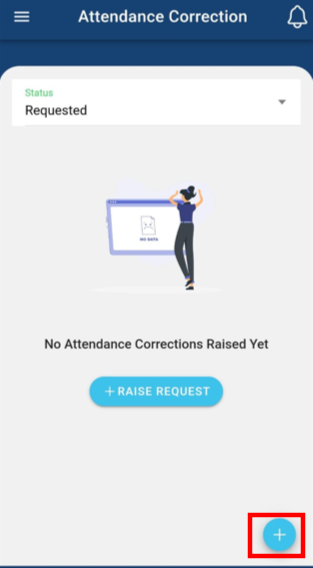
- Click on + Attendance Correction Symbol to add the regularization details.
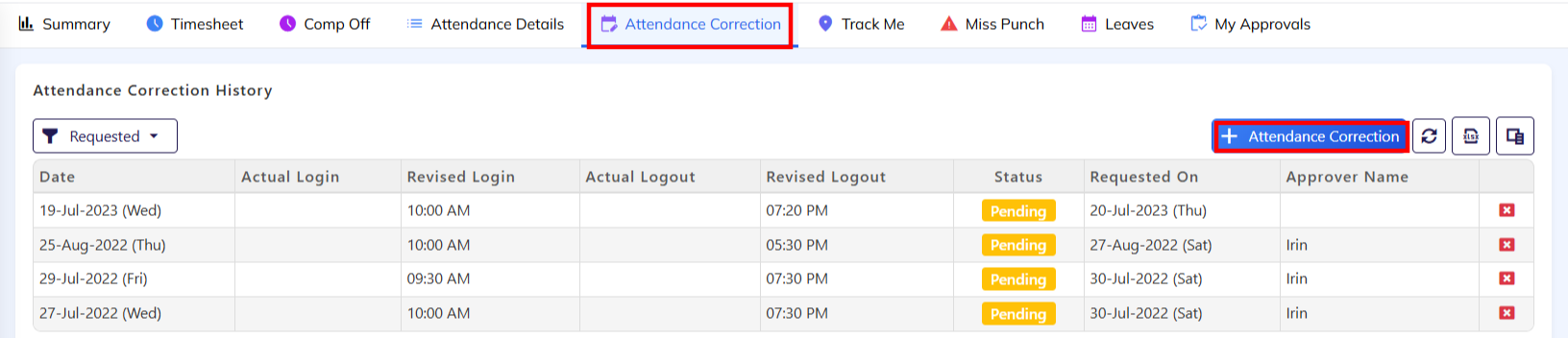
- Select the regularization date with login & logout time submit for approval to reporting manager with remarks.
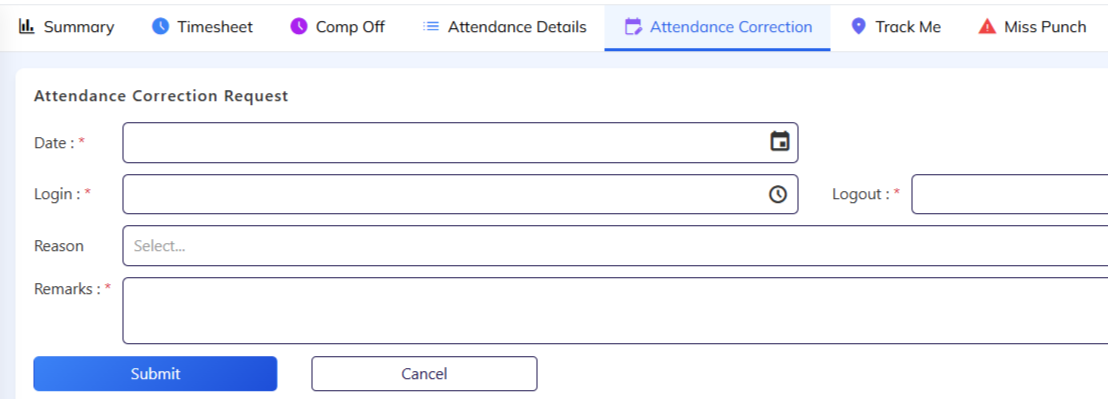
- Submitted requested under pending. Once the approver has been approved/Reject status will get update.
- For Mobile App Refer the attached screenshot to regularization the attendance correction.
3. Leave Request Process:
Follow the below mentioned steps to raise the leave from the ESS Portal.
- Navigate to Time & Attendance Menu >> Choose the Leave Option.
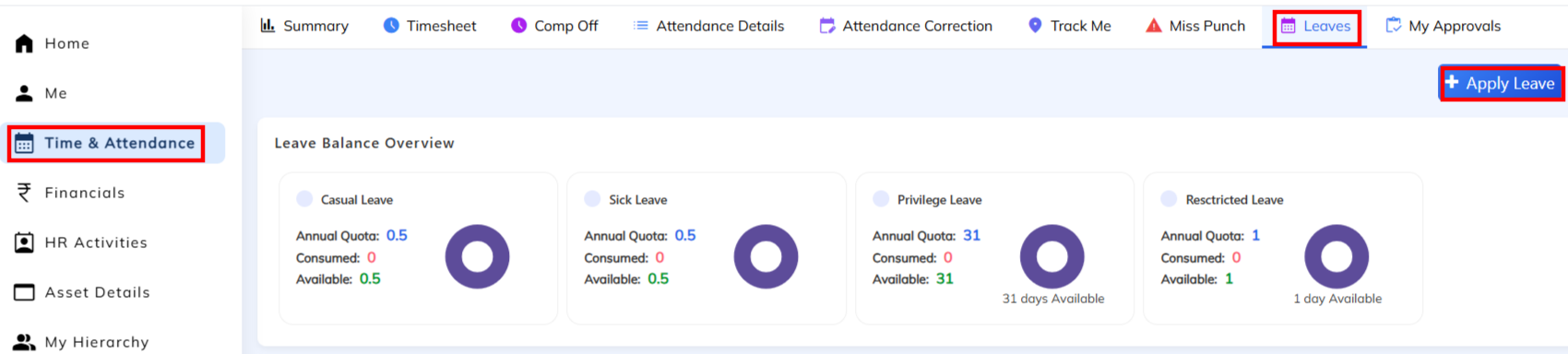
- Select + Apply Leave option and choose the available leave type along with dates
- Specify the Leave Type & Applicability period ( First Half Day/ Second Half Day) and submit for approval.
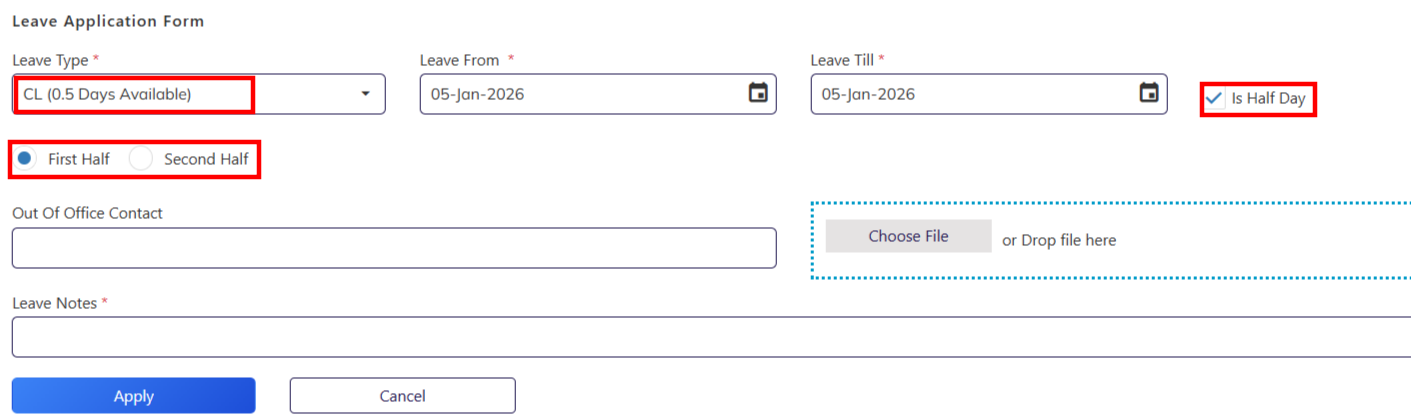
- Once leave has been submitted, Status is Pending. Once the Reporting manager leave has been approved status will get updated. leave Type will be based on the configured Leave Policy.
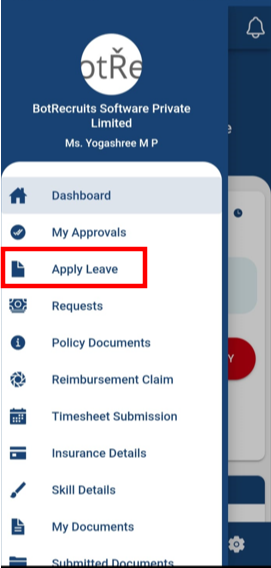
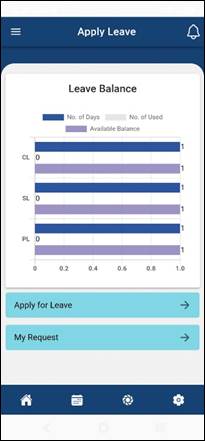
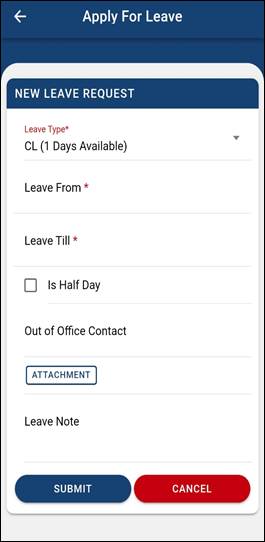
- For Mobile App Refer the attached screenshot to Leave request.
FAQ :
1. Invalid Attendance Correction Approver-Need Contact HR - Employee Reporting manager not mapped. Need to map the reporting manager as per the approval matrix by HR team.
2. Attendance Correction already existed -Same day already request raised not allowed for multiple request on the same day.
3. Invalid Email ID/ Mobile No- Access Denied- 1.Used login Email ID & Mobile No wrong. Only Email ID & Mobile No registered in the application will allow to login.
2. Once Employee Resigned with LWD application will not allow to login.
4. Login Error - Email ID/ Login ID contains special spaces. Need to remove the space in the login ID.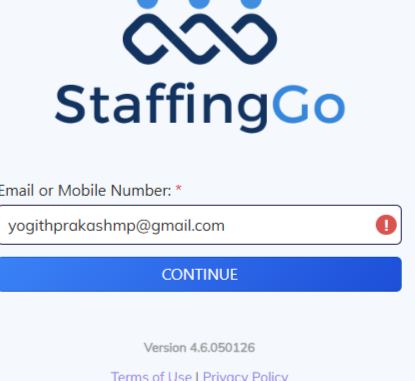
Was this article helpful?
That’s Great!
Thank you for your feedback
Sorry! We couldn't be helpful
Thank you for your feedback
Feedback sent
We appreciate your effort and will try to fix the article