Follow the below mentioned steps to configure and allocating the holiday templates employee client specific, contract specific & state specific.
1. Holiday Template Configuration ( Manual& Bulk Method)
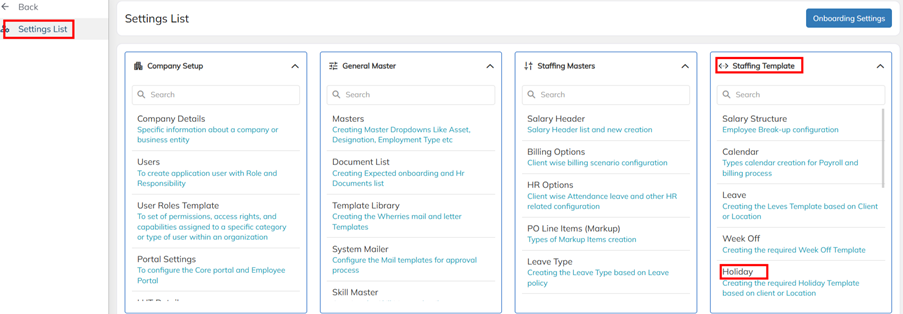
- Navigate to Setting List >>Staffing Template >> Holiday >> Create the New Holiday template.
- Create the new holiday template with new template title and click on the + symbol to add the which are dates falls on holiday with holiday name.
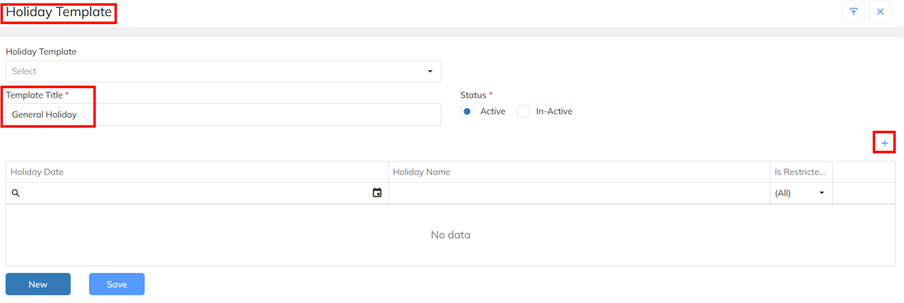
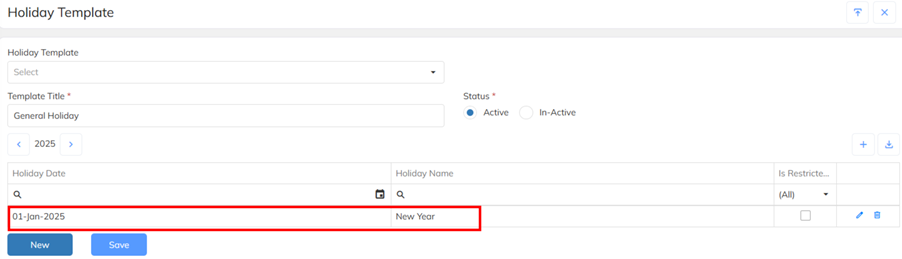
- Click on + Symbol, Add the Holiday date & Holiday name . Mark the restricted holiday configuration if the holiday is optional and save. Add all the annual holidays details and save the holiday template.
Note :
1. General Holiday -All employee falls under same holiday template irrespective of working state & client . Organization follow with single holiday template.
2. Employee State Specific Holiday - Create the holiday template state wise.(Holiday name manage with State Name)
3. Client Specific Holiday - Create the holiday template with client wise. ( Holiday name manage with Client Name)
4. Employee Sate with Client Specific Holiday - Create the holiday template with client based state wise ( Holiday name manage with client name_ State Name)
Bulk Holiday Template Creation :
- Navigate to Setting List >>Staffing Template >> Holiday >> Choose the bulk import option
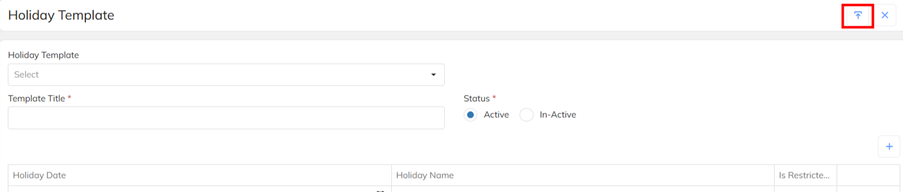
- Download the excel import and prepare the details and upload under the select file option and import . Validate the data and Save the details. Refer the attached sample import format.

- Sample format of excel import sheet preparation.

2. Holiday Template Auto Allocation To Employee mapping through Billing Option :
- Navigate to Setting List >>Staffing Master >> Billing option >> Choose the specific client contract mapped Billing option.
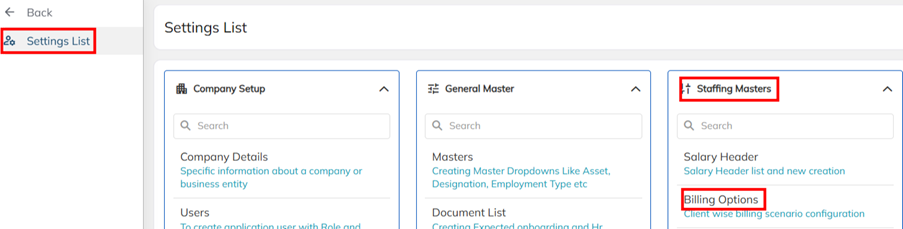
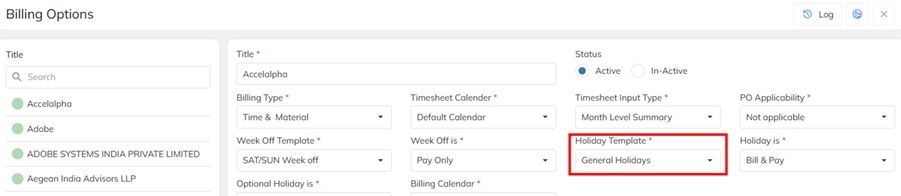
- Select the specific client contract mapped billing option and map the particular client applicable holiday template and save.( billing option under mapped holiday and billing option tagged contract mapped employees will flag with same holiday template).
- Note : Default contract mapped billing option allocated holiday template will get update to all employees under the same contract. If we map the different holiday template to employee under the same contract using employee level staffing details option, will get change during the billing option sync and auto mapping happens according to billing option mapped holiday template.
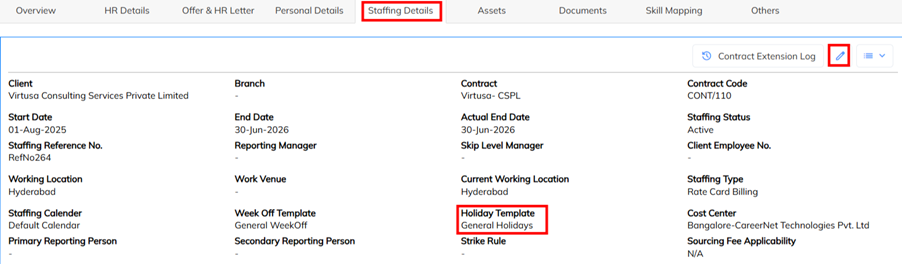
- Employee level Holiday template Mapping : Navigate to specific employee using filter option >> Staffing Details >> update holiday template .
3. Contract Level Holiday Template Auto Mapping as per Working State :
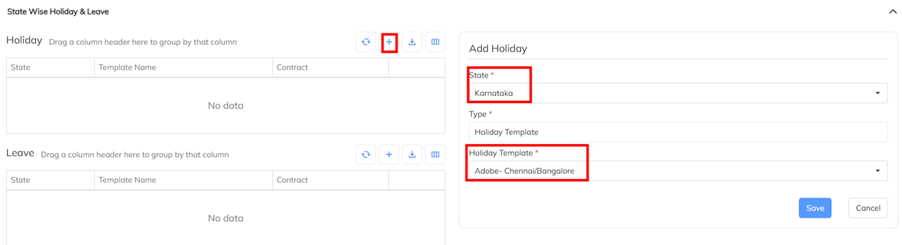
- In single client contract, holidays template are allocated as per the employee working state wise not as per the billing option. For this scenario contract level State wise holiday template allocation functionality is available.
- Navigate to selected client-contract >> Contract option >> Choose the Sate wise Holiday option
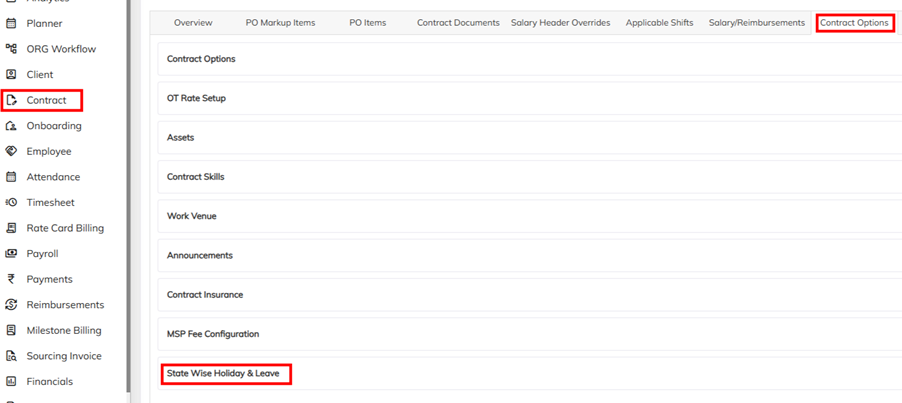
- Navigate to State wise holiday option and allocate State Specific holiday template. During the employee registered in the application holiday template auto allocated according to employee mapped state irrespective of billing option level mapped holiday template.
4. How to Revise the Holiday Template for every year
- Navigate to Setting List >>Staffing Template >> Holiday >> Choose the already exists holiday template which is available in the Holiday template drop-down .
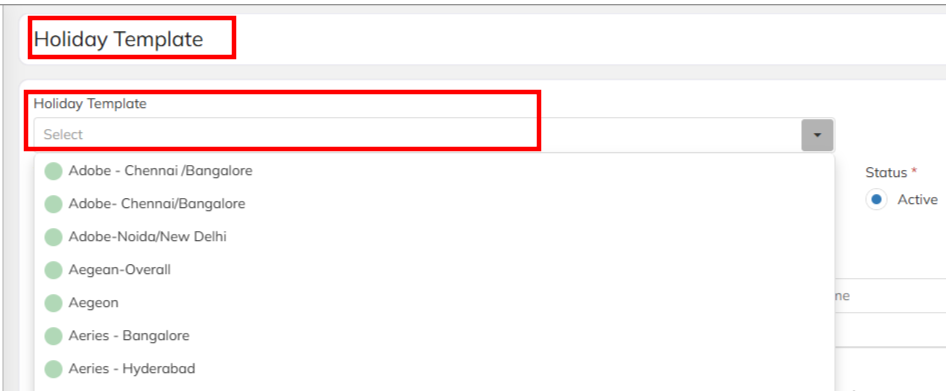
- Choose the specific holiday template and add the holiday details using + symbol.
- In Bulk excel import method used the holiday template name which is already exists in the application and allocate the new holidays details and import.
5. State Wise Holiday Template Notification as per the Govt- 2026.
Refer the attached Link to access Holiday notification according to the state.
SL No | State Name | Holiday Template-2026 | Holiday Template Link |
1 | Andhra Pradesh | - |
|
2 | Arunachal Pradesh | - |
|
3 | Assam |
|
|
4 | Bihar |
|
|
5 | Chhattisgarh | Available | https://drive.google.com/file/d/1mJIGBumLKma86D0OvbijvyCLoeEGYsNw/view?usp=sharing |
6 | Goa | Available | https://drive.google.com/file/d/1h-SMyYwt5vGq_7NvoDxVvt31F_iNaBex/view?usp=drive_link |
7 | Gujarat | Available | https://drive.google.com/file/d/1b8mt4Tucf4On54jCqHoUKMVi8cQVZjIG/view?usp=sharing |
8 | Haryana |
|
|
9 | Himachal Pradesh |
|
|
10 | Jharkhand |
|
|
11 | Karnataka | Available | https://drive.google.com/file/d/1f6bjivteJScL0dqiSmKlaN_JlrMp6TQ5/view?usp=sharing |
12 | Kerala | Available | https://drive.google.com/file/d/12Tlmop6GhzpFbPL7S9swZME-hSjs2iZe/view?usp=sharing |
13 | Madhya Pradesh |
|
|
14 | Maharashtra |
| https://drive.google.com/file/d/1p2nxs3z81ojlxS-64m8jp19nULB68j4Q/view?usp=sharing |
15 | Manipur |
|
|
16 | Meghalaya | Available | https://drive.google.com/file/d/12kucgXZ6RyVw5tULJEnPs30RhCfGZgs6/view?usp=sharing |
17 | Mizoram |
|
|
18 | Nagaland |
|
|
19 | Odisha |
|
|
20 | Punjab |
|
|
21 | Rajasthan | Available | https://drive.google.com/file/d/1s-7_Tc9-9wcIomDySr25rFMzfDgsaQgn/view?usp=sharing |
22 | Sikkim | Available | https://drive.google.com/file/d/1dLNYtumCeqW8LZ0A2NdB_YOdY-i-z6qX/view?usp=sharing |
23 | Tamil Nadu | Available | https://drive.google.com/file/d/1d0fgyEqEgvjQkJRtRLPVDRtxOacK413u/view?usp=sharing |
24 | Telangana |
|
|
25 | Tripura |
|
|
26 | Uttar Pradesh |
| https://drive.google.com/file/d/11nIr-dHHuX2omfor0ZpevMRN90q1Kr4o/view?usp=sharing |
27 | Uttarakhand | Available | https://drive.google.com/file/d/1w68rurR9_H3Oda3Q_7w6DJsirMrajIwt/view?usp=sharing |
28 | West Bengal | Available | https://drive.google.com/file/d/1aE7-ml6PYWQevgkJEv2Y5EjftKsjJcAP/view?usp=sharing |
29 | Delhi | Available | https://drive.google.com/file/d/1fFC-TIVJYcNClMtlt9kTbvZgBg6gnoVk/view?usp=sharing |
Was this article helpful?
That’s Great!
Thank you for your feedback
Sorry! We couldn't be helpful
Thank you for your feedback
Feedback sent
We appreciate your effort and will try to fix the article