Step 1: Navigate to Settings
Log in to the application.
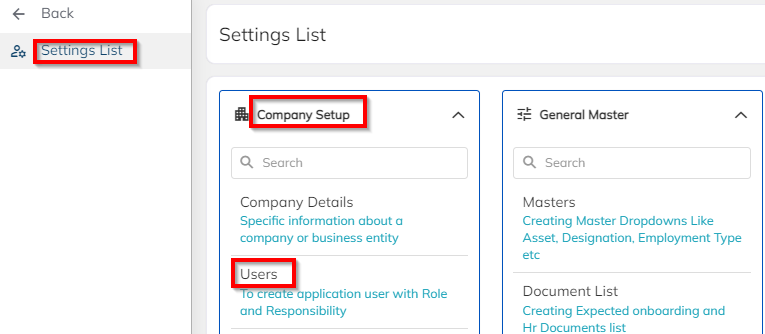
From the Menu, click on Settings > Company Setup.
Select the Users option to create a new user login.
Step 2: Add New User
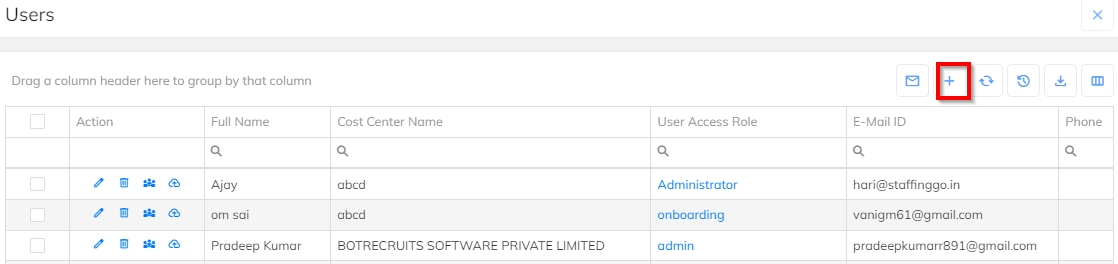
In the User section, click on the “+ (Add)” symbol.
A new form will open to create the user login.
Step 3: Enter User Details
Fill in all mandatory fields such as:
Employee Full Name
Email ID / UserID
Mobile No.
Reporting Manager
Map the user access Role based on the role and responsibilities.

Step 4: Save User
After filling in the details, click on Save.
The newly created user will now appear in the User List.
Step 5: Edit & Invite User
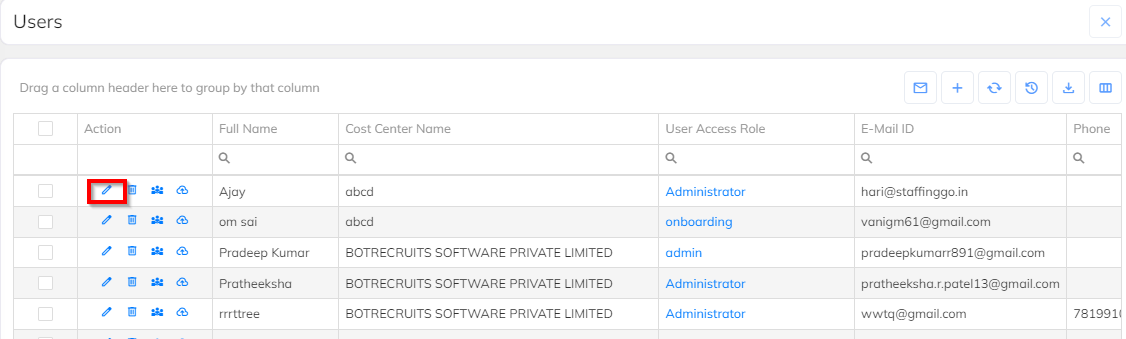
From the User List, select the created user.
Click on Edit Details if any changes are required.
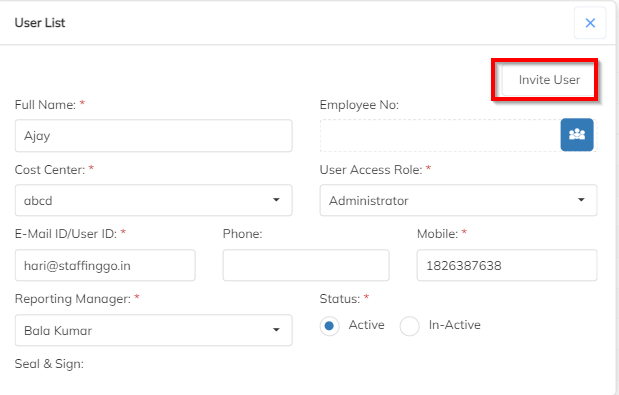
Click on Invite User to send login credentials via email.
Step 6: User Login Access
The invited user will receive an email with login credentials.
The user can now log in with OTP and create new password.
Was this article helpful?
That’s Great!
Thank you for your feedback
Sorry! We couldn't be helpful
Thank you for your feedback
Feedback sent
We appreciate your effort and will try to fix the article