In Staffinggo portal, below are the simple steps through which you can a new Invoice Template and map the same as per particular client:
- Invoice Template creation process:
- Login to the staffinggo portal
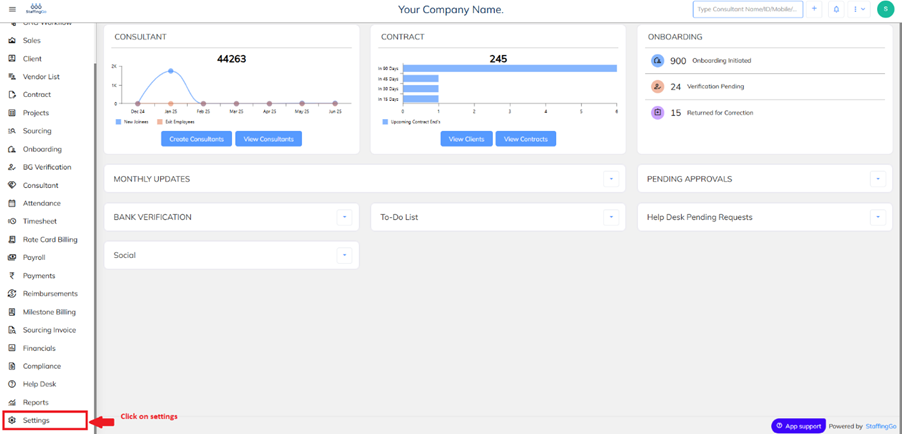
- Click on settings icon à Click on Template Library
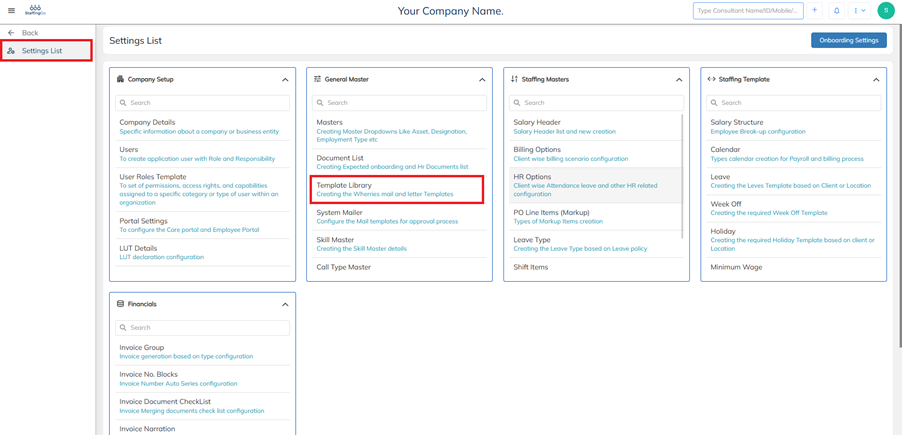
- Click on Template type and select the Invoice Template
- Once the Template type is selected as Invoice Template à Click on New button to configure New Invoice Template
- Update the below fields as mentioned and map all the details according to the relevant client
- Then click on the select file option and upload the Invoice Template which is configured with right support tags and client configurations
- Once uploaded and all other fields are mapped, click on save
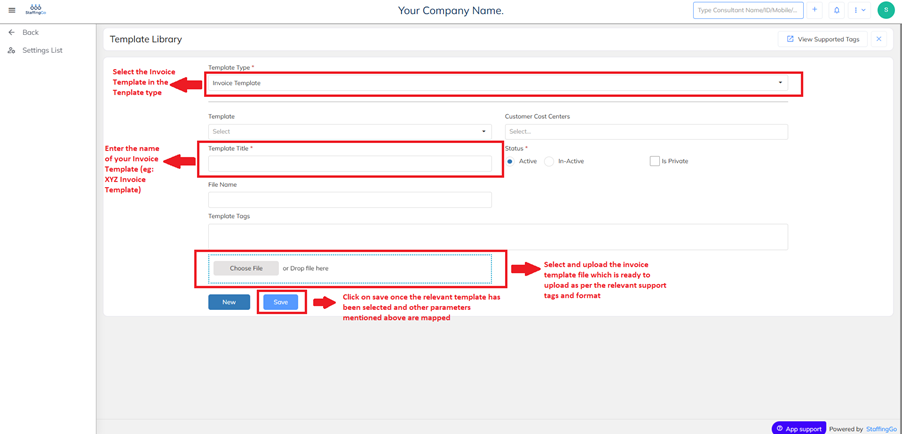
- Now your new Invoice Template has been created.
- Configure Digital E sign
- Once the Invoice Template has been successfully created
- You can select the newly created Invoice Template
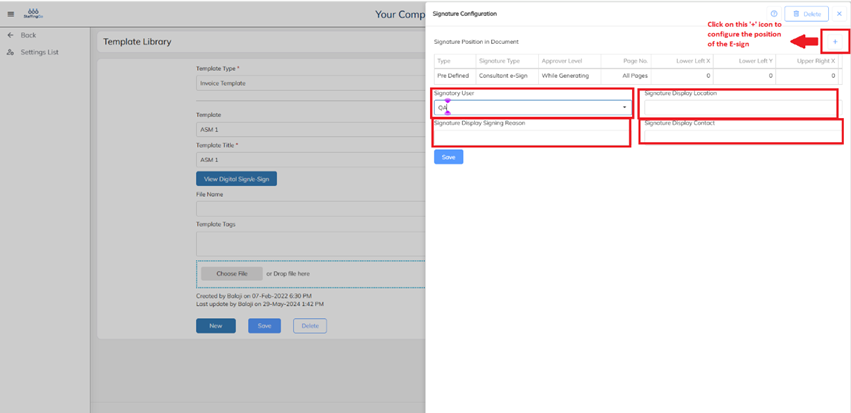
- Once selected, you will be able to view Digital Sign/ e-Sign, Click on the same.
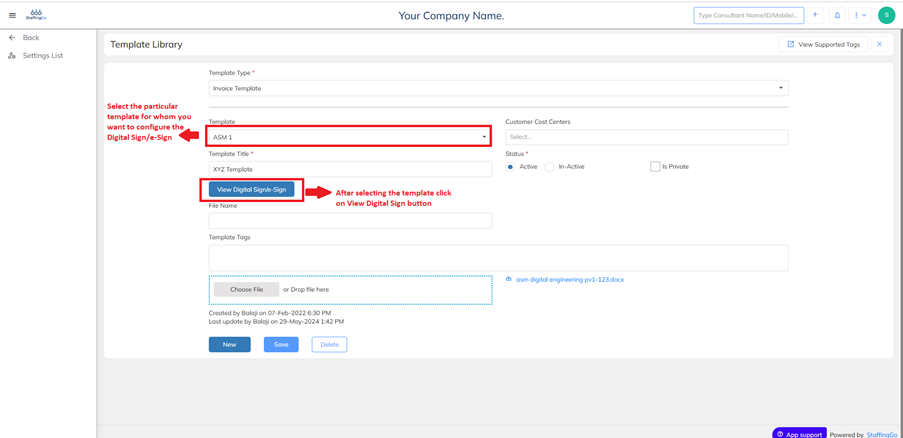
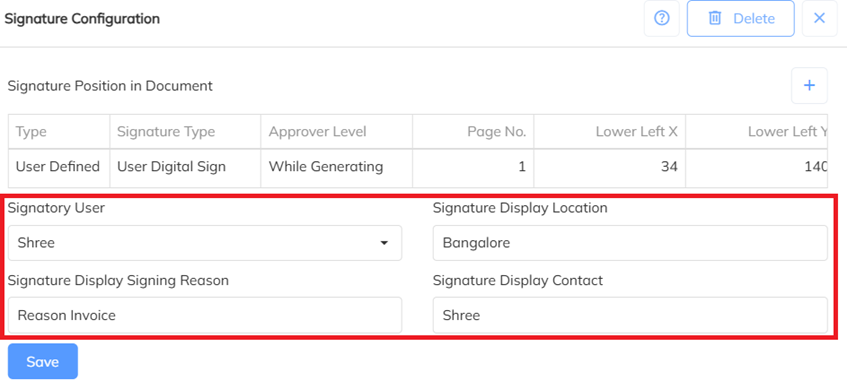
- Then you can select and update the fields as below:
- Signatory user : One can select the relevant signatory user from the dropdown.
- Signature display location : Enter the location of the Signature
- Signature Display Signing Reason: Enter A brief statement describing the purpose or intent behind a signature on a document (e.g., Invoice, acknowledgment, authorization).
- Signature Display Contact : The display contact can be the same as the Signatory user
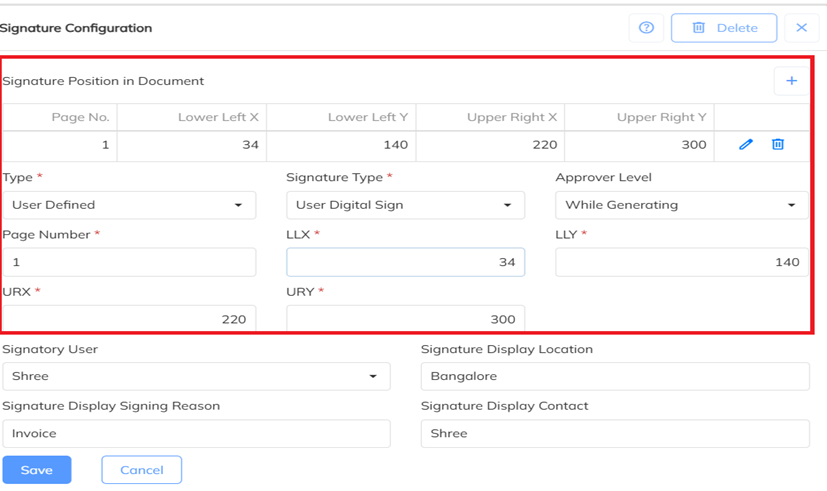
- If you want to configure additional configurations such as the Signature position in Document, click on the ‘+’ icon show below and update all the configurations in relevant fields as shown below
- In the below attached screenshots, you can kindly find a sample Signature configuration fields updated.
- After all the signature related configurations are updated, click on save
- Invoice Template Mapping process:
The invoice Templates once created can be mapped at Client level as follows:
- Login à Click on Client
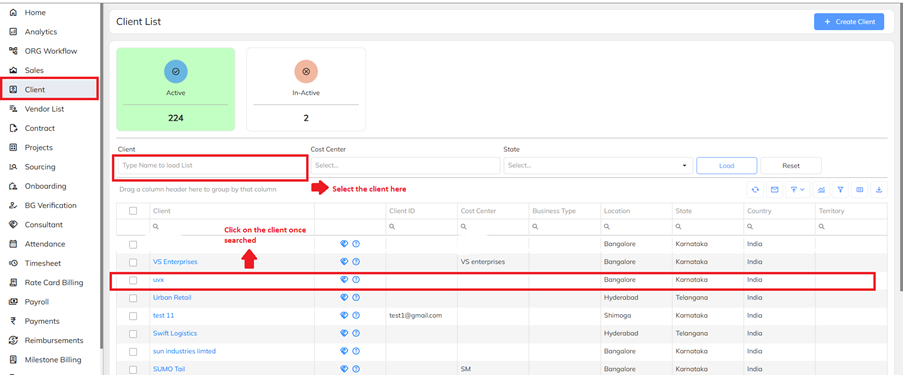
- Select the particular client for whom you want to map the Invoice
- Inside the Client details à Click on Settings
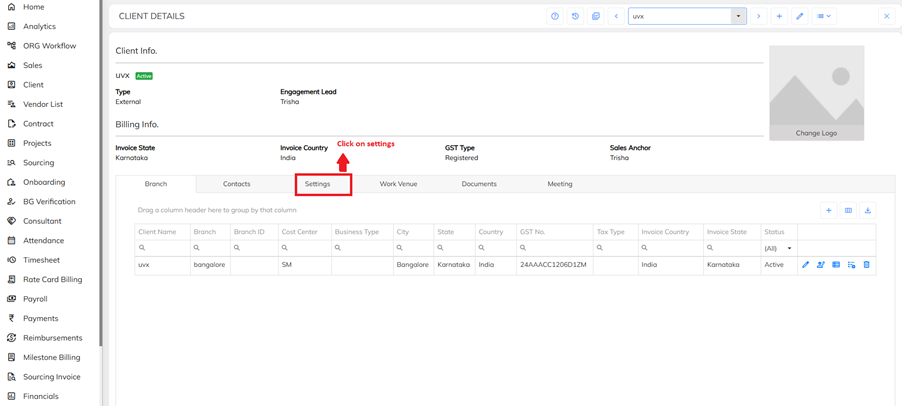
- Under Settings à Click on Client options
- Click on the Invoice Template field and map the desired template.
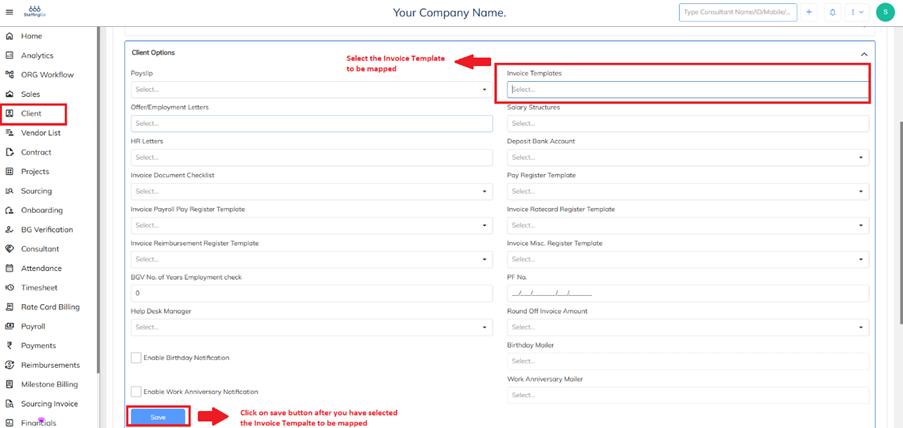
- Click on Save button to the successfully map the Invoice Template and verify by generating an invoice whether the configurations are reflecting as per your requirements.
Was this article helpful?
That’s Great!
Thank you for your feedback
Sorry! We couldn't be helpful
Thank you for your feedback
Feedback sent
We appreciate your effort and will try to fix the article