Assumption Days- Timesheet with Negative Pay Days
Overview
Assumption Days – Timesheet with Negative Pay Days is used to manage employee timesheets when there are negative pay days during the assumption period.
This helps the payroll team check the employee’s assumption days and negative pay days and make sure the correct days are considered during payroll processing.
This guide explains how to check and manage Assumption Days and Negative Pay Days in the timesheet.
Purpose
The purpose of Assumption Days – Timesheet with Negative Pay Days is to:
Track the employee’s assumption days in the timesheet.
Identify negative pay days.
Ensure the correct number of payable days is considered for payroll.
Avoid incorrect salary calculations due to negative pay days.
Verify the timesheet before processing payroll.
Step 1: Navigate to Negative Payout Adjustment
Log in to the StaffingGo application.
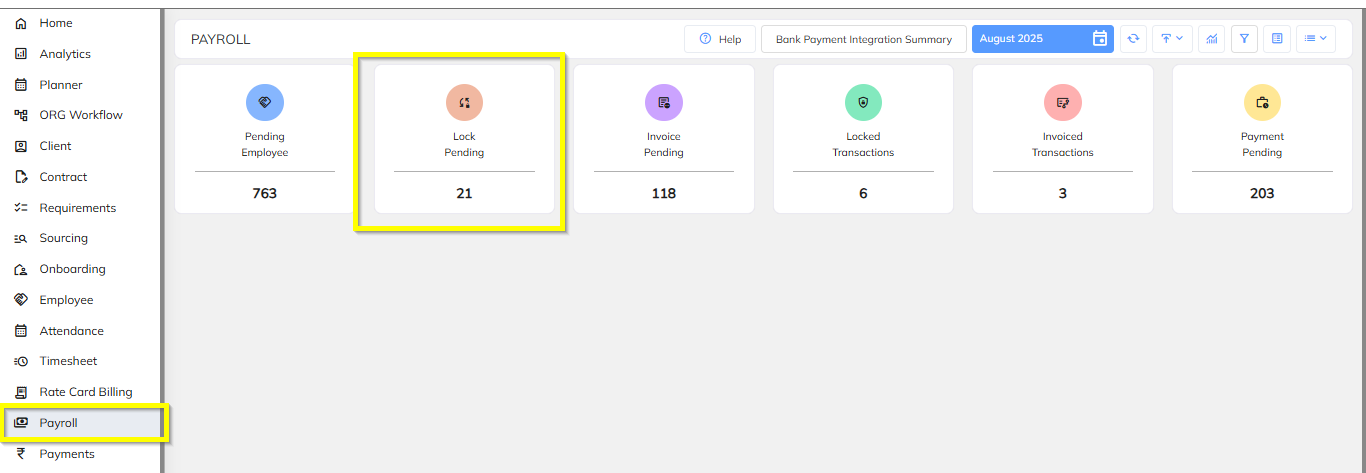
Go to Payroll → Lock Pending.
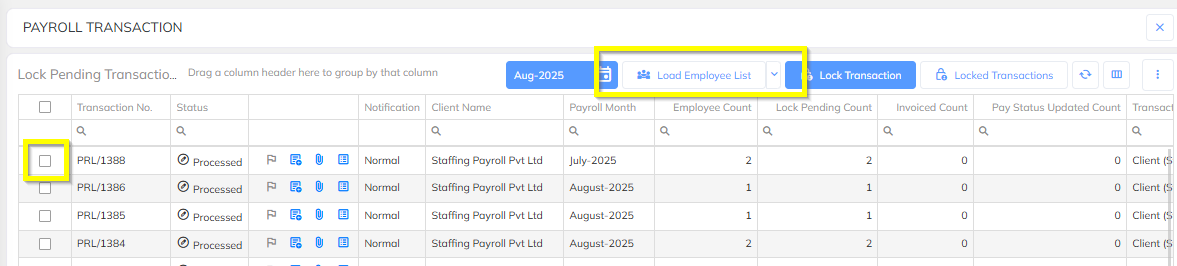
Select the required Client.
Click Load Transaction.
Identify the employee with a negative payable amount.
Screenshot 1 – Payroll → Lock Pending
Screenshot 2 – Select Client and Load Transaction
Step 2: Select the Employee
Individual Employee
To adjust the negative amount for a single employee:
Search for and select the required employee.
Click Adjust Negative Process Amount.
The system will display the available adjustment options.
Screenshot 3 – Adjust Negative Process Amount

Bulk Employee Selection
To adjust the negative amount for multiple employees:
Select the required employees using the checkboxes.
Click the three-dot menu.
Select Adjust Negative Amount in Next Payroll.
Screenshot 4 – Bulk Adjustment
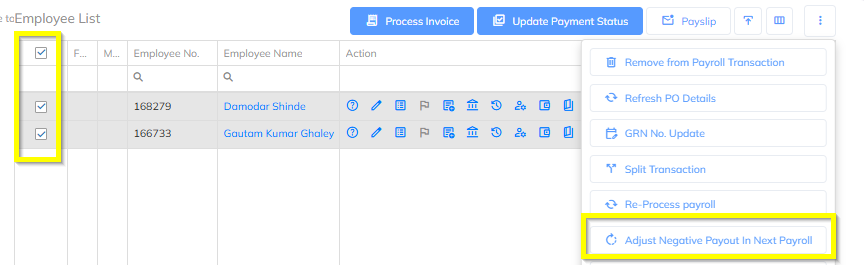
Note: The bulk option is available only for Adjust in Next Payroll. Previous payroll adjustment must be done for an individual employee.
Step 3: Select the Adjustment Type
After selecting the employee, you can choose one of the following options:
Option 1: Adjust in Processed Transaction
Select this option when you want to adjust the negative amount against a previously processed payroll.
Conditions
The system will check whether:
The payout for the selected payroll has not been disbursed.
The available pending payable amount is greater than the negative adjustment amount.
Steps
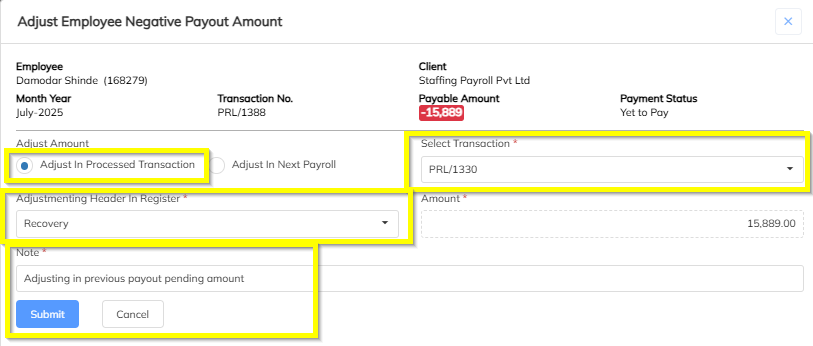
Select Adjust in Processed Transaction.
Select the required Payroll Transaction.
Select the Salary Component Header where the adjustment should be applied.
Click Submit.
Screenshot 5 – Adjust in Processed Transaction
System Response
Once submitted:
The negative amount will be adjusted against the selected payroll transaction.
The payable amount of that payroll will be reduced accordingly.
Example:
If the previous payroll has a pending payable amount of ₹10,000 and the negative adjustment is ₹2,000, the revised payable amount will be ₹8,000.
Option 2: Adjust in Next Payroll
Select this option when you want to carry forward the negative amount to the upcoming payroll.
Steps
Select Adjust in Next Payroll.
Submit the adjustment.
The system will carry forward the negative amount.
A deduction entry will be created in the Earnings & Deductions section.
Screenshot 6 – Adjust in Next Payroll
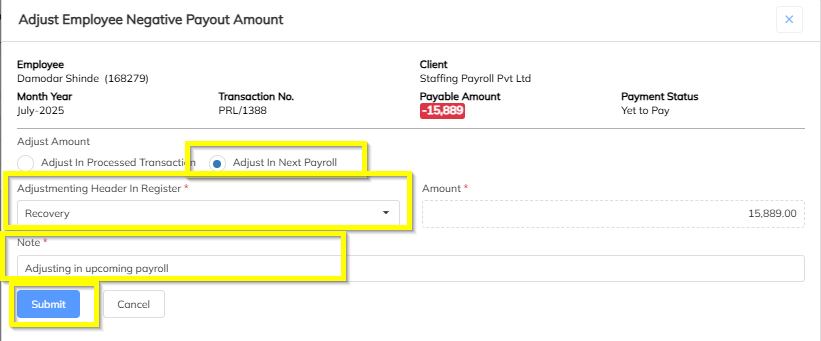
Screenshot 7 – Earnings & Deductions Entry

System Response
During the next payroll processing:
The carried-forward amount will be shown as a deduction.
The negative payout will be adjusted automatically against the employee’s next payroll.
Example:
If the negative payout is ₹2,000, the system will create a ₹2,000 deduction in Earnings & Deductions. When the next payroll is processed, the amount will be deducted automatically.
Step 4: Verify the Adjustment
After completing the adjustment, verify the result based on the selected option.
Previous Payroll Adjustment
Open the selected payroll transaction.
Check the revised Payable Amount.
Confirm that the negative amount has been adjusted correctly.
Next Payroll Adjustment
Open the employee’s next payroll.
Go to Earnings & Deductions.
Verify that the negative adjustment is available as a deduction.
Process the payroll and confirm that the amount has been adjusted.
Screenshot 8 – Verify Previous Payroll Adjustment

Screenshot 9 – Verify Next Payroll Adjustment

Best Practices
Verify the pending payable amount before adjusting against a previous payroll.
Use Previous Payroll Adjustment only when the payout has not been disbursed and sufficient payable balance is available.
Use the bulk option only for Next Payroll Adjustment.
Verify the correct Salary Component Header before submitting the adjustment.
Always verify the adjustment after processing the payroll.
Was this article helpful?
That’s Great!
Thank you for your feedback
Sorry! We couldn't be helpful
Thank you for your feedback
Feedback sent
We appreciate your effort and will try to fix the article