Update Employee CTC / Salary Structure
This document explains how to update an employee's CTC/Salary Structure in StaffingGo.
Step 1: Filter the Employee
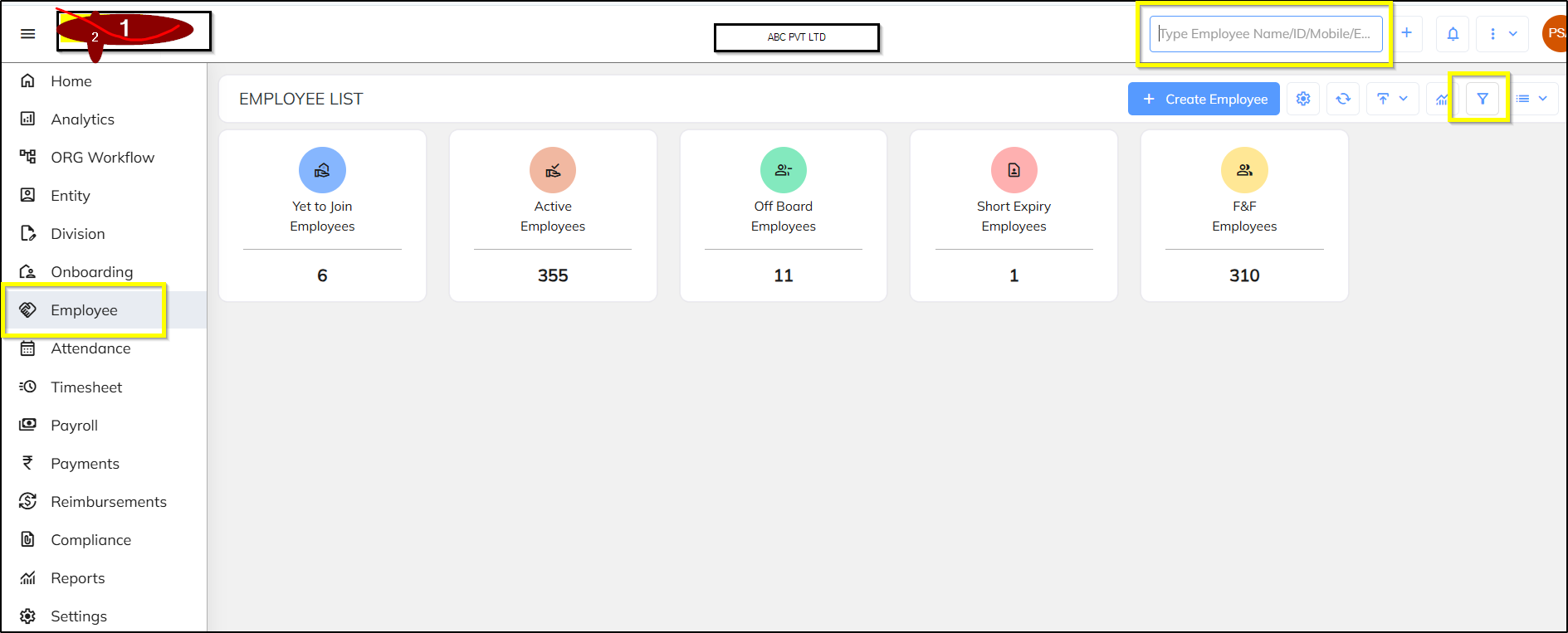
- Navigate to Consultant / Associate.
- Click the Filter option.
- Search and select the required employee.
- The filtered employee will appear in the employee list.
Step 2: Open Employee Profile
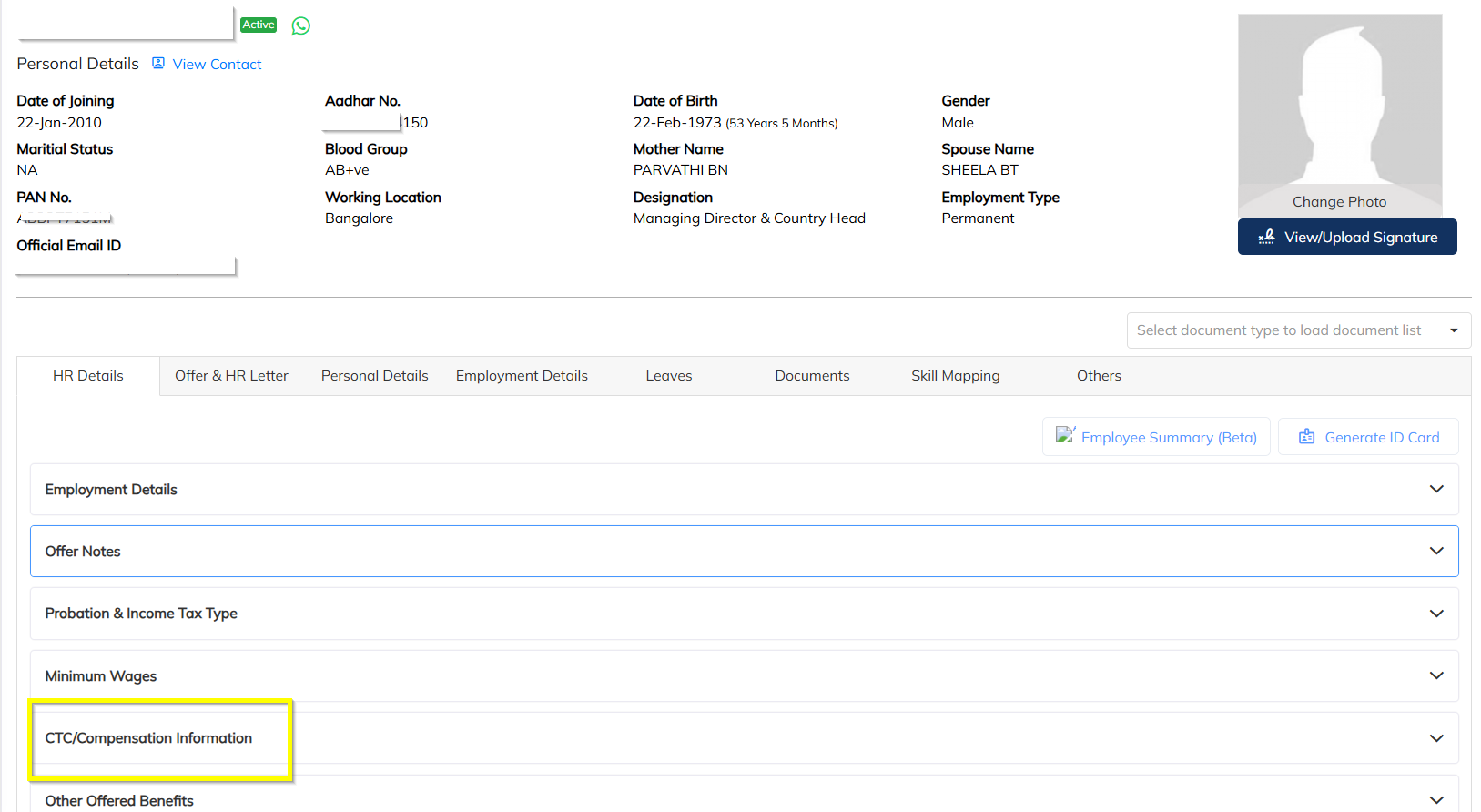
- Click on the required employee from the employee list.
- Navigate to:
HR Details → CTC Compensation Information
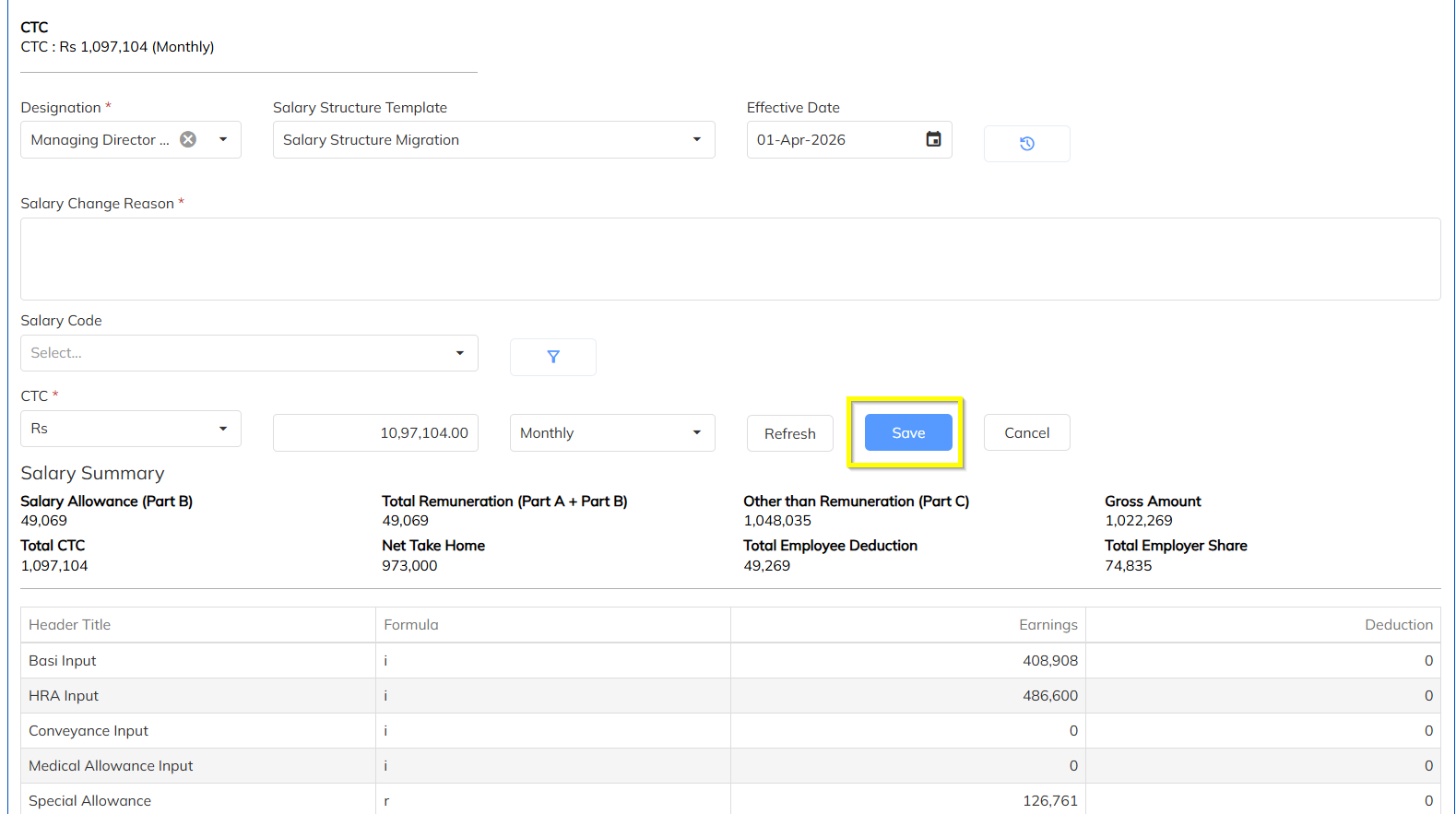
Step 3: Edit Salary Structure
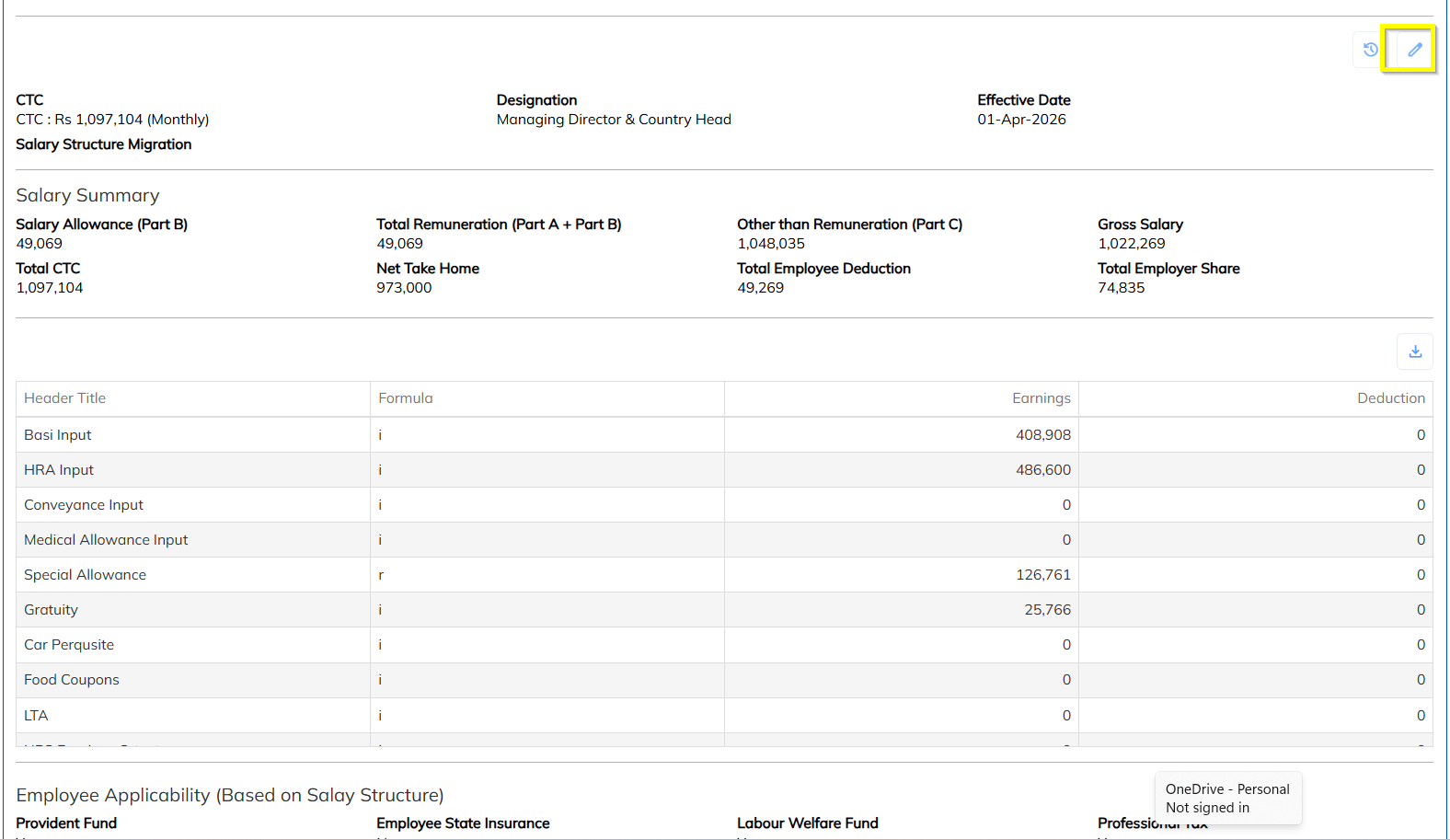
- Click the Edit button to modify the employee salary structure.
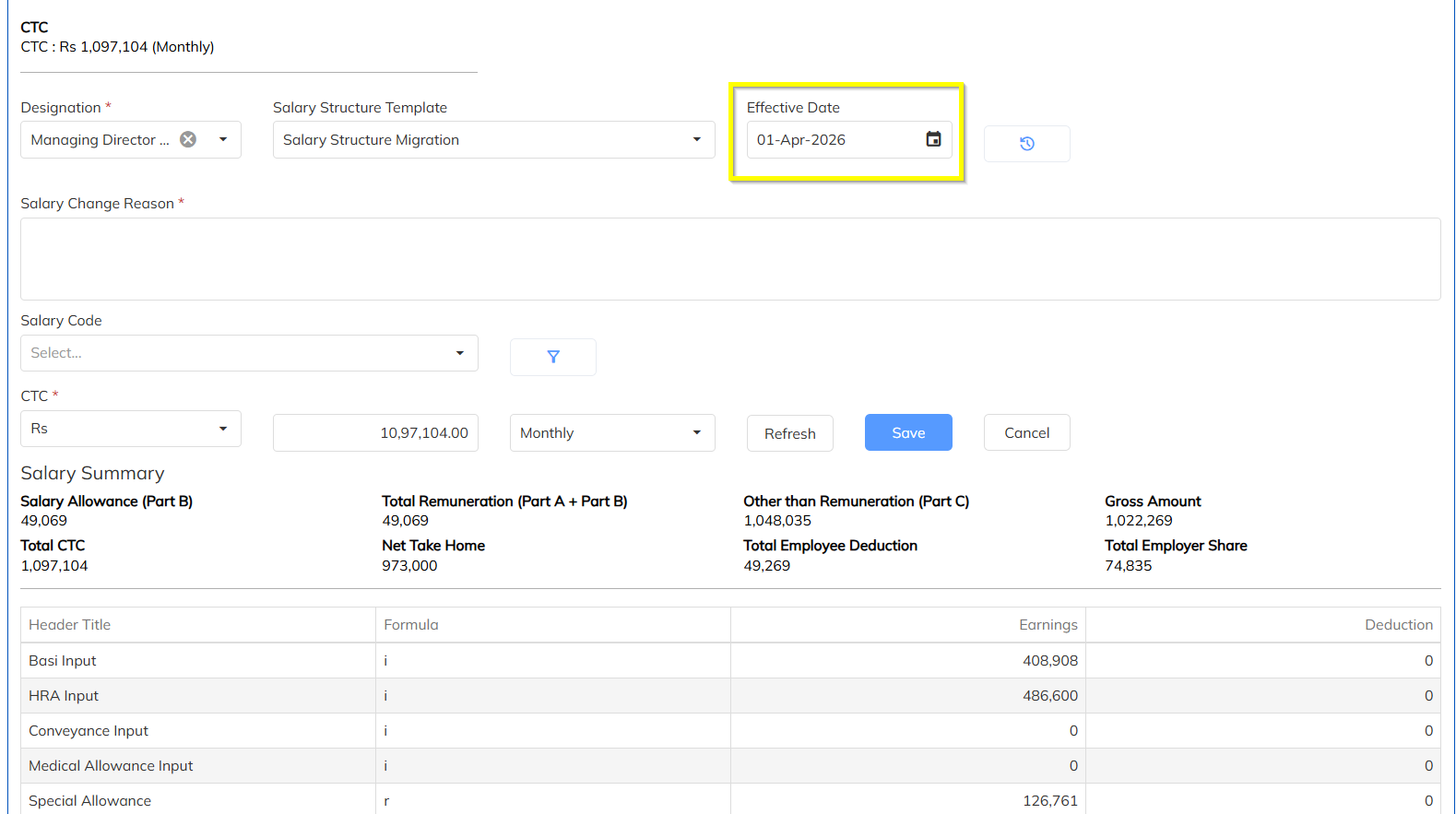
Step 4: Enter Effective Date
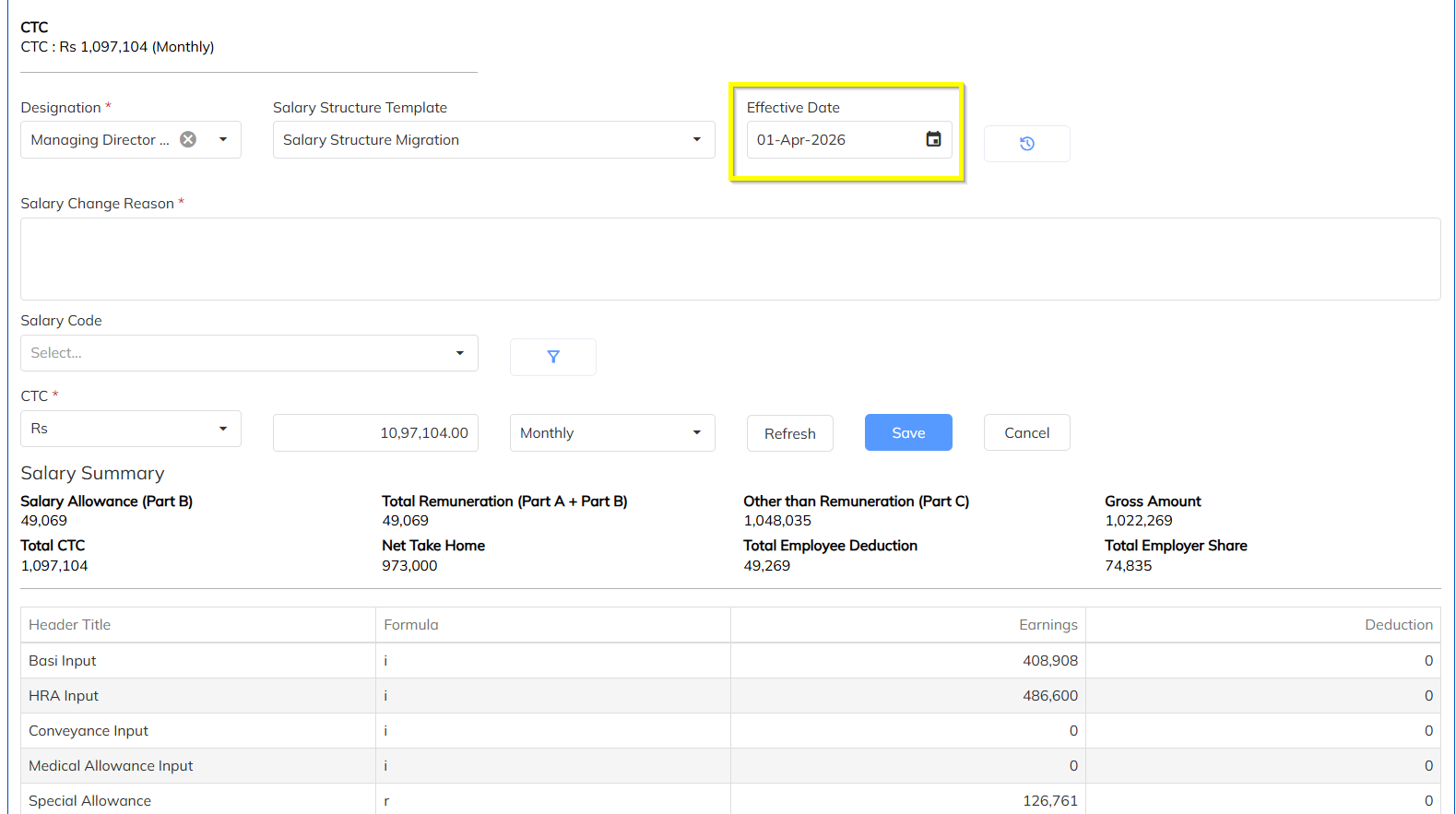
- Select the Effective Date from which the revised salary structure should become applicable.
Step 5: Enter Remarks
- Enter the Remarks explaining the reason for the salary revision.
Example:
- Annual Salary Revision
- Promotion
- Salary Correction
- CTC Revision
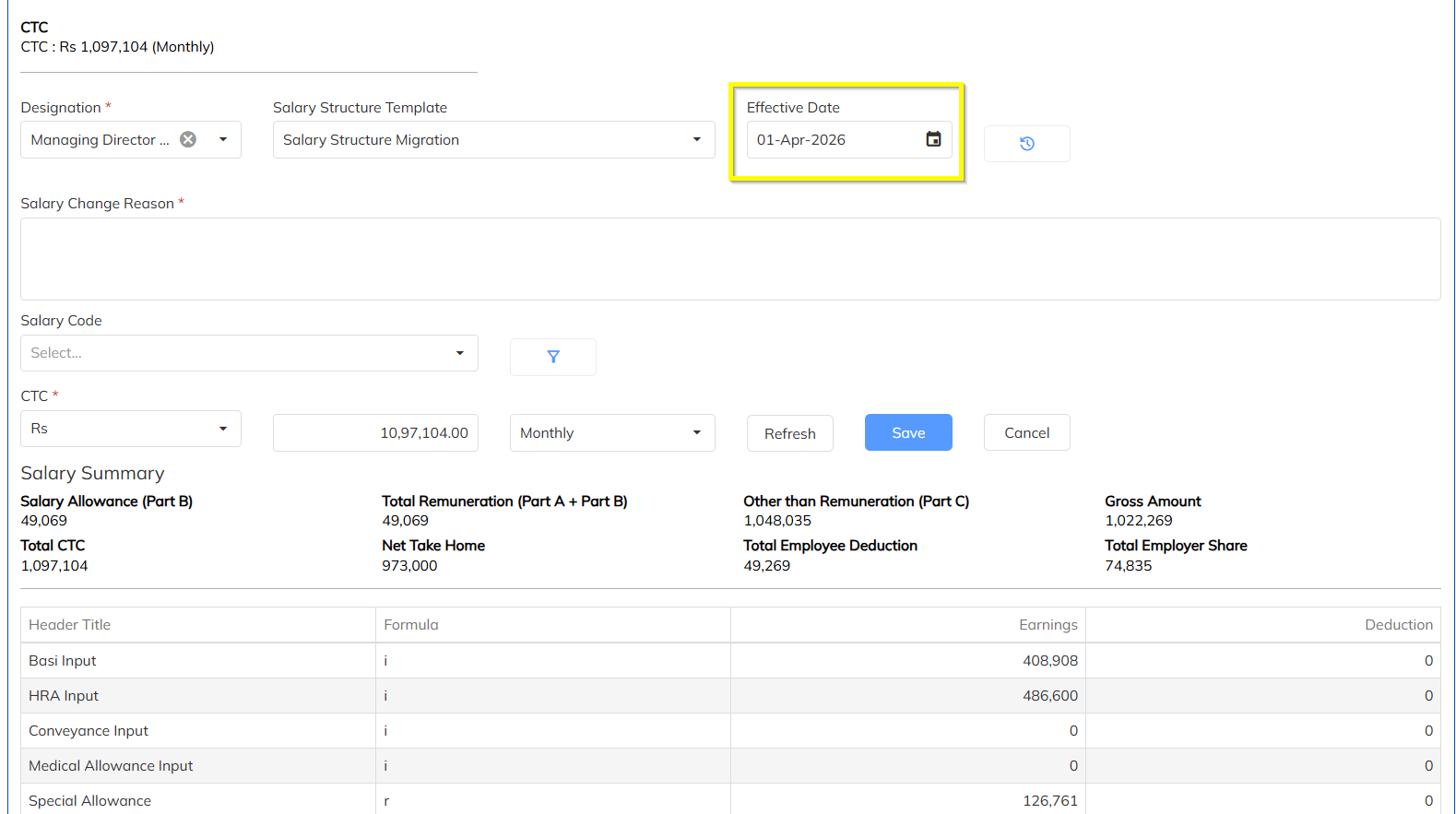
Step 6: Update CTC / Gross Amount
- Update the Gross Salary or CTC Amount based on the configured Input Type.
- The editable field will depend on your organization's salary configuration.
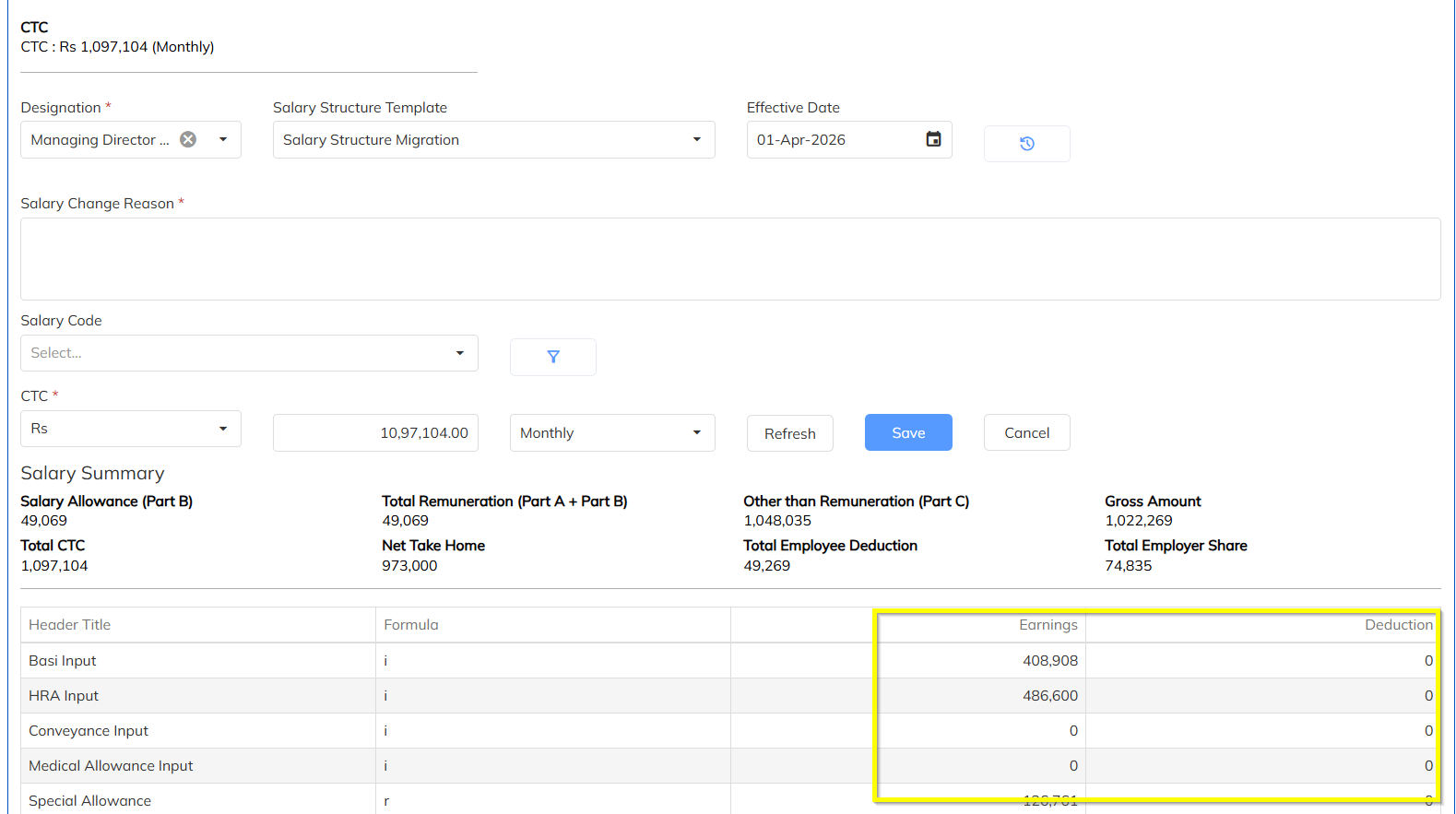
Step 7: Update Salary Header Values
- Modify the required salary component(s), such as:
- Basic
- HRA
- Special Allowance
- Conveyance
- Other applicable salary heads
Update only the required salary components as per the approved salary structure.
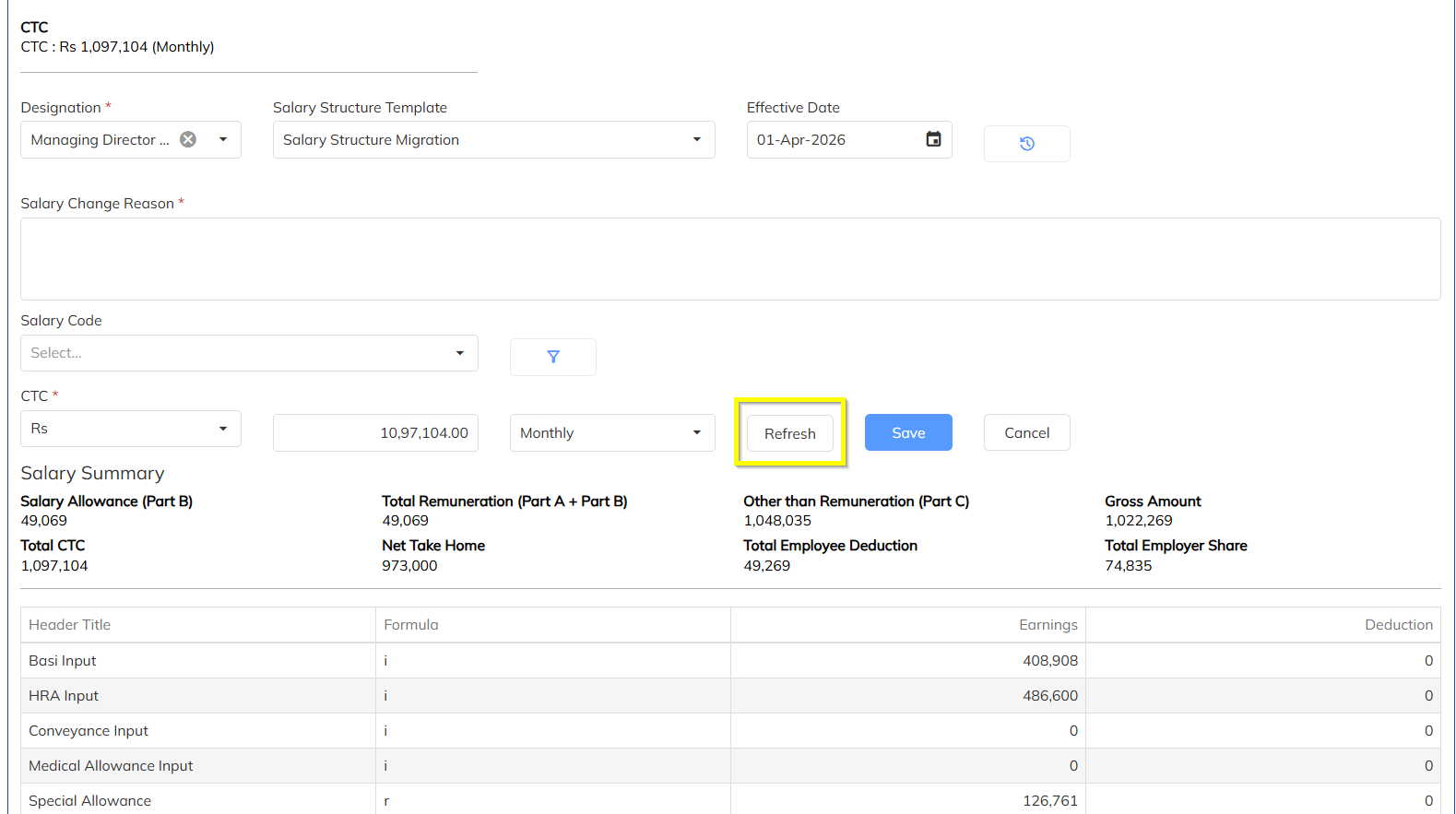
Step 8: Refresh Salary Breakup
- Click the Refresh button.
- The system recalculates the salary breakup automatically.
- Verify that the recalculated breakup matches the expected CTC/Gross amount.
Important Validation
- Verify the Gross Amount.
- Verify the CTC Amount.
- Ensure all salary headers are calculated correctly.
- Confirm there are no validation errors.
Step 9: Save the Changes
- After verifying the updated salary breakup, click Save.
- The revised salary structure will be saved with the selected effective date.
Important Notes
- Ensure the Effective Date is entered correctly before saving.
- Enter meaningful Remarks for every salary revision.
- Always click Refresh before saving to validate the salary breakup.
- Verify that the revised Gross/CTC matches the approved salary revision.
- Salary changes will impact future payroll processing based on the effective date.
- Check any future date effective date salary structure was in active. If it is there please inactive
Was this article helpful?
That’s Great!
Thank you for your feedback
Sorry! We couldn't be helpful
Thank you for your feedback
Feedback sent
We appreciate your effort and will try to fix the article