How to import timesheet
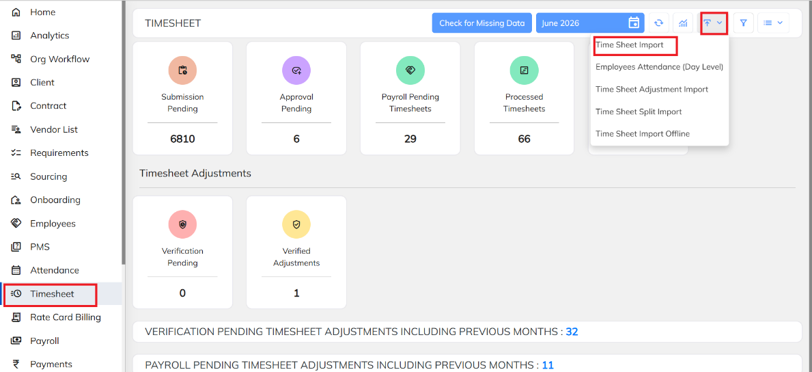
Navigate to Timesheet → Import → Timesheet Import.
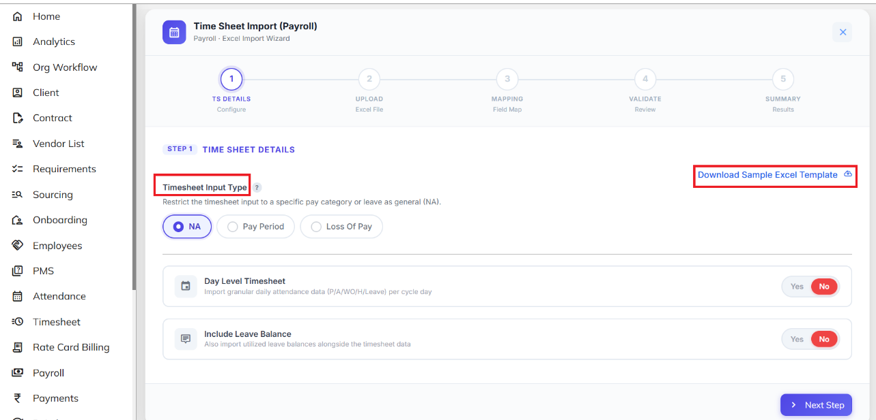
Select the Timesheet Input Type and download the Sample Excel Template.
Fill in the required details in the Excel template and save the file.

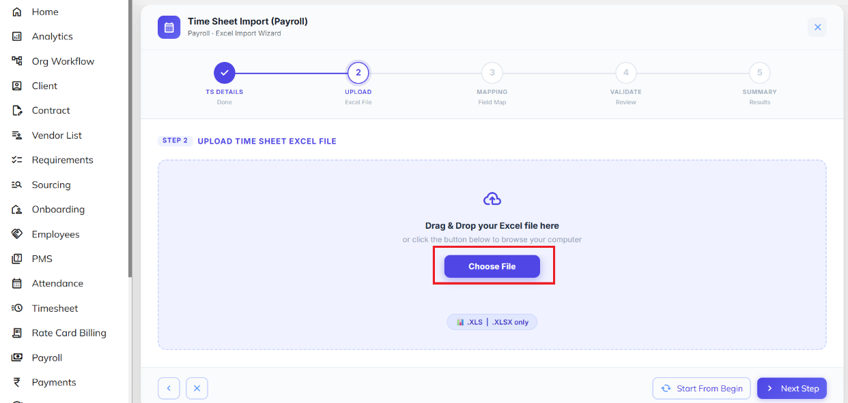
Upload the completed Excel file.
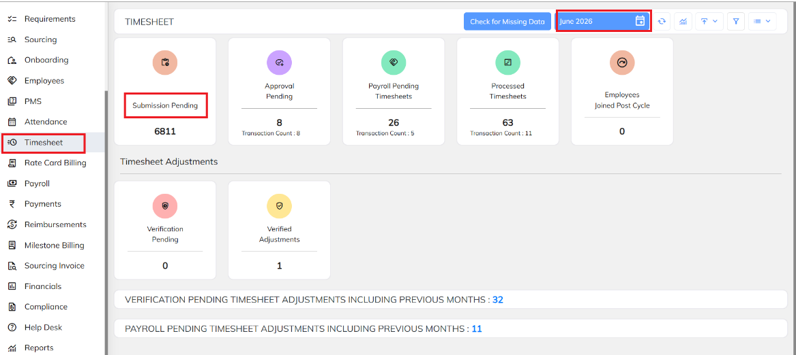
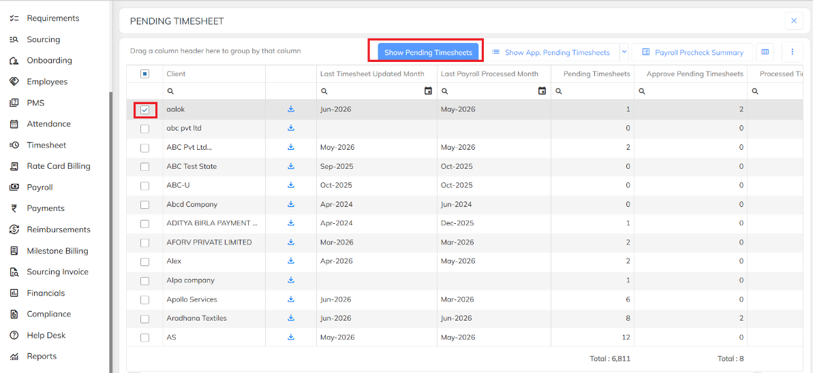
All imported timesheets will be in Submission Pending by default. Select the required month and click Submission Pending.
Select the client, click on show pending timesheets.
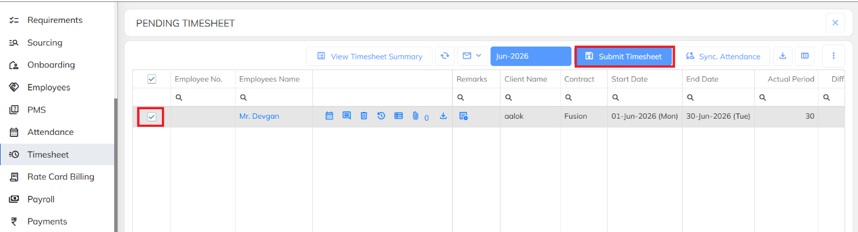
Select the employee, then click on submit timesheet.
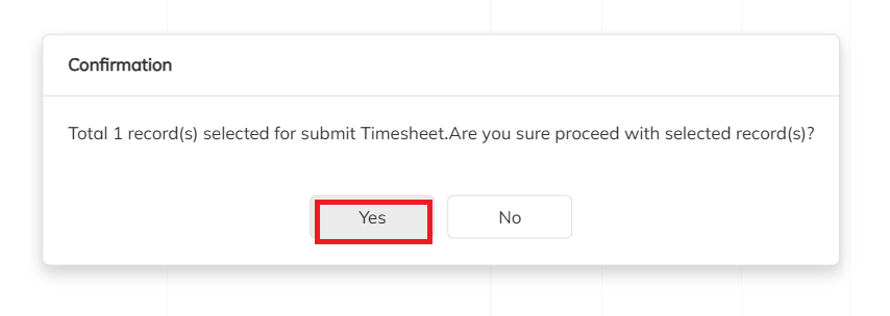
Click on yes to proceed with selected records.
Once the timesheet is submitted, it will move to the Approval Pending section.
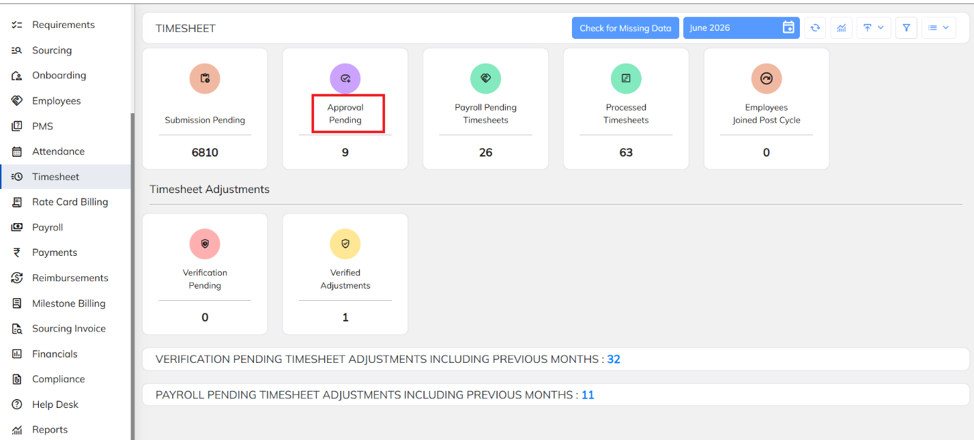
Select the client, click on show approval pending timesheet.
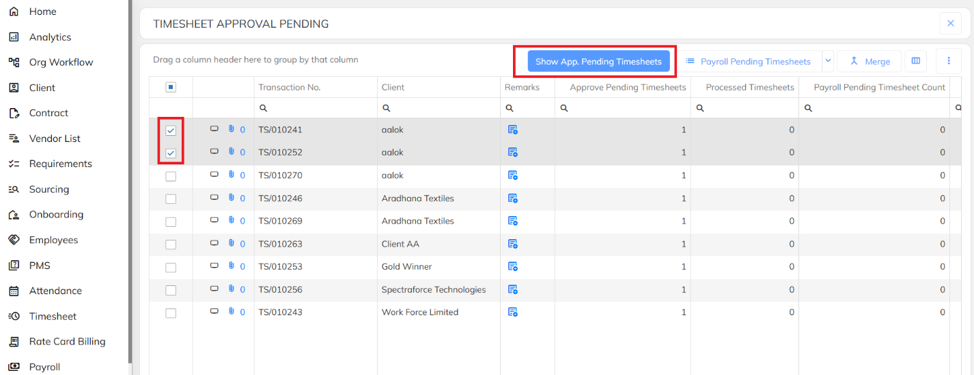
Select the employees, click on approve selected.
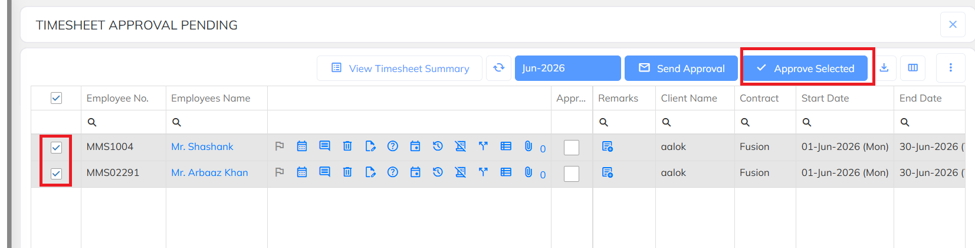
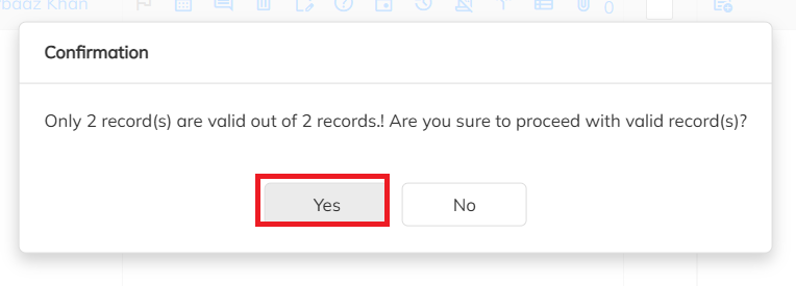
Click on yes to proceed with valid record.
Once the timesheet is approved, it will move to the Payroll Pending Timesheets section.
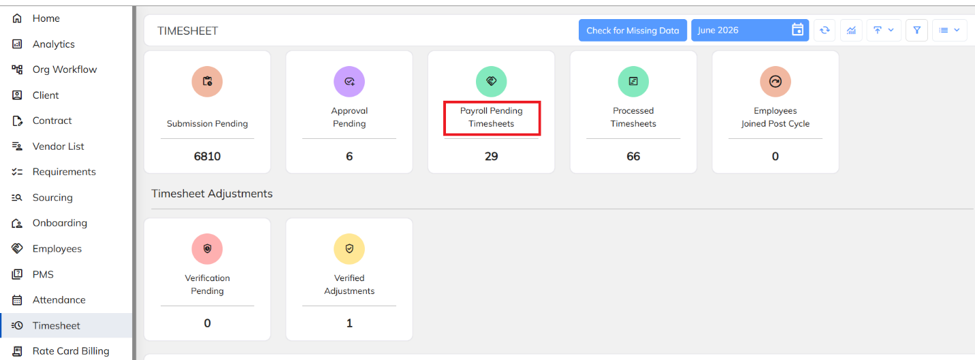
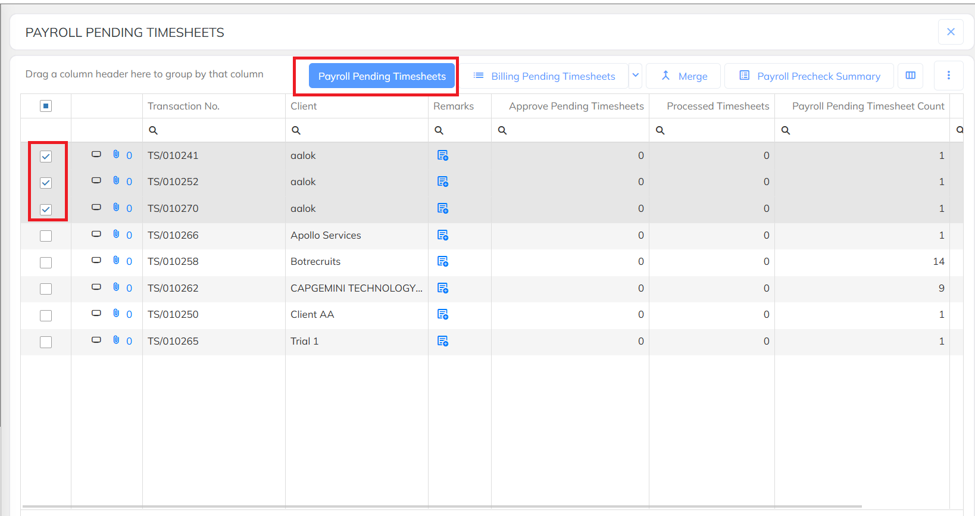
Select the Client, click on payroll pending timesheets.
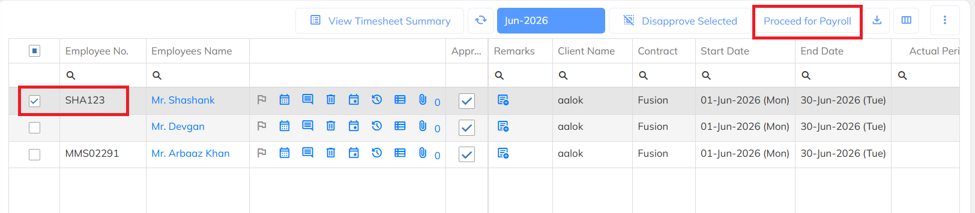
Select the Employee & Click on Proceed for payroll.
Select the Employee and Click on Validate and process payroll.

Once payroll is processed, the timesheet will move to the Lock Pending section.
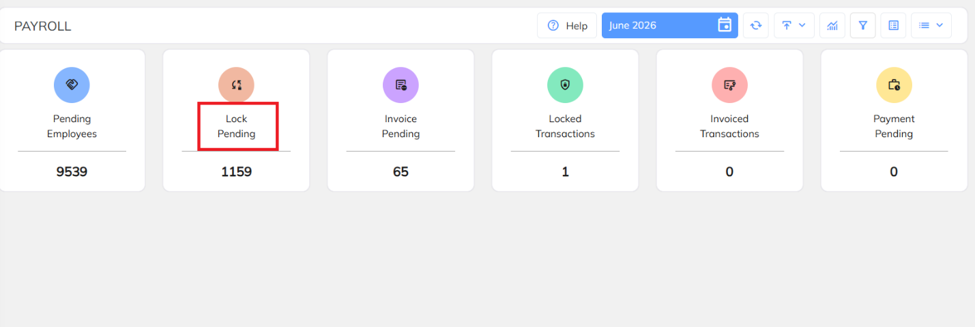
Select the transaction number, click on load employees list.

Select the Employee number & Click on Update payment status.
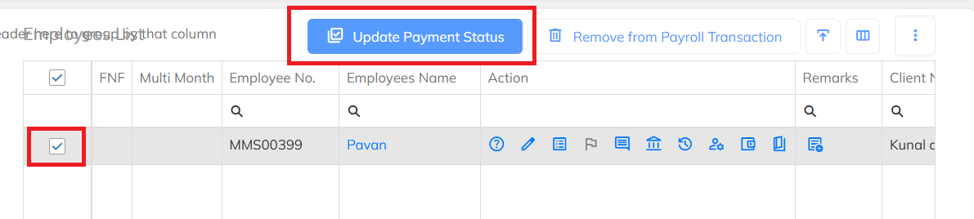
Select the payment status from the dropdown section and click on update.
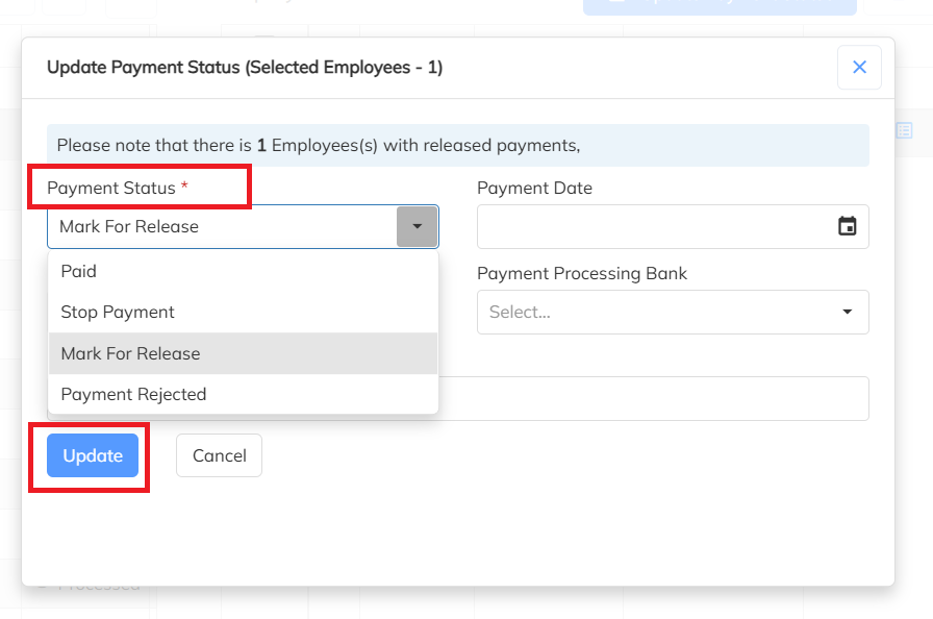
Once you update the payment status, select the transaction number and click on lock transaction.

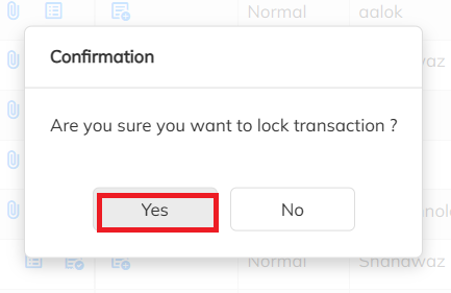
Click on yes to lock transaction.
Once the transaction is locked, it will move to the Locked Transactions section.
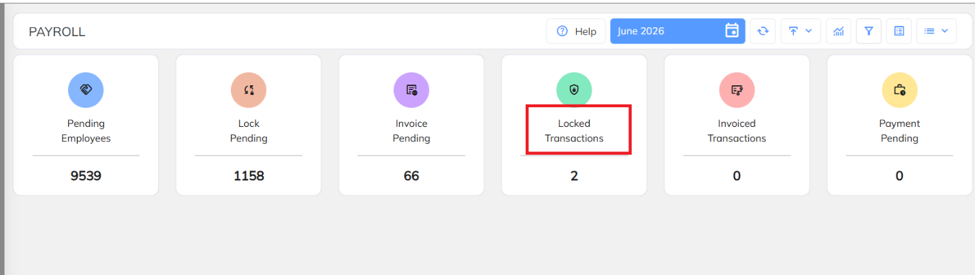
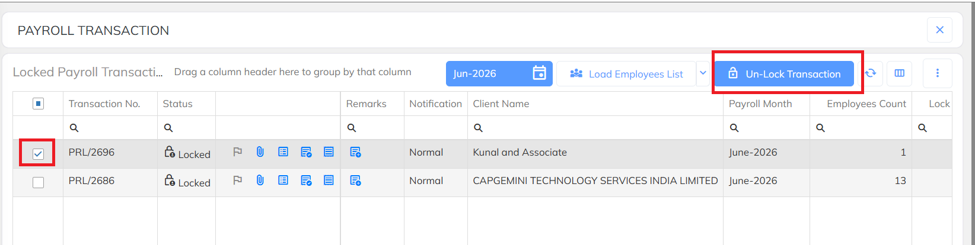
To unlock the transaction:
Navigate to Locked transactions.
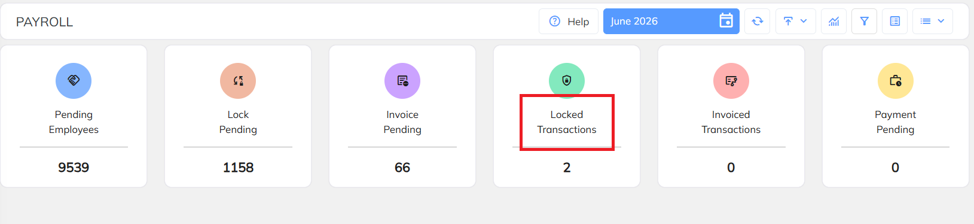
Select the transaction number and click on Un lock transaction.
Was this article helpful?
That’s Great!
Thank you for your feedback
Sorry! We couldn't be helpful
Thank you for your feedback
Feedback sent
We appreciate your effort and will try to fix the article