The timesheet is used to record the hours worked by employees during a specific payroll period. Timely and accurate submission ensures correct payroll processing and proper project tracking.
Initial Status
- By default, all employees’ timesheets are in Submission Pending status.
Navigation Path:
Timesheet → Dashboard
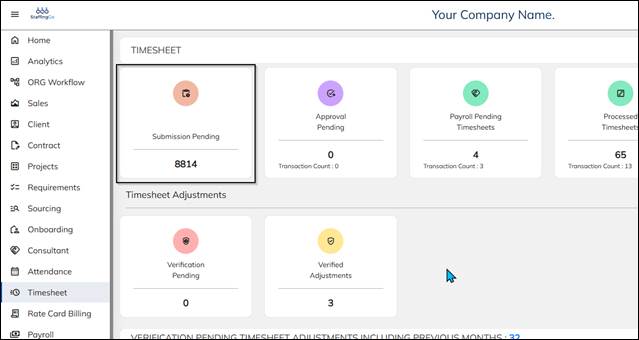
Step 1: Timesheet Submission (Submission Pending)
- Go to Timesheet.
- Select the Month of Payroll Processing.
- Click on Submission Pending.
- Select the Client.
- Click Show Pending Timesheet.
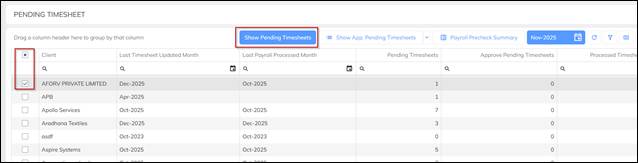
- Select the Employee(s).
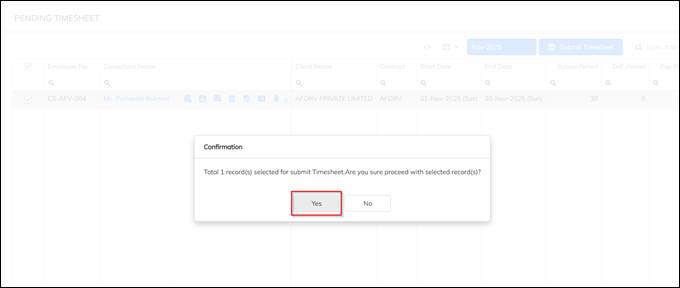
- Click Submit Timesheet.

- Confirm by selecting Yes or No.
Important Note:
Before submitting the timesheet:
- Verify that the attendance data is correct.
- If corrections are required click on calendar icon, update the attendance before submission.
- You can sync attendance by clicking the sync icons available on the screen.
Step 2: Approval Pending
Once the timesheet is submitted, the record moves to Approval Pending status.
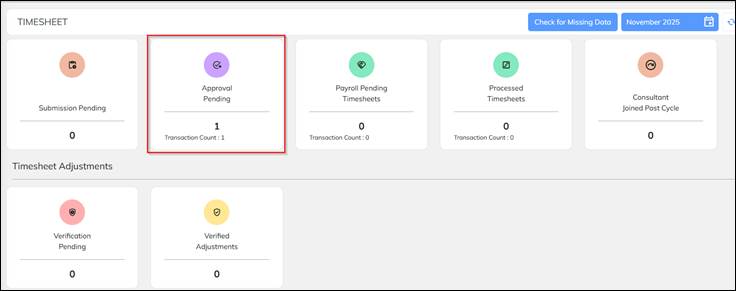
- Go to Approval Pending.
- Select the Client.
- Click Show Approval Pending Timesheet.

- Select the Employee(s).
- Click Approve Selected.

- Confirm by selecting Yes or No.
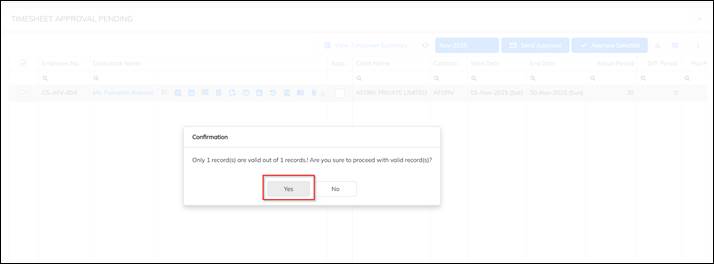
Step 3: Payroll Pending Timesheets
After approval, the timesheet moves to Payroll Pending Timesheets.
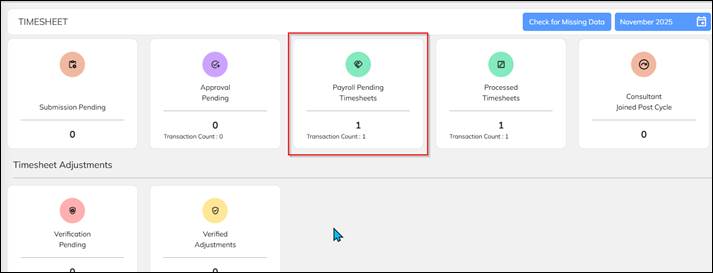
- Go to Payroll Pending Timesheets.
- Select the Client.
- Click Payroll Pending Timesheets.
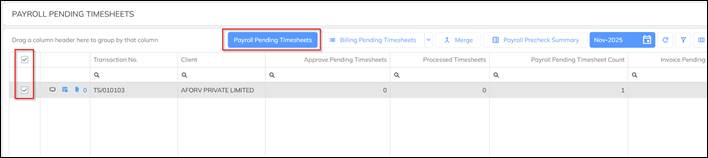
- Select the Employee.
- Click Proceed for Payroll.
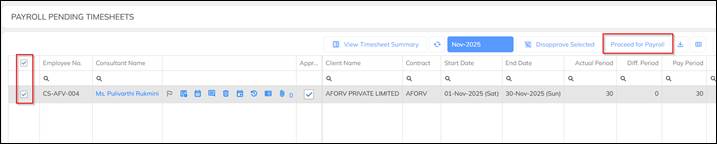
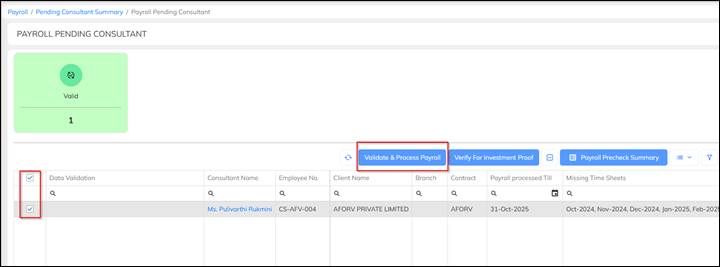
- Select the Employee.
- Click Validate & Process Payroll.
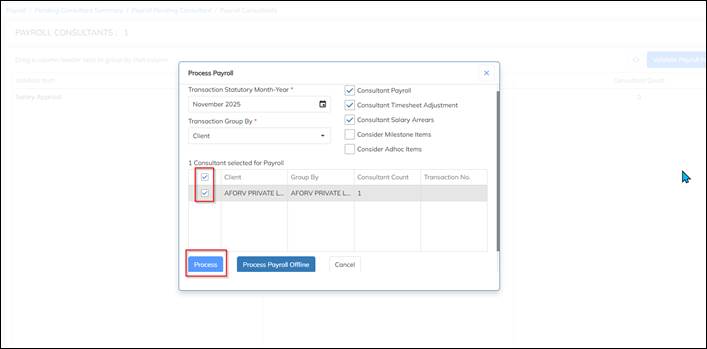
- Select the Client and verify the Payroll Month.
- Click Proceed.
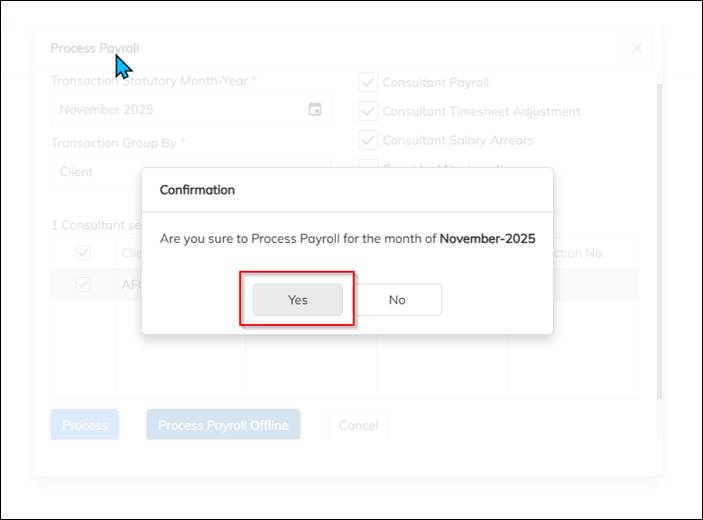
- Confirm by selecting Yes or No.
Summary of Status Flow
- Submission Pending
- Approval Pending
- Payroll Pending Timesheets
- Payroll Processed
Key Points to Remember
- Always verify attendance before submitting the timesheet.
- Attendance must be corrected and synced prior to submission.
- Submitting on time avoids payroll delays.
- Ensure the correct client and payroll month are selected at each stage.
Was this article helpful?
That’s Great!
Thank you for your feedback
Sorry! We couldn't be helpful
Thank you for your feedback
Feedback sent
We appreciate your effort and will try to fix the article