Follow the below mentioned steps to process the Additional day/ Extra Day payment in the application with auto computation based on the days input & manual method.
Method -1: Automation of Additional Day Payment Computation
A. Salary Header configuration for auto Additional Day / Extra Day Amount
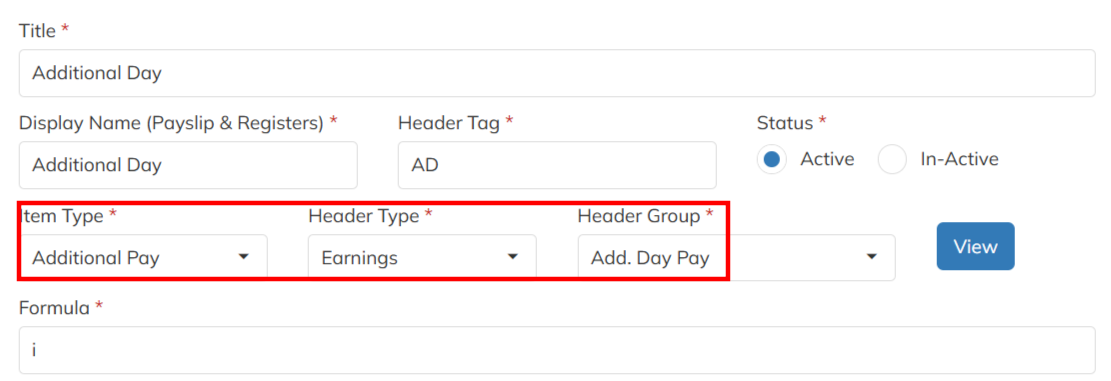
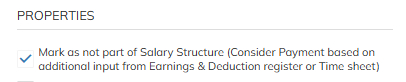
- Navigate to Setting List >>Staffing Master >> Choose the Salary Header & create the salary header for Additional day auto computation based on the days inputs in the time sheet. Use the Item type as Additional Pay , Header Type as Earnings & Header group as Add. Day Pay. Salary header should be enable with not part of the salary structure option ( As freeheader ).
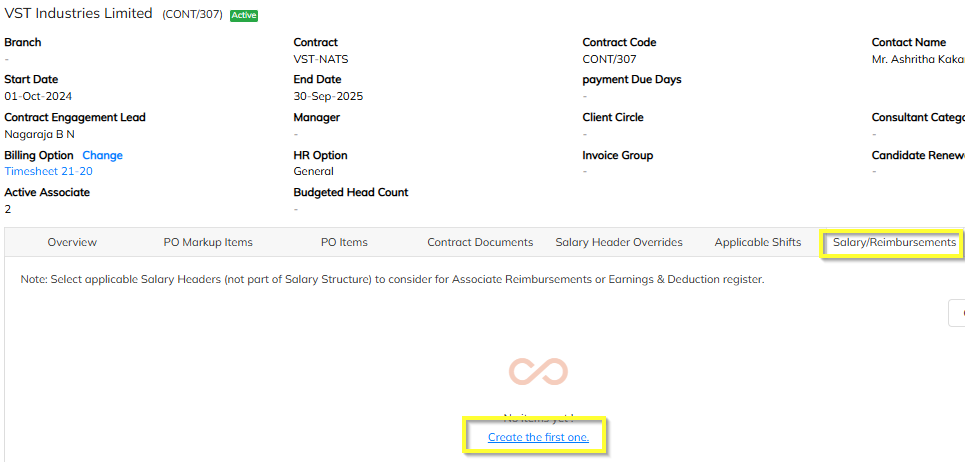
- Created salary header should mapped under specific client- contract level in Salary Reimbursement Option.
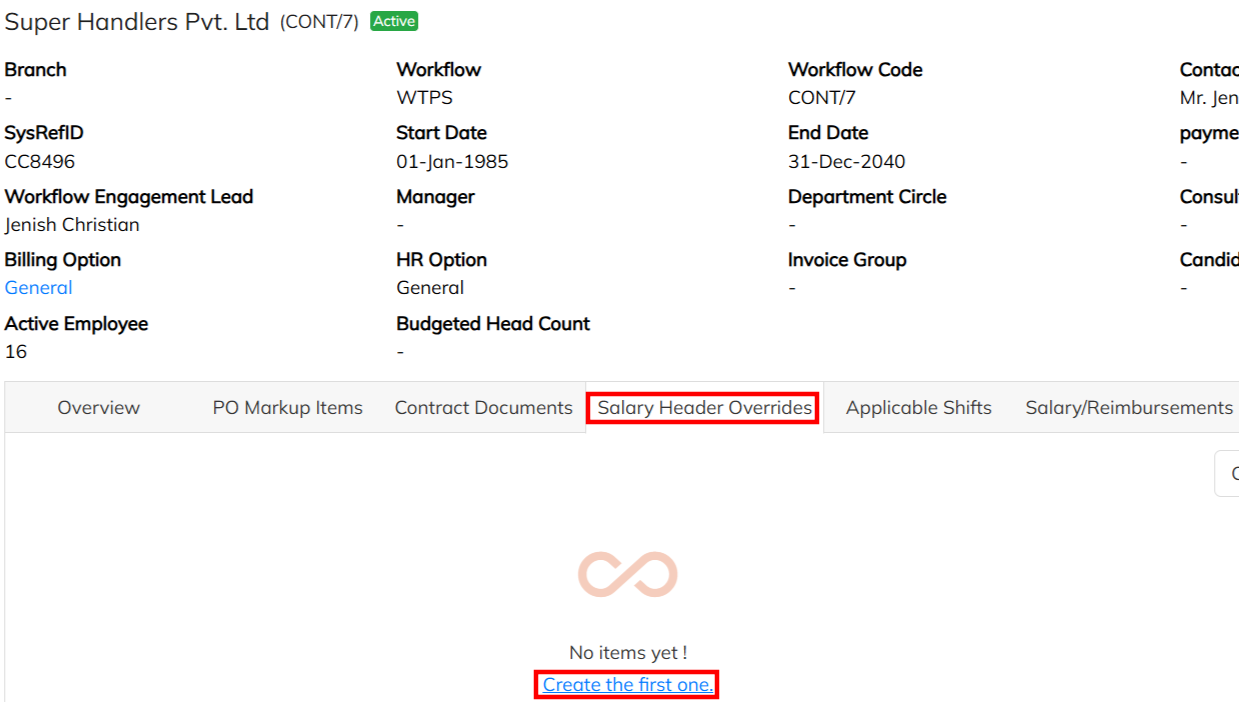
- If any additional applicability on the Additional salary header can enable under contract level Salary override( If Differ from client to client) / in the Master level salary header configuration ( all client in same scenario). Example : PT, PF, ESI, LWF, Bill & Pay configuration.
B. Need to set up the additional day computation with dependent factor
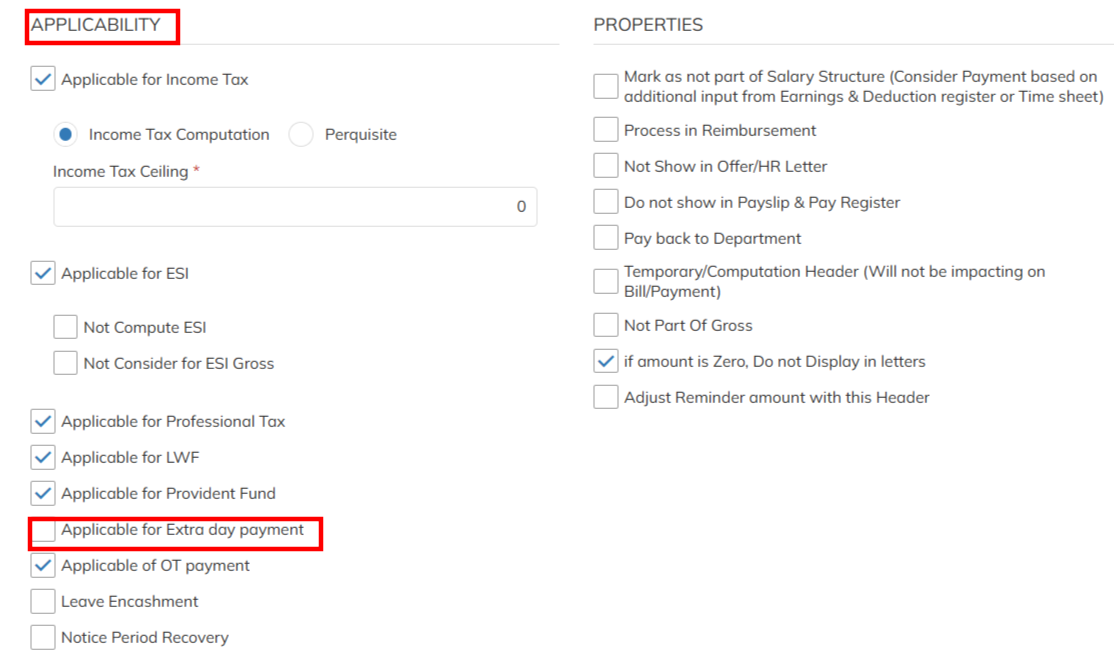
- If the additional day computation scenario same all over the client, set up the extra day applicability factor in Master Salary header configuration.
- Navigate to Setting >> Staffing Master >> Salary Header >> Choose the specific dependent salary header and enable the Extra Day applicability and save . Example : Additional day applicable on BASIC & HRA & Other Allowance. Need to enable the extra day applicability on the Basic, HRA, & Other Allowance.
- If the Applicability differ client to client scenario, same extra day applicability configuration need to control under contract level salary header override option.
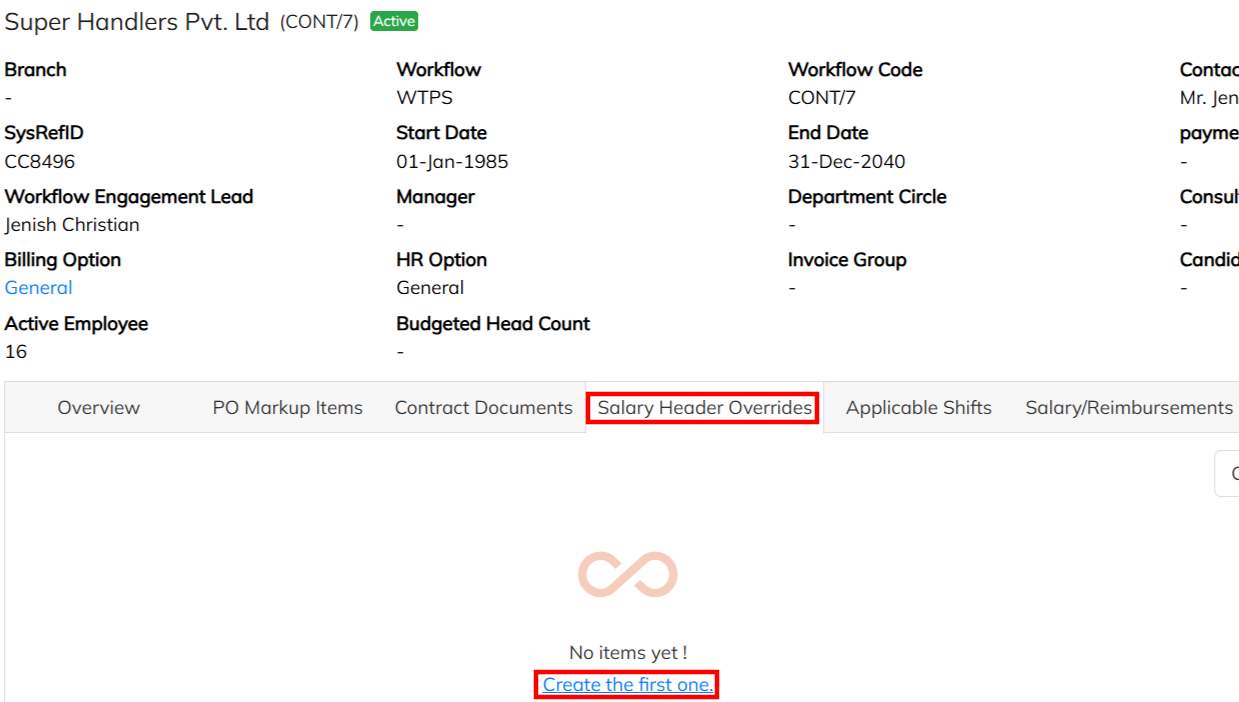
C. Billing Option set up with Additional Day Applicability.
- Mandatory to Enable the Additional Day Configuration in Billing Option . Navigate to Setting >>Staffing Master >>Billing option.
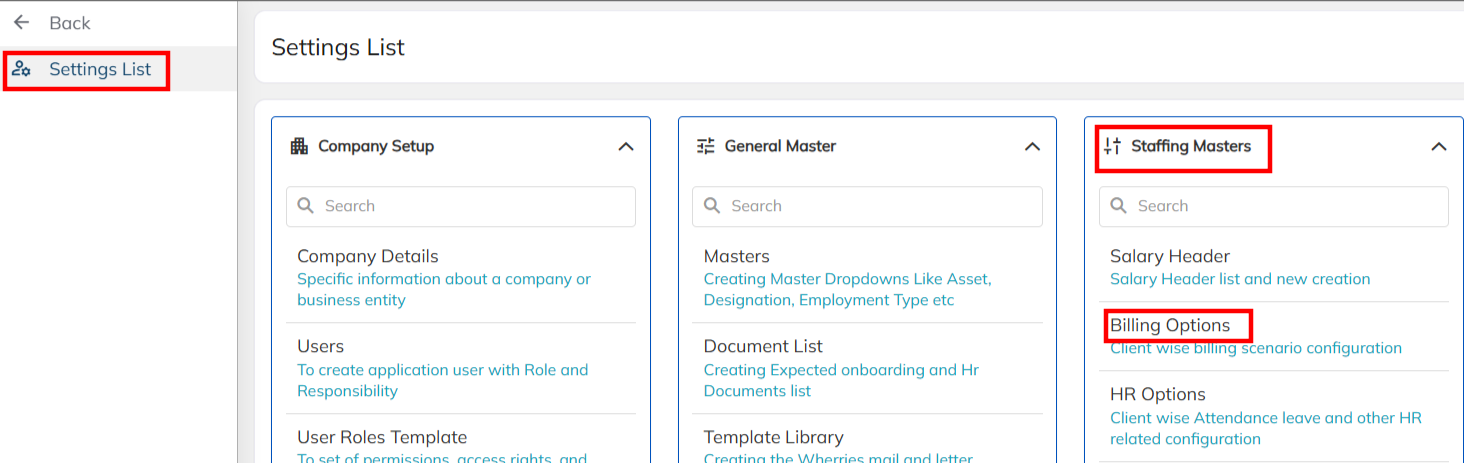
- Select the specific the Contract mapped Billing Option and Enable the Additional Day applicability and save
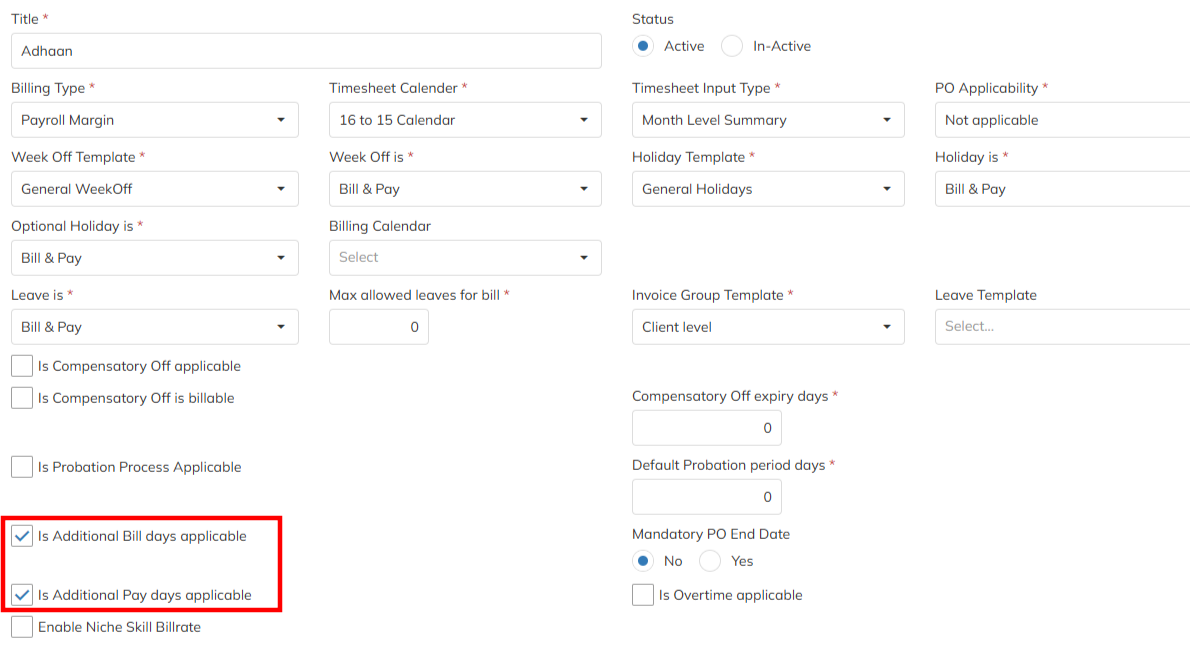
- Select the specific the Contract mapped Billing Option and Enable the Additional Day applicability and save
D. Additional Day input during Time sheet Process- Manually:
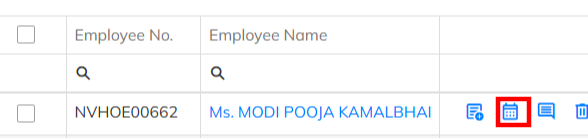
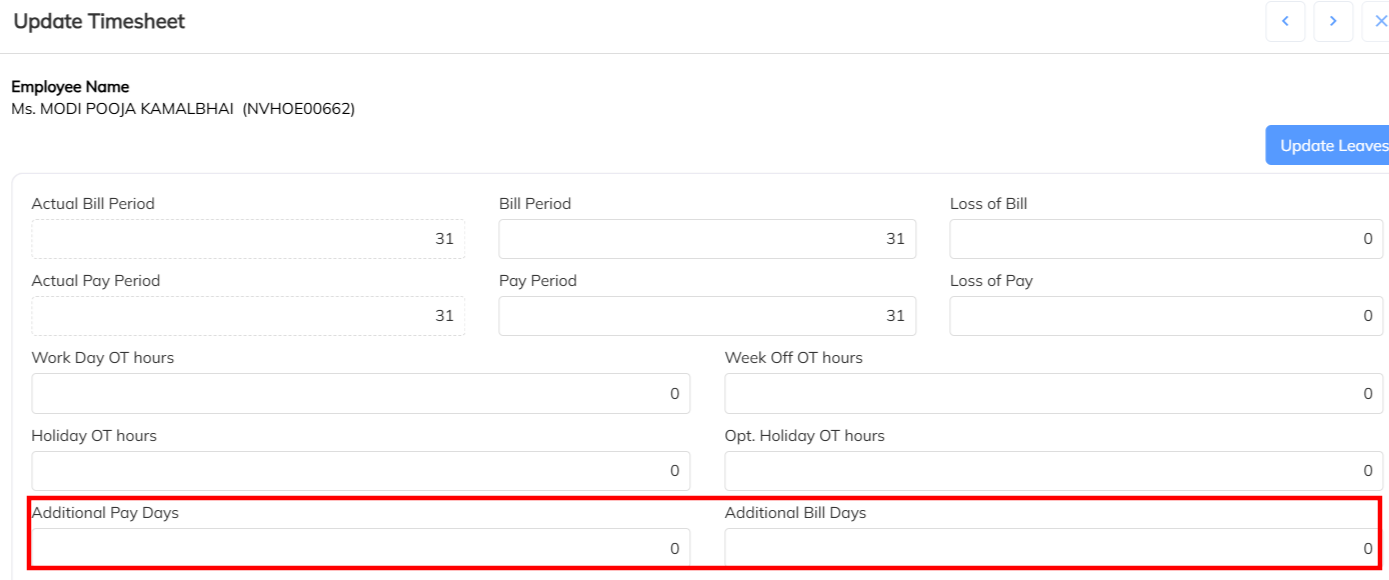
- During the employee time sheet submission allocate the Additional days. Navigate to Time sheet module >> Select the specific employee from time sheet submission pending >> Click on the attendance update option & Input the additional pay days & bill days along with employee pay period. Submit the time sheet with additional day input
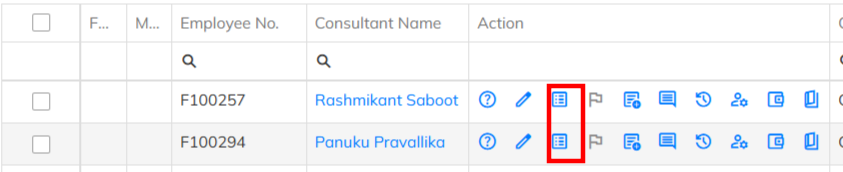
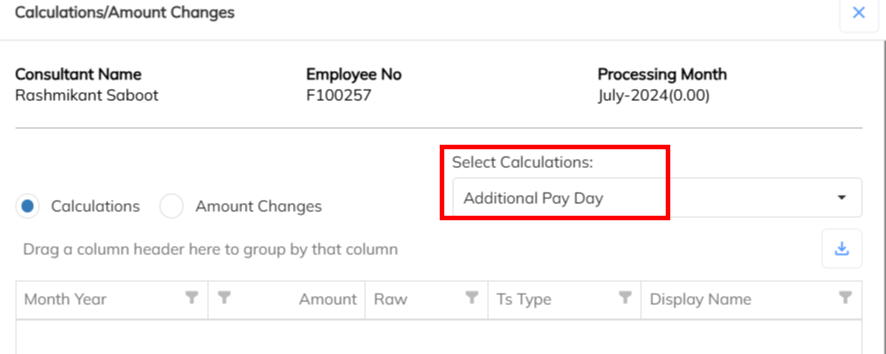
- Once the Payroll Process ,in the Payroll summary validate the Additional day computation and dependency salary header applicability if any wrong computation happens. According to the summary check the configuration.
E. Additional Day input during Time Sheet Process- Excel import in bulk
- Navigate to Time Sheet Module >> Select the Time Sheet Import >>Download the sample time sheet import excel sheet & prepare the attendance input along with additional day.


F. Additional Day Process in Time Sheet Adjustment
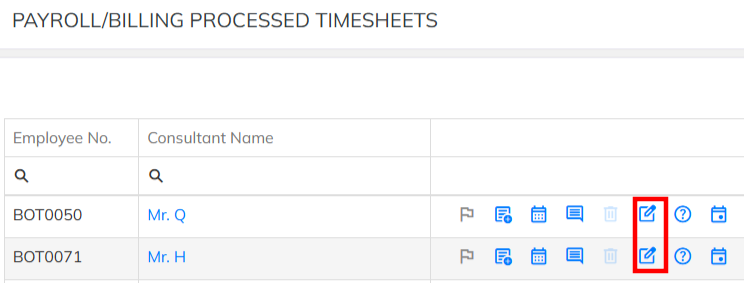
- Time Sheet Adjustment can use after regular payroll process, Navigate to Time Sheet Module -->> Select the Employee under particular month under Processed tab.
- Select the adjustment option and input the additional day and same the time sheet.
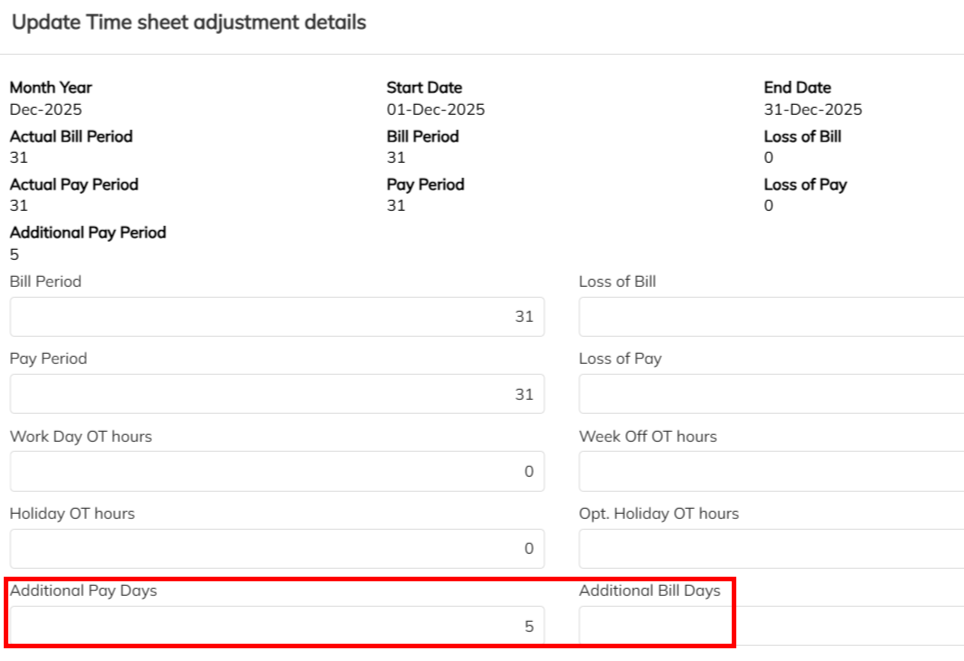
- Saved time sheet available in time sheet adjustment verification pending - Approve the same & available in the payroll pending to process the payroll.
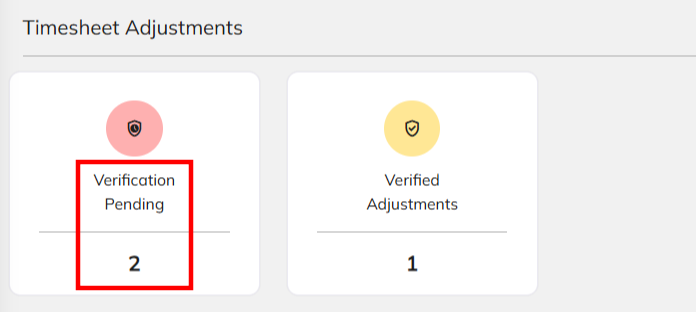
- Follow the same process using the time sheet adjustment excel import for bulk upload.

Was this article helpful?
That’s Great!
Thank you for your feedback
Sorry! We couldn't be helpful
Thank you for your feedback
Feedback sent
We appreciate your effort and will try to fix the article