- Navigate to Payroll → Import → Pay Register Import.
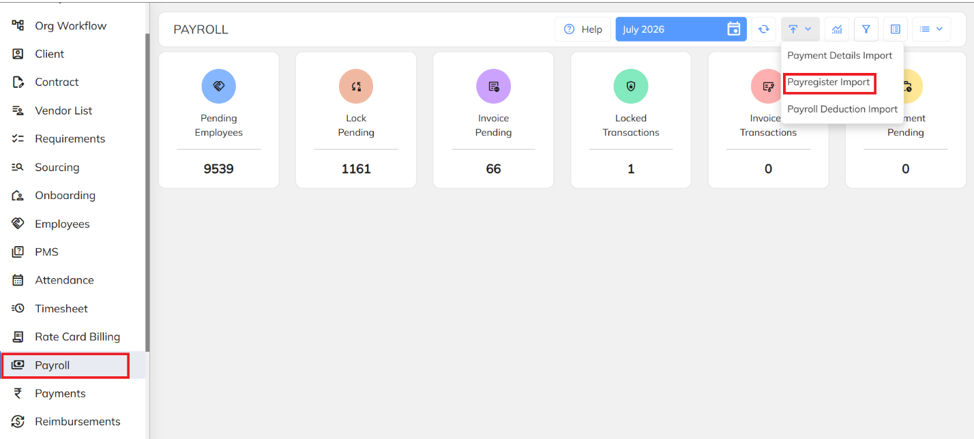
- Select the Month & Year, choose the Transaction Group By option, upload the file, and click Save.
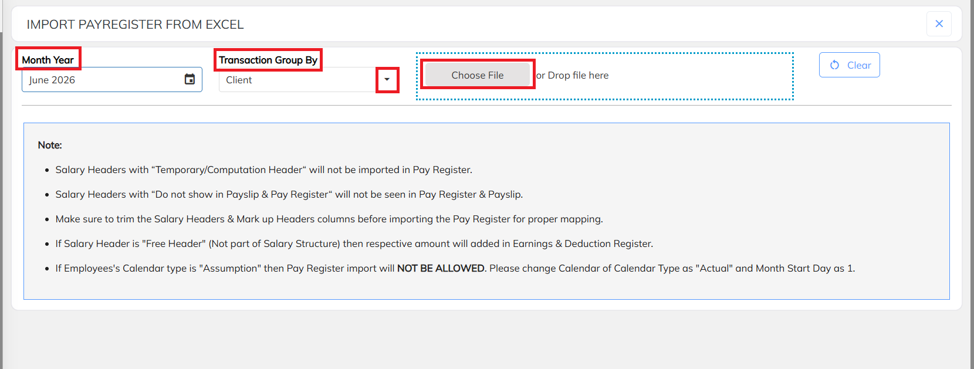
- After uploading the file, the Select Template section is displayed. Select an existing template if one has already been created, or create a new template.
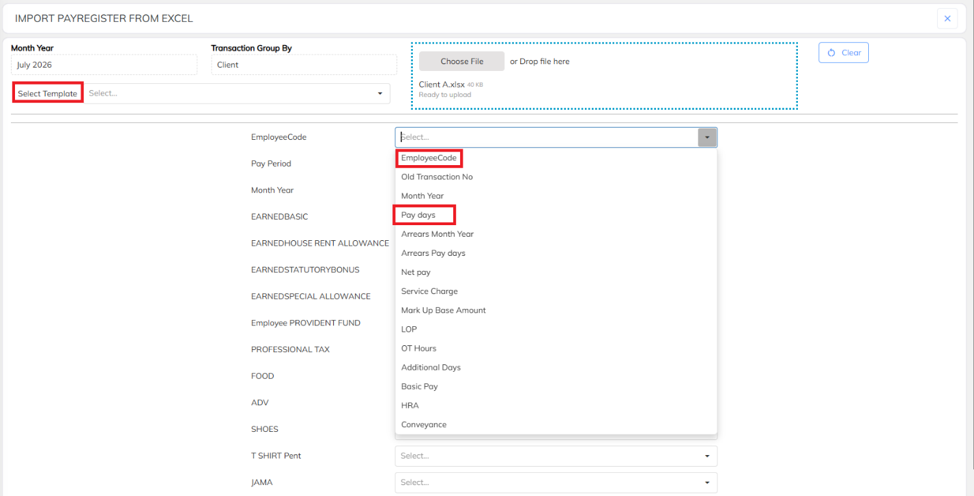
- The uploaded Excel columns are listed for mapping. For each Excel column, select the corresponding field from the application dropdown. Ensure that each Excel column is mapped to the matching application field.
Example:
- Employee Code → Select Employee Code from the dropdown.
- Pay Period → Select Pay Days from the dropdown.
- Similarly, map all remaining salary components and fields to their corresponding application fields before proceeding.
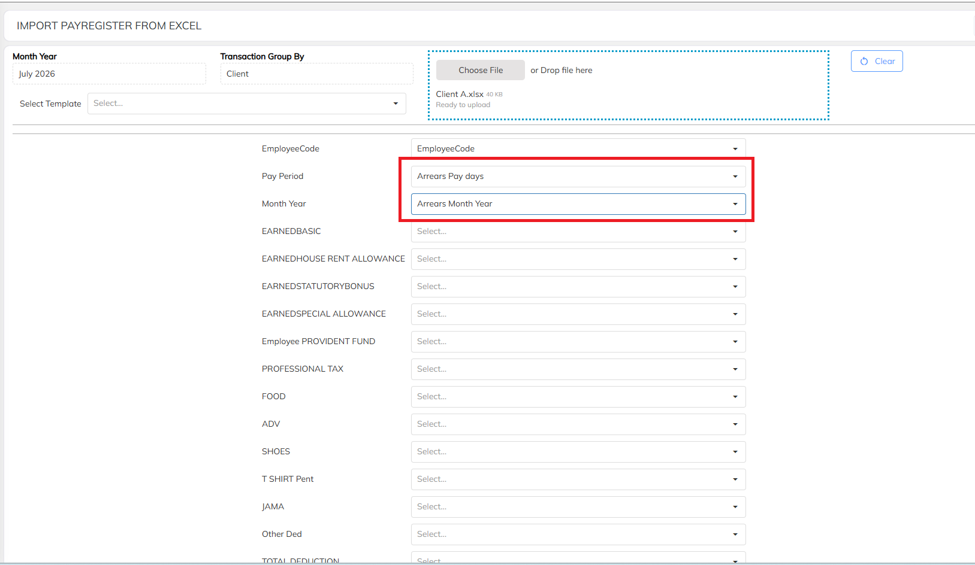
- If you want to process any arrears through pay register import then mention as below.
- After completing the field mapping, click Start Import to begin the import process. You can save the mapping as a Template for future use, allowing you to reuse the same configuration for subsequent Pay Register imports.

- Note:
If Arrears exist, they must be uploaded separately. The Pay Register cannot be uploaded along with arrears.
Salary and Arrears should not be uploaded in the same Excel sheet.
Excel column names must not contain any special characters.
Before importing the Pay Register for a particular month, the corresponding month's Timesheet must be in Submission Pending status.
Duplicate employee records are not allowed in the Pay Register.
CTC and Net Pay are exception fields and are not mandatory for Pay Register processing.
- Previous Month Adjustments and Arrears Upload
If previous month Adjustments or Arrears exist, they should not be included in the regular Pay Register upload.
Follow the upload sequence below:
Upload the Regular Pay Register.
Upload Previous Month Adjustments separately.
Upload Previous Month Arrears separately.
- If payroll is removed for an employee, the employee's Timesheet is automatically reverted to Submission Pending status, allowing the payroll to be processed again.
- Employee Transfer Cases
For employees transferred between contracts or staffing structures:
- Process payroll separately for each applicable contract or staffing structure.
- Ensure the employee is mapped to the correct staffing structure before initiating payroll processing.
Was this article helpful?
That’s Great!
Thank you for your feedback
Sorry! We couldn't be helpful
Thank you for your feedback
Feedback sent
We appreciate your effort and will try to fix the article