Scenario
If an employee is scheduled to be transferred to another company with an effective date of 1st July, but the transfer is kept on hold and is not initiated until 10th July, the employee will continue marking attendance in the previous company during this period.
As a result, the attendance from 1st July to 10th July will be recorded in the previous company. These attendance records may prevent the transfer from being processed with the intended effective date.
Solution
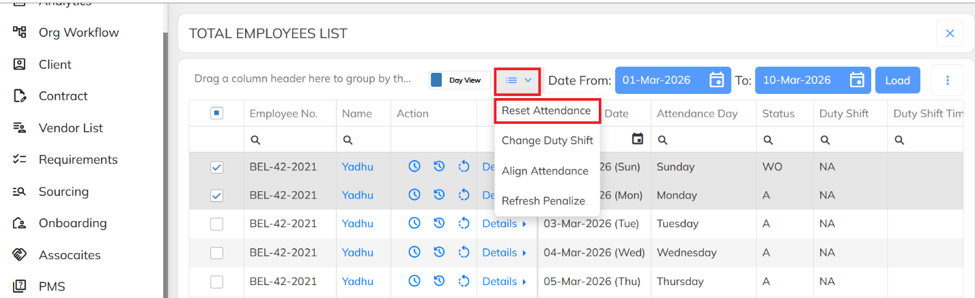
Use the Reset Attendance option to remove the attendance records for the affected period (1st July to 10th July). After resetting the attendance, proceed with the employee transfer.
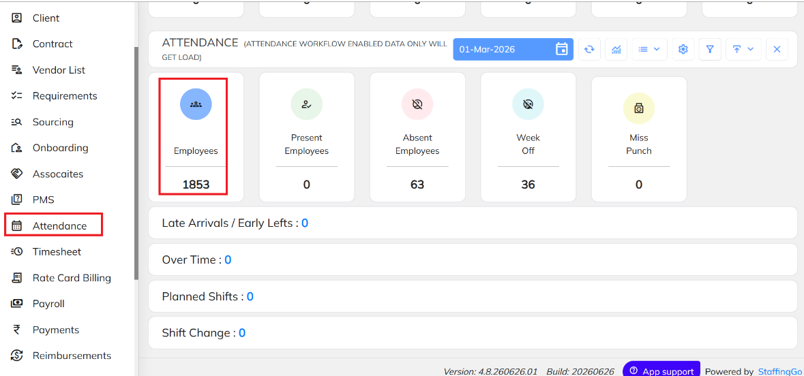
- Navigate to Attendance Section and click on the Employees section.
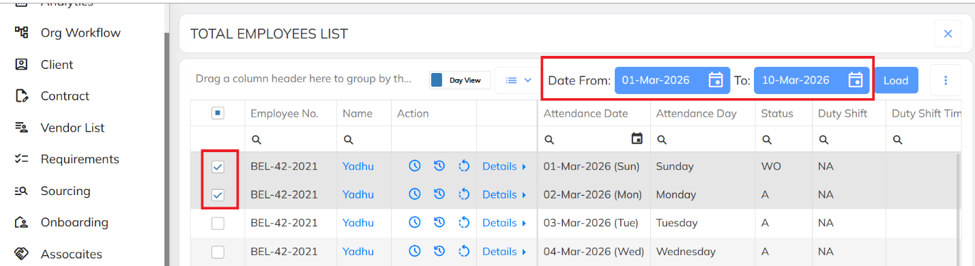
- Select the Employee, then specify the From Date and To Date for the period to be reset.
- Click the Dropdown menu and select Reset Attendance.
Was this article helpful?
That’s Great!
Thank you for your feedback
Sorry! We couldn't be helpful
Thank you for your feedback
Feedback sent
We appreciate your effort and will try to fix the article