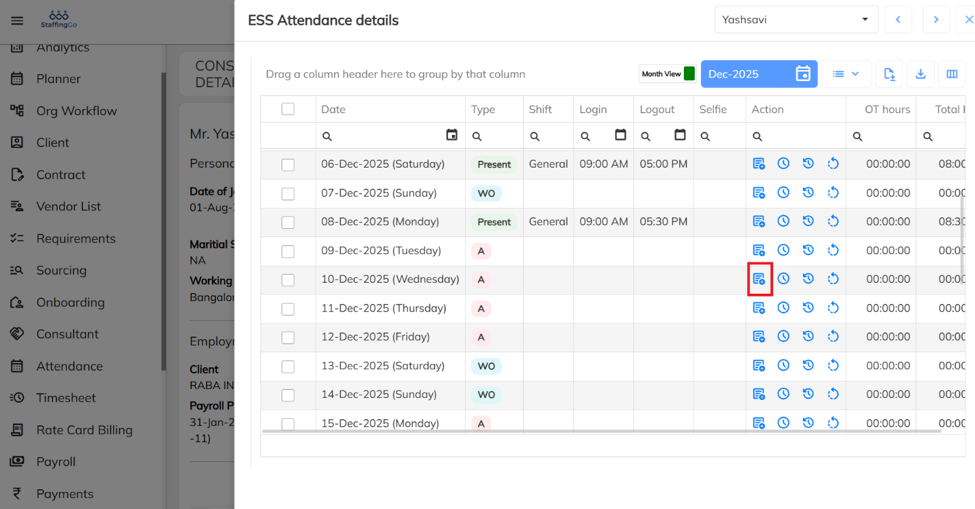
Navigate to Consultant → Select the Consultant → Click the Dropdown Menu → Select Attendance
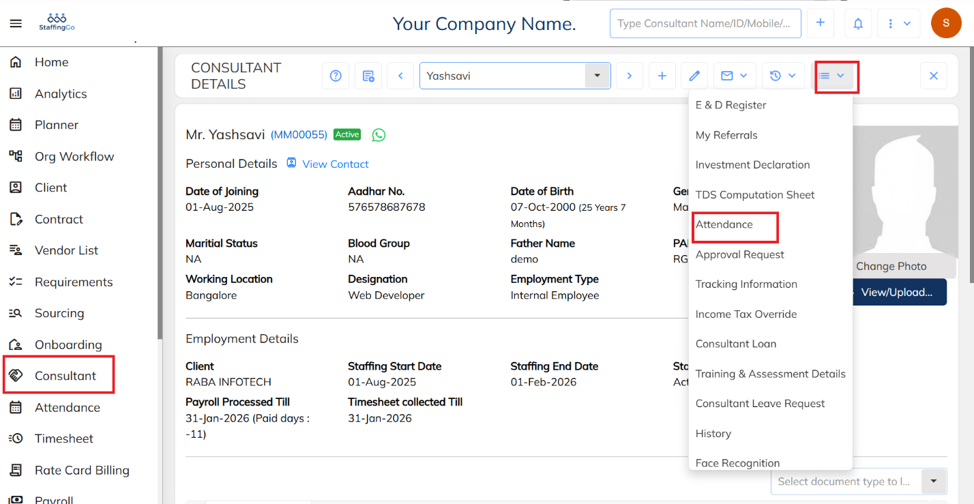
Select the required date and click on update time icon. Select the Type Present, Absent or Week off and Click on Update.
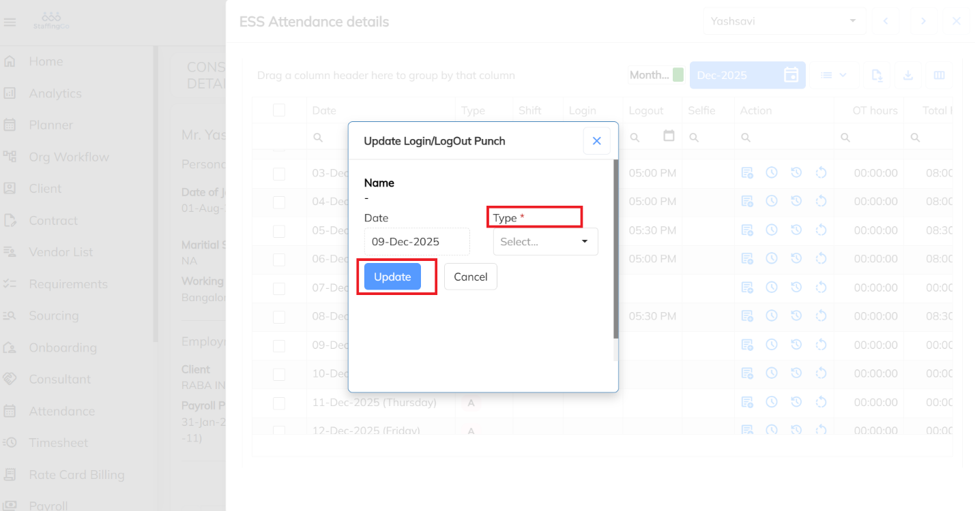
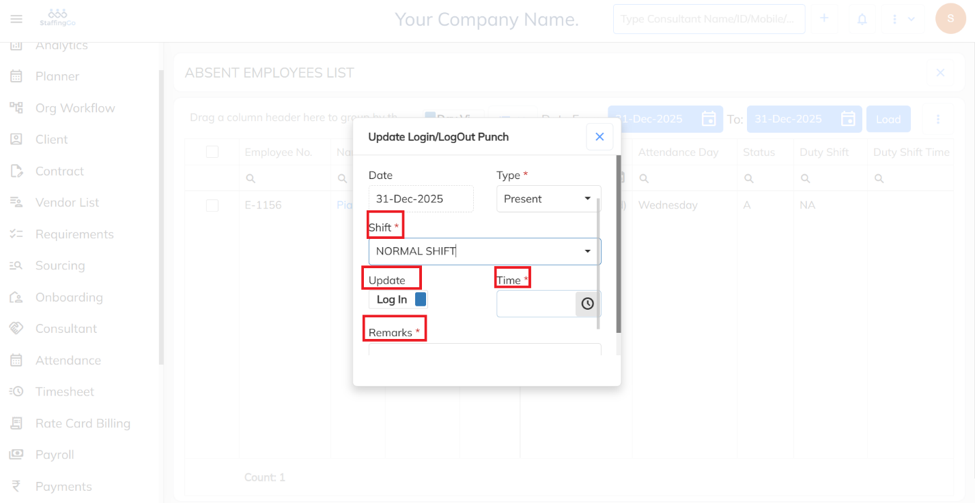
Click Update, select the appropriate Shift, enter the Login time and map the attendance time, add the required Remarks, and click Update to save the changes. The attendance status will be marked as Present.
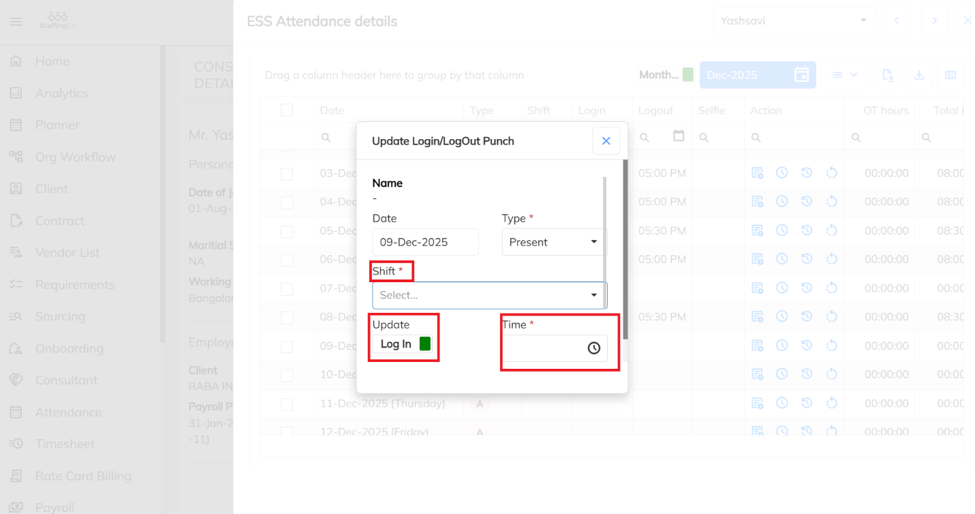
Click Update, select the appropriate Shift, enter the Logout time and map the attendance time, add the required Remarks, and click Update to save the changes. The attendance status will be marked as Absent.
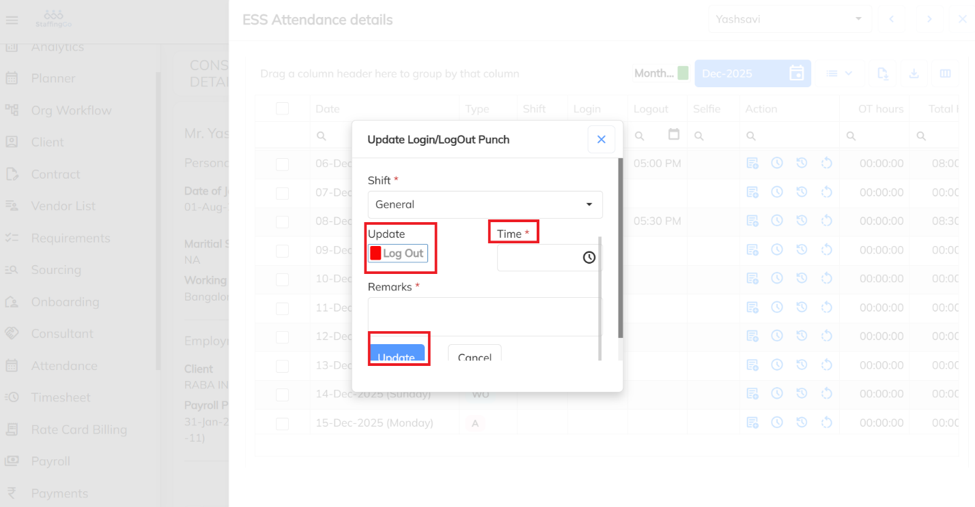
Mark Attendance as Week Off:
Alternative Method:
Navigate to Attendance → Select the Date → Go to Absent Employees.
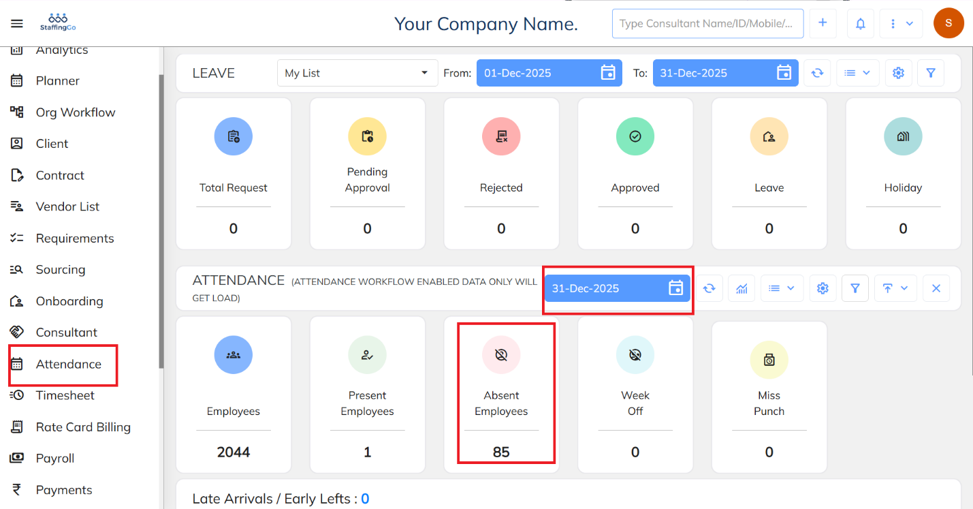
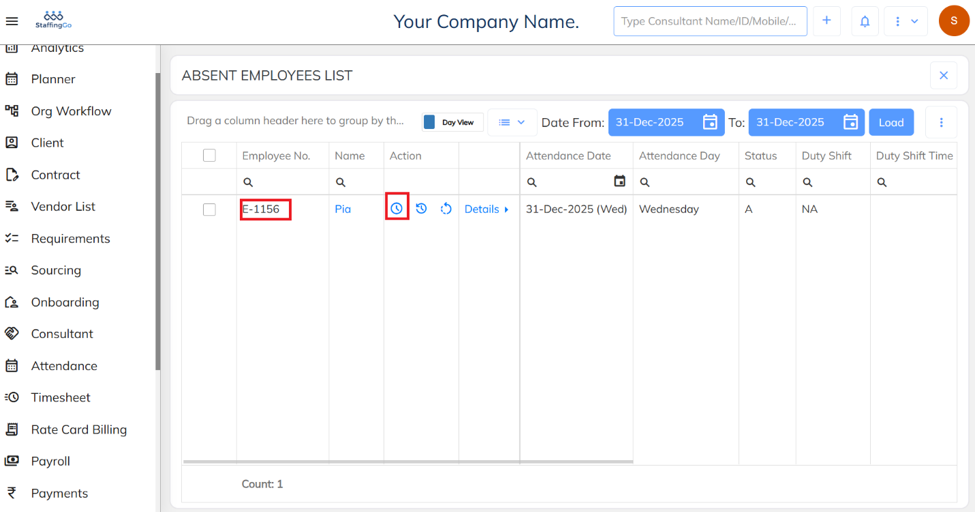
Select the required employee from the Absent Employees list and click the Update/Edit icon.
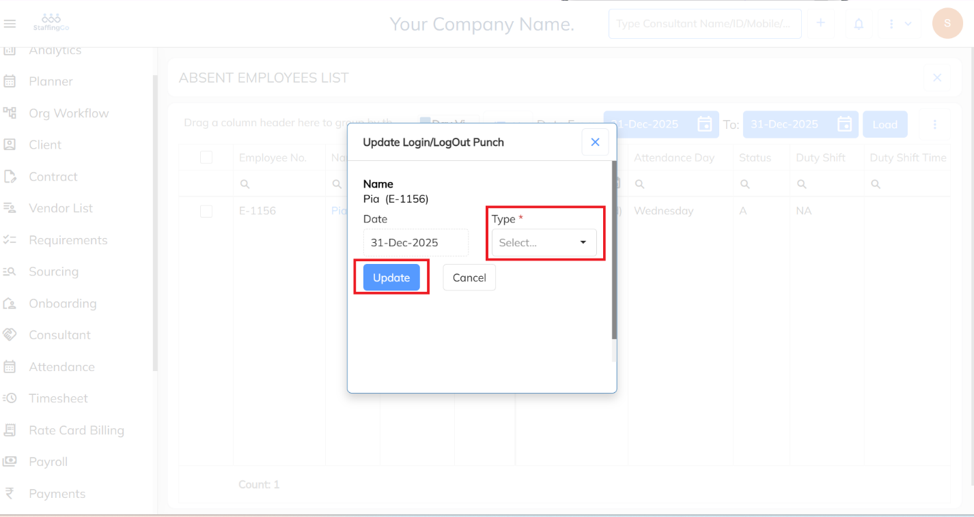
Select the Type Present, Absent or Week off and Click on Update.
Select the appropriate Shift, enter the Login time if updating login or the Logout time if updating logout, select the required time, add the necessary Remarks, and click Update to save the changes.
Was this article helpful?
That’s Great!
Thank you for your feedback
Sorry! We couldn't be helpful
Thank you for your feedback
Feedback sent
We appreciate your effort and will try to fix the article