Step 1: Add Adhoc Earnings & Deductions (E&D)
Navigate to the Earnings & Deductions (E&D) module.
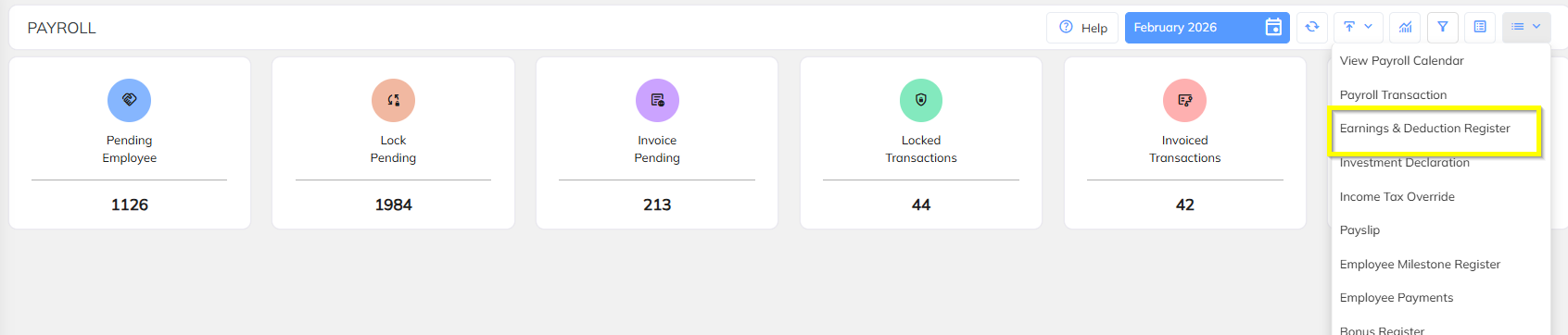

Procedure:
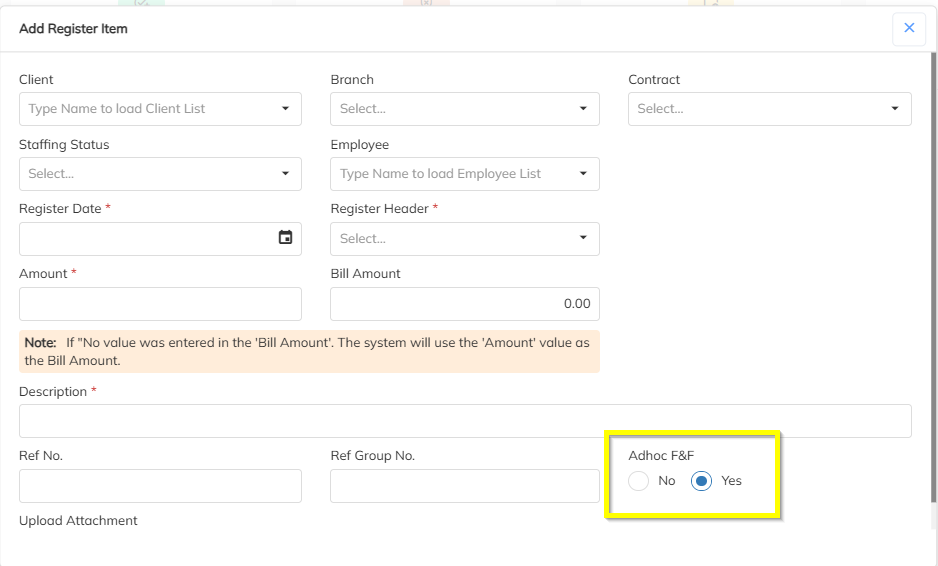
Open the Employee E&D Entry screen.
Select the Employee
Add the required Earning/Deduction Header.
In the field “Adhoc (Yes/No)”, select YES.
Enter the Amount.
Click Save.
Important:
Selecting Adhoc = YES ensures the amount will be processed independently.
No timesheet validation or adjustment will be required.
Step 2: Verify in Payroll Pending
After saving the Adhoc E&D, the employee will appear in the Payroll Pending list.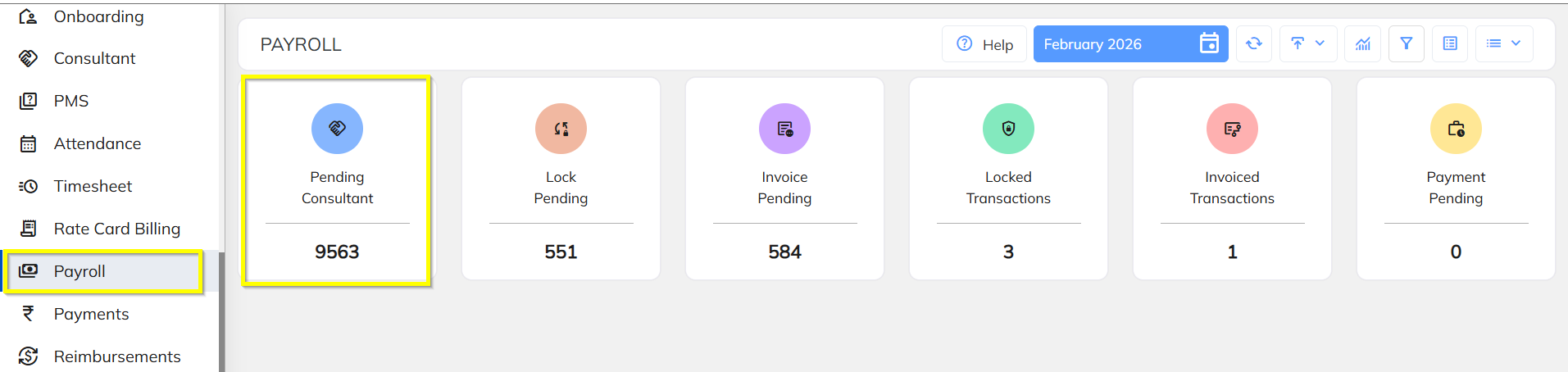
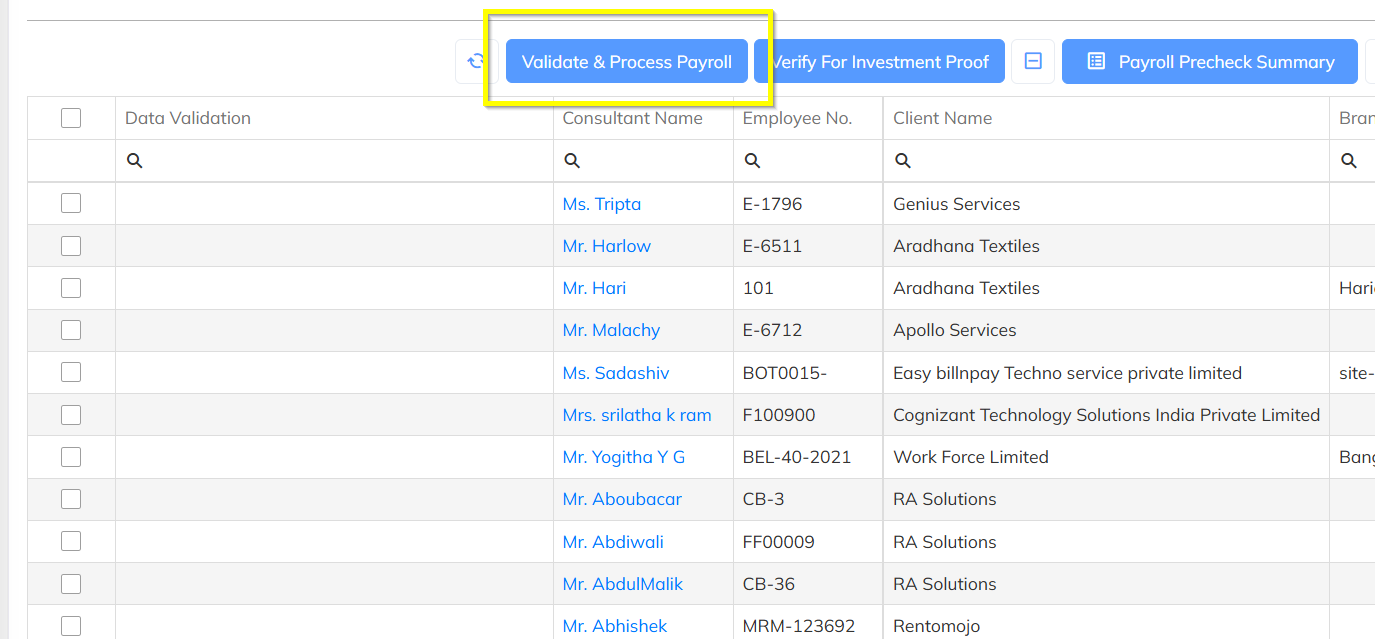
Procedure:
Navigate to Payroll → Payroll Pending.
Locate the respective employee.
Select the employee.
Click on Vaidate and Process Payroll
Process Payroll with Adhoc Consideration
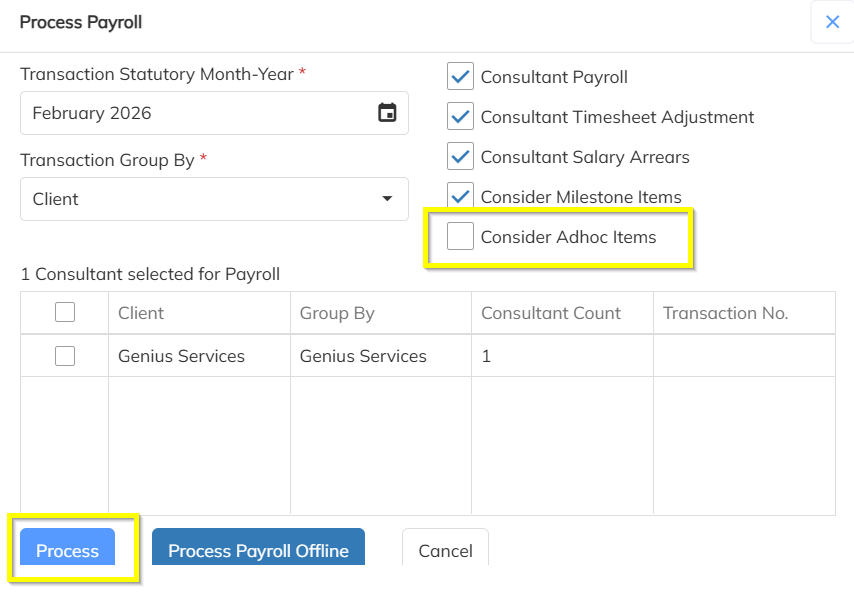
While processing payroll, ensure the Adhoc option is enabled.
Procedure:
In the Payroll Processing window, locate the option:
“Consider Adhoc Items”
Select / Tick this option.
Click Process.
Was this article helpful?
That’s Great!
Thank you for your feedback
Sorry! We couldn't be helpful
Thank you for your feedback
Feedback sent
We appreciate your effort and will try to fix the article