The Overtime (OT) process in StaffingGo enables companies to capture, validate, and pay employees for extra hours worked beyond their regular shift schedules. The system provides a streamlined and configurable workflow that ensures accurate OT calculations in payroll.
Over Time Process configuration
A. Steps to configure the OT Rate:
- Go to the Selected Contract Module and click on the "Contract which need to setup OT".
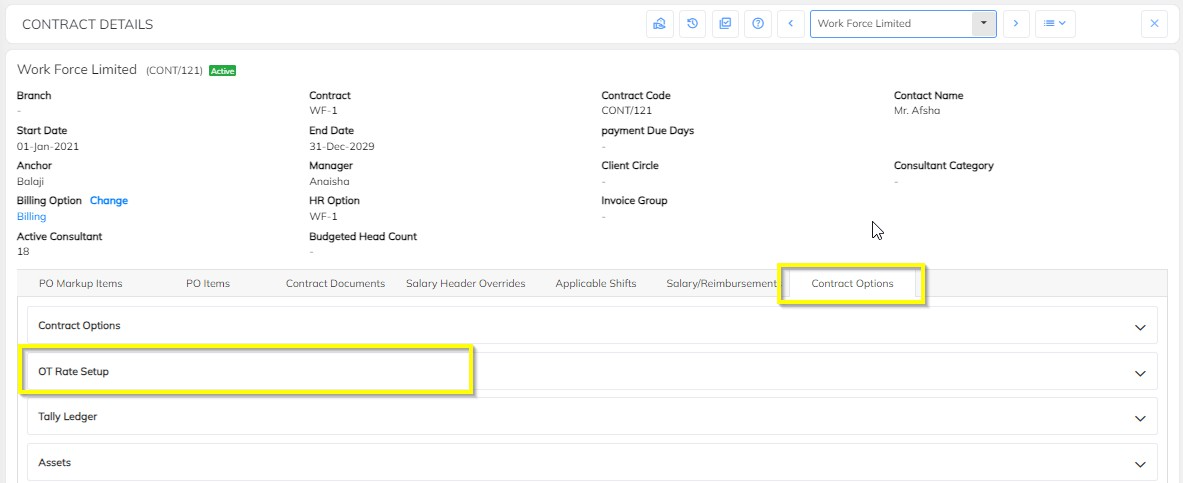
- Choose the Contract Option" section, Select "OT Rate Setup".
- In OT Rate setup have an
 click the same to setup.
- Select the OT Type showing in the dropdown in terms of Percentage/ Hourly Rate.
Percentage: If you select OT type as Percentage system will calculate the OT as single payment or Double payment.
Example 1: If you give percentage as 100, system will process the single Payment OT
Example 2: If you give percentage as 200, system will process the Double Payment OT
Per Hour rate: If you select OT type as Per Hour rate system will calculate the OT based on rate mentioned
Example: If you mentioned the per hour rate as 20 and in Timesheet you have given the OT hours as 5 the amount will be 100
- Give the input based on type selected in above step and click on the save button.
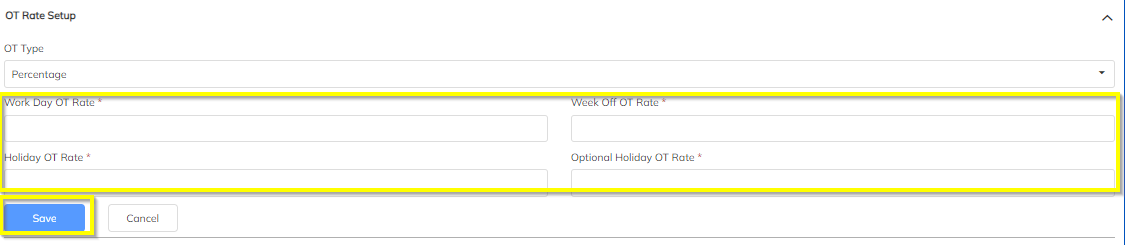
Once the OT rate setup has been done, we have to enable the OT applicability at the Billing Options and at the Contract level with respect to the Salary Headers
MAPPING OT APPLICABILITY AT THE BILLING OPTIONS
For all the clients under the contracts we will be mapping the respective Billing options
Steps to enable the Overtime applicable checkbox in Billing Options:
- Settings--> Billing Options
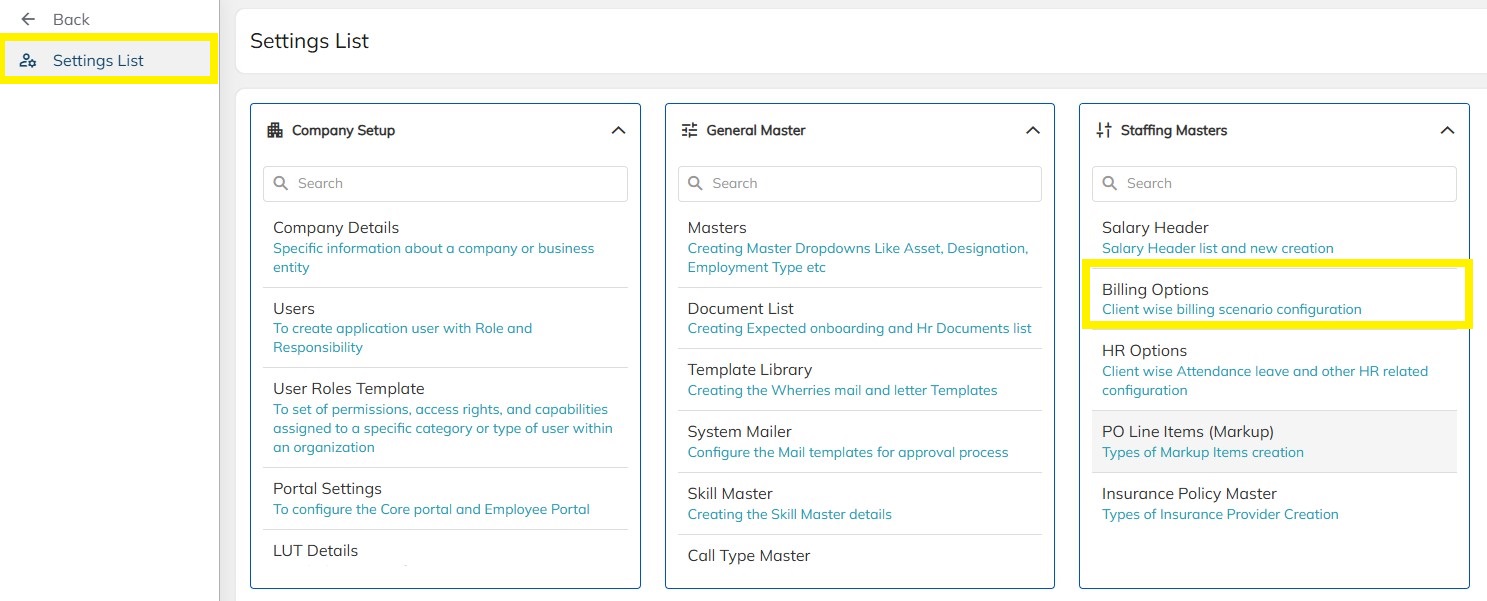
- Select the respective Billing option mapped to the client contract.
- In that Billing option mapped ensure that the Overtime applicable checkbox has been enabled as shown below and then save the details.
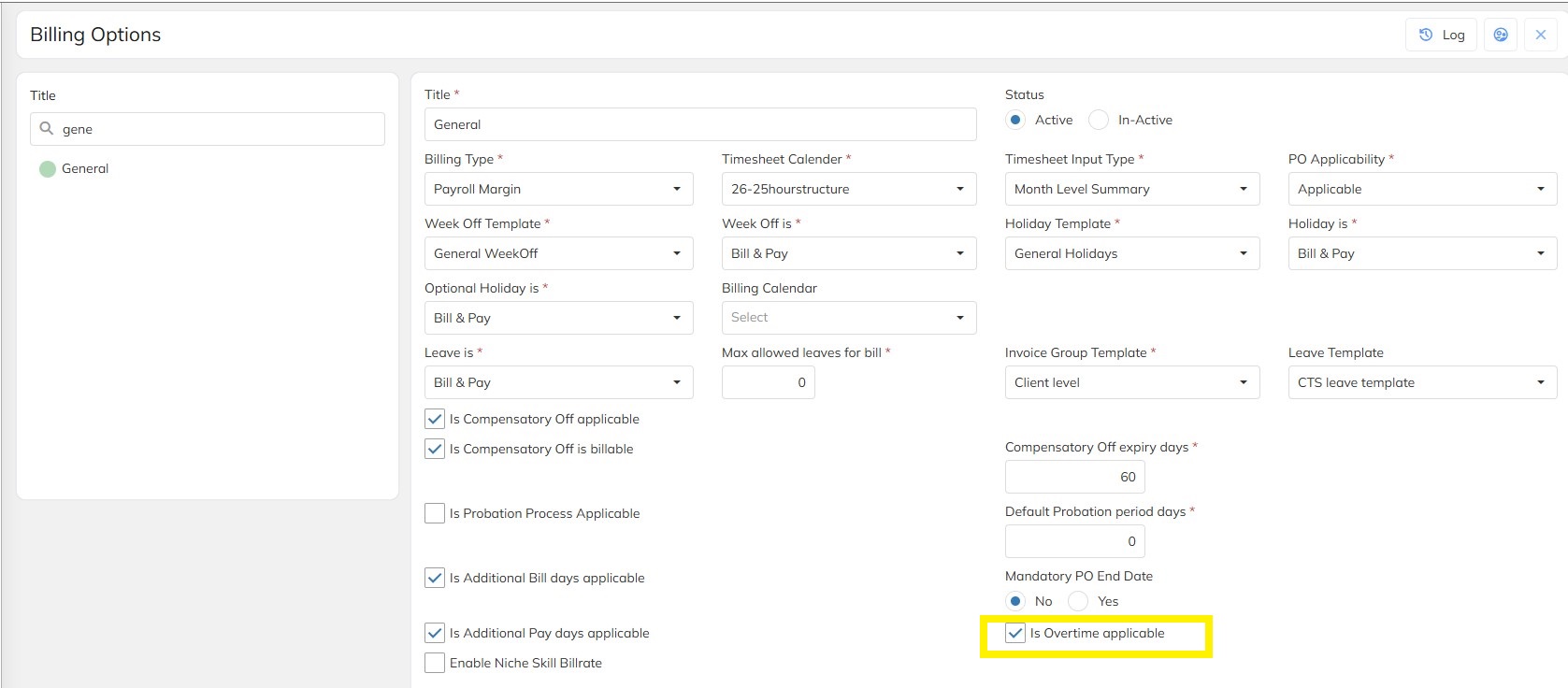
MAPPING OT APPLICABILITY WITH RESPECT TO SALARY HEADERS AT CONTRACT LEVEL
- Each client will be having their own respective salary structures with Salary headers mapped at
- Need to be ensured that for all the Salary headers are mapped with OT Applicable Checkbox
- Steps to enable at the Contract Options Level:
- Navigate on Contracts
- Select the relevant Contract and verify once if the OT rate setup has been done
- Navigate on Salary Header Overrides
- Navigate on '+' icon to Add the Salary Header
- Select the Salary Header for which OT needs to be made applicable
- Scroll on and click on Applicable for OT Payment
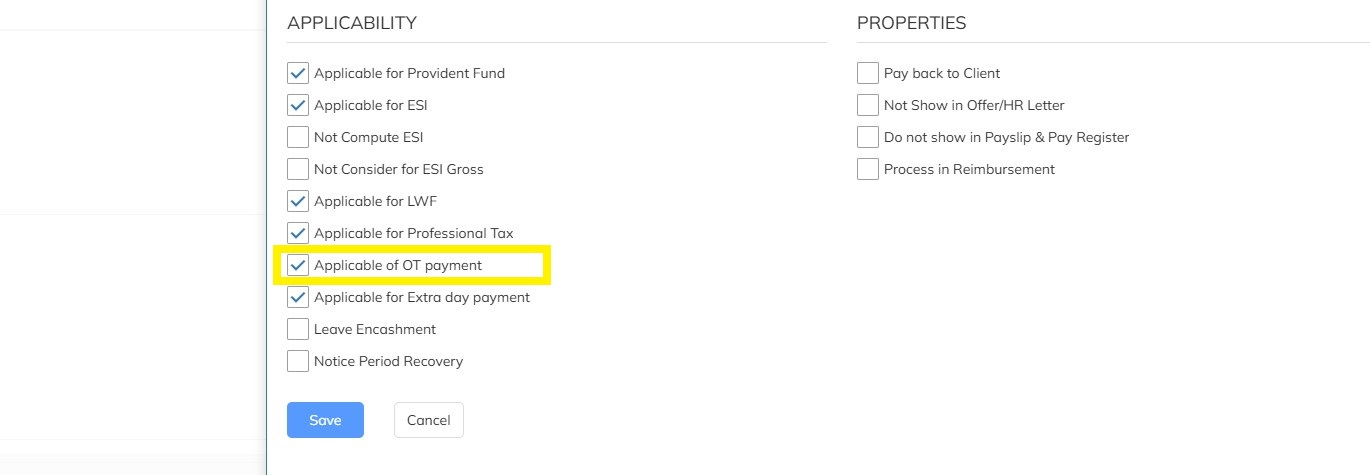
- Click on Save
- Follow the same process to map the other applicable Salary Headers for OT Payment and then save
UPDATING OT HOURS IN TIMESHEET (MANUAL)
- Once configured go to Timesheet
- Click on calendar icon and in the Workday OT Hours field add the number of OT hours you would like to update in the timesheet
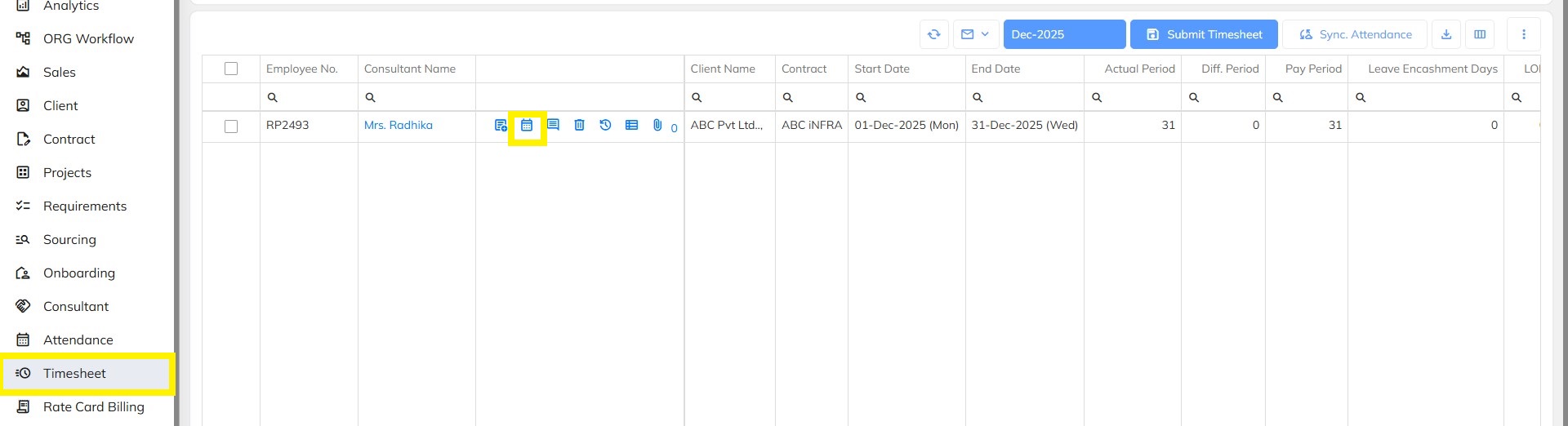
- Similarly you can add the hours for the Weekoff and Holiday OT hours if any
- Once the OT hours have been updated click on Save & Continue
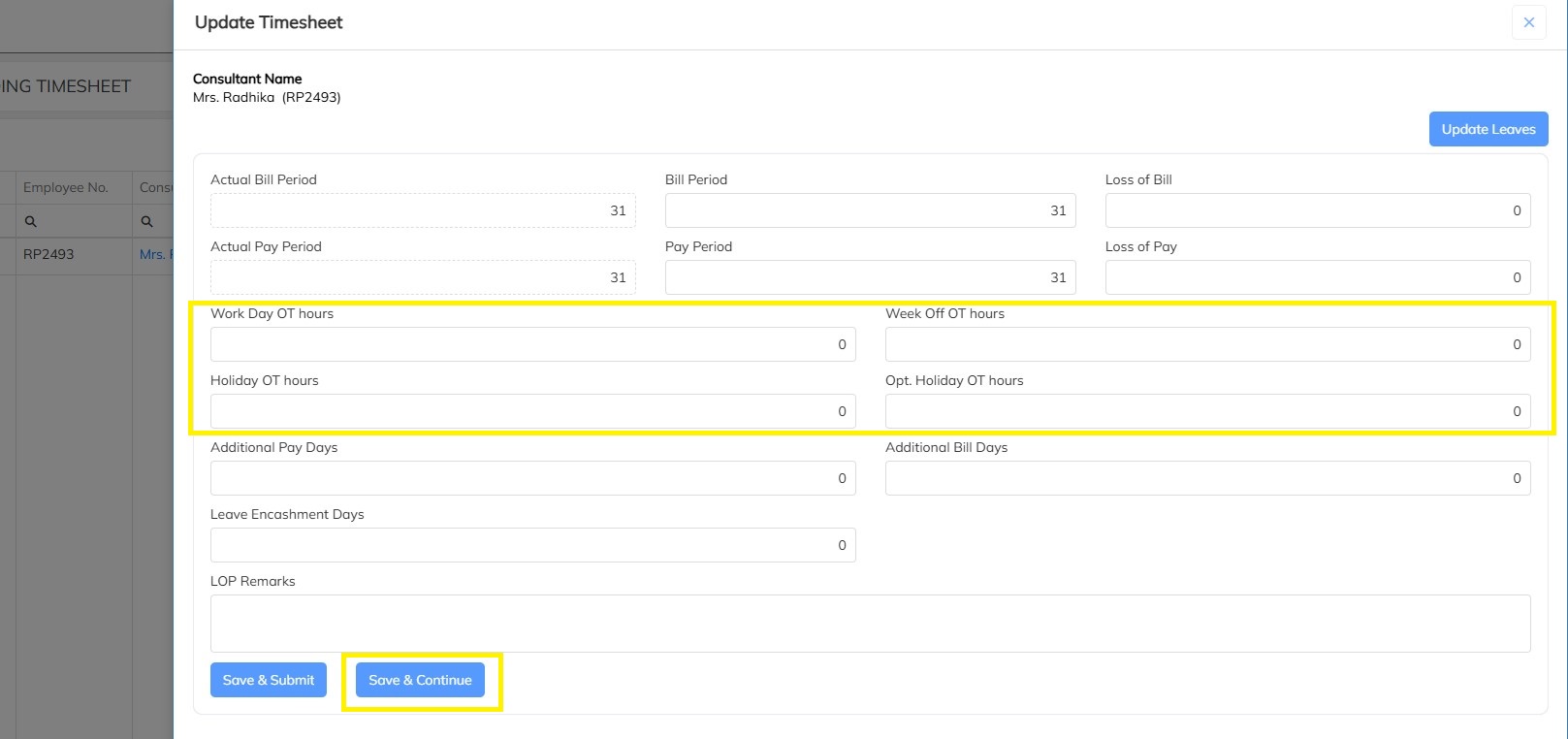
- Then approve the timesheet and run the payroll and you will be able to see the overtime amount in the Overtime Payment header
- Click on Payroll summary and select Overtime to verify the calculations and components which were considered for Overtime.
UPDATING OT HOURS IN TIMESHEET (BULK)
- Navigate on Timesheet section
- Navigate on Import icon --> Timesheet Import --> Download the Sample template
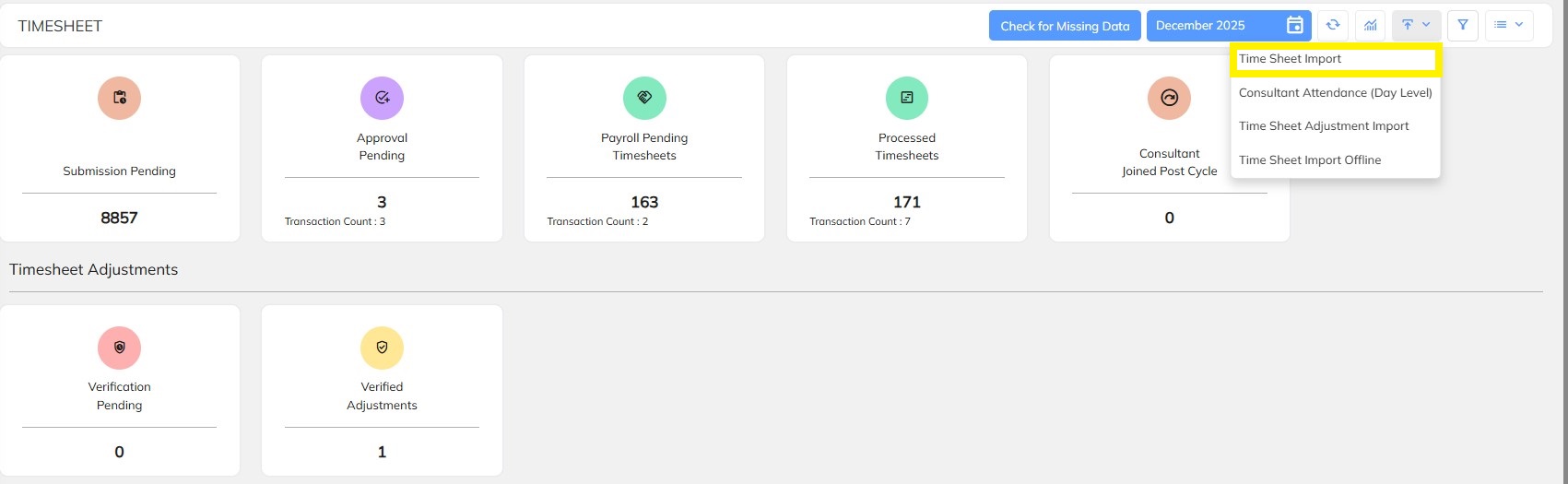

- In this Timesheet Import template
- Update the OT hours in the format below and save the template

- Navigate back to the Timesheet Import section in portal
- Navigate on select file and upload the template
- Click on Validate
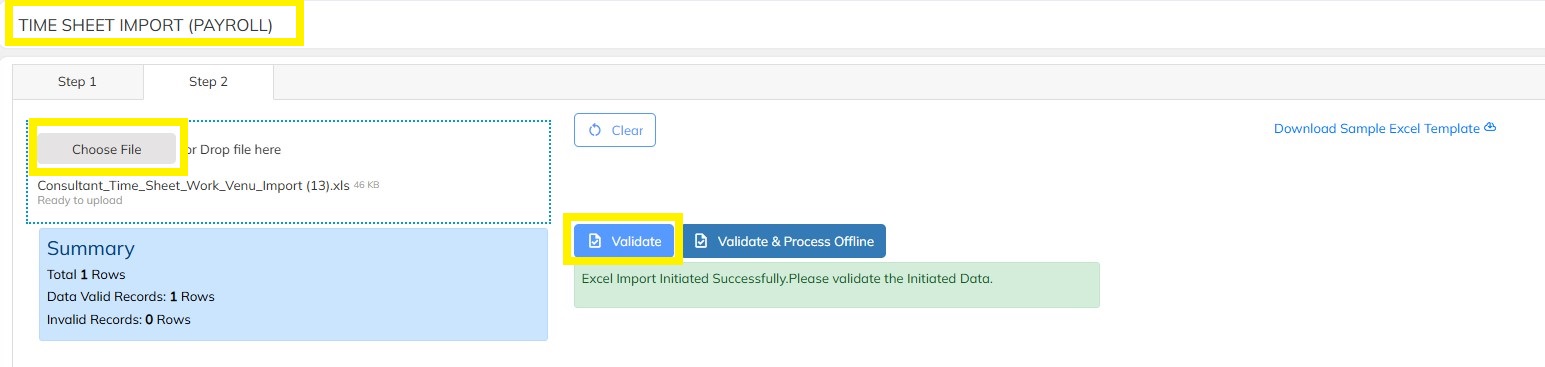
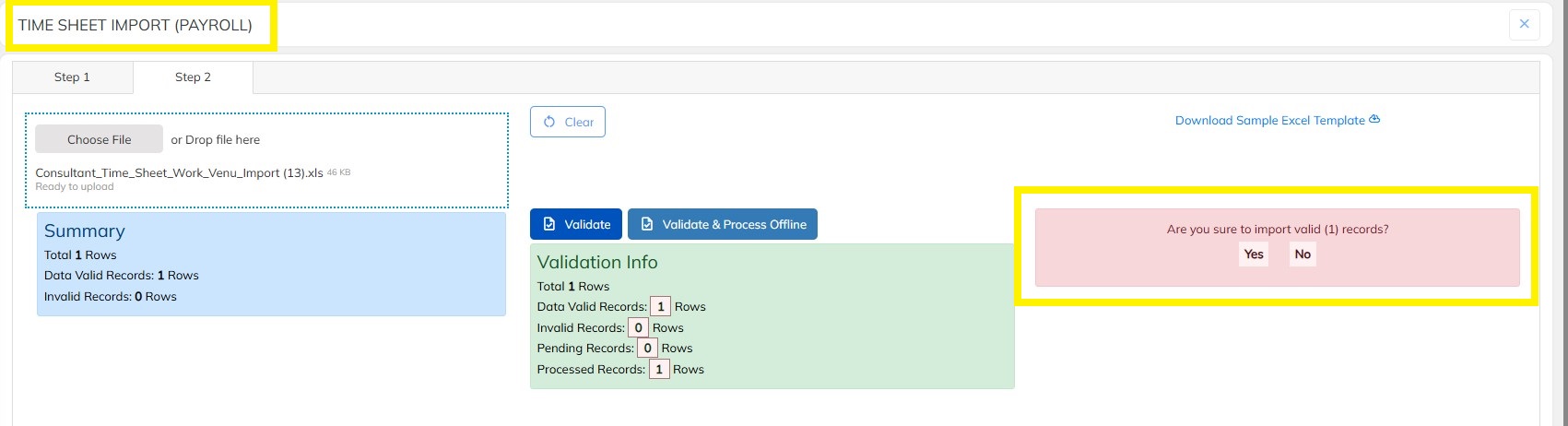
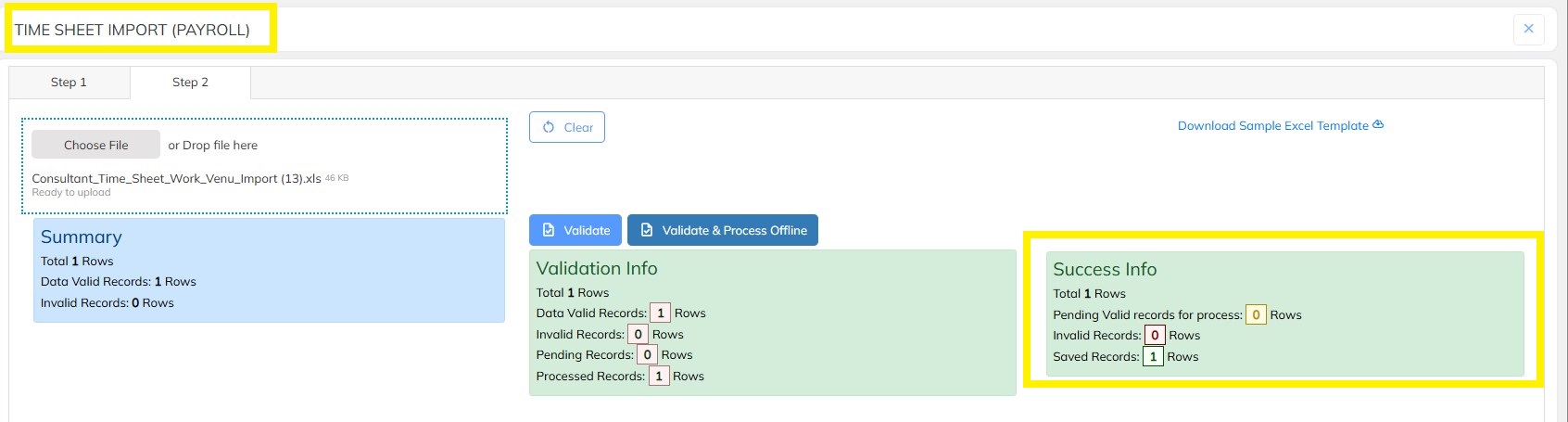
- Once Validated --> Click on Import to Import the timesheet details successfully.
UPDATING OT HOURS IN TIMESHEET ADJUSTMENT (MANUAL)
- Navigate to the Processed Timesheets.
- Click on calendar icon and in the Workday OT Hours field add the number of OT hours you would like to update in the timesheet
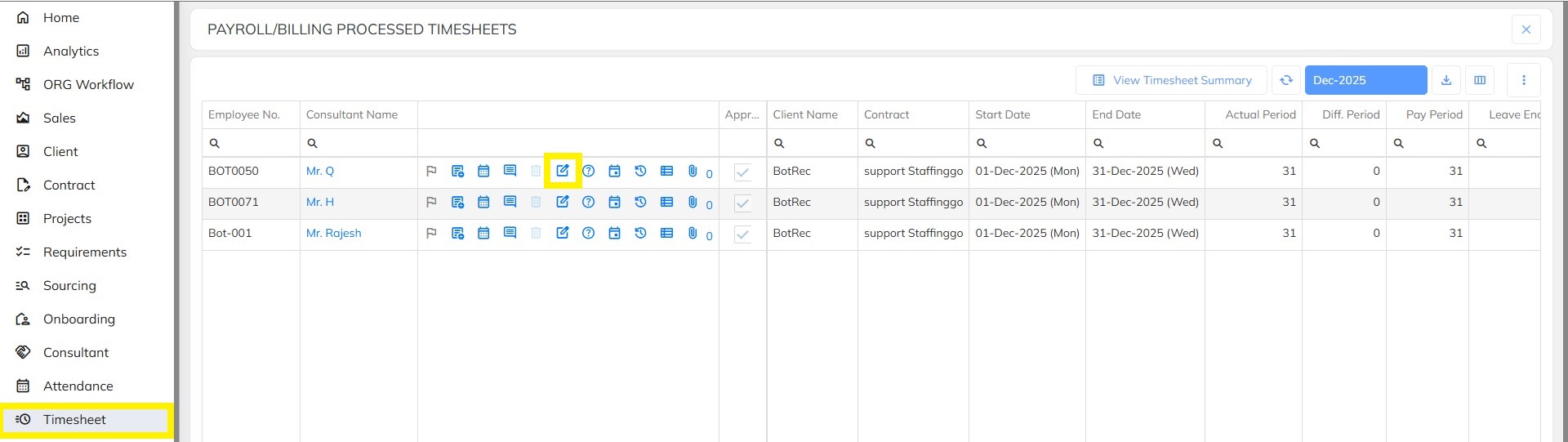
- Similarly you can add the hours for the Weekoff and Holiday OT hours if any
- Once the OT hours have been updated click on Update.
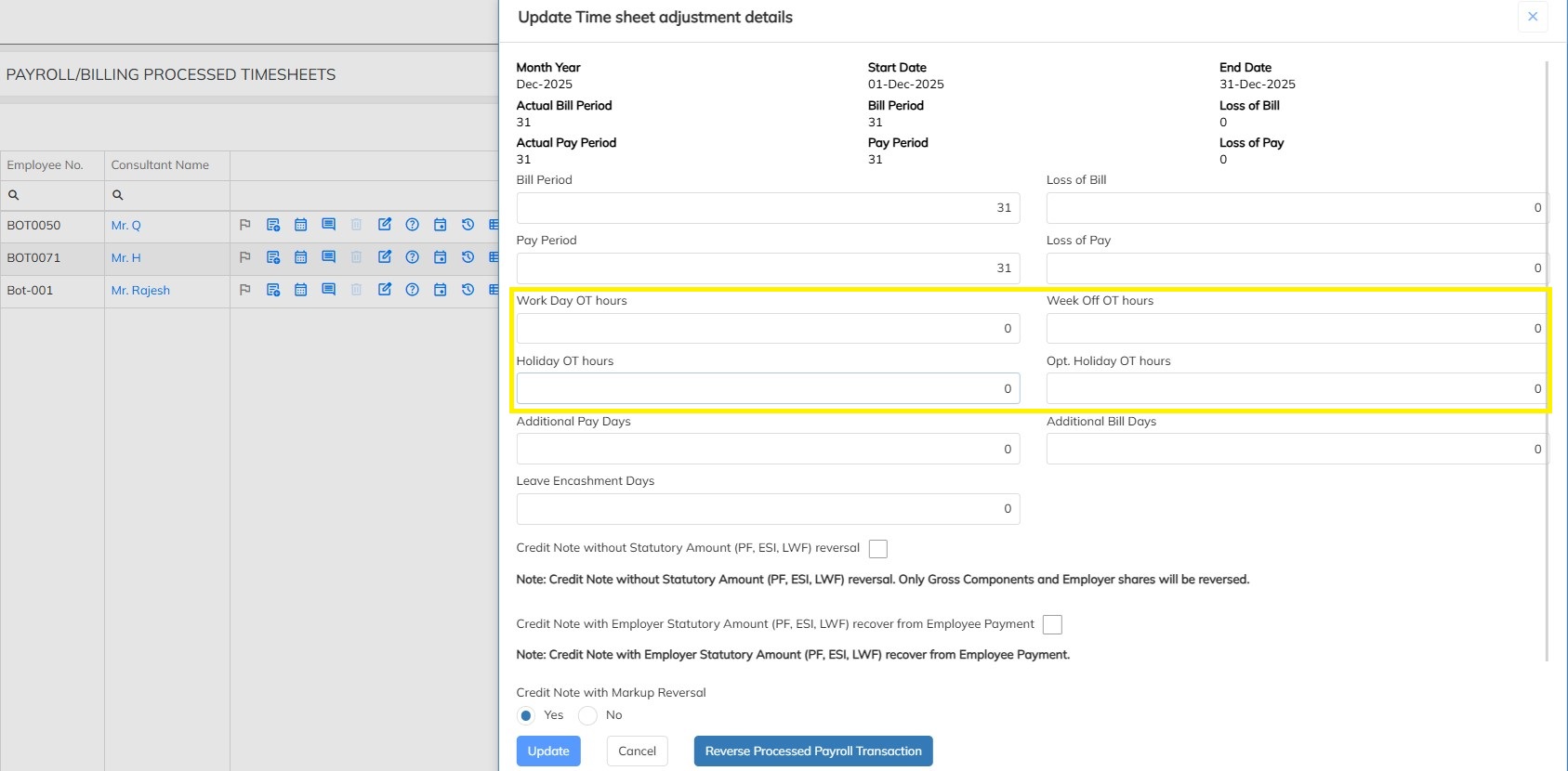
- Then update the timesheet adjustment and approve it and run the payroll and you will be able to see the overtime amount in the Overtime Payment header
- Click on Payroll summary and select Overtime to verify the calculations and components which were considered for Overtime.
UPDATING OT HOURS IN TIMESHEET ADJUSTMENT (BULK)
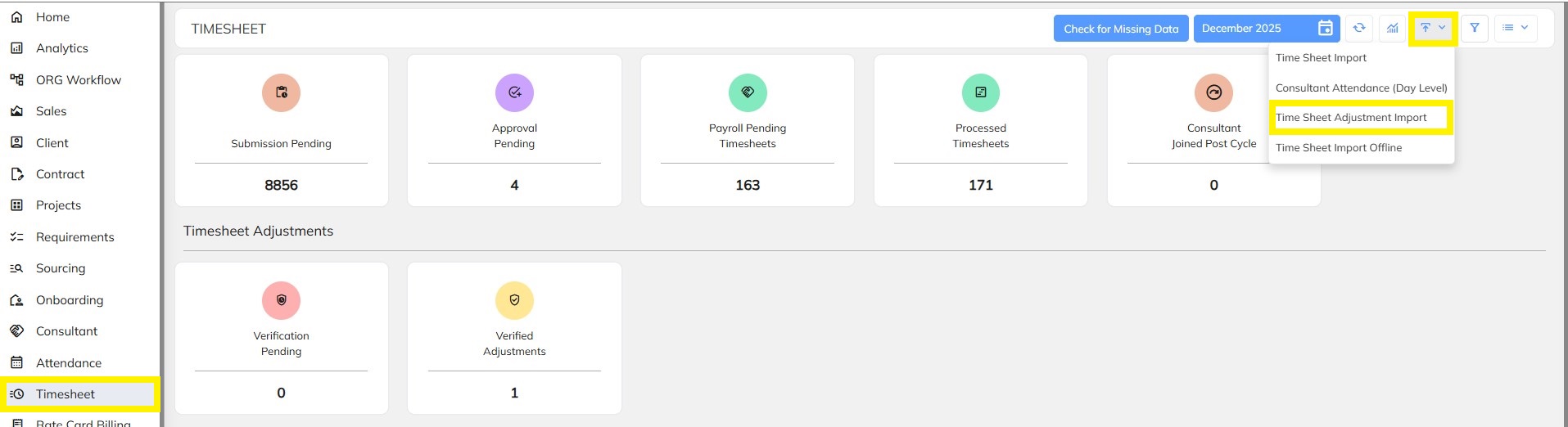
- Navigate to the Timesheet
- Navigate on Import icon --> Timesheet Adjustment Import --> Download the Sample template
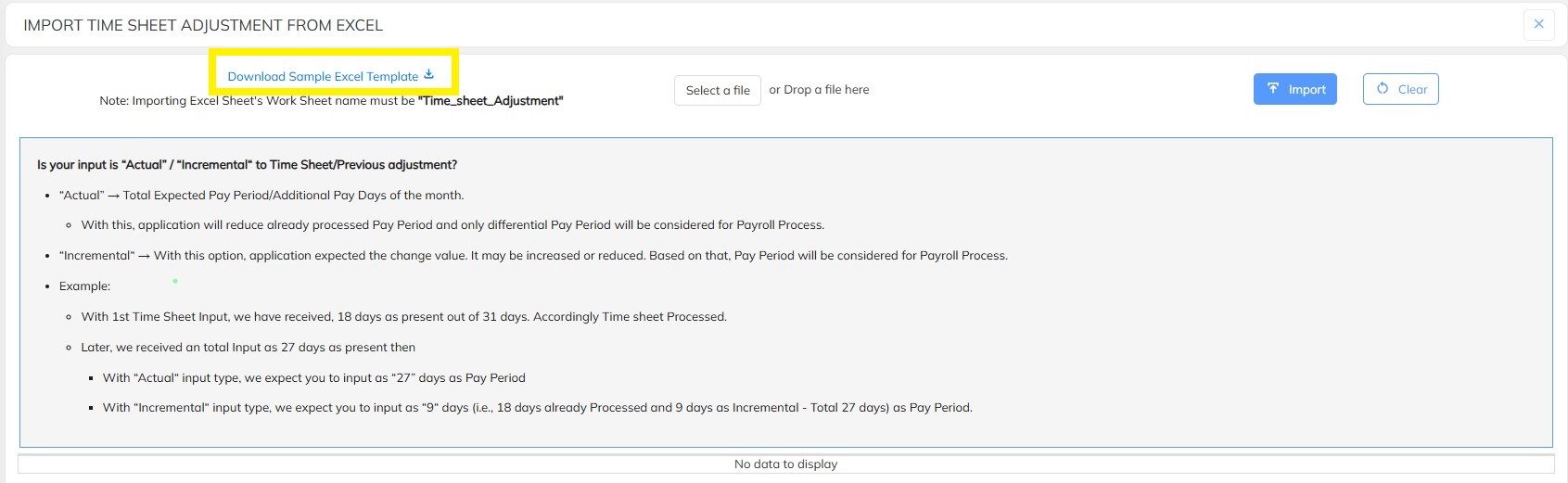
- In this Timesheet Adjustment Import template
- Copy the OT hours fields (Work day OT hours) for Workday
- Holiday and Week off OT hour fields (if applicable)
- Update the OT hours in the format below and save the template

Navigate back to the Timesheet Import section in portal
Navigate on select file and upload the template
Click on Import to Import the timesheet details successfully.
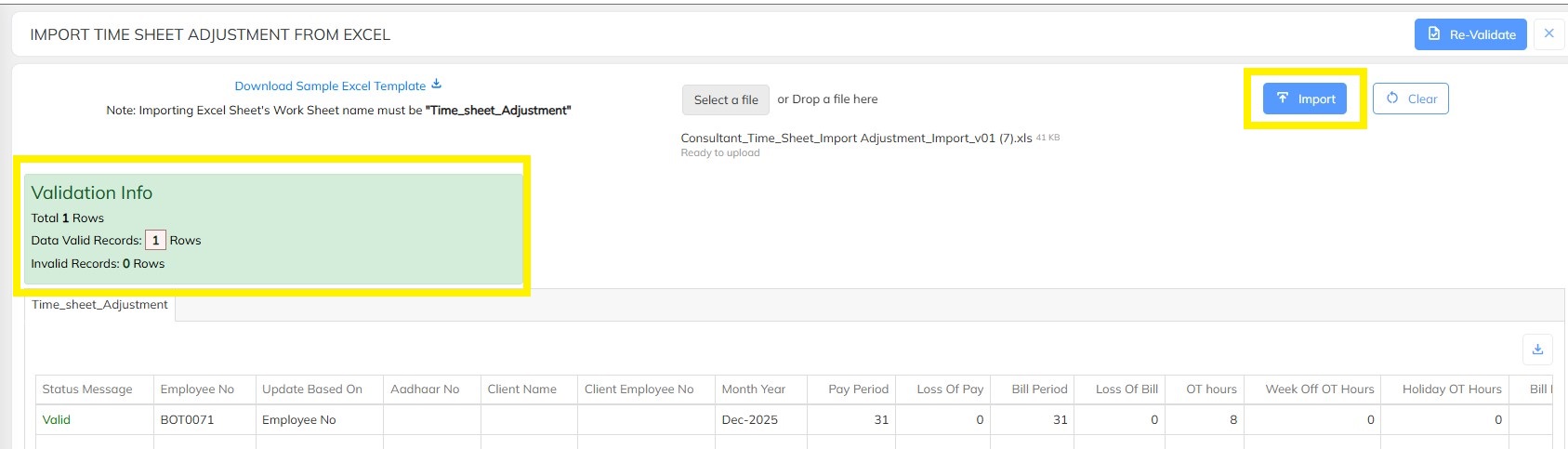
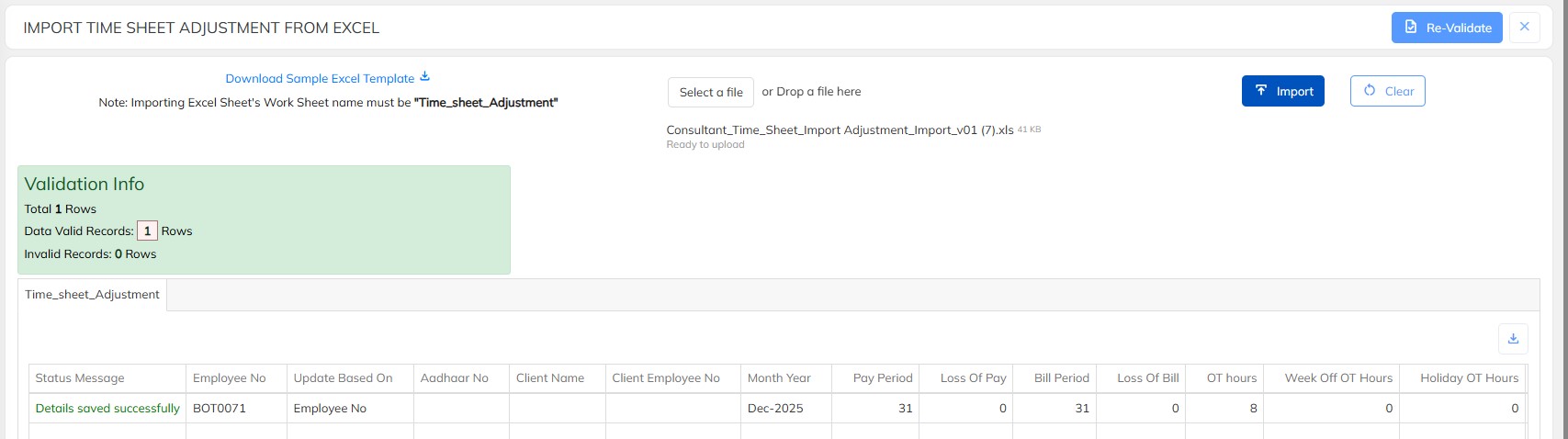 Then Approve the Timesheet Adjustment and run the payroll and you will be able to see the overtime amount in the Overtime Payment header
Click on Payroll summary and select Overtime to verify the calculations and components which were considered for Overtime.
Need Help?
If you have any doubts or need further assistance regarding client creation or any other feature, feel free to reach out to our support team at support@staffinggo.in. We’re here to help you!
Was this article helpful?
That’s Great!
Thank you for your feedback
Sorry! We couldn't be helpful
Thank you for your feedback
Feedback sent
We appreciate your effort and will try to fix the article