Bulk Document Upload Tool
Over View Purpose :
Quickly upload employee documents (Aadhaar, PAN, other document and letters type, etc.) in bulk and map them automatically to employee records in the core application.
Quick Checklist Before Import
- Files are named correctly (Employee No or Employee Name).
- Correct Document Type selected.
- Folder structure correct for multiple documents.
- File formats are supported (PDF/JPG/PNG).
- Stable internet connection.
- You are logged in with correct application credentials.
Step 1 : Download & Install
- Download the tool from the shared link :

- Save the downloaded folder to your local desktop or a convenient local folder separated folder (e.g., C:\BulkDocTool\).
Tip: For corporate machines, you may need admin rights to install. Contact IT if installation fails.
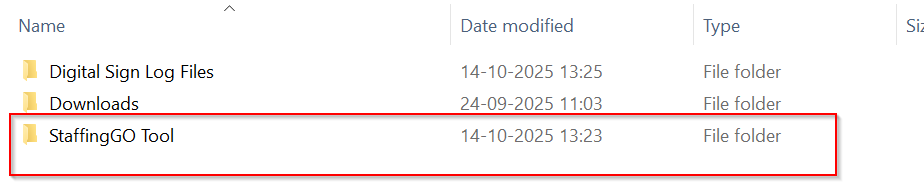
- Open the folder and run the setup file (usually setup.exe).
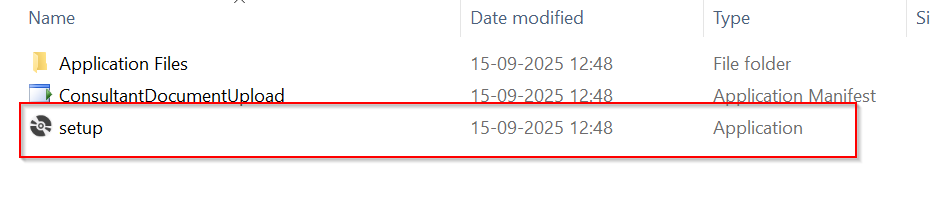
- Follow the installer prompts. When finished, launch the Bulk Document Upload Tool (it should open automatically or have a desktop shortcut).
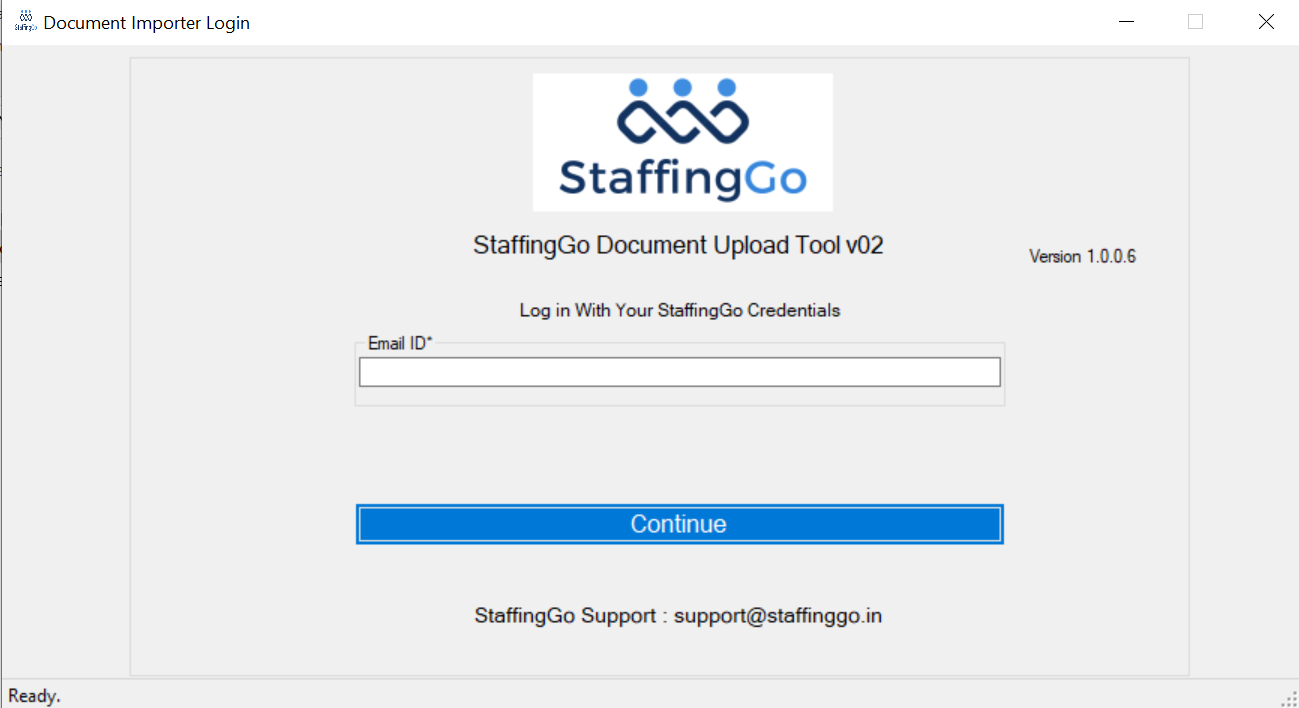
Step 2 : Login
- Start the Bulk Document Upload Tool.
- Enter your application login credentials (same credentials as the core HR/ User system).
- If authentication fails, confirm your username/password in the core application or contact your admin.
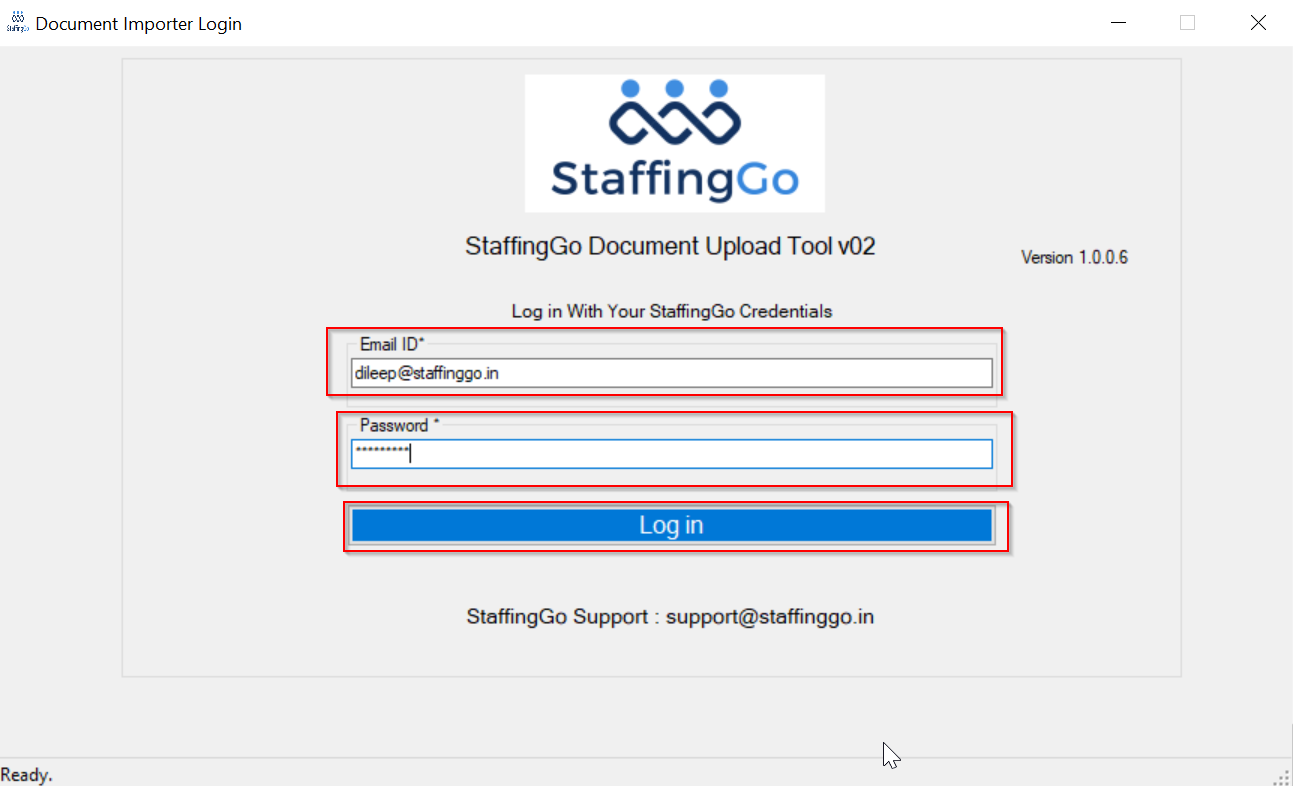
Step 3 : Document Type Selection
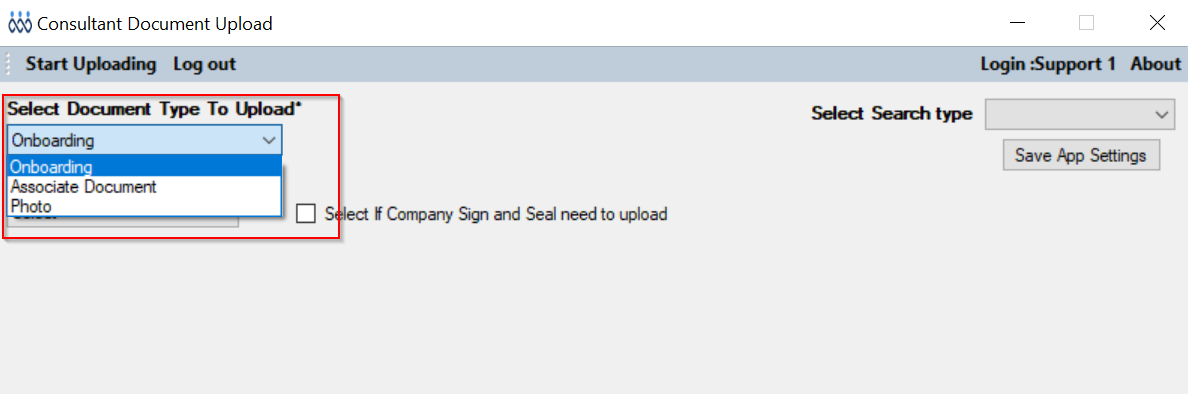
- In the tool, locate the Document Type dropdown.
- Choose the document type that matches the system configuration (e.g., Aadhaar, PAN, Other document Name).
- The selected document type ensures the uploaded files map to the correct document field in the core application.

Step 4 : Employee Lookup & Import Modes
You can identify the employee(s) for import using one of these modes:
1. Employee No. Search
- File naming requirement : Filename must be exactly the Employee Number (no extra spaces or characters).
- Example: EMP12345.pdf
- Uploading a file named exactly as the employee number lets the tool map it automatically.
2. Employee Name Search
- File naming requirement : Filename must be exactly the Employee Name (use underscores instead).
- Example: JohnDoe.pdf or John Doe.pdf (follow the naming convention used by your org)
- Choose this mode when your files are named by employee name.
3. Folder Name Search (recommended for many files per employee)
- Place multiple files for one employee in a single folder named with the Employee No. or Employee Name.
- Example folder: C:\Uploads\EMP12345\ containing Aadhaar.pdf, PAN.pdf
- Select the Folder option, browse to the folder, and the tool will upload all files inside and map them to the employee.

Step 5 : File Import Process (Step-by-step)
- Prepare files on your local PC using the correct naming convention (see examples above).
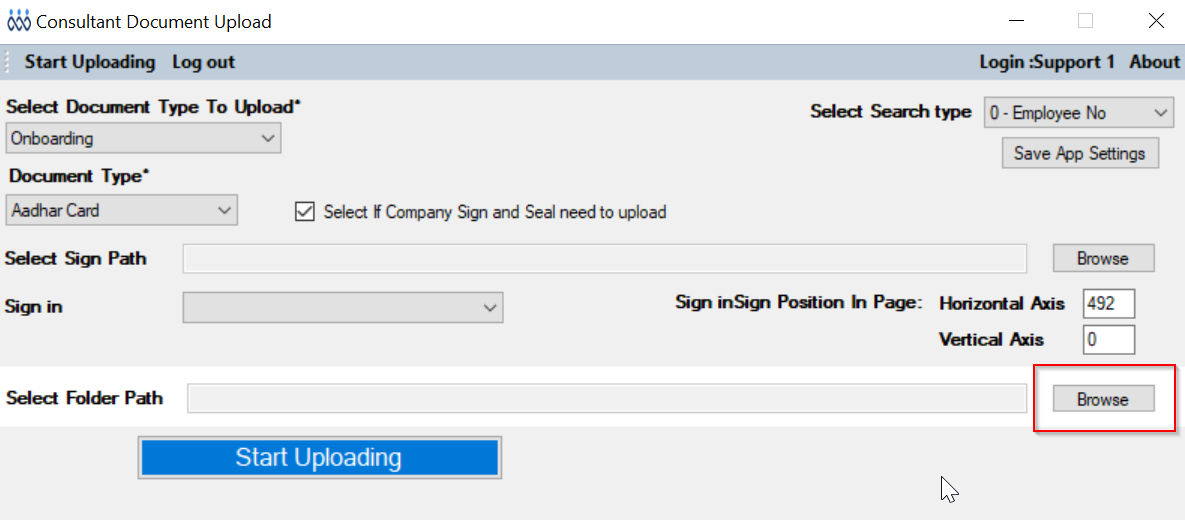
- In the tool, choose the Search & Import option (Employee No / Name / Folder).
- Click Browse and select the file or folder path.
- Click Start Import to begin the upload process.
- Monitor the import status. The tool will display progress and result messages.


Step 6 : Result Messages
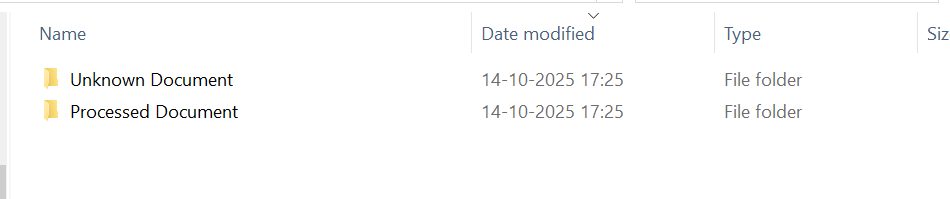
- Processed Document → Successful upload & mapping.
- Unformatted Document → Upload failed (wrong filename, unsupported format, or naming mismatch).

Accepted File Types & Naming Rules
- Common file formats: .pdf, .jpg, .jpeg, .png (confirm with your admin if other formats are allowed).
- Do not use: special characters like # % & * / \ in filenames. Avoid leading/trailing spaces.
Troubleshooting — Common Issues & Fixes
Issue: File shows Unformatted Document.
- Fix: Check file name — must match Employee No or Employee Name exactly per selected mode. Remove special characters and extra spaces. Re-import.
Issue: Import hangs or is very slow.
- Fix: Check internet connectivity and local system performance. Close unnecessary apps and retry. For very large imports, split into smaller batches.
Issue: “Employee not found” / no mapping.
- Fix: Confirm the employee identifier (No or Name) exists in the core application and matches the format used in filenames.
Issue: Login failure.
- Fix: Verify credentials in the core app. If still failing, contact system admin to confirm tool access rights.
Issue: Uploads partially processed.
- Fix: Recheck unprocessed files’ names/formats. If multiple files for same employee used folder option, ensure folder name matches the employee identifier.
Best Practices
- Use Folder Name Search when uploading multiple documents for the same employee.
- Keep import batches to a manageable size (e.g., a few hundred files) to reduce risk of timeouts.
- Run a small test first (5–10 files) to confirm mapping and format before full import.
Was this article helpful?
That’s Great!
Thank you for your feedback
Sorry! We couldn't be helpful
Thank you for your feedback
Feedback sent
We appreciate your effort and will try to fix the article