In the Staffinggo application we do have an project basis billing functionality under rate card module. In order to get the out put of this process follow the below mentioned steps.
Note :When mapping projects to employees in StaffingGo, the Task End Date is mandatory. The system uses Task End Date(s) to determine which project is considered the employee's current / latest project and Task end will consider the project basis billing/invoice to allocate . Incorrect or missing end dates can cause wrong project allocation for billing.
Step -1 : Project Creation:
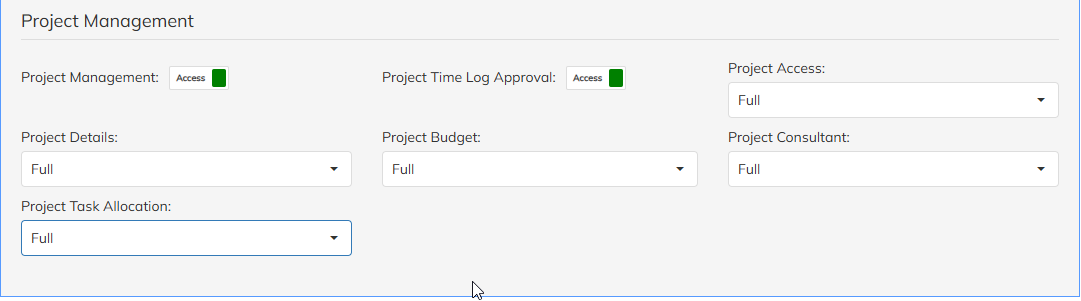
In Staffinggo application, We have the functionality to create Project . This is Access-based . Need to enable the access for those users who needs to create Project activity in the application.
How to provide the Project Access:
Navigate to settings >> Company set-up >> User role template >> Choose project and enable the Access. Once enabled the access, User can able to access & create the projects.
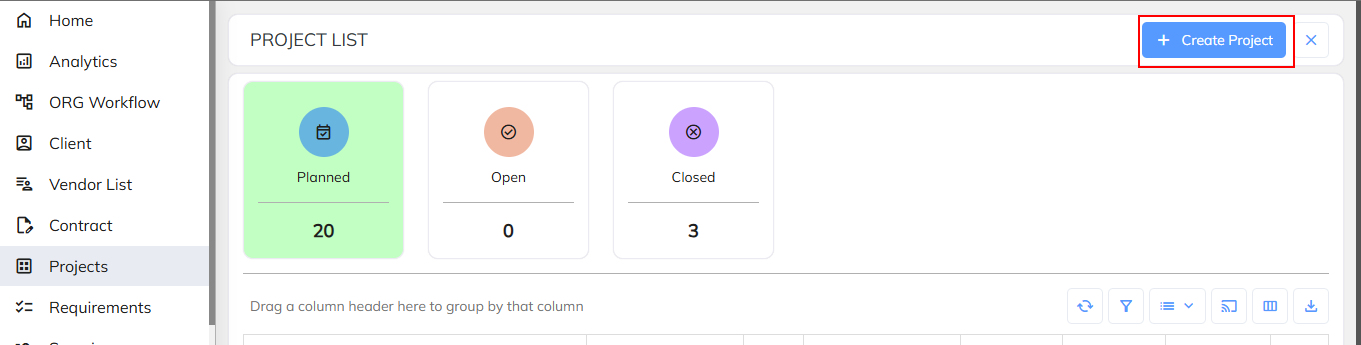
- Navigate to Projects Module >>Click on the Create Project to create new project details in the application. Fill the project details and save. Created Project will reflect under project list.

Steps to Create a New Project
Navigate to the Project Creation screen.
Fill in all mandatory fields marked with a red asterisk (*).
Enter additional details as required.Click Save or Submit to create the project record.
Field Name | Description |
| Project Title | Enter the official name of the project. |
| Project Ref No. | Unique reference number or project code (if applicable). |
| Project Client | Select or type the client name to load from the client list. |
| Project Contact | Choose the primary contact person for the client. |
| Project Category | Select the relevant category under which the project falls (e.g., Internal, External, R&D). |
| Project Type | Specify the project type (e.g., Implementation, Support, Maintenance). |
| Business Unit | Enter or select the business unit responsible for this project. |
| Vertical | Select the business vertical applicable to the project (e.g., Healthcare, Finance, IT). |
| Project Start Date | Enter the date the project officially starts. |
| Project End Date | Enter the planned project completion date. |
| Project Budget | Specify the estimated budget allocated for the project. |
| Project Planned Hours | Enter the total number of planned working hours for the project. |
| Project Manager | Select the project manager responsible for delivery. |
| Project Cost Center | Select the cost center associated with this project for financial tracking. |
| Secondary Project Manager | Optional secondary manager or backup responsible for the project. |
Step-by-step: How to map a project to an employee :
Navigate to Employee Module >> Filter the specific employee using filter option / directly can search.
Navigate to Employee Staffing Details , Click on Extension option and select Projects Details
Click + Add Project.
Enter the following fields:
Project (dropdown)
Role / Task / Activity
Work Hours.
Task Start Date
Task End Date

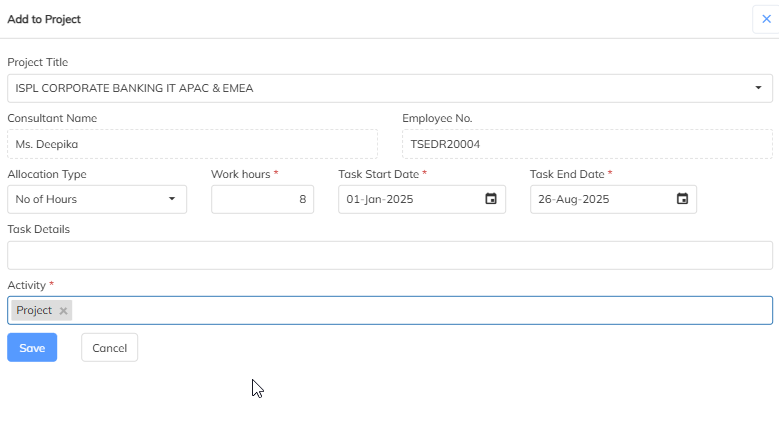
Note: When an employee already has two or more projects, ensure you explicitly set the Task End Date to reflect the actual end-dates. The system will then choose the project with the latest Task End Date as the active project.
Was this article helpful?
That’s Great!
Thank you for your feedback
Sorry! We couldn't be helpful
Thank you for your feedback
Feedback sent
We appreciate your effort and will try to fix the article