Overview
The Onboarding Workflow is the step-by-step process configured in Staffinggo to ensure a smooth transition of a new hire into the organization.
It includes tasks such as:
Document collection
System access setup
Asset allocation
Background verification
This workflow ensures that all onboarding activities are tracked, automated, and completed in a structured and timely manner, thereby enhancing the new employee’s experience.
Onboarding Configuration Workflow
Step 1: Document List Creation
Login as an Administrator.
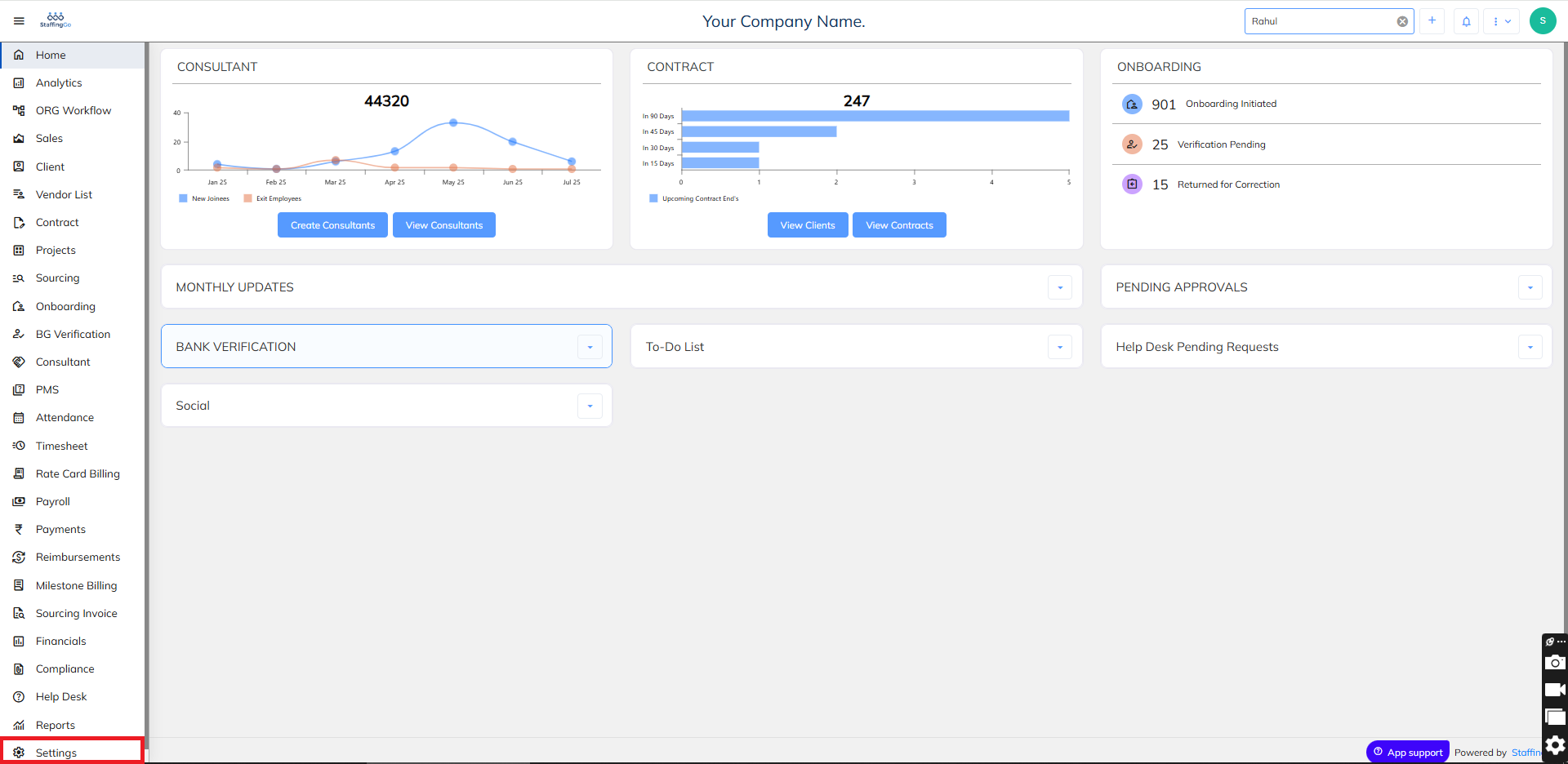
Navigate to Settings → Document List.
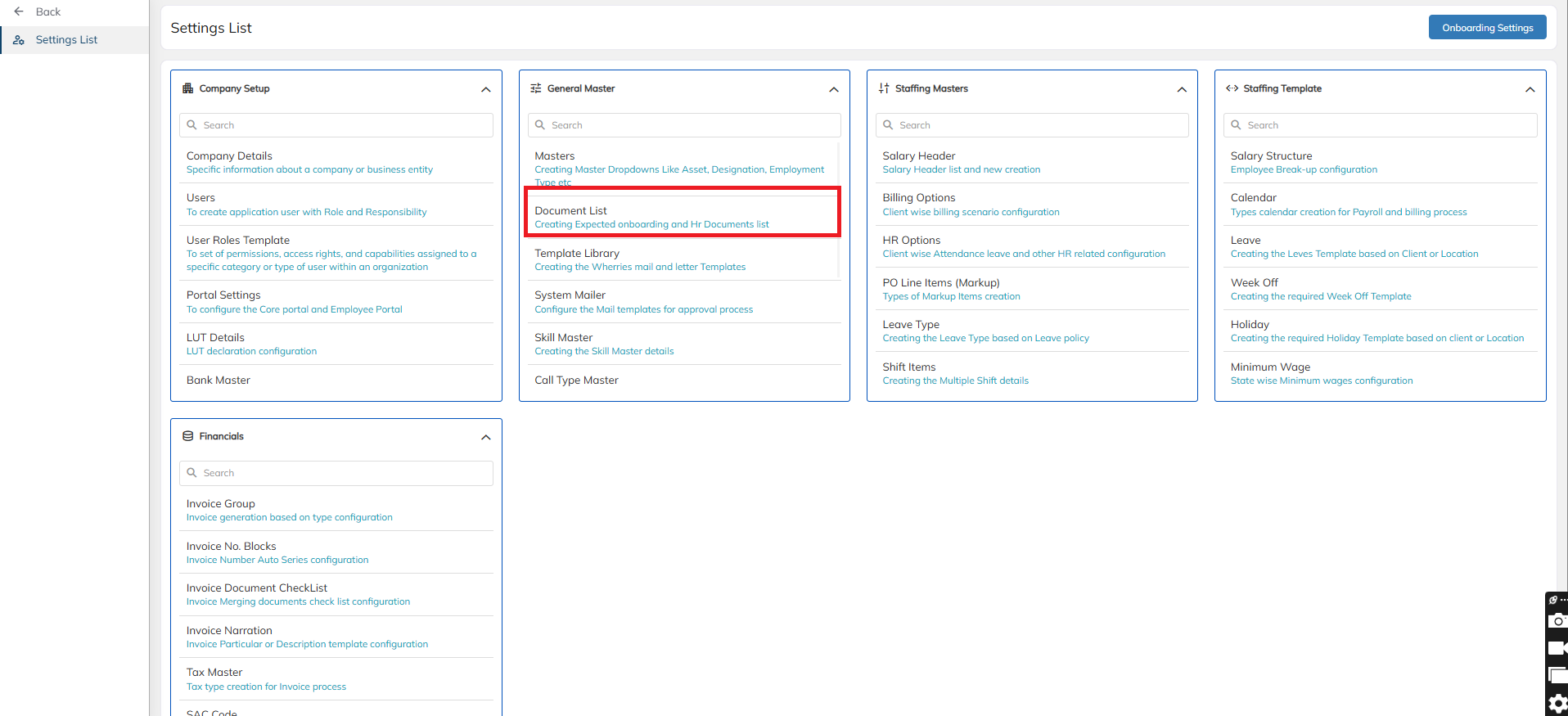
- In the Document List --> Click on New to Create a New Document List and Enter the details and enable the options as per your requirement as shown below
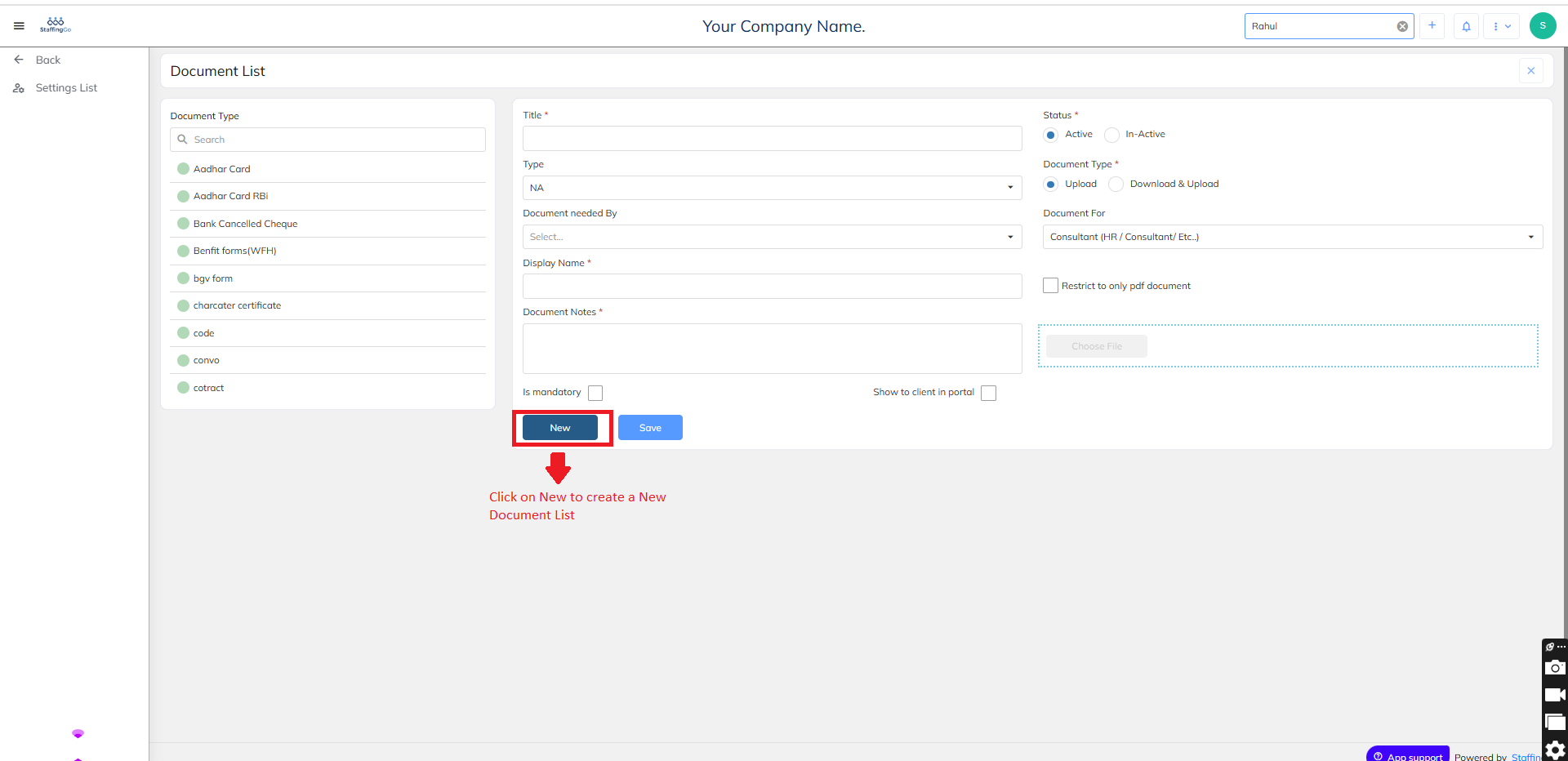
- Once the Document has been created, Click on Save.
Mapping of Onboarding Documents Checklist at Master Level:
- Login as an Administrator/HR
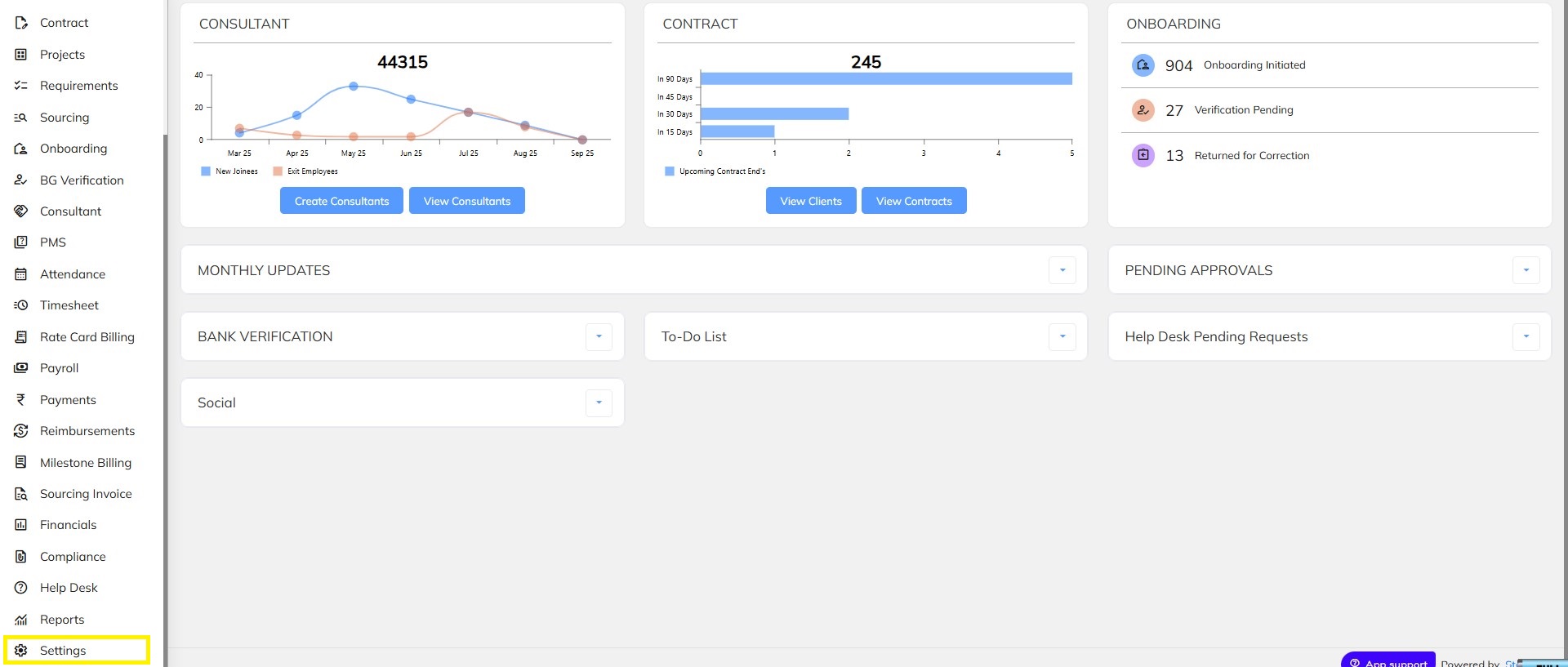
- Click on Settings
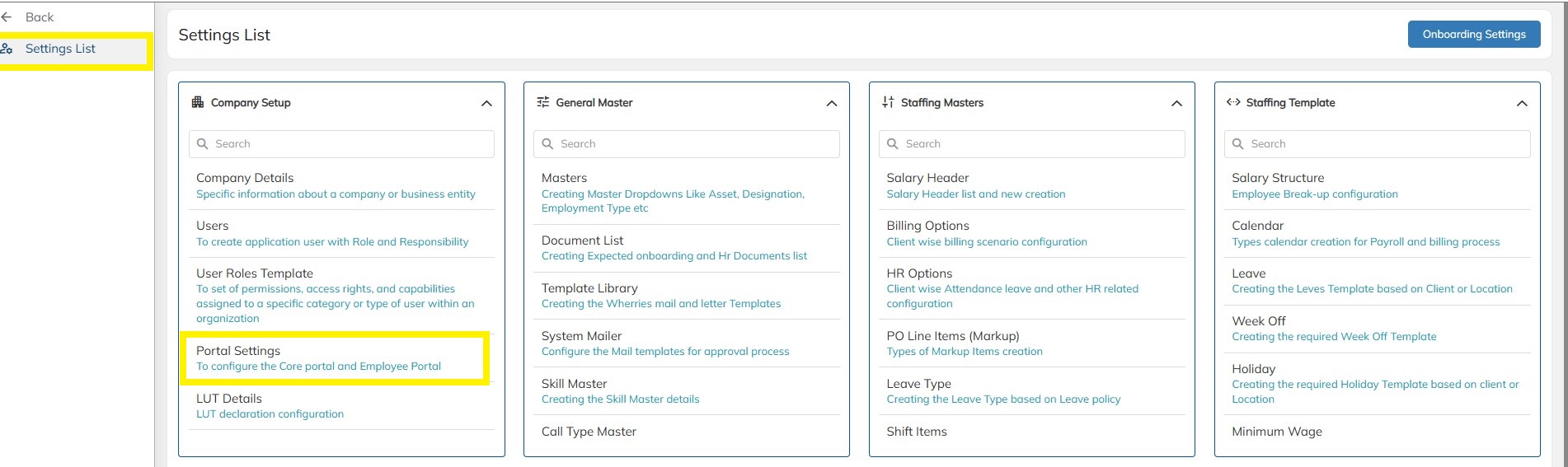
- Click on Portal Settings
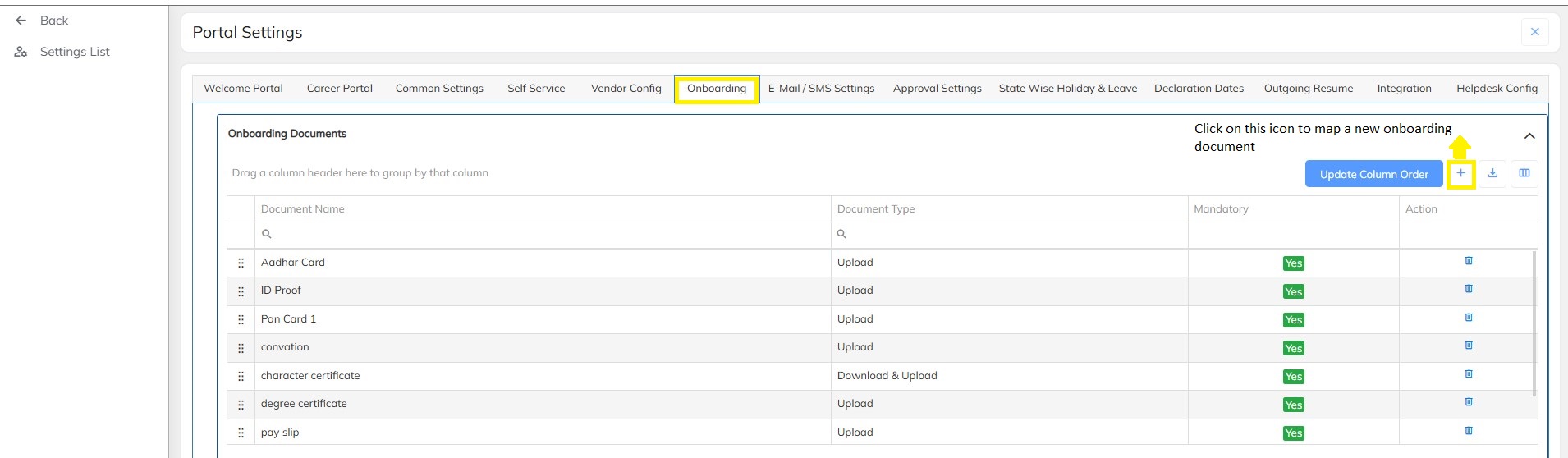
- Click on Onboarding and map the necessary documents which you would like to view in the mandatory onboarding documents in the Consultant section.
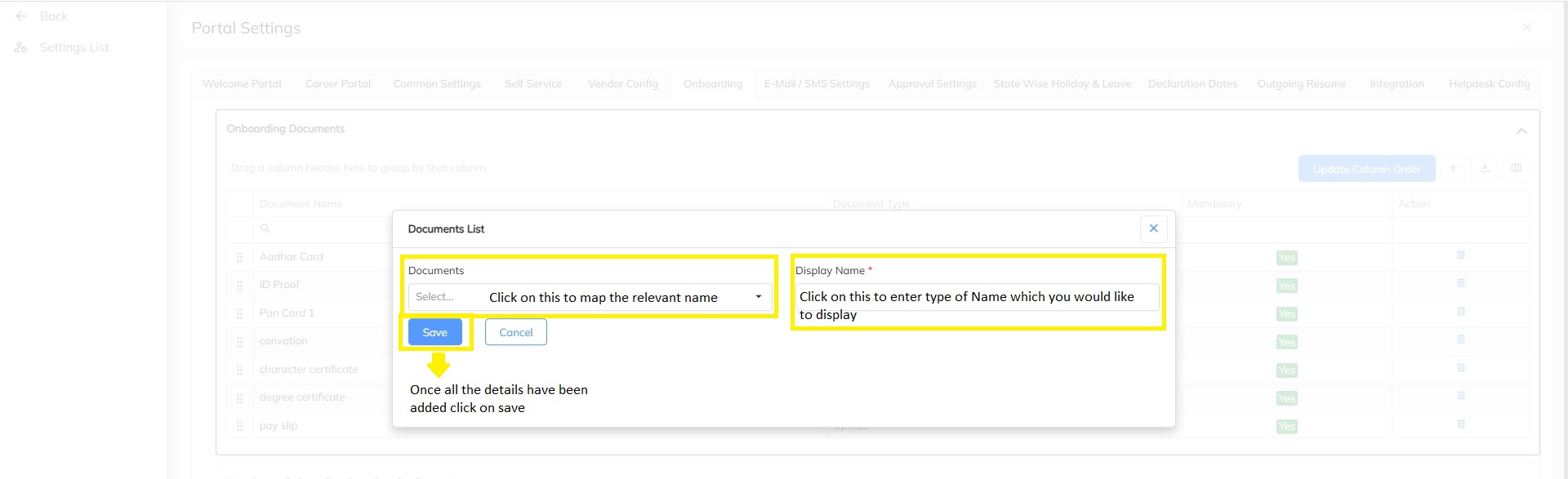
- Once all the documents are mapped click on save.
Onboarding Expected Documents Checklist at Client level:
- Login as an Administrator
- Select/Filter out the Client under the Client Module
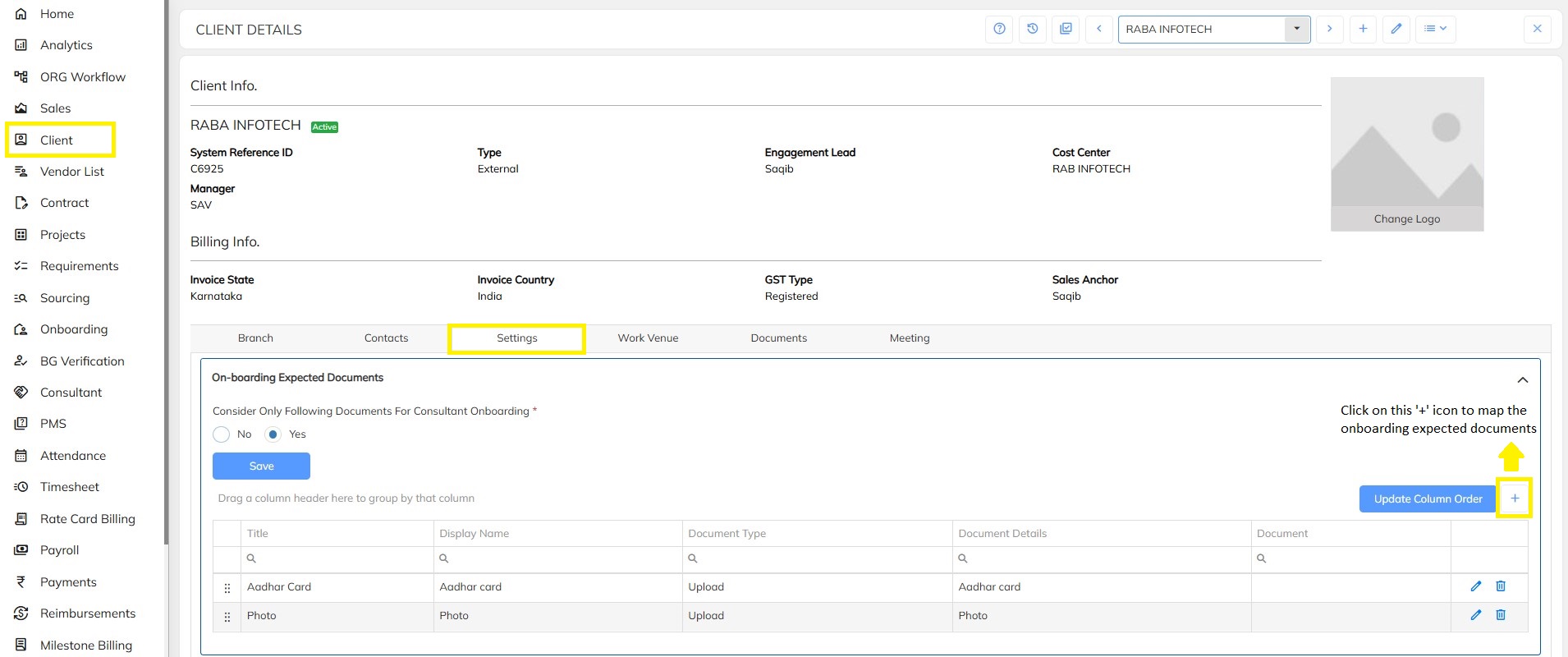
- Under Client Module --> Click on Settings
- Under Settings Click on On-boarding Expected Documents
- Here you can add new Document details and also enable "Yes" or "No" if you want to consider Only the following documents to be considered for Consultant Onboarding
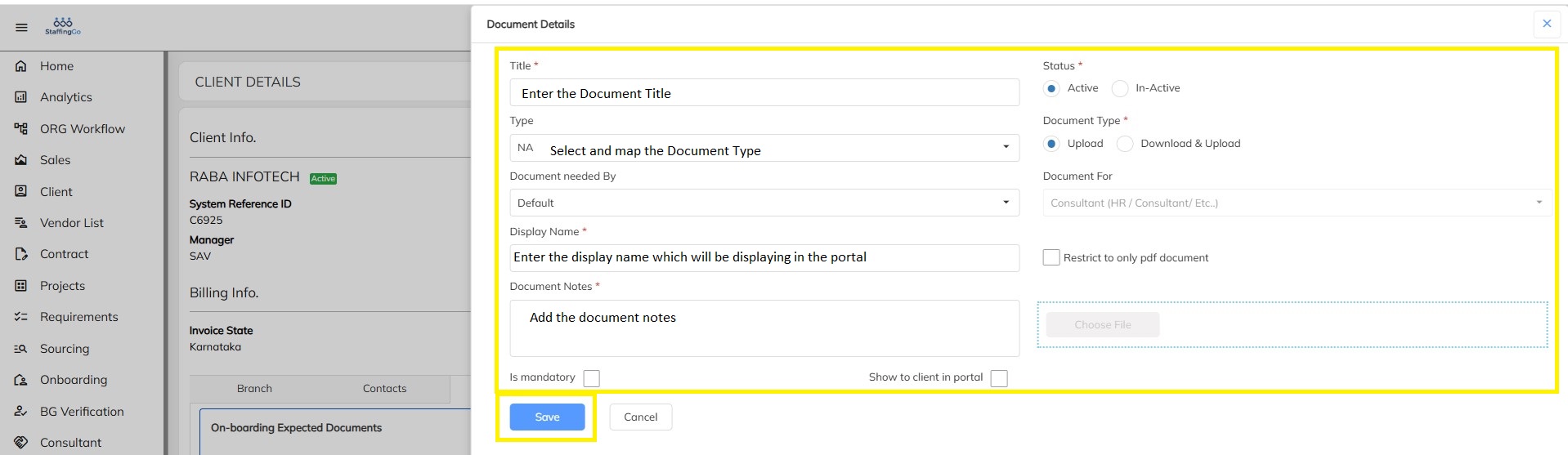
- Above are the various fields which are there in the Document Details:
- Title: Enter the Title name for the document
- Status: As an user you can enable Active and Inactive button based on whether or not you want that document in the onboarding documents list
- Type: User should map the Document Type here
- Document Type: There are two types of Document Type as follows:
- Upload: Enabling this option would mean this document can only be uploaded and cannot be downloaded
- Download & Upload: Enabling this option would mean the user can download and upload the document type which they will be creating
- Display Name: Here the user will enter the relevant document name which will be considered for display
- Restrict to only pdf document (checkbox): Enabling this checkbox would mean the user/employee can only upload a pdf document and the system will not accept any other format of the document
- Is Mandatory: Enabling this option would mean that this document which is being created would be mandatory for the consultant/employee to upload
- Show to client in portal: Enabling this option would mean that this document type will be available for the client to view in portal
- Once all the details are updated, Click on save.
Need Help?
If you have any doubts or need further assistance regarding client creation or any other feature, feel free to reach out to our support team at support@staffinggo.in. We’re here to help you!
Was this article helpful?
That’s Great!
Thank you for your feedback
Sorry! We couldn't be helpful
Thank you for your feedback
Feedback sent
We appreciate your effort and will try to fix the article