In the Staffinggo portal, below are the ways through which one can send the Payslips via mail to all Consultants.
Before we start to send out mails to all Clients/Consultants, We need to create a Payslip Template through the below steps after which we will be able to send the Payslip mails.
(If the Payslip Template is already configured in your application, Kindly skip this process)
Payslip Mailer Template Configuration:
Step 1: Login as an Administrator
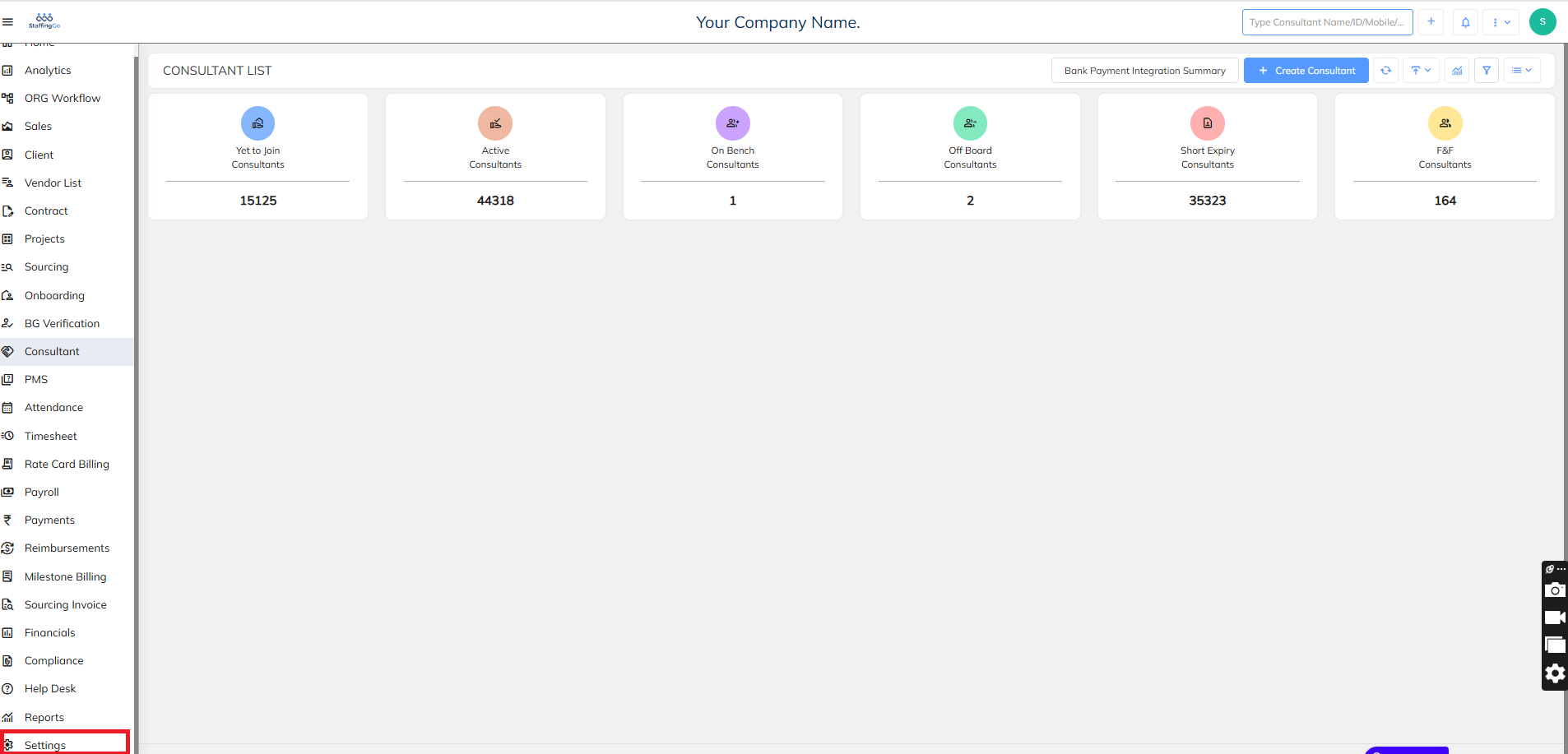
Step 2 : Go to settings
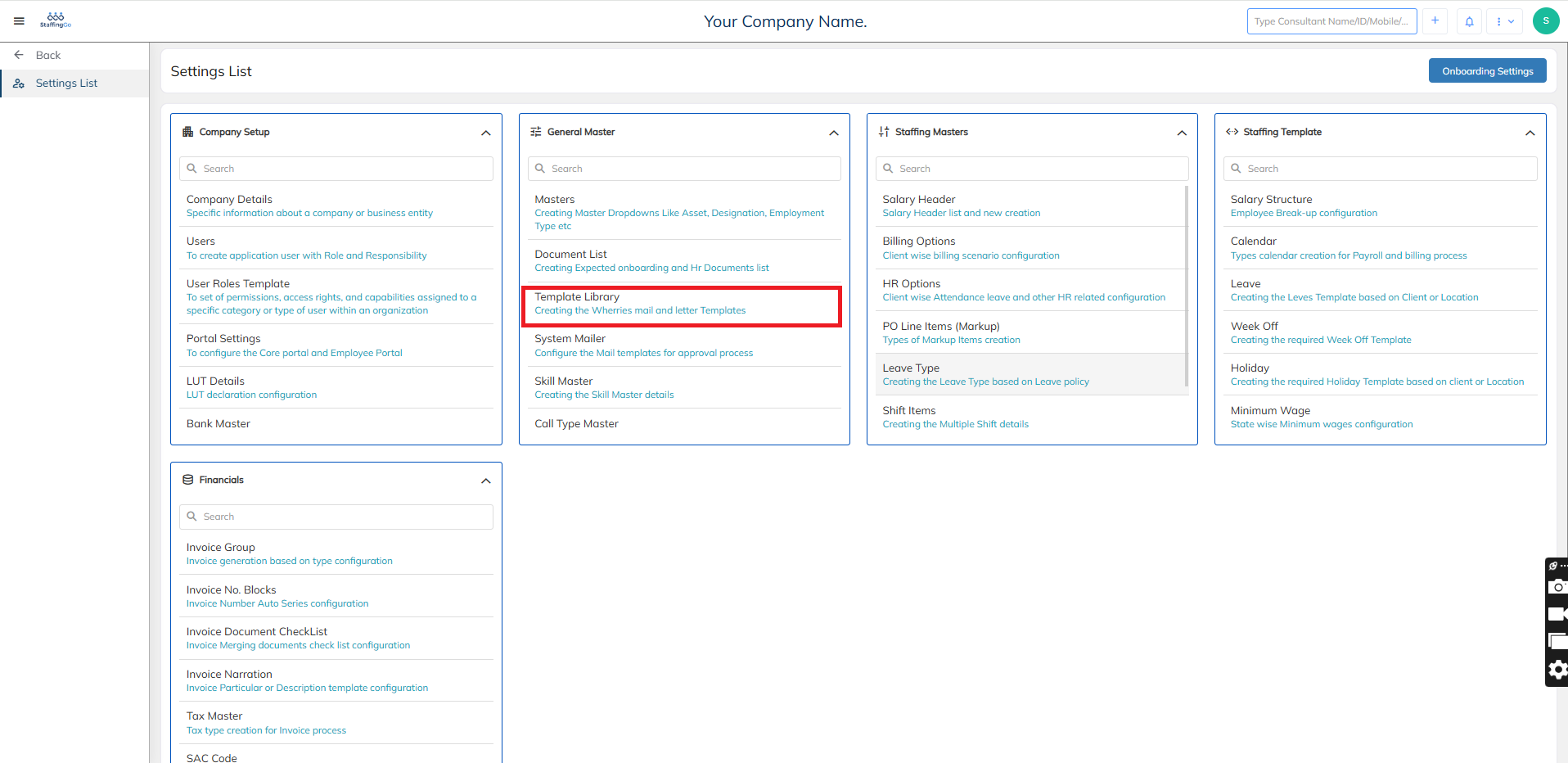
Step 3 : Click on Template Library
Step 4 : Click on "New" Button below to create the new Payslip template
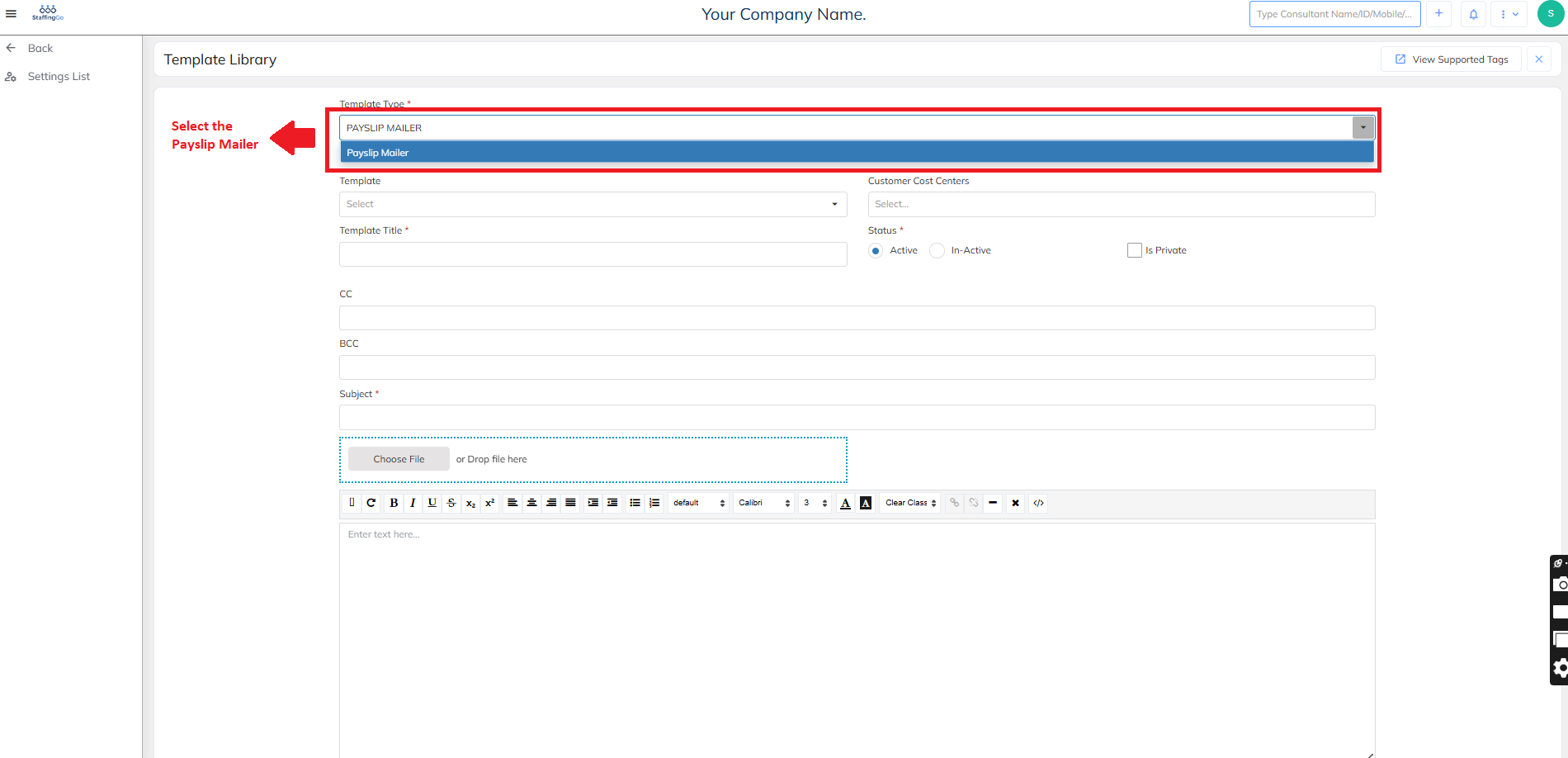
Step 5: In the Template type --> Select "Payslip Mailer"
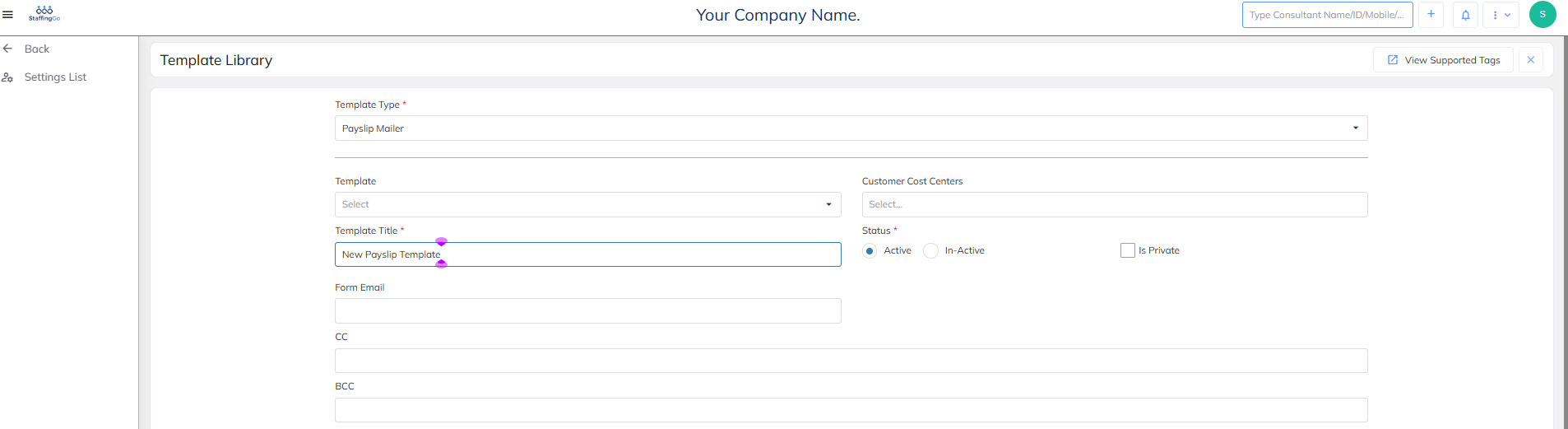
Step 6 : In the Template Title Enter New Template name (New Payslip Template etc.)
Step 7 : Click on Subject and Update the relevant Subject
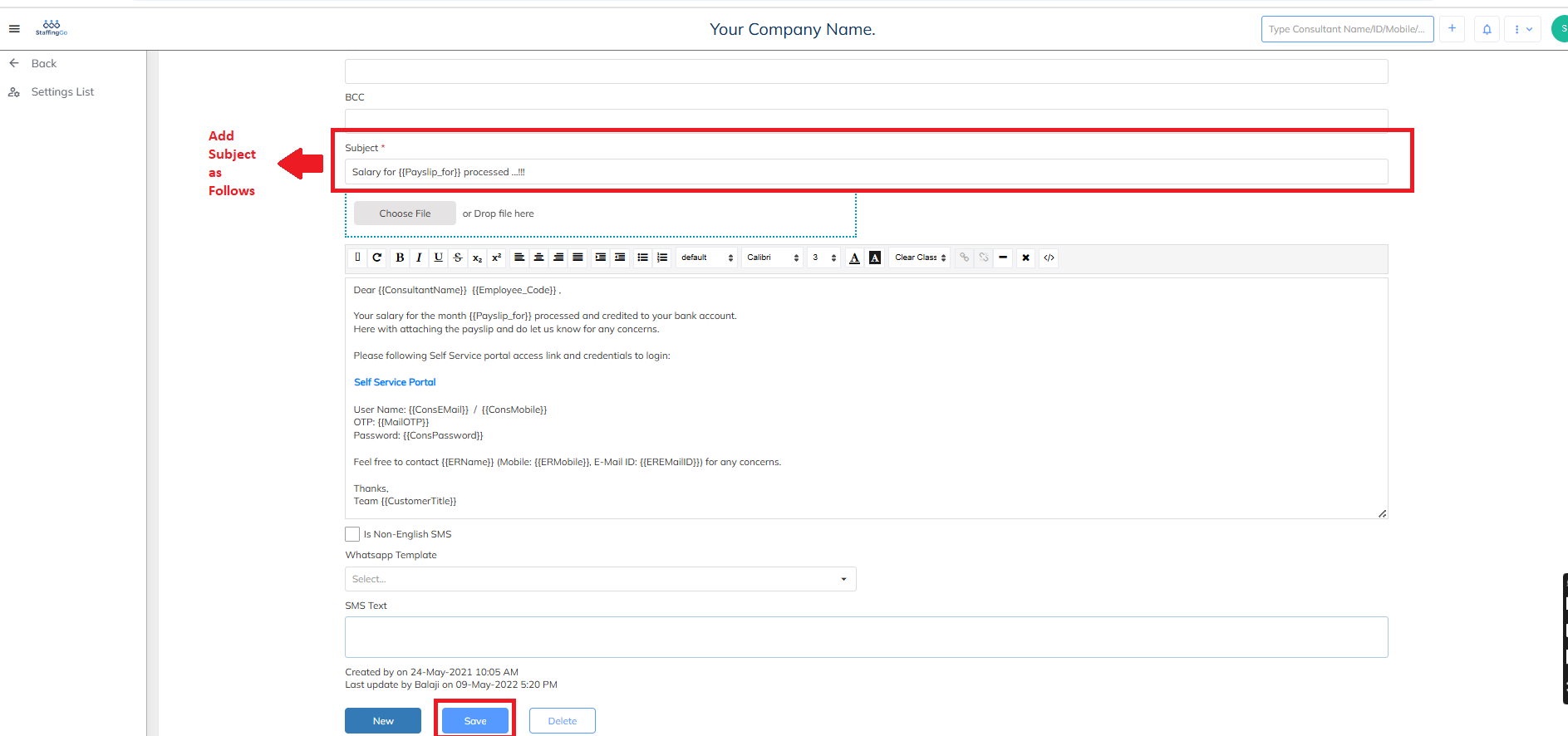
Step 8 : In the text box below you can enter the Text relevant to the Payslip Mail Configuration (Draft Text message below) and the Click on Save
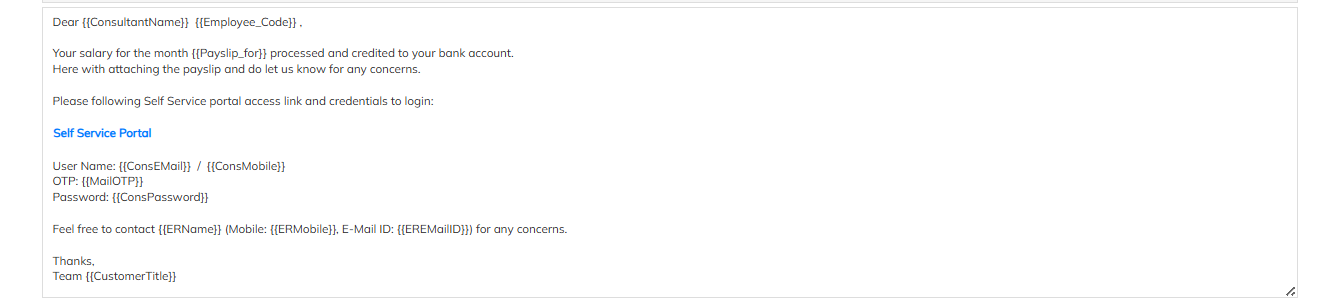
After this, The Payslip Mailer Configuration Setup will be complete, Now we can Send Mails to the consultant in the below steps:
Payslip Mail Configuration Process
You can send it in two ways:
Method 1: Through Payroll Section
Login as an Administrator/User who has the payroll access
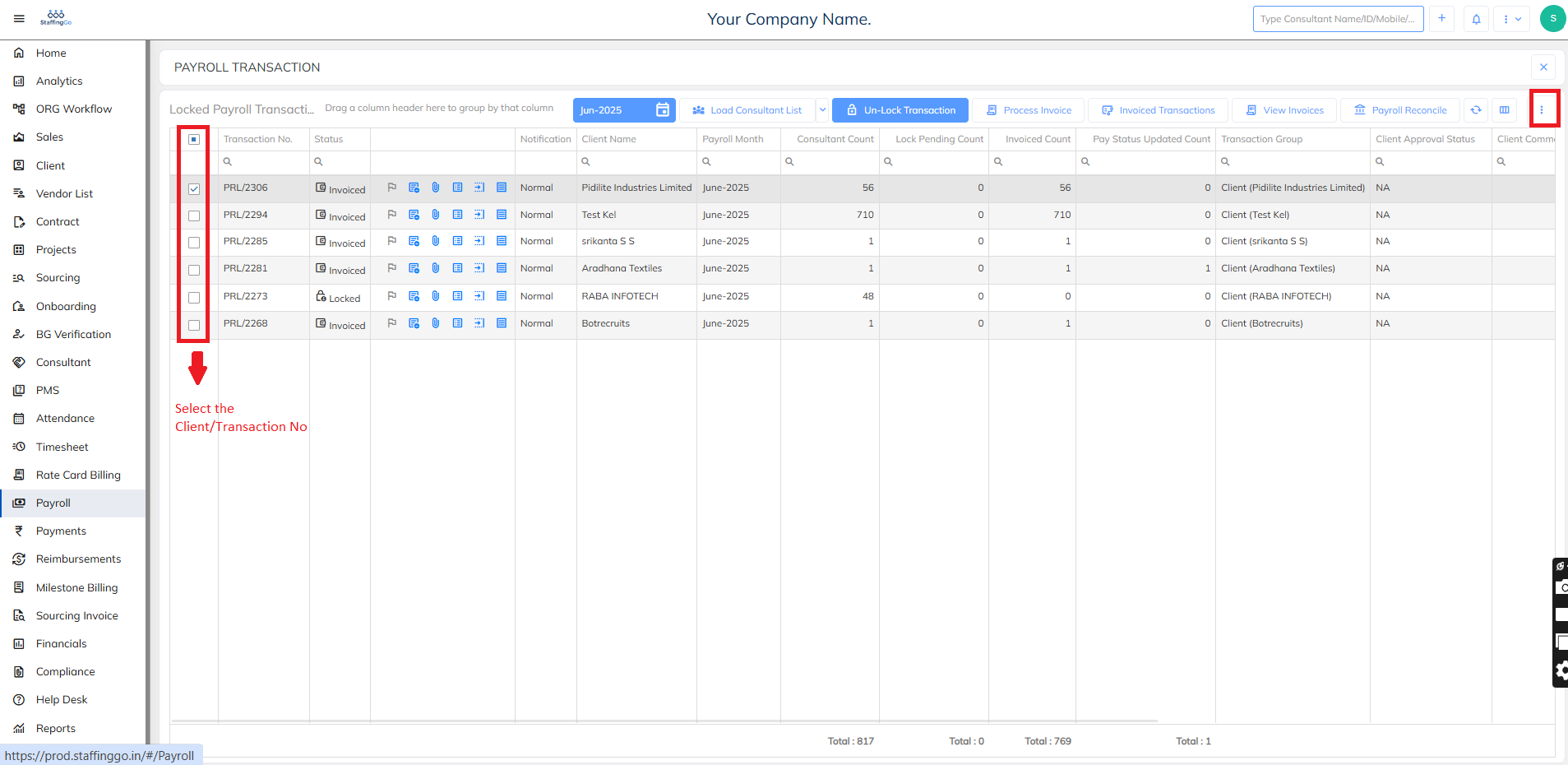
Click on Payroll
Here you can send the Payslips from the Locked Transactions
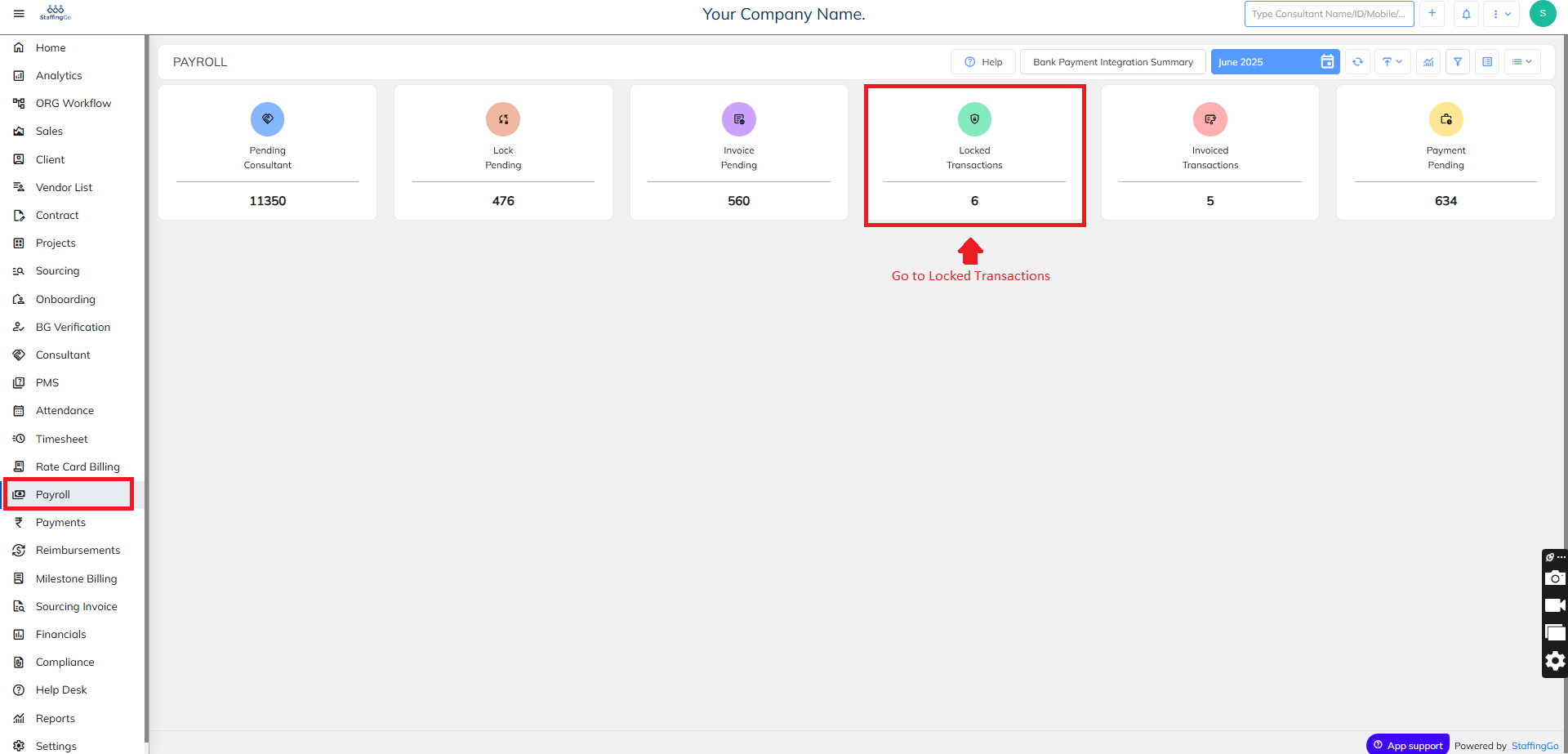
Locked Transactions: Once the payroll details have been finalized for all Clients and Consultants, Clicked on the Locked Transactions
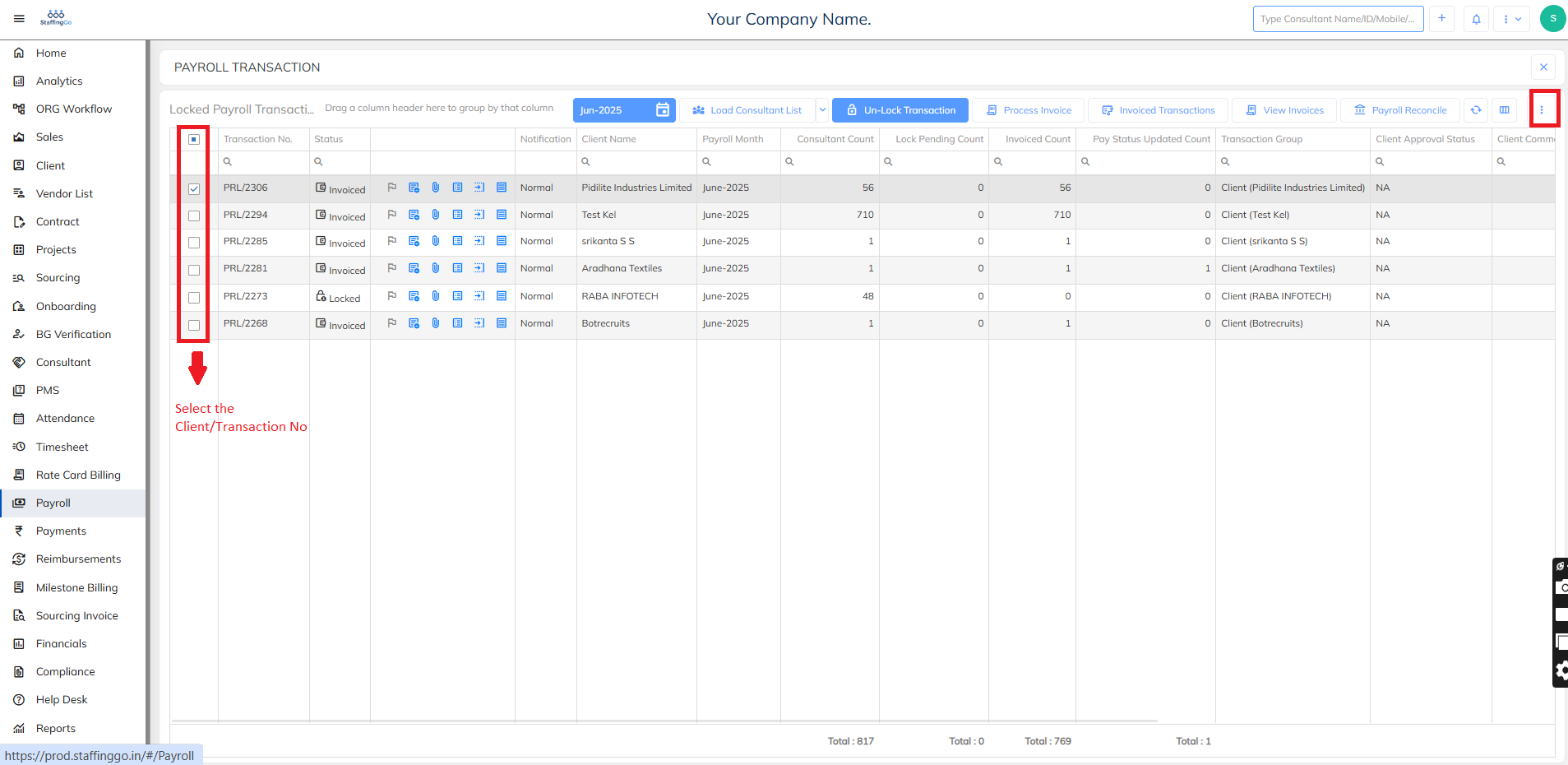
Then here select the Particular Client or more than one number of clients for whom you would want to send the payslip mail
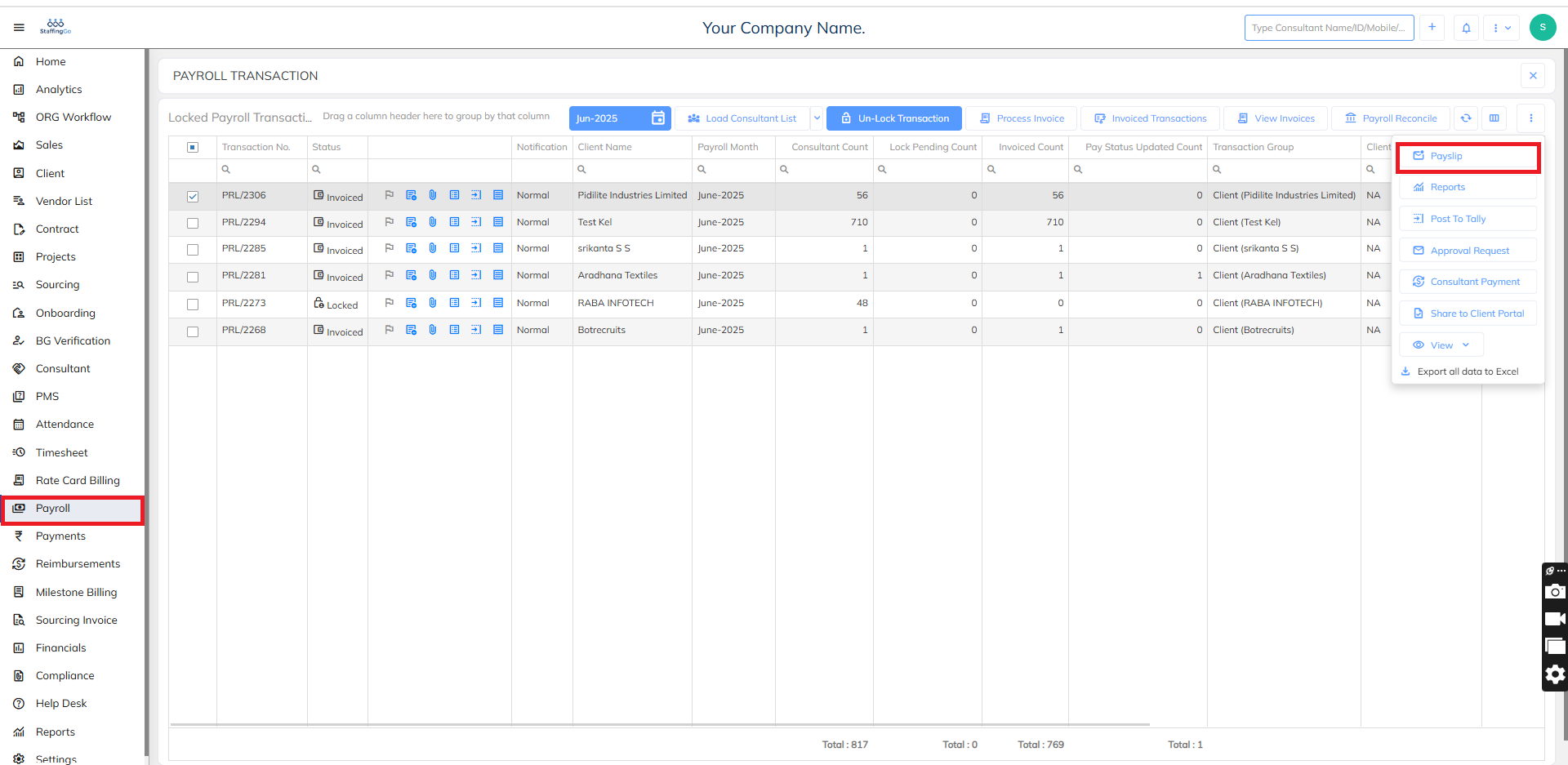
Once Selected --> Click on the three dot icon and then Click on the Payslip icon as mentioned below
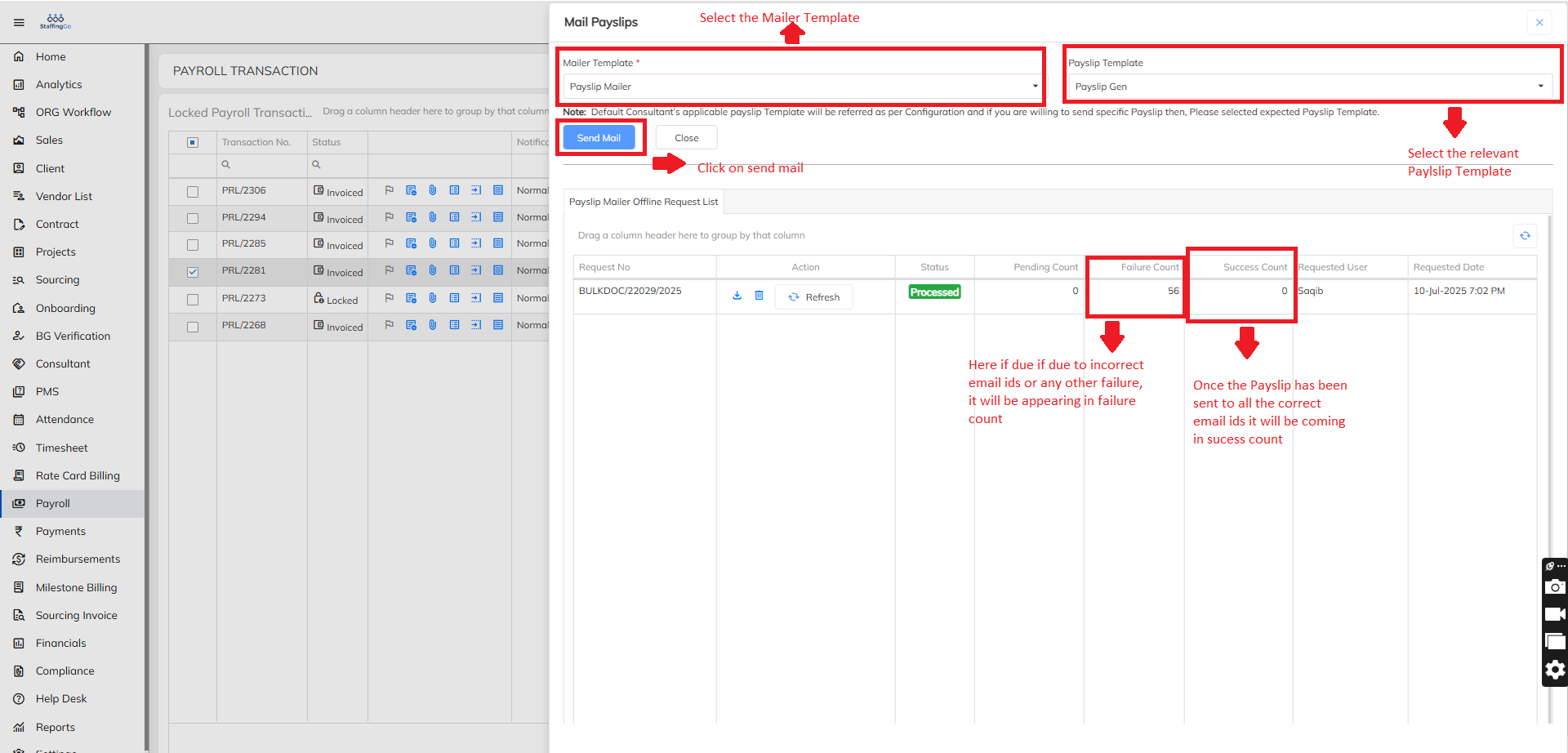
Once you click on the Payslip icon --> Click on Mailer Template as Payslip Mailer and select the Payslip Template
Then you can click on Send Mail after which the Mails will start to trigger to all consultants whose email id has been mapped in the staffinggo portal
Method 2: Through Consultant
- Go to the Consultant/Associate section and filter the employees using Filter option which available in the dashboard with load employee list option.

- Select the employees in bulk and click on the extension option, Choose the download payslip/ Mailer payslip option.


- Fill the all the details which is available in pop-up board. upload all Employees number, select the month which needs to download payslip & choose the payslip template .
- If need to share the mail to employee choose the mailer template along with and click on download & send mail option.


Need Help?
If you have any doubts or need further assistance regarding client creation or any other feature, feel free to reach out to our support team at support@staffinggo.in. We’re here to help you!
Was this article helpful?
That’s Great!
Thank you for your feedback
Sorry! We couldn't be helpful
Thank you for your feedback
Feedback sent
We appreciate your effort and will try to fix the article