Navigation Path
Log in to the StaffingGo application.
Navigate to Settings.
Select General Master Settings.
Click on System Mailer Configuration.
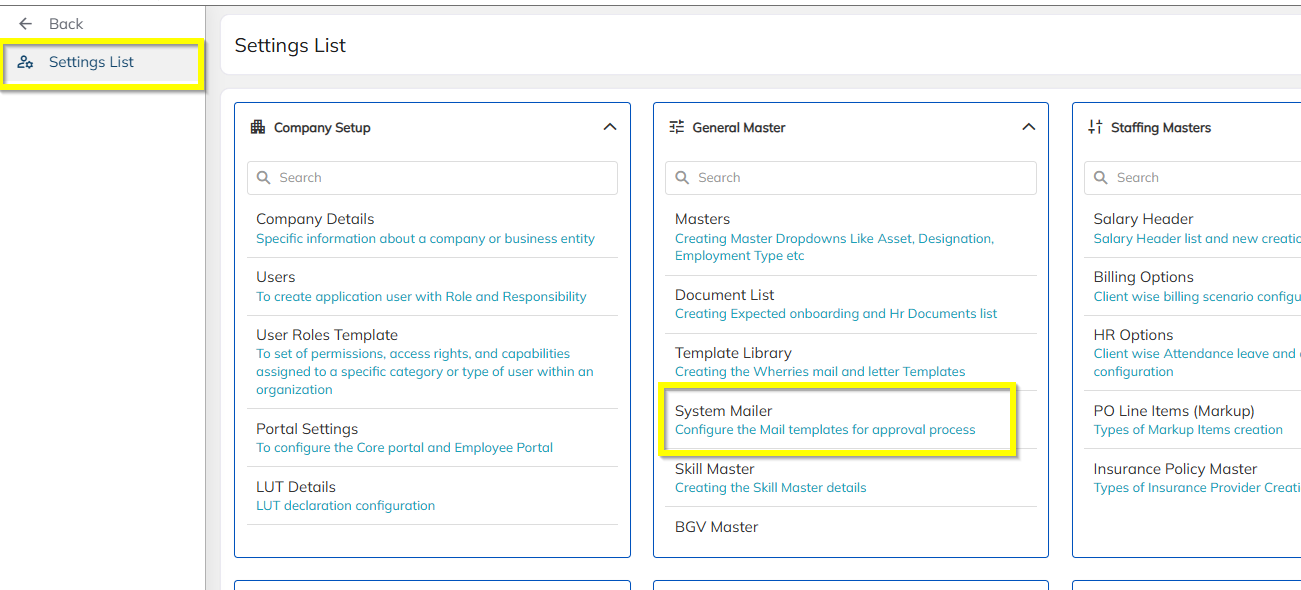
Steps to Configure or Modify a Mailer Template
Step 1: Select the Mailer Template
In the System Mailer screen, view the list of available mailer templates.
Identify the template that needs to be added, configured, or modified.
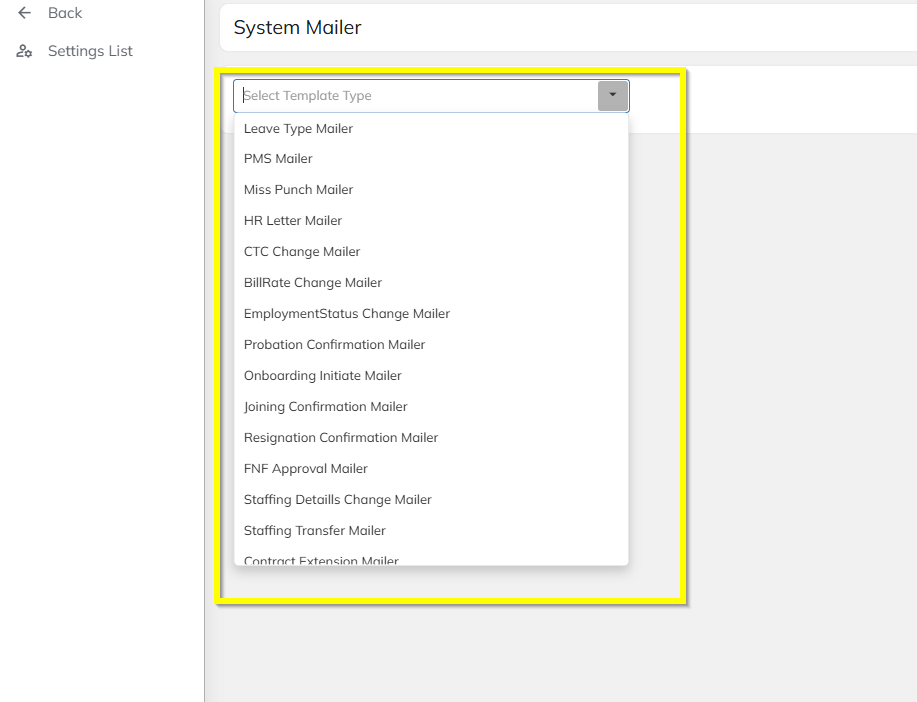
Step 2: Choose Recipient Type
Click on the relevant mailer template.
Select the recipient type:
Requester
Approver
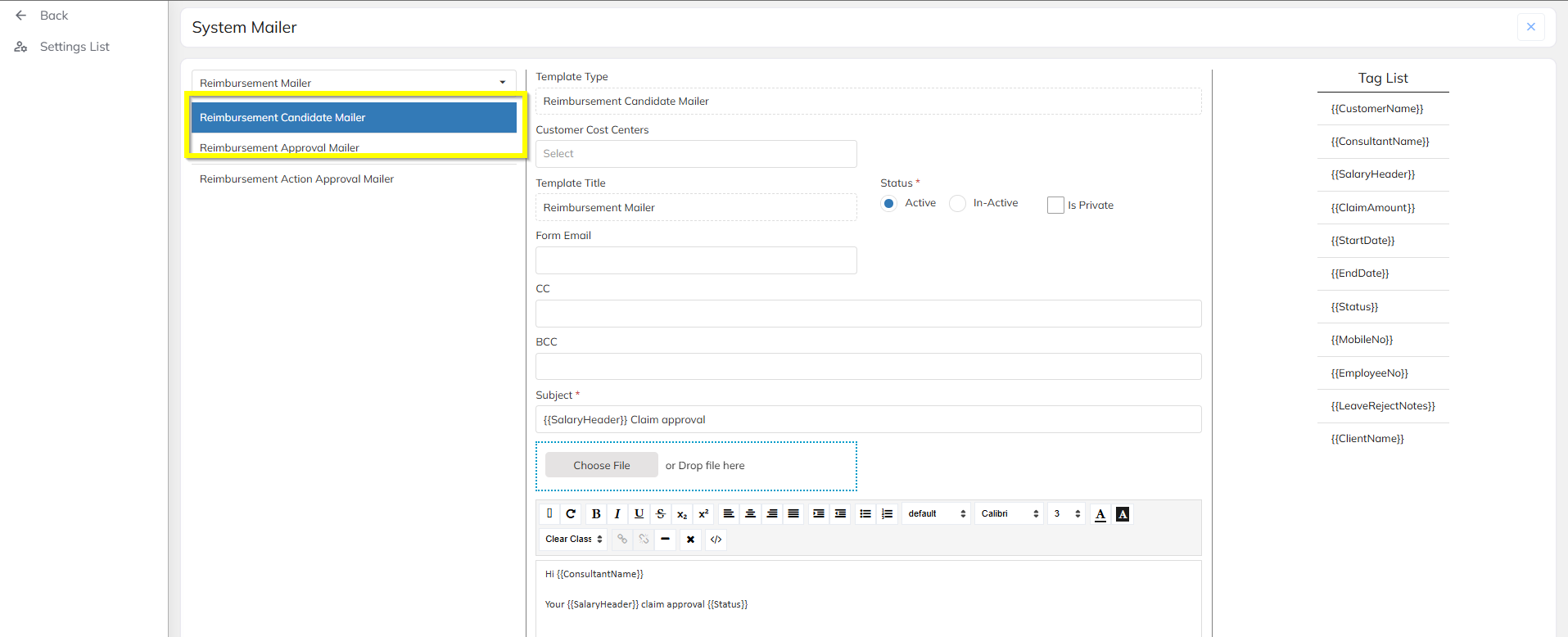
Step 3: Configure the Mail Content
Update the Email Subject and Email Body as per your business requirement.
Use the supported system tags displayed beside the editor (for example: employee name, request number, approval status).
Ensure the tags are used correctly to avoid mail delivery or content issues.
Note: Special Characters are not allowed in the mailer content and Only supported tags should be used. Unsupported or incorrect tags may result in blank or incorrect email data.
Step 4: Save the Configuration
After completing the required changes, click on Save.
The system will store the updated mailer configuration.
Was this article helpful?
That’s Great!
Thank you for your feedback
Sorry! We couldn't be helpful
Thank you for your feedback
Feedback sent
We appreciate your effort and will try to fix the article