Client Portal – Overview and Navigation
- Login to the Client Portal
- Open the Client Portal.
- Log in using your credentials.
- After login, the Home page will be displayed.
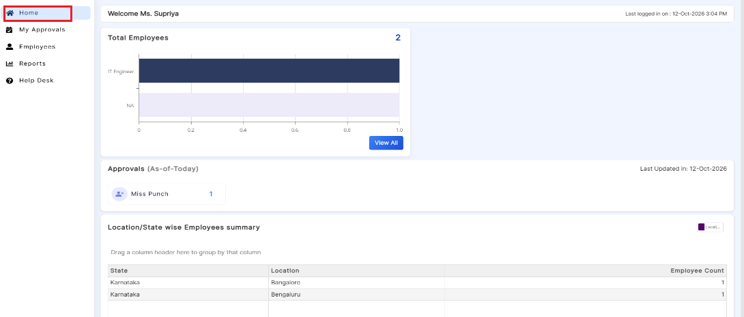
- Home – Dashboard
Navigate to Home → Dashboard.
The Dashboard provides an overview of the Client Portal and displays key information for quick reference.
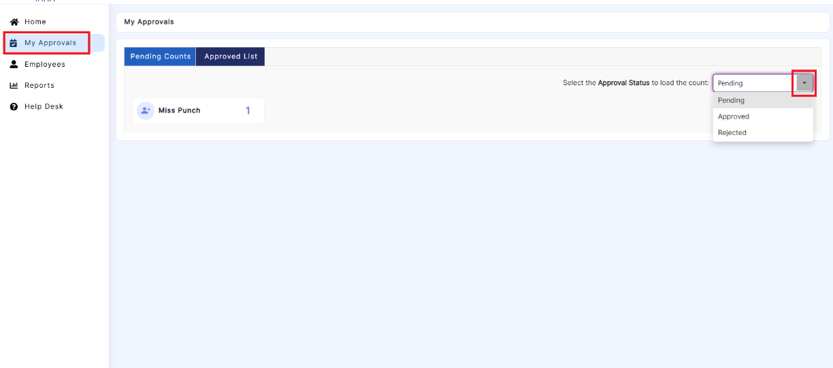
- My Approvals
Under My Approvals, you can view and track approval requests.
- Pending Counts: View all pending approval requests.
- Approved List: View all approved requests.
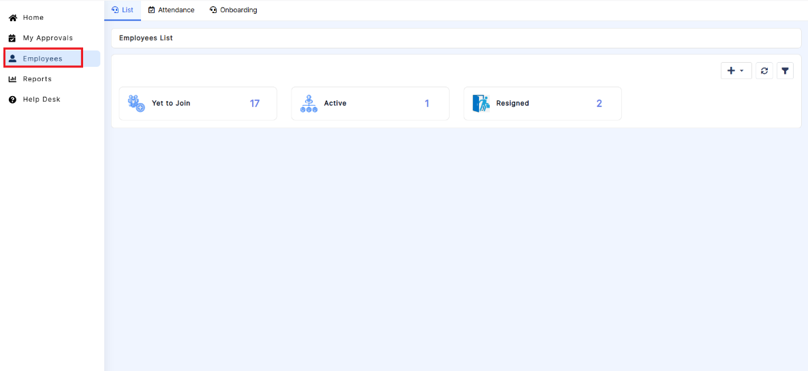
Navigate to the Employees section to view employee details and their current status.
The section displays employees under the following categories:
- Yet to Join: Employees who have not yet joined.
- Active: Currently active employees.
- Resigned: Employees who have resigned.
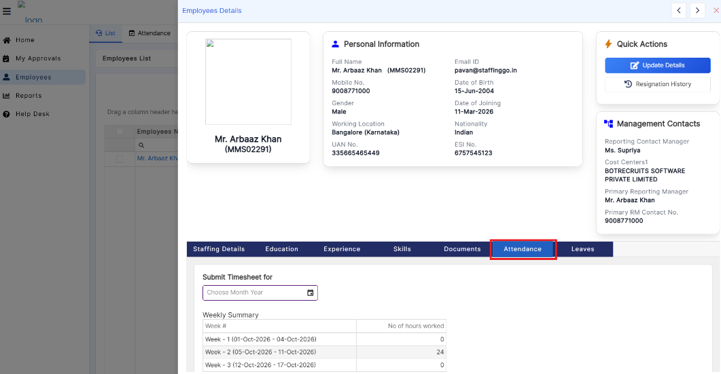
View Employee Details
- Navigate to the Employees section.
- Select the required employee from the list.
- Open the employee profile to view the employee's details and attendance information.
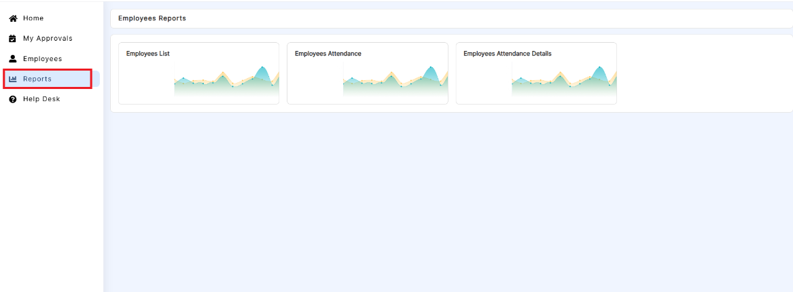
Reports
Navigate to the Reports section to download employee-related reports.
The following reports are available:
- Employee Report: Download employee details.
- Employee Attendance Report: Download employee attendance details.
Was this article helpful?
That’s Great!
Thank you for your feedback
Sorry! We couldn't be helpful
Thank you for your feedback
Feedback sent
We appreciate your effort and will try to fix the article