Salary Header configuration for Additional Day / Extra Day Amount
- Navigate to Setting List >>Staffing Master >> Choose the Salary Header & create the salary header for Additional day computation based on the days inputs in the time sheet. Use the Item type as Additional Pay , Header Type as Earnings & Header group as Add. Day Pay. Salary header should be enable with not part of the salary structure option
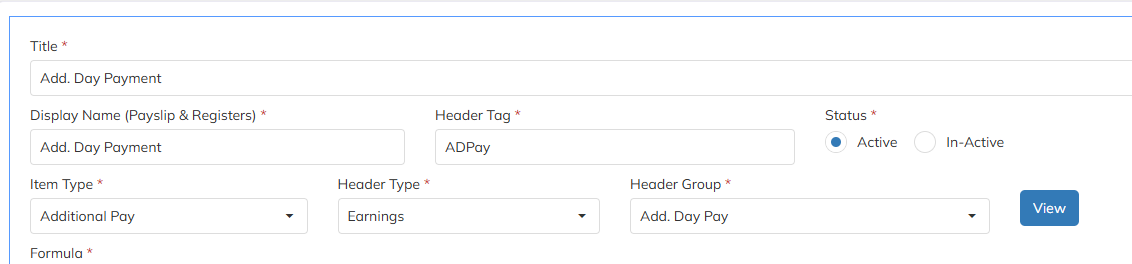
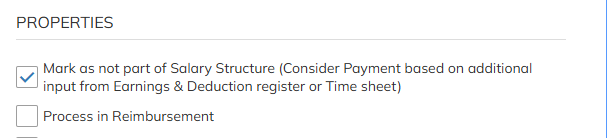
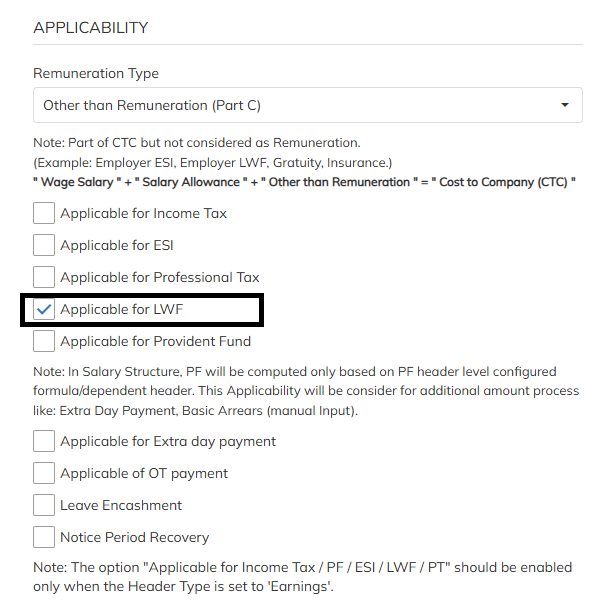
Statutory Deduction configuration should be disabled by default. If any statutory deduction needs to be applied, the respective applicable configuration should be enabled.
For LWF, the applicability configuration should be enabled, and the deduction should be mandatorily configured under the Additional Pay salary header.
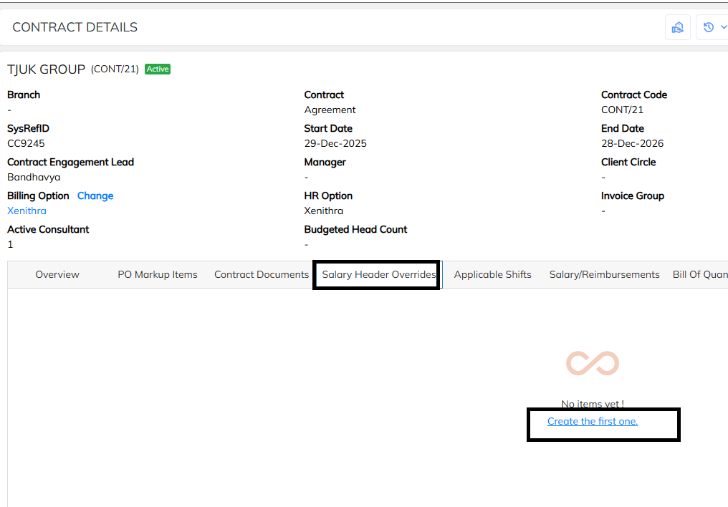
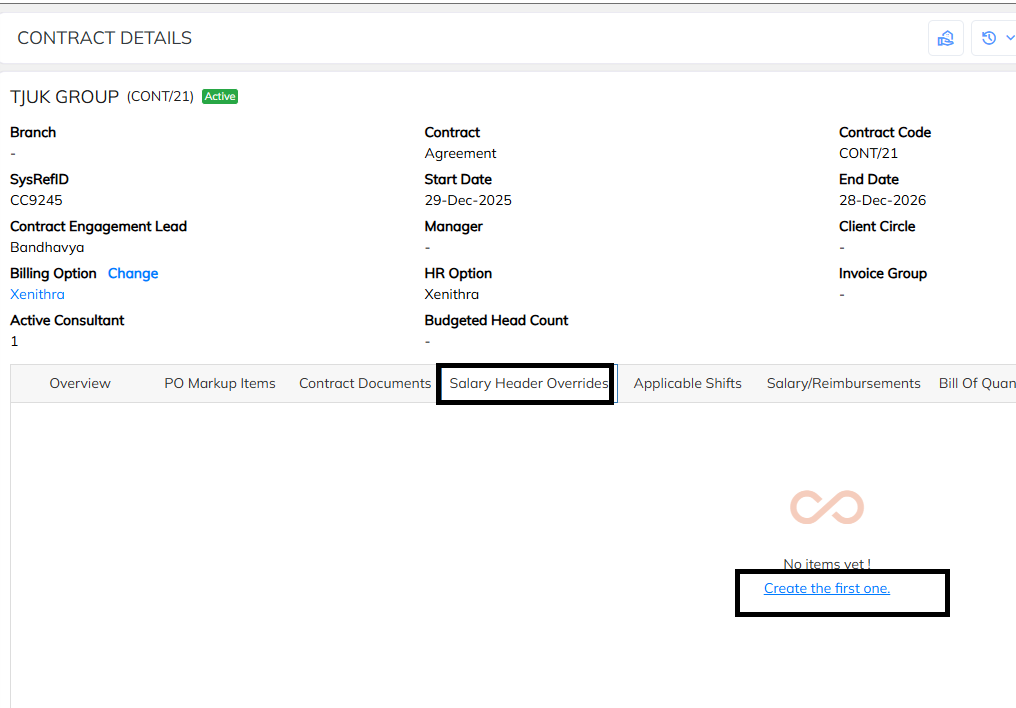
Contract Level Salary Override
1. Use the Contract Level Salary Override option when the applicability or configuration differs from one client to another.
If PF, ESI, etc applicability varies between clients, the required configuration can be enabled at the Contract Level Salary Override.
2. Master Level Salary Header Configuration
Use the Master Level Salary Header Configuration when the same applicability and configuration are required across all clients.
Note: Before enabling any applicability, verify whether the requirement is applicable to a specific client or uniformly across all clients. Select the appropriate configuration level accordingly
Additional Day Computation with Dependent Factor
Additional Day Computation can be configured based on specific salary headers by enabling the Additional Payment Applicability configuration for the required salary headers.
Example:
If the Additional Payment Applicability is enabled only for the Basic salary header, the Additional Payment will be calculated based only on the value of the Basic salary header.
Calculation Dependency:
- Basic – Additional Payment will be calculated based on Basic value only.
- Basic + Other Salary Headers – If applicability is enabled for multiple salary headers, the Additional Payment will be calculated based on the values of all applicable dependent headers.
Note: Ensure that the Additional Payment Applicability is enabled only for the salary headers that should be considered for the Additional Day computation.

Contract Level Salary Override
Use the Contract Level Salary Override option when the applicability or configuration differs from one client to another.
Example:
If a particular salary header needs to be applicable for Client A but not for Client B, the configuration can be managed at the Contract Level.
2. Master Level Salary Header Configuration
Use the Master Level Salary Header Configuration when the same applicability or configuration is required across all clients.
Example:
If a particular salary header needs to be applicable uniformly for all clients, the configuration can be enabled at the Master Level.
Additional Day Configuration in Billing Option
Additional Day Configuration must be enabled in the Billing Option for the Additional Day computation to be applicable.
Navigation
Settings → Staffing Master → Billing Option
Configuration Requirement
The following configurations are mandatory in the Billing Option mapped to the respective contract:
- Additional Day Bill Days Applicable – Enable this option to consider Additional Days for billing.
- Additional Day Pay Days Applicable – Enable this option to consider Additional Days for payroll/pay calculation.
The required Additional Day configurations must be enabled in the Contract-Mapped Billing Option based on the applicable business requirement.
Note: Ensure that the appropriate Billing Option is mapped to the contract and that the required Additional Day applicability configurations are enabled before processing billing or payroll.

How to Process Additional Days in Timesheet
Additional Days can be updated in the Timesheet module through either of the following methods:
- Manual Attendance Edit
- Bulk Timesheet Import
Method 1: Update Additional Days Through Manual Attendance Edit
Follow the steps below to update Additional Days manually:
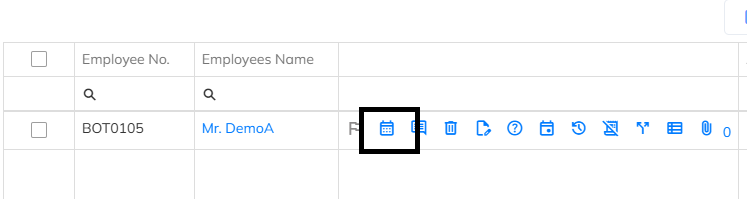
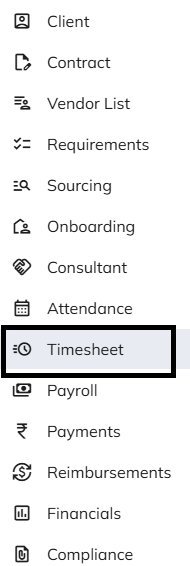
- Navigate to the Timesheet module.
- Use the available filters to search for and select the required Employee.
- Click the Attendance option.
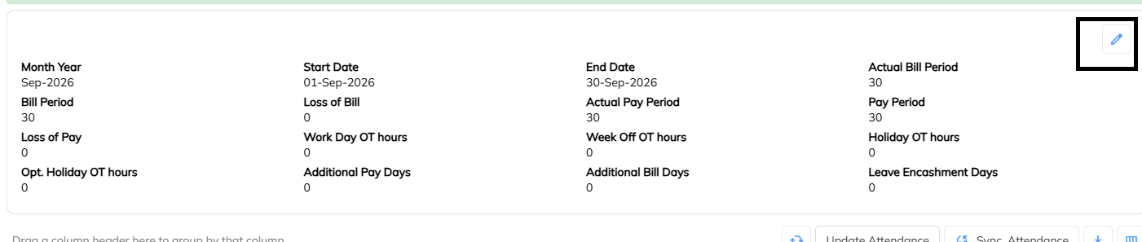
- Select the Edit option.
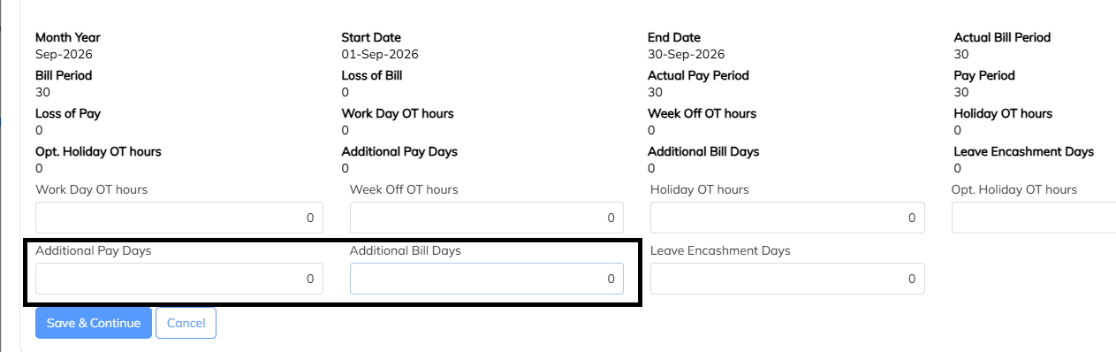
- Update the required Additional Day inputs:
- Additional Bill Days
- Additional Pay Days
- Click Save to save the updated attendance details.
- Verify the updated Additional Days in the Timesheet.
- Proceed with Payroll Processing to consider the Additional Days in the payroll calculation.
Method 2: Update Additional Days Through Bulk Timesheet Import
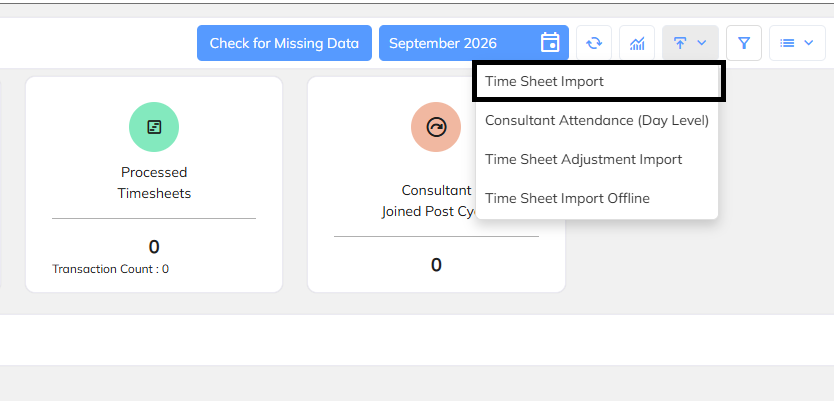
Additional Days can also be updated for multiple employees using the Bulk Timesheet Import option.
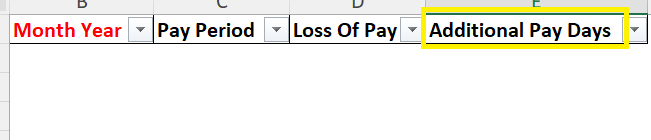
- Prepare the Timesheet import file with the required Additional Bill Days and Additional Pay Days details.
- Upload the file through the Bulk Timesheet Import option.
- Validate the imported Timesheet details.
- Confirm that the Additional Days are updated correctly for the respective employees.
- Proceed with Payroll Processing.
Note: Ensure that the required Additional Day configurations are enabled in the Contract-Mapped Billing Option before updating or processing Additional Days.
Was this article helpful?
That’s Great!
Thank you for your feedback
Sorry! We couldn't be helpful
Thank you for your feedback
Feedback sent
We appreciate your effort and will try to fix the article