Employee Group Master Creation
This document explains how to create an Employee Group Master individually and through bulk upload.
Method 1: Individual Employee Group Creation
Step 1: Navigate to Employee Group Master
Go to:
Settings → Master → Onboarding Consultant & BGV → Employee Group
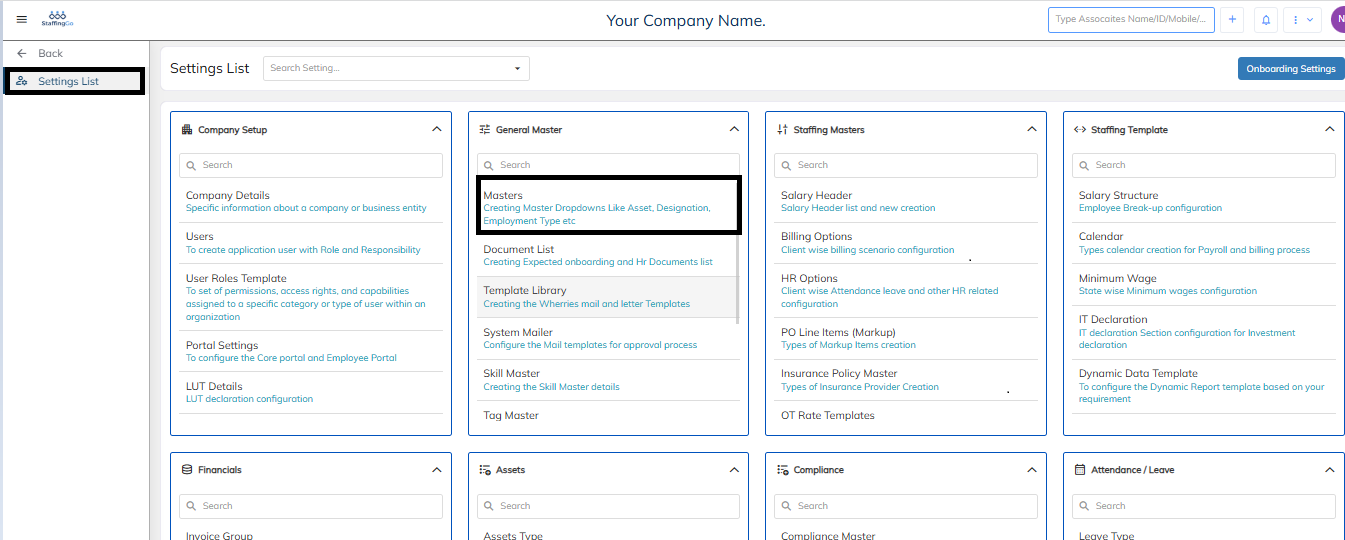
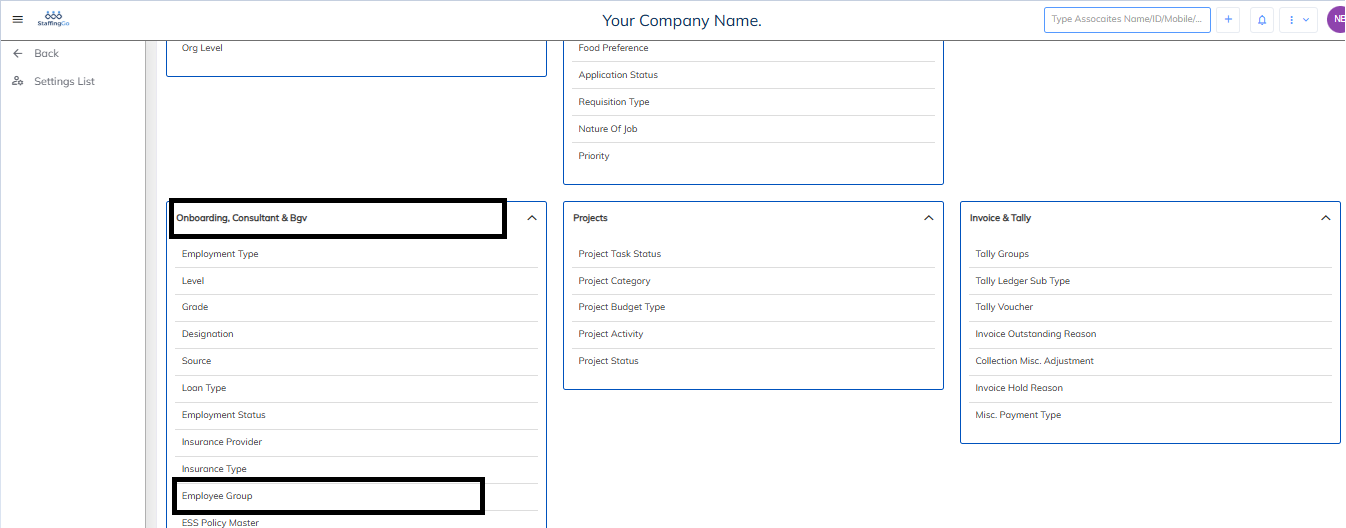
Step 2: Create a New Employee Group
Click Create New Master.
Enter the Title (Employee Group Name).
Select Status as Active.
Click Save.
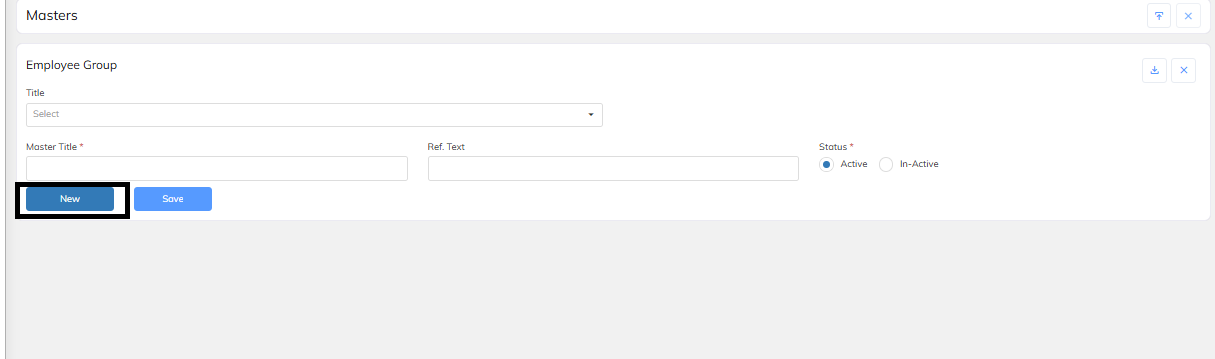
Step 3: Refresh the Page
After saving the record, refresh the page to view the newly created Employee Group.
Method 2: Bulk Employee Group Creation
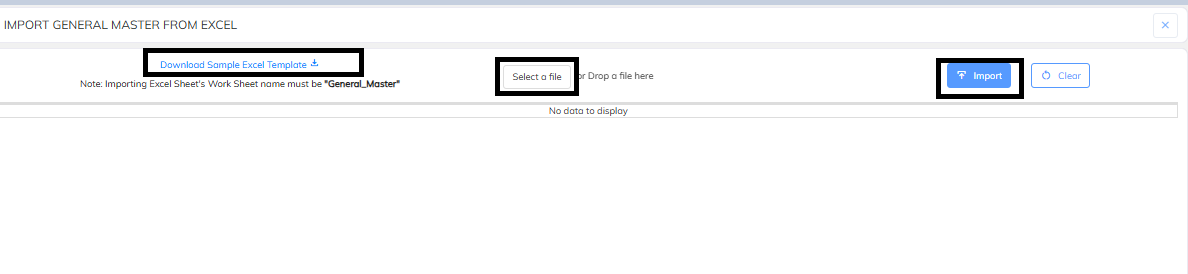
Step 1: Download the Sample Template
Navigate to the Import section.
Click Download Sample Excel Template.

Step 2: Update the Excel Template
Fill in the required columns as follows:
| Column | Value |
|---|---|
| Master Type | Master Type |
| Title | Enter the Employee Group Name you want to create |
| Active | Active |
Step 3: Upload the File
Upload the completed Excel template.
Click Revalidate.
Verify that the validation is successful.
Proceed with the upload.
Notes
Ensure that the Status/Active field is set to Active.
The Title should contain the Employee Group name you want to create.
Refresh the page after the upload to verify that the Employee Group has been created successfully.
Was this article helpful?
That’s Great!
Thank you for your feedback
Sorry! We couldn't be helpful
Thank you for your feedback
Feedback sent
We appreciate your effort and will try to fix the article