Purpose
This guide explains how to download multiple invoices in bulk in either PDF or Excel format from the Financials module.
Step 1: Navigate to Financials
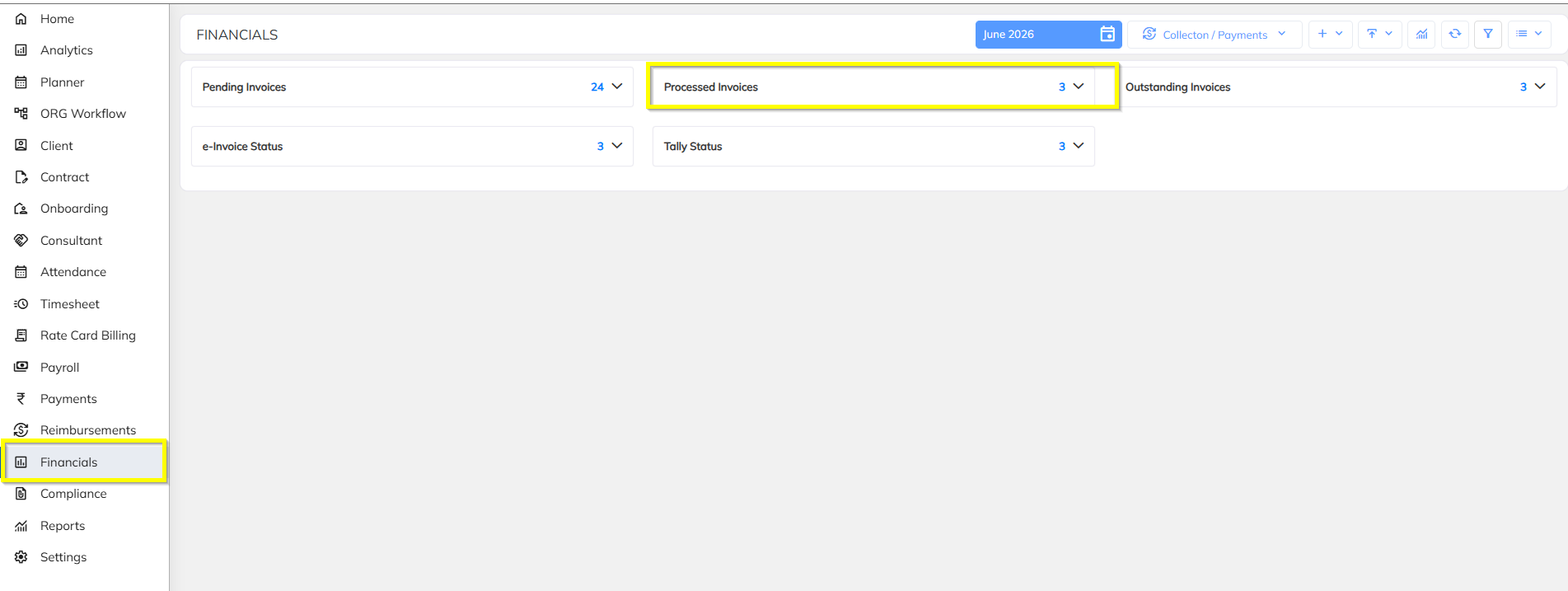
- Login to the application.
- Navigate to Financials.
- Load or search for the invoices that need to be downloaded.
Step 2: Select the Required Invoices
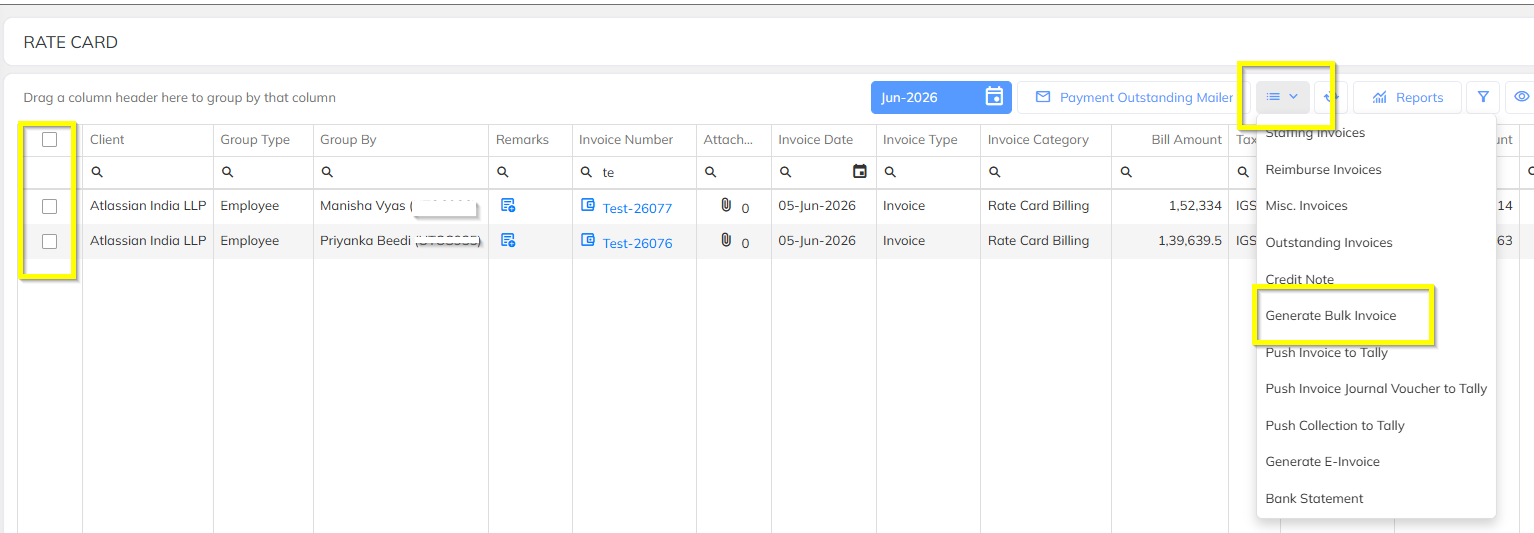
- Select the invoices that you want to download.
- Click on the Three-Line Menu (☰) available above the invoice grid.

Step 3: Open Bulk Invoice Download
- After clicking the three-line menu, a dropdown menu will appear.
- Select Bulk Invoice Download from the dropdown list.
Step 4: Choose Download Format
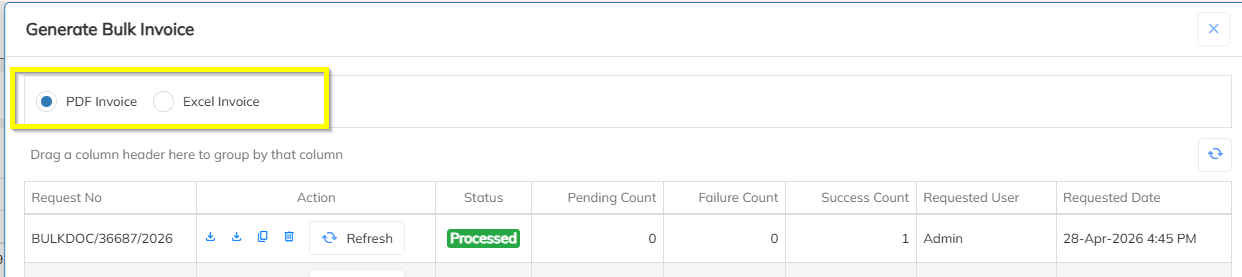
After clicking Bulk Invoice Download, the system will display two download options:
- PDF Format
- Excel Format
Select the required format.
Step 5: Select Invoice Format
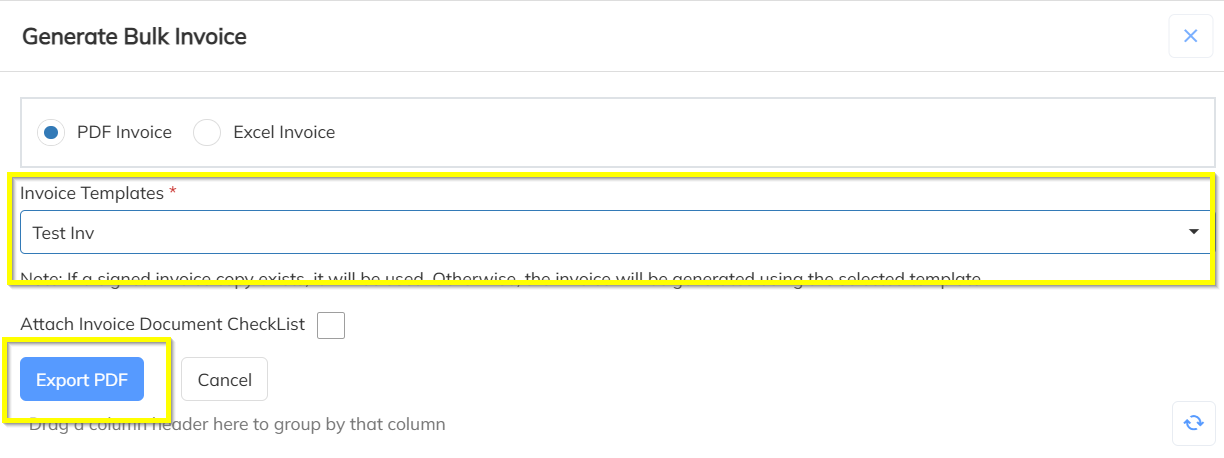
- Once the file type is selected, the system will display the available Invoice Formats.
- Select the required invoice format.
- Click Export.
Step 6: Export Request Initiation
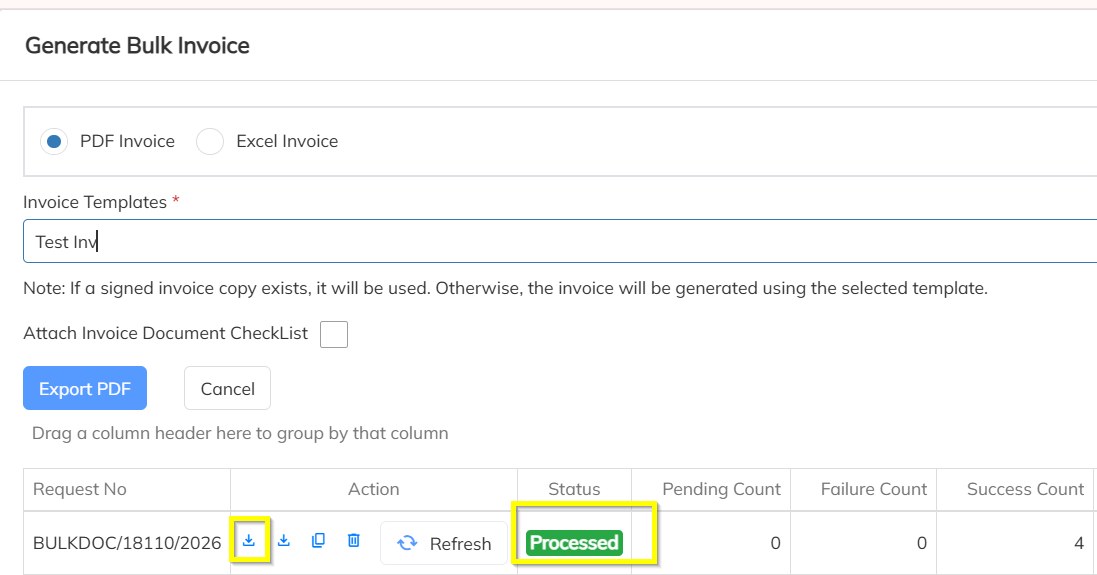
- After clicking Export, the download request will be initiated.
- Once the request is processed successfully, the status will display as Processed.
- Click on the Download button.
Step 7: Download the ZIP File
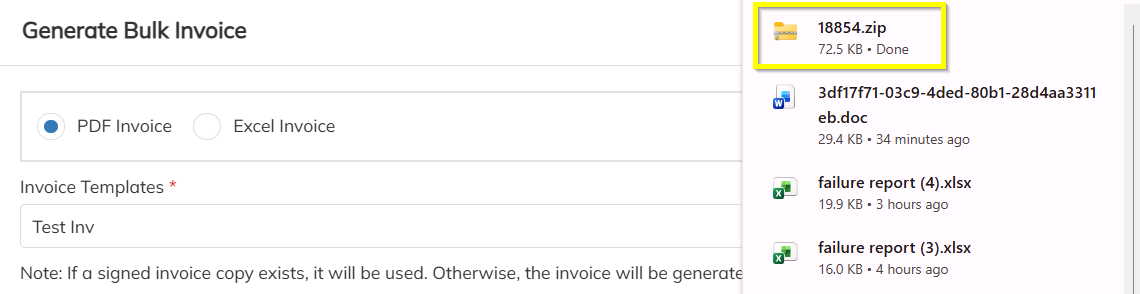
- The system will generate a ZIP file containing all selected invoices.
- Save the ZIP file to your local system.
Step 8: Extract the ZIP File
- Locate the downloaded ZIP file.
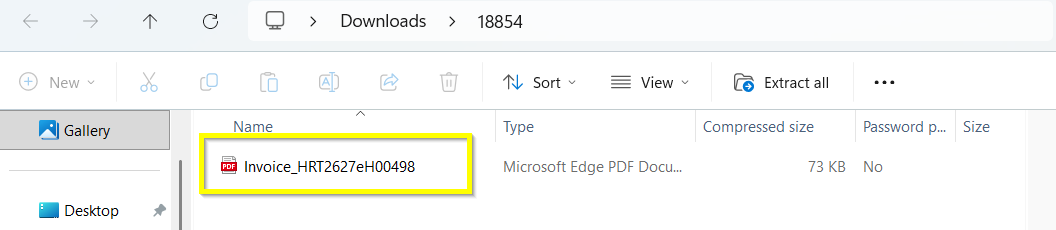
- Right-click the ZIP file and select Extract All (or use any ZIP extraction utility).
- Open the extracted folder.
All selected invoices will be available in the chosen format (PDF or Excel).
Important Notes
- Multiple invoices can be downloaded in a single operation.
- PDF and Excel formats are supported.
- The generated file will be downloaded as a ZIP folder.
- Ensure the export request status shows Successfully Initiated before clicking Download.
- Large invoice selections may take additional processing time.
Process Flow
Financials → Select Invoices → Three-Line Menu → Bulk Invoice Download → Choose PDF/Excel → Select Invoice Format → Export → Download ZIP File → Extract ZIP → Access Invoices
Was this article helpful?
That’s Great!
Thank you for your feedback
Sorry! We couldn't be helpful
Thank you for your feedback
Feedback sent
We appreciate your effort and will try to fix the article