This manual provides simple, step-by-step instructions to generate ID cards in bulk for employees or consultants using the application.
Step 1: Navigate to Associate/Consultant/Employee Module
- Go to: Associate/Consultant/Employee Module → Employee List
Step 2: Filter Employees
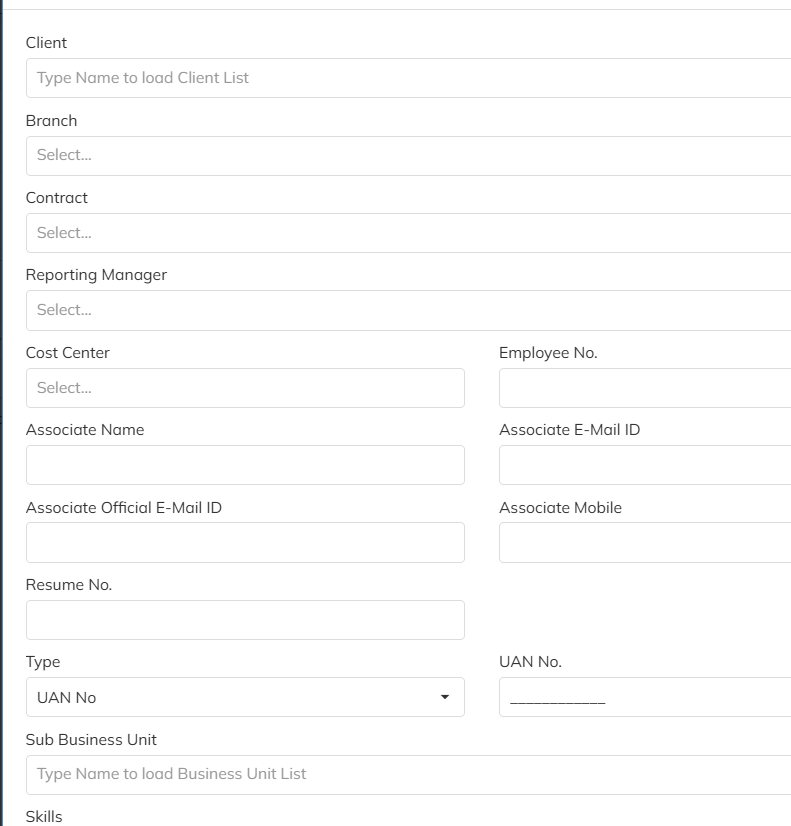
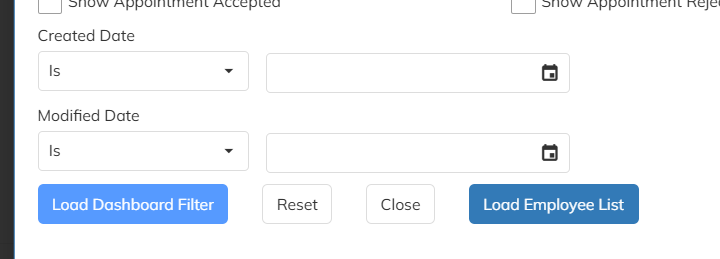
- Use the Filter option
- Search employees based on Employee ID, Client, or other criteria
- Click on Search/Load to view the list. Filtered employees data will get listed.

Step 3: Select Employees
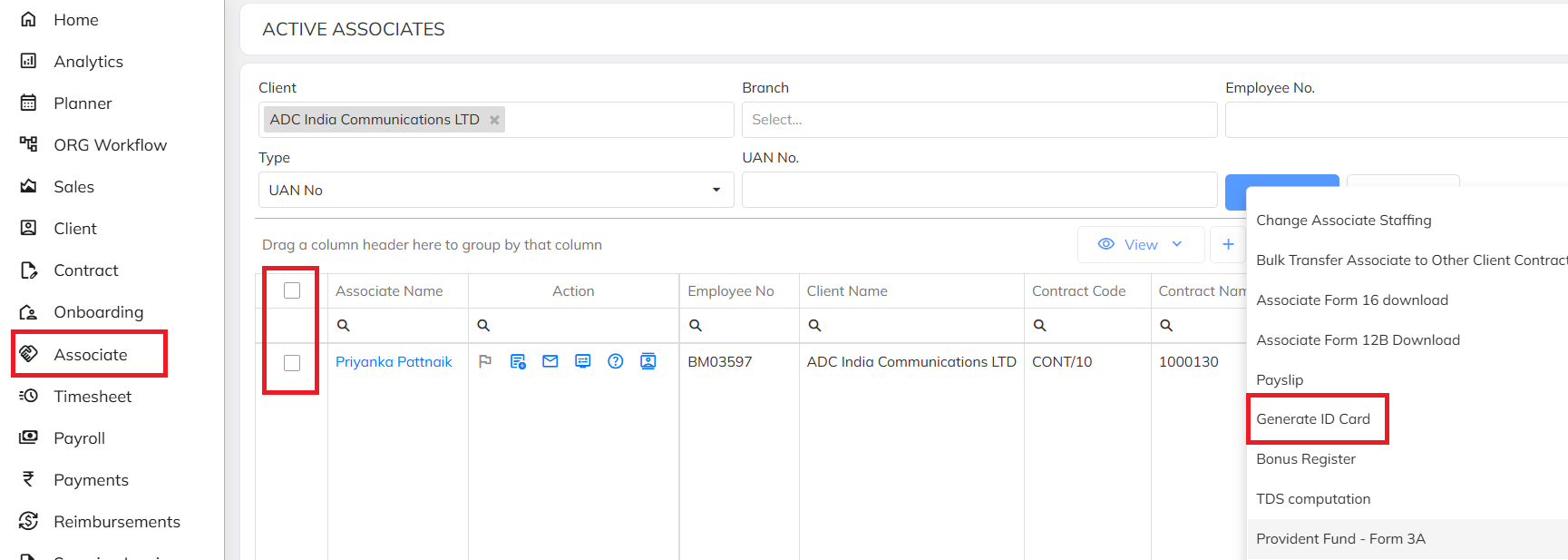
- Select employees using the checkbox option
- You can select multiple employees for bulk generation

Step 4: Generate ID Cards
- Click on the Extension option
- Select Generate ID Card option
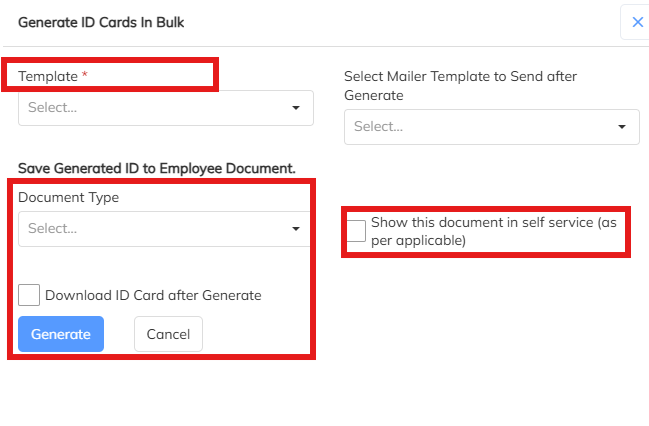
- Choose the required:
- Template : Configured ID card template
- Document Type : Choose the specific documents to save the generated ID card in the application.
- Select Mailer Template to send ID card : To circulate the ID card to employee through mail choose the mailer template.
- Show documents in ESS portal: Generated ID card can able to show to employee under ESS portal based on this option enable.
- Download ID card after generate : For the use prospect generated ID card can able to download for the user reference.
Was this article helpful?
That’s Great!
Thank you for your feedback
Sorry! We couldn't be helpful
Thank you for your feedback
Feedback sent
We appreciate your effort and will try to fix the article