Step 1: Create Work Venues (Client Level)
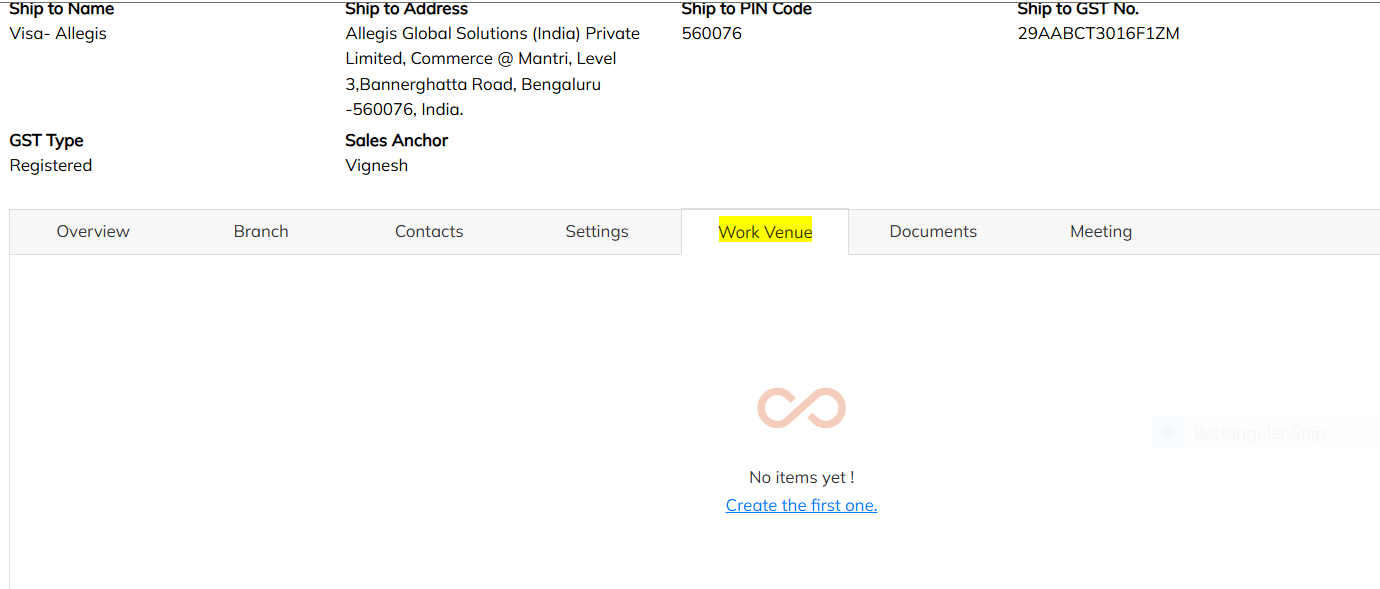
Navigate to Client → Work Venue section in the application
Click "+" button to add a new work venue
Three mandatory fields:
Office Name (e.g., "StaffingGo-JP Nagar", "StaffingGo- Tech Park", "StaffingGo- Prestige")
Office Address
Location (e.g., Bangalore)
Once saved, venue appears in the list
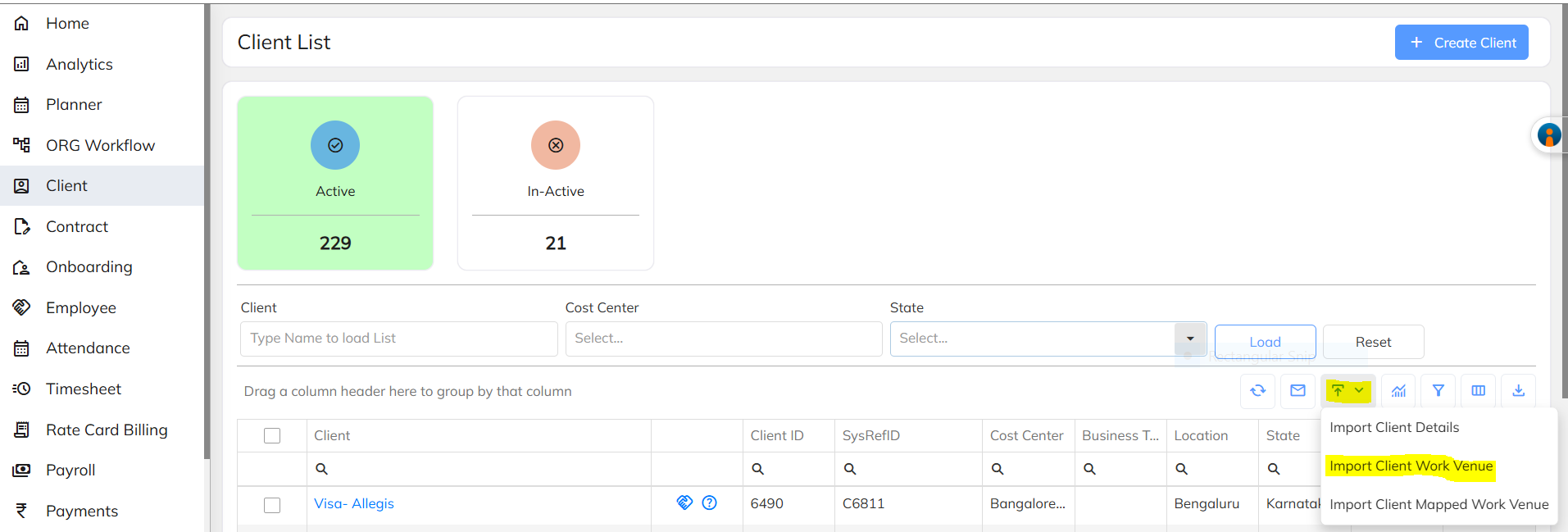
Bulk creation via Excel import: Use "Import Client Work Venue" option
Template columns: Client Name, Office Name, Office Address, Location, State
Same sheet can hold N number of clients simultaneously
Process: Download sample → fill data → upload → validate → save
Step 2: Map Employees to Work Venues (Employee Level)
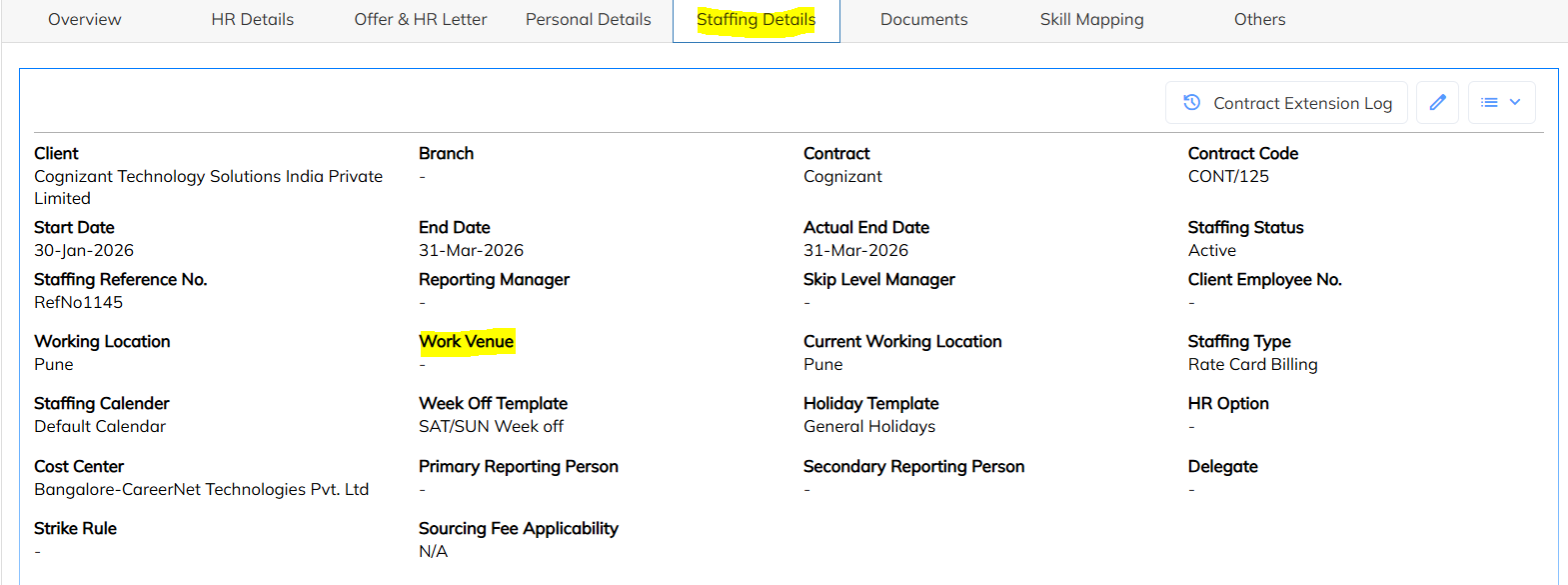
Go to Staffing Details of each employee
Field: Work Venue (dropdown, type to search — does not auto-load all due to large data)
Only venues created under that client will appear in dropdown
Bulk mapping via Excel: Use "Update Consultant Import" sheet
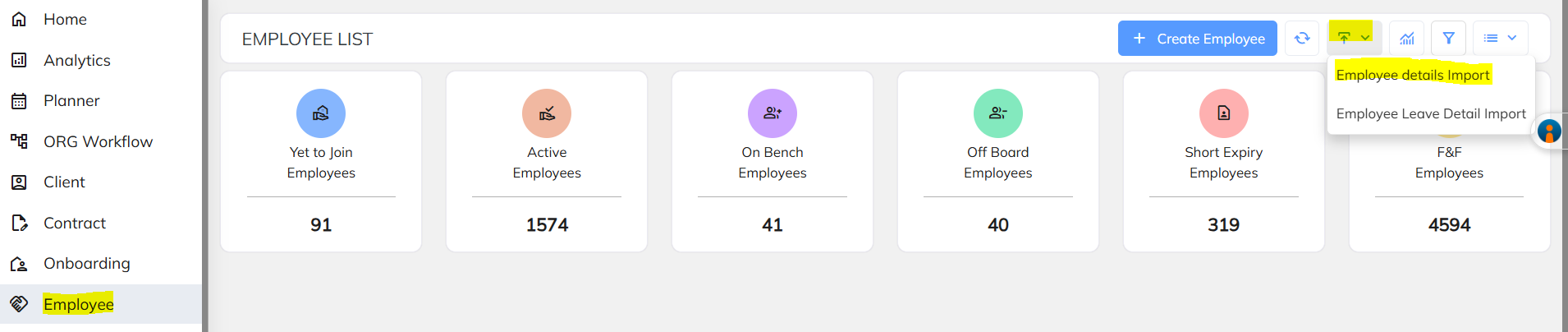
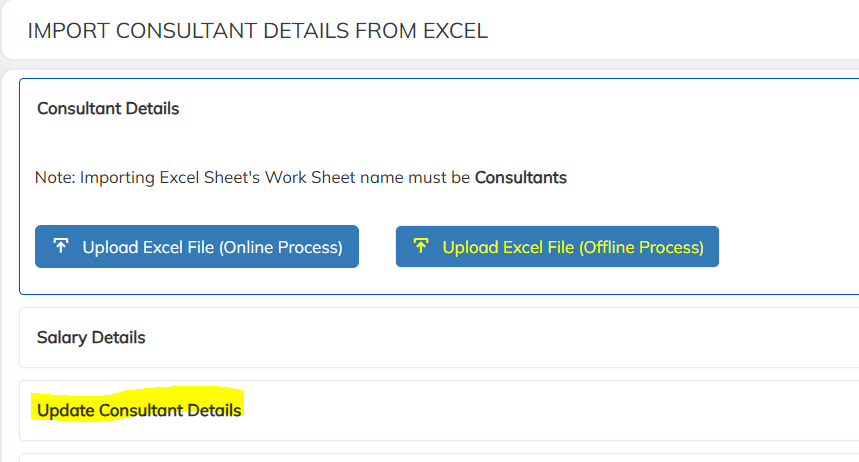
Columns: Employee Code + Work Venue (office name)
Office name in sheet must match exactly what was created at client level
Upload, validate, save
Was this article helpful?
That’s Great!
Thank you for your feedback
Sorry! We couldn't be helpful
Thank you for your feedback
Feedback sent
We appreciate your effort and will try to fix the article