Step 1: Navigate to the Payments Tab
From the left menu, click Payments.

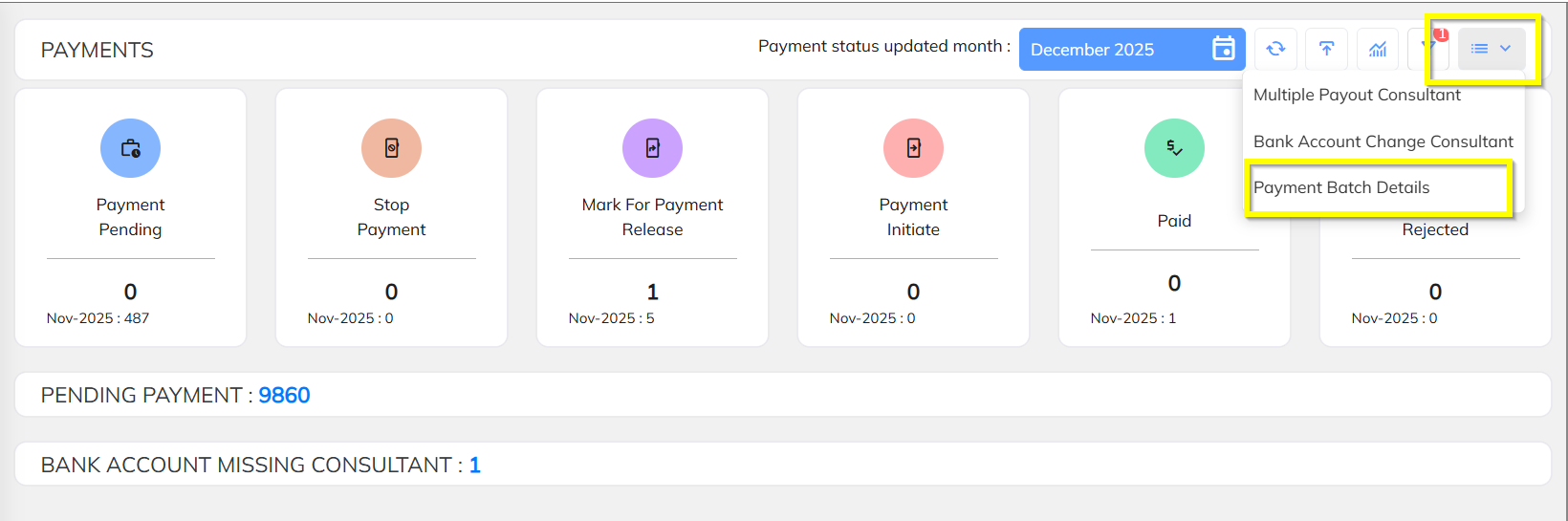
Step 2: Open Payment Batch Details
Inside the Payments dashboard, click the List / Menu icon on the top-right corner.
Choose Payment Batch Details from the dropdown list.
Step 3: View the Payment Batch List
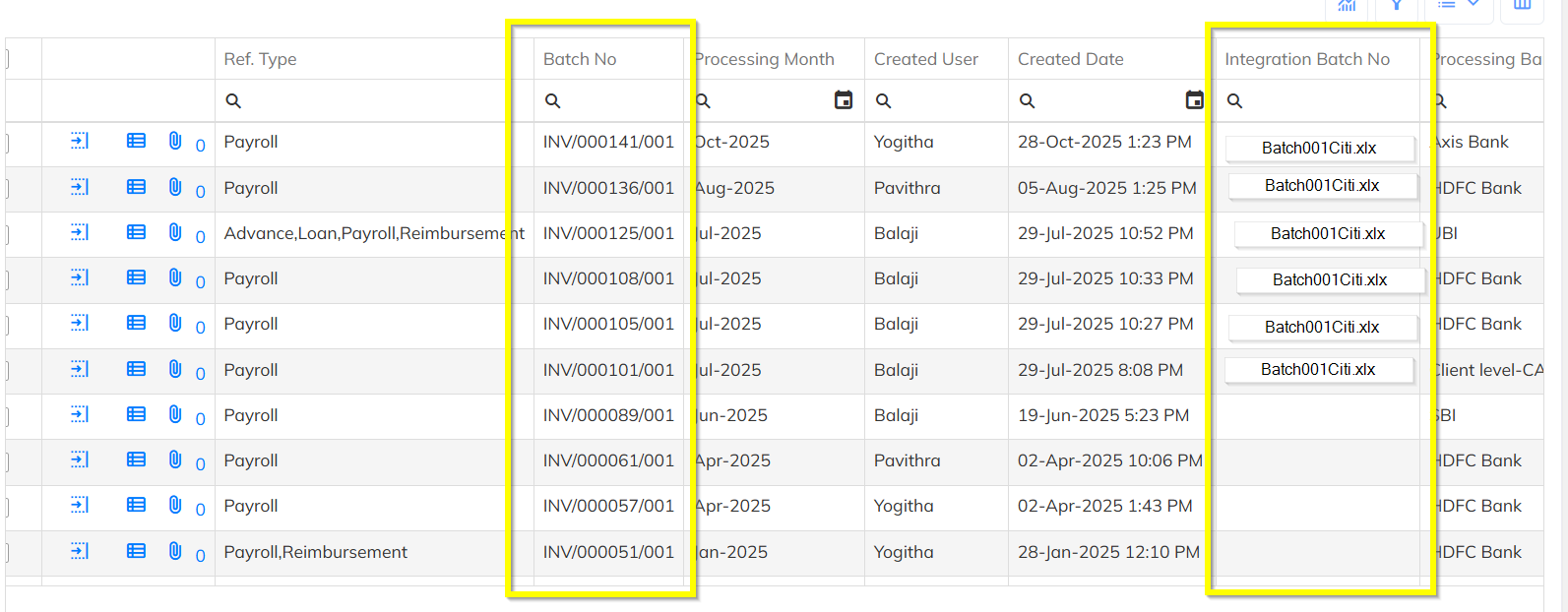
You will now see a list of all generated payment batches.
Key columns to refer:
Batch No
Processing Month
Integration Batch No → This is the Bank Integration File
What “Integration Batch No” Means
This column contains the exact file name sent to the bank portal.
Example values:
Batch001Citi.xlsxBatch001HDFC.xlsx
If a file name is shown, the file has been generated and transmitted to the bank integration process.
Step 4: How to Confirm the Bank Received the File
In this system, the confirmation of bank file processing is reflected through:
✔ Presence of Integration Batch No
If the Integration Batch No is visible, the bank integration file has been successfully sent.
✔ Bank Response File / Status (if configured)
Some banks return status files. In this system’s view:
The Integration Batch No column acts as the bank response entry,
showing that the bank has acknowledged or processed the file.
If empty:
The file was not sent
Or the batch is pending transmission
Summary Table
| What to Check | Meaning |
|---|---|
| Payments → Payment Batch Details | Access all payment batches |
| Integration Batch No column | Bank integration file sent |
| File name present (e.g., Batch001Citi.xlsx) | Successfully uploaded to bank portal |
| Blank field | Not sent or transmission pending |
Was this article helpful?
That’s Great!
Thank you for your feedback
Sorry! We couldn't be helpful
Thank you for your feedback
Feedback sent
We appreciate your effort and will try to fix the article