Step 1: Enable the Invoice draft process :
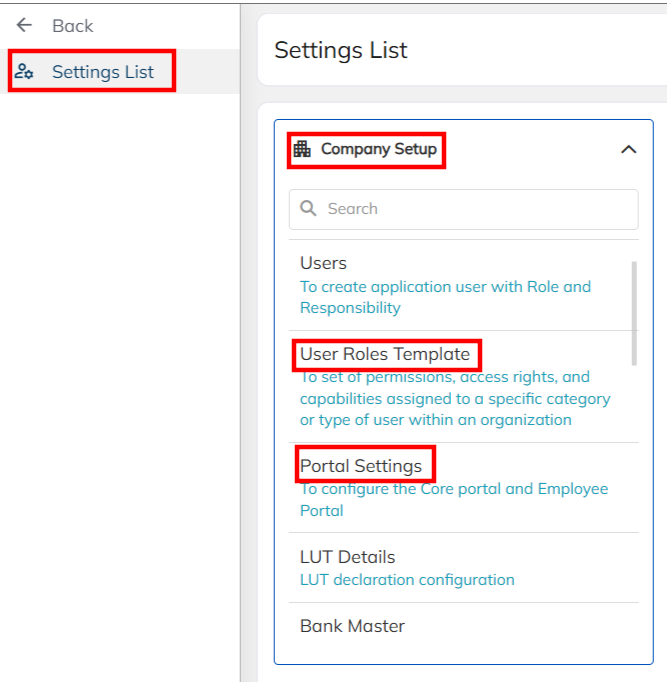
- Navigate to setting >> Company Set Up >> Portal Settings >> Common Settings >>choose the Billing Invoice and enable the Enable invoice approval option and save
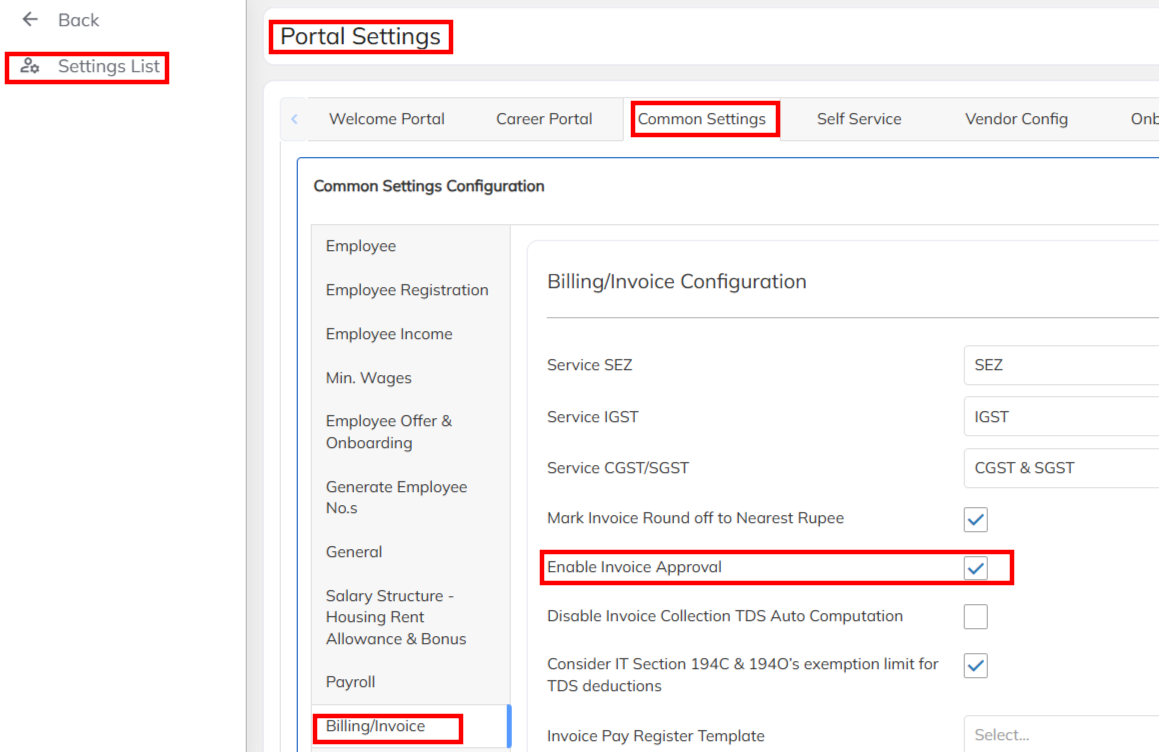
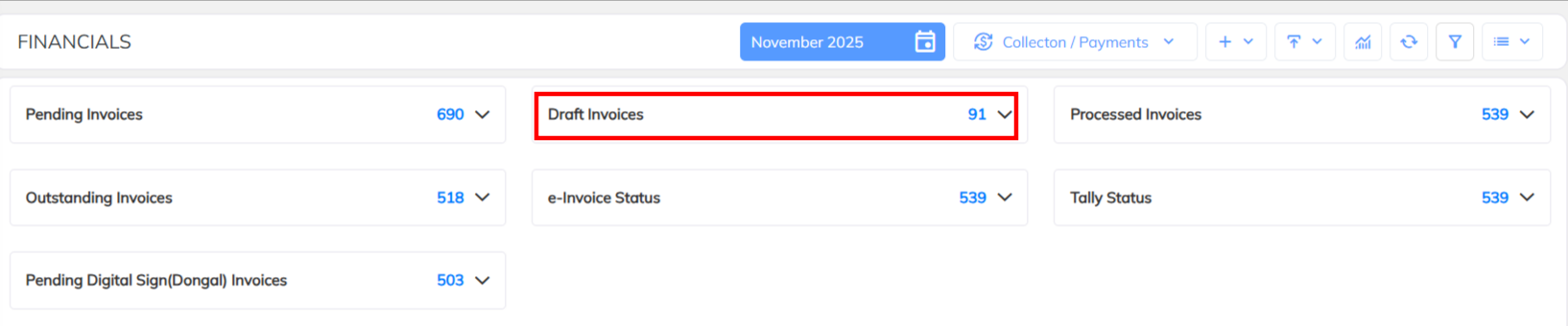
- Once Invoice approval option enabled the in the financials Module Draft invoices functionality visible.
- Once you generate the invoice , default will reflect under draft invoices with having the draft invoice number. Invoice will review completely under draft , If any wrong delete the invoice in draft status only.
Step 2: Enable the particular User to invoice approval access
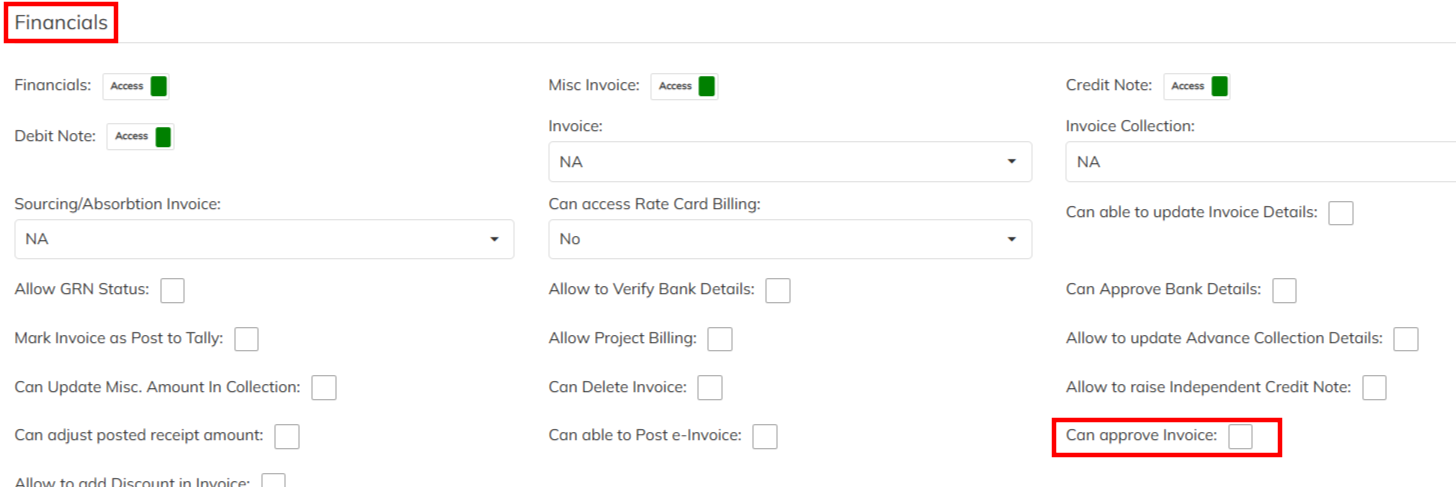
- Navigate to settings >> Company set up >> User role template and choose the particular user mapped user role template >> Enable the invoice approval option under Financial access management. Only access experienced user can approve the invoice from the Draft invoice dashboard.
Step 3: Invoice Approval along with allocating the invoice series.
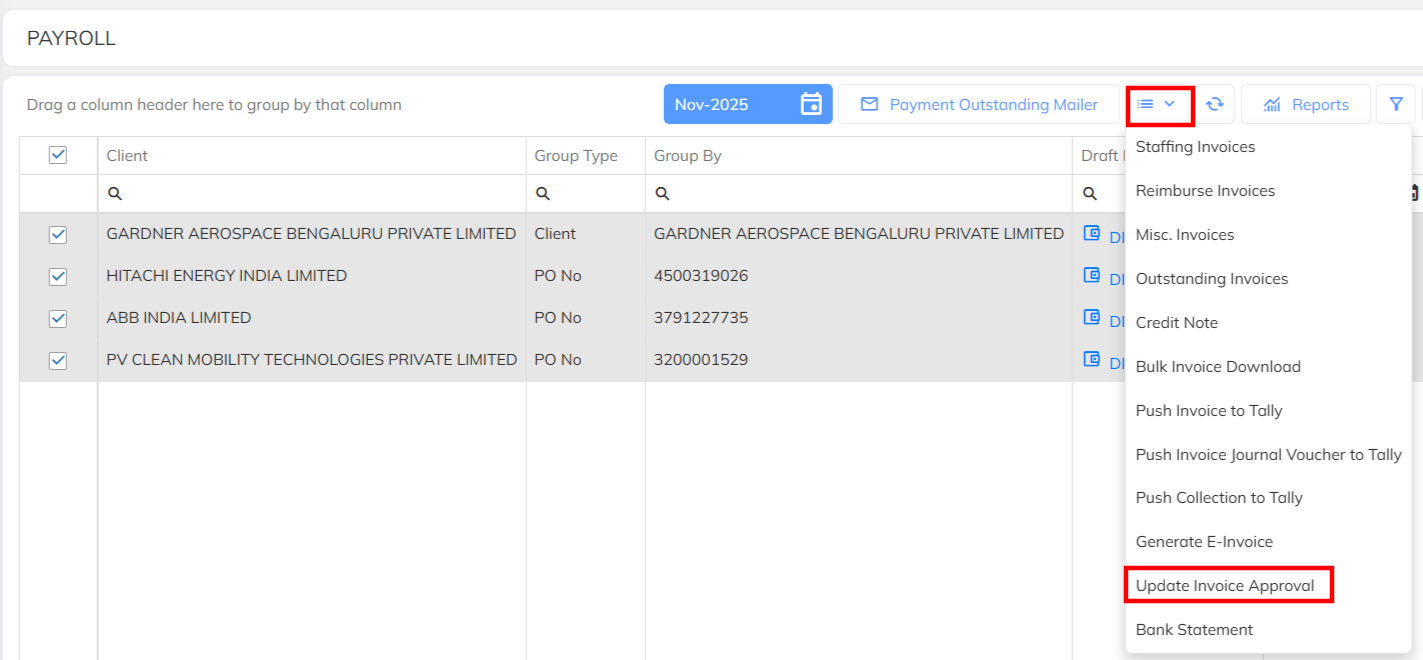
- Navigate to Financial module >> Choose the draft section and select the specified invoice line item to approve in bulk.
- Once the invoice transaction selected , Navigate to extension option and click on Update invoice Approval option
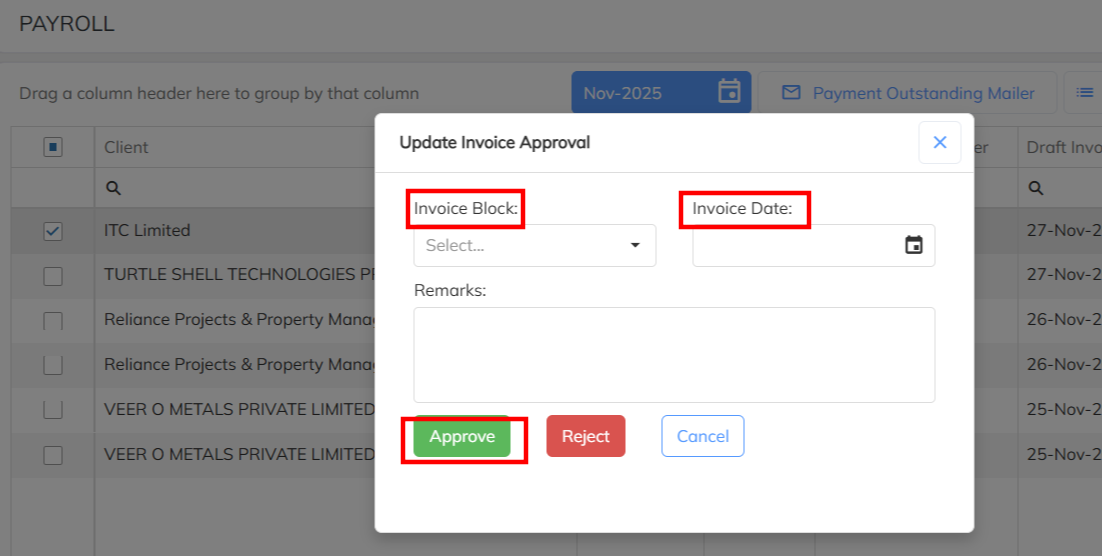
- Choose the specific invoice block to allocate the invoice number and invoice invoice date and approve.
Was this article helpful?
That’s Great!
Thank you for your feedback
Sorry! We couldn't be helpful
Thank you for your feedback
Feedback sent
We appreciate your effort and will try to fix the article