Updating Sender E Mail ID in Portal

Created by Mohammed Saqib, Modified on Sat, 20 Dec, 2025 at 7:19 PM by Mohammed Saqib

This feature allows admins to update the sender email ID used for system-generated notifications and communications from the portal. Ensure the updated email is verified and properly configured to avoid delivery issues.


Kindly Note: This Configuration of From Email ID will not have any impact on the auto mail which are triggered. This will only come into effect when the user triggers the respective mail from their end.


We have three ways of configuring the Sender Email ID  in the Portal:

  • Company Level: Configuring the from mail id here will configure the from mail id to all the mails which will be triggered.
  • User Level: If we configure the sender E Mail ID based on user level, then we user which logs into the portal and triggers the mail, that user email id will be used as a From Mail and will be triggered.
  • Template Level: If we configure at the Template level that for only that template which from mail is marked from that mail only mails will be triggered.


Below are the steps on how one can update the sender Email ID in the staffinggo portal:


CONFIGURE SENDER ID'S FOR COMPANY LEVEL

Ask ChatG

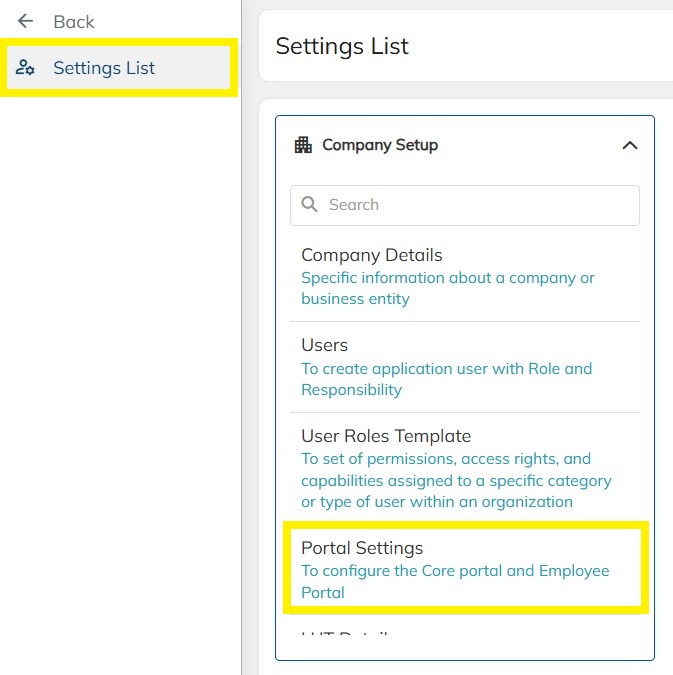
  • Login as an Administrator
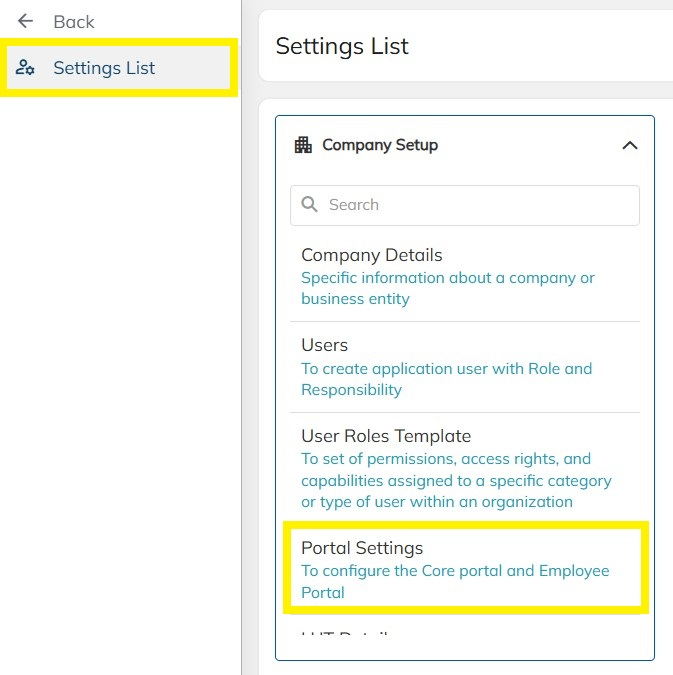
  • Navigate to Settings
  • Click on Portal Settings


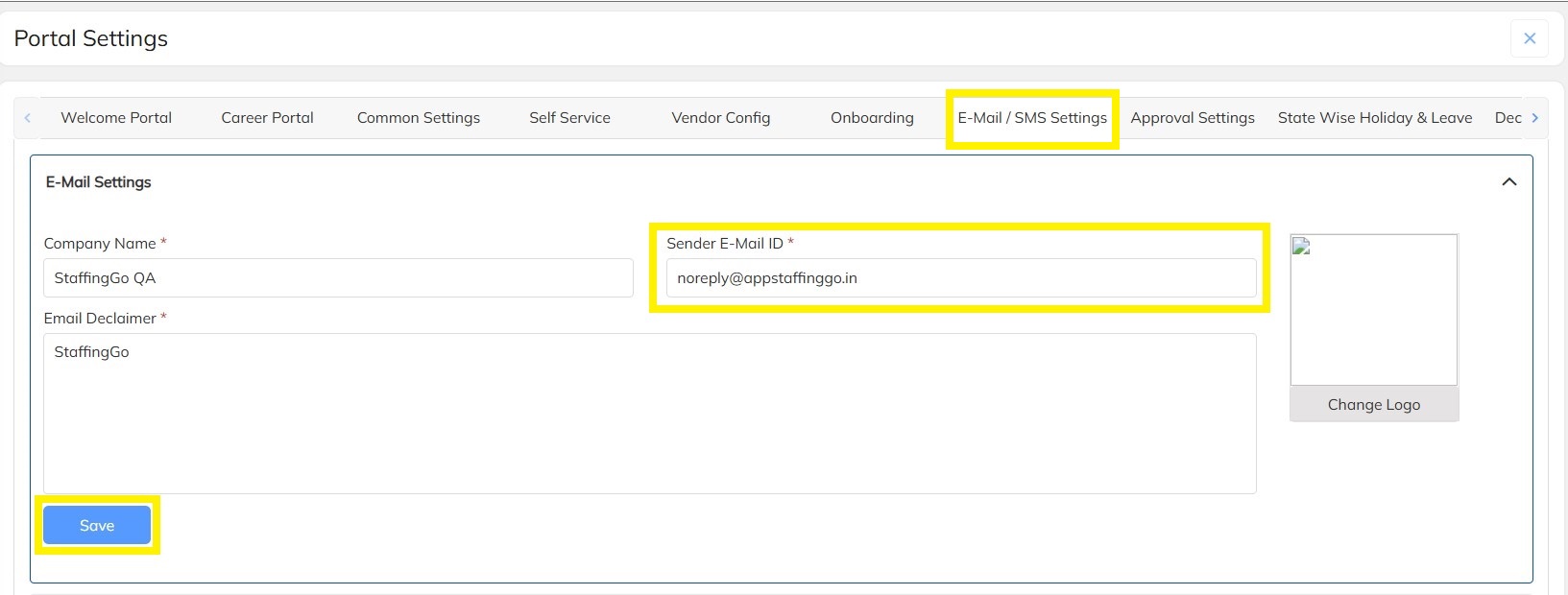
  • Under portal settings --> Select Email/SMS Settings

  • Here update the sender email id and then click on save


CONFIGURE SENDER ID'S FOR USER LEVEL

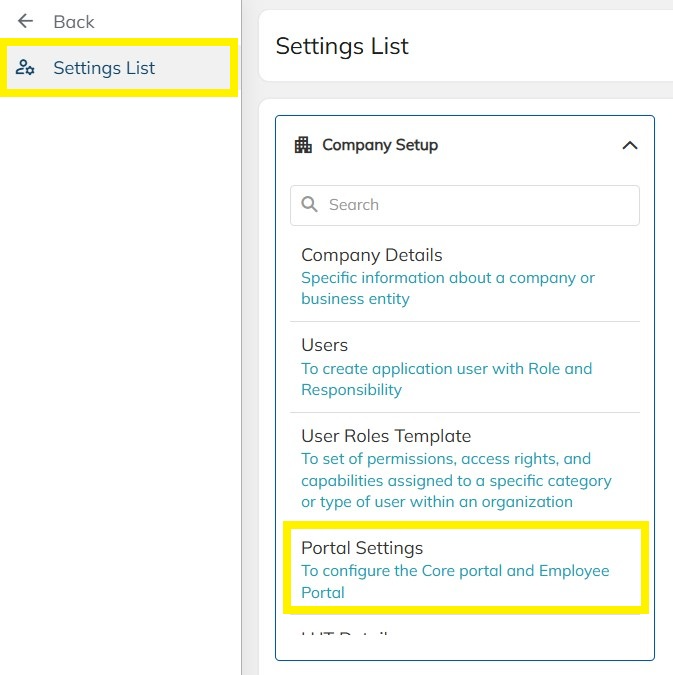
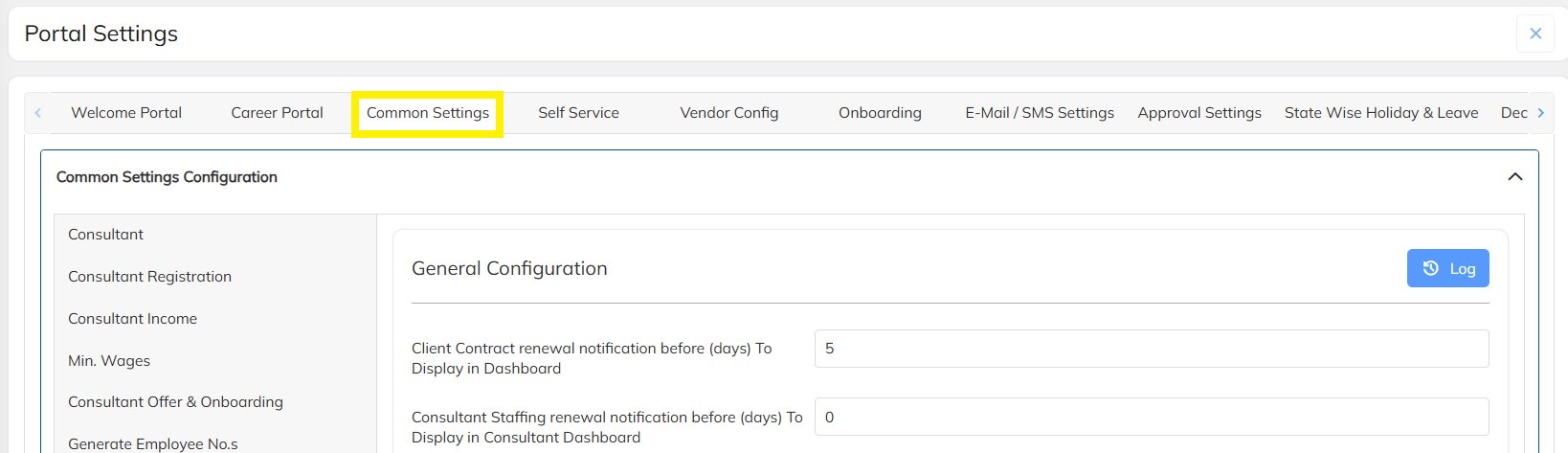
  • Navigate to Settings ---> Click on Portal Settings--> Common Settings


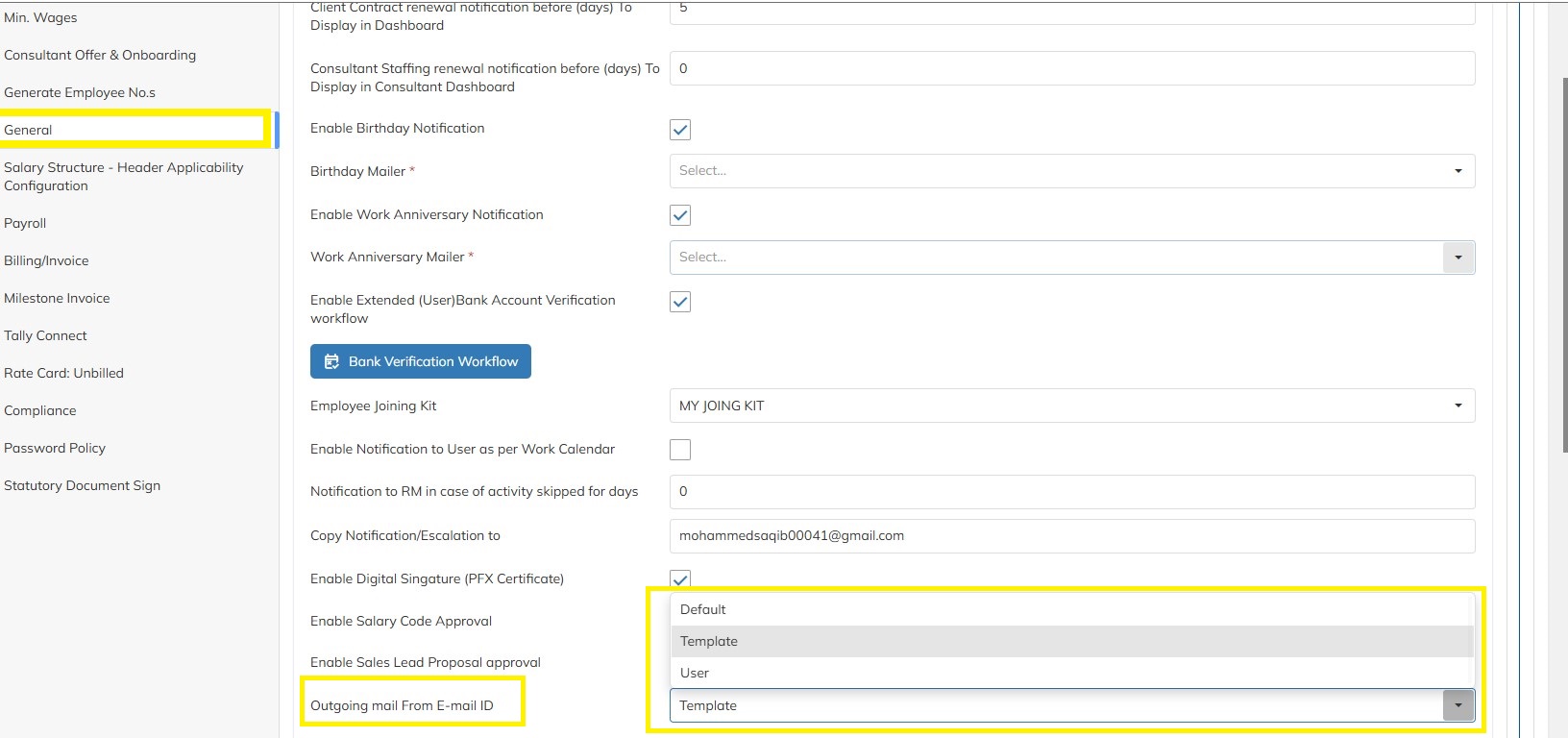
  • Under Common Settings --> Click on General --> Outgoing mail from Mail ID --> Select on user 

  • Scroll down and click on save 
  • Kindly Note: If we configure the sender E Mail ID based on user level, then we user which logs into the portal and triggers the mail, that user email id will be used as a From Mail and will be triggered. 


CONFIGURE SENDER ID'S FOR TEMPLATE LEVEL

  • Navigate to Settings
  • Click on Portal Settings 

  • Navigate to Template Library
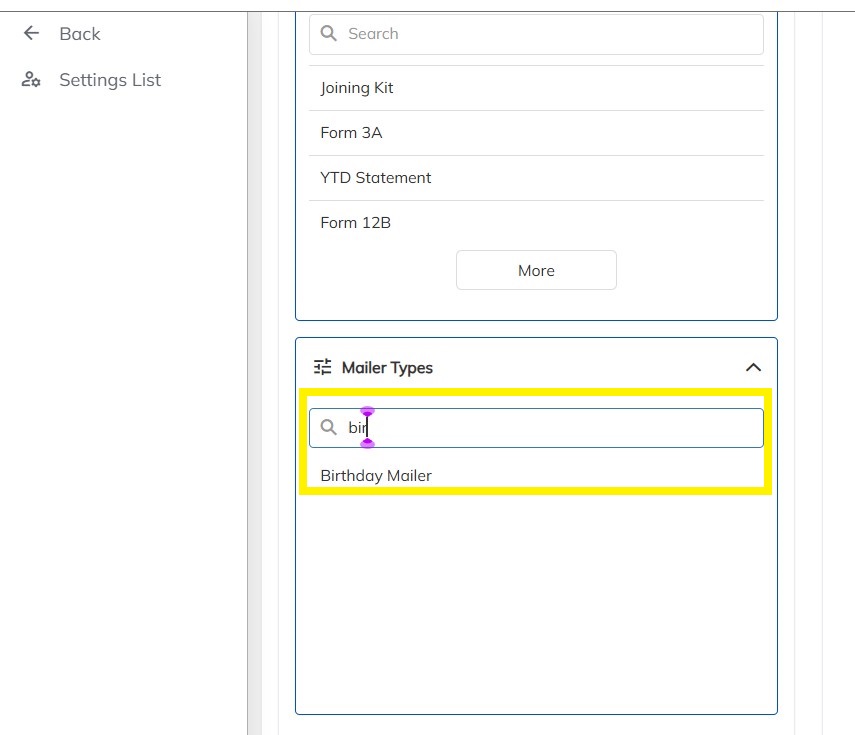
  • In Mailer types --> Search for the concerned mailer type --> Click on it

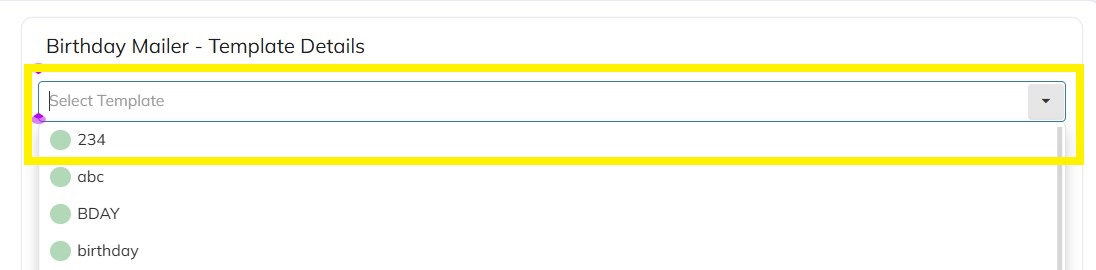
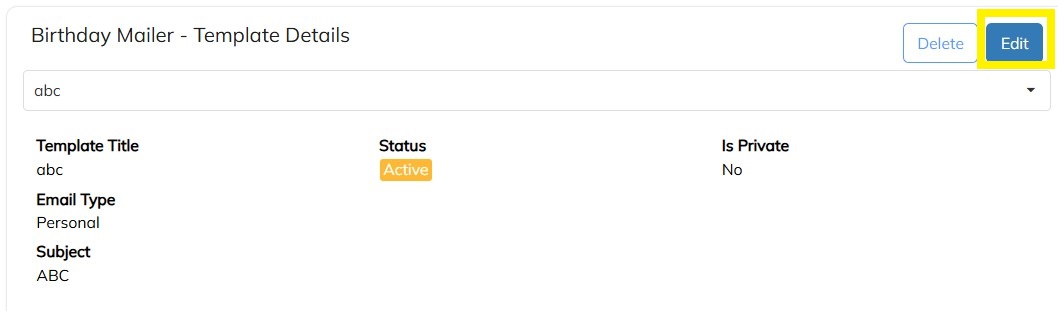
  • Select the appropriate Template in the dropdown of Templates

  • Click on Edit 

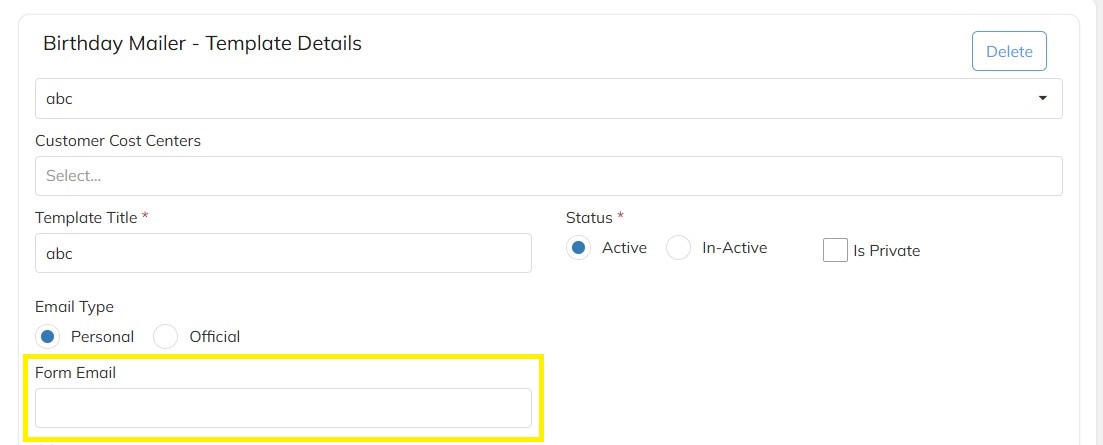
  • In the FROM EMAIL update the from mail id and click on save.


Once the configurations of mail is done based on the above options and your scenario you can trigger the mail and verify if the mail are triggering successfully from the respective from mail id.


Need Help?

If you have any doubts or need further assistance regarding client creation or any other feature, feel free to reach out to our support team at support@staffinggo.in. We’re here to help you!


Was this article helpful?

That’s Great!

Thank you for your feedback

Sorry! We couldn't be helpful

Thank you for your feedback

Let us know how can we improve this article!

Select at least one of the reasons
CAPTCHA verification is required.

Feedback sent

We appreciate your effort and will try to fix the article