The Personal Information Form is a crucial part of the Joining Kit, used to collect and verify all necessary personal, educational, and employment details from new hires. This form ensures smooth onboarding, accurate HR records, and successful background verification.
Below are the steps on how one can configurate and download the Joining Kit through Manual and Bulk options:
- Joining Kit Template configuration
- Click on Settings --> Go to Template Library
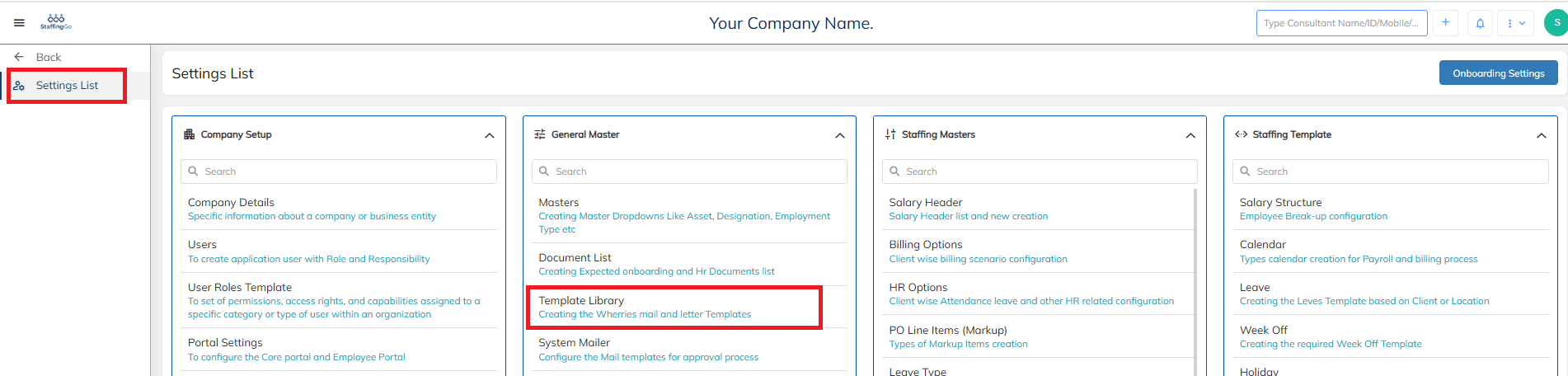
- Click on New to create a New Template for Joining Kit
- In the template type --> Click on Joining kit
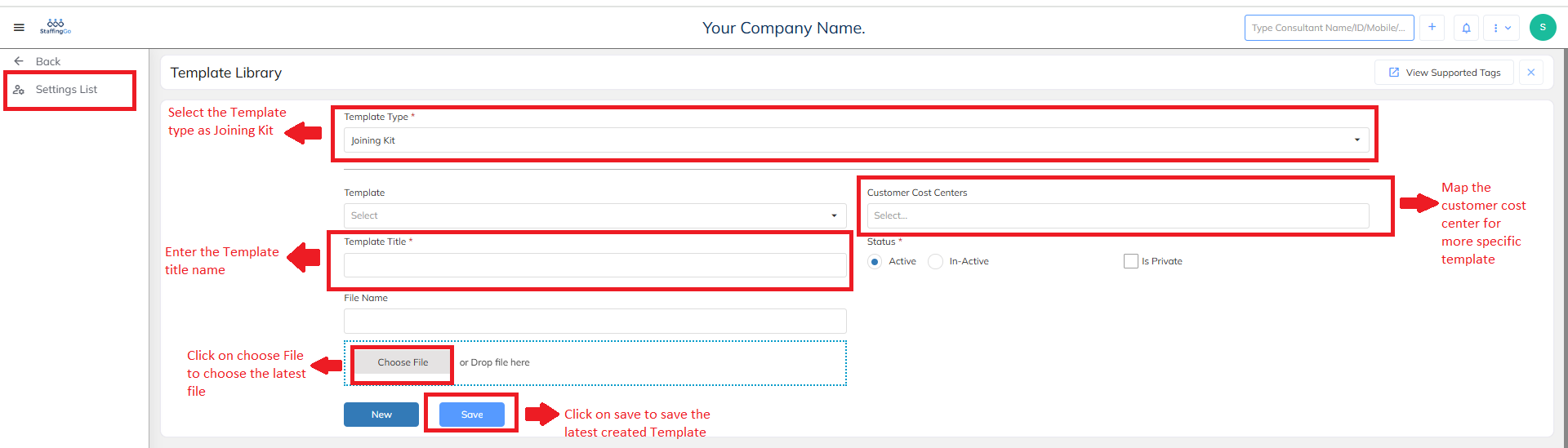
- Enter the desired name in the Template Title (Eg. Joining Kit)
- Select the customer cost center if you want to create Joining Kit's which are mapped particularly to cost center
- Choose the file and select the relevant Joining Kit format which is mapped with all the support tags which align with the staffinggo application
- If you want to view the support tags and align your format accordingly --> Click on View Support Tags --> Once all the details are entered --> Click on save to save the Template
- Joining Kit Application configuration
- Portal Settings Configuration/Master level Configuration
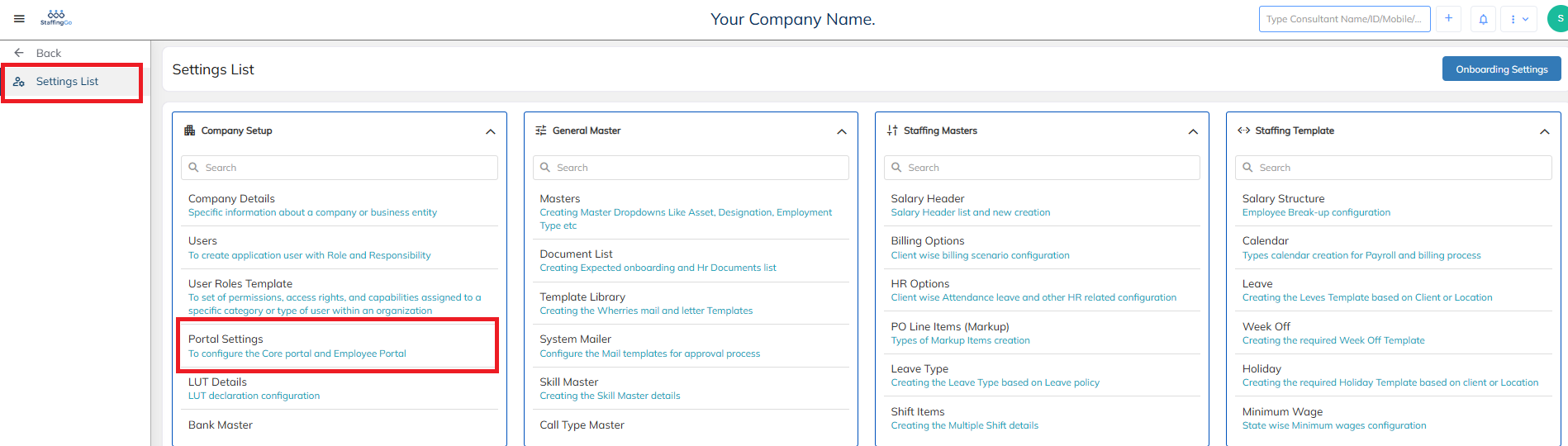
- Click on Settings -->Click on Portal Settings
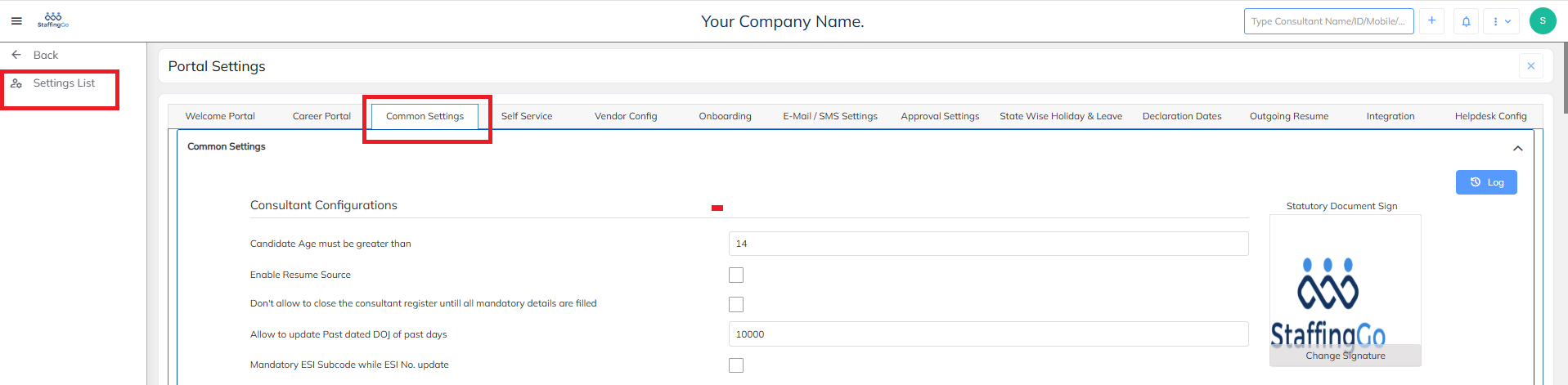
- Click on Common Settings and Searching by "Joining"
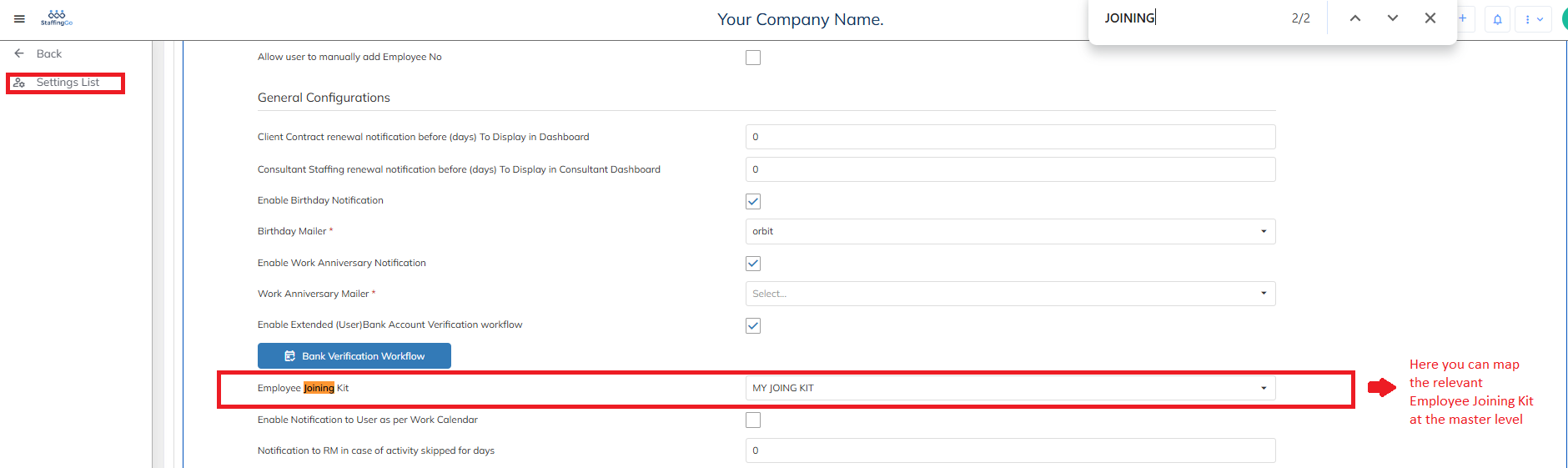
- Click on Employee Joining Kit --> Map the latest created template
- Scroll down and click on save.
- Contract Level Configuration
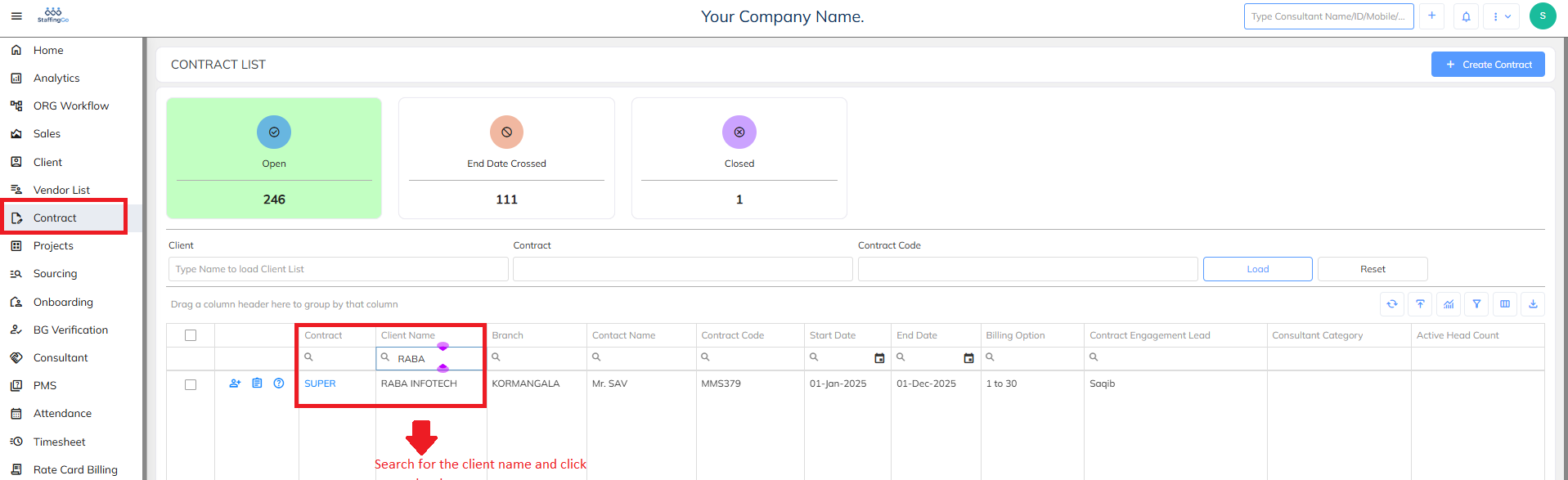
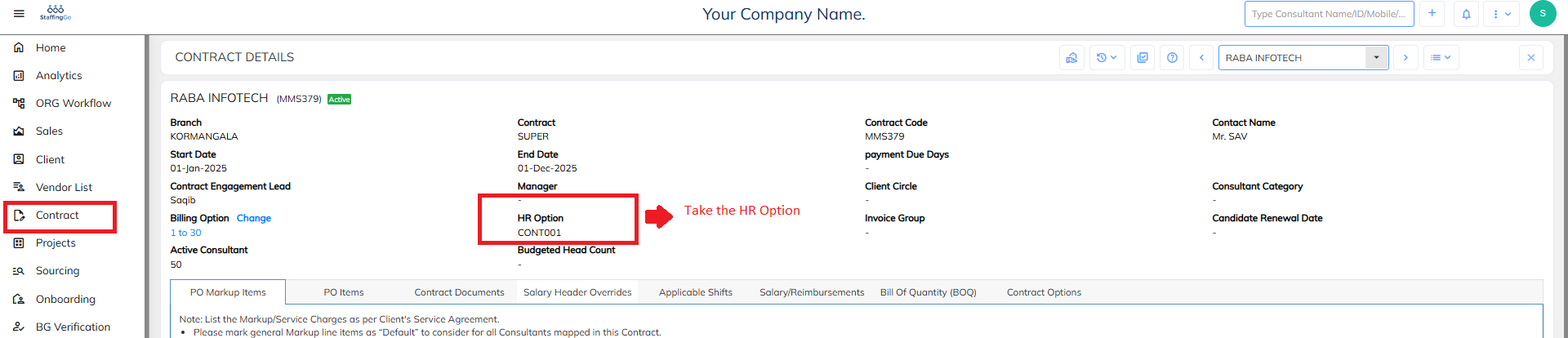
- Go to Contract --> Select the relevant Contract --> Take the HR Option code
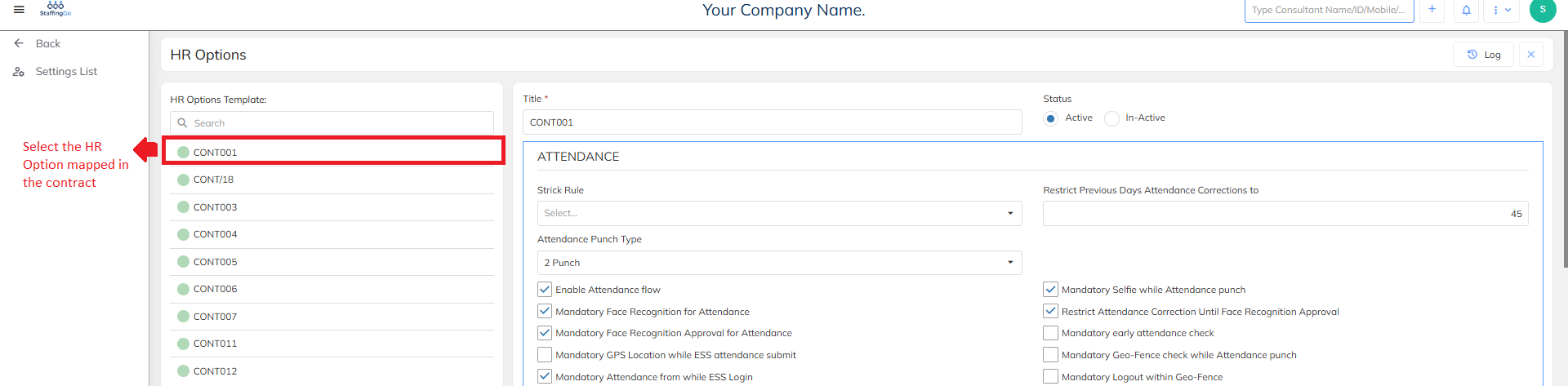
- Click on Settings--> Go to HR Options
- Click on the Contract code which is mapped to the particular contract
- Search by keyword "Joining"
- Click on Employee Joining Kit and select the Joining Kit Template to be mapped
- Navigate the checkbox shown below if you want to enable Manager's Seal and Signature
- Navigate to this checkbox if you want to Enable Candidate Joining Kit Signature
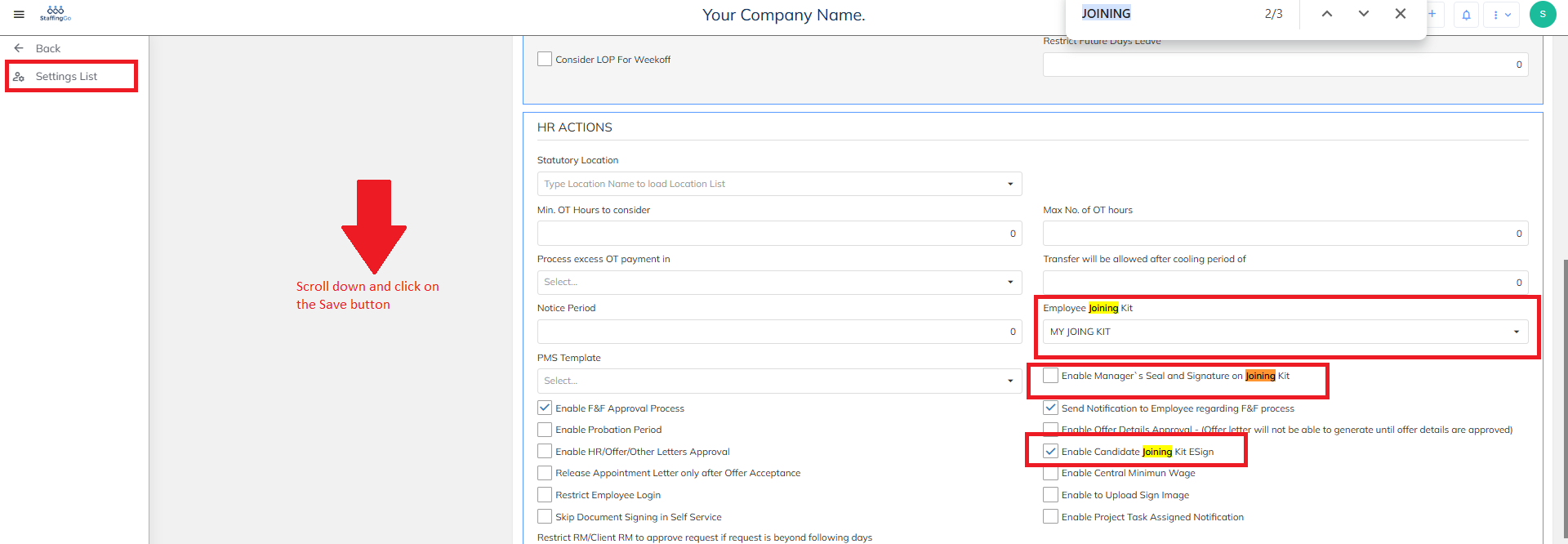
- Once all the configurations are enabled, Scroll down and Click on save.
- Go to Contract --> Select the relevant Contract --> Take the HR Option code
- Joining Kit Download Process
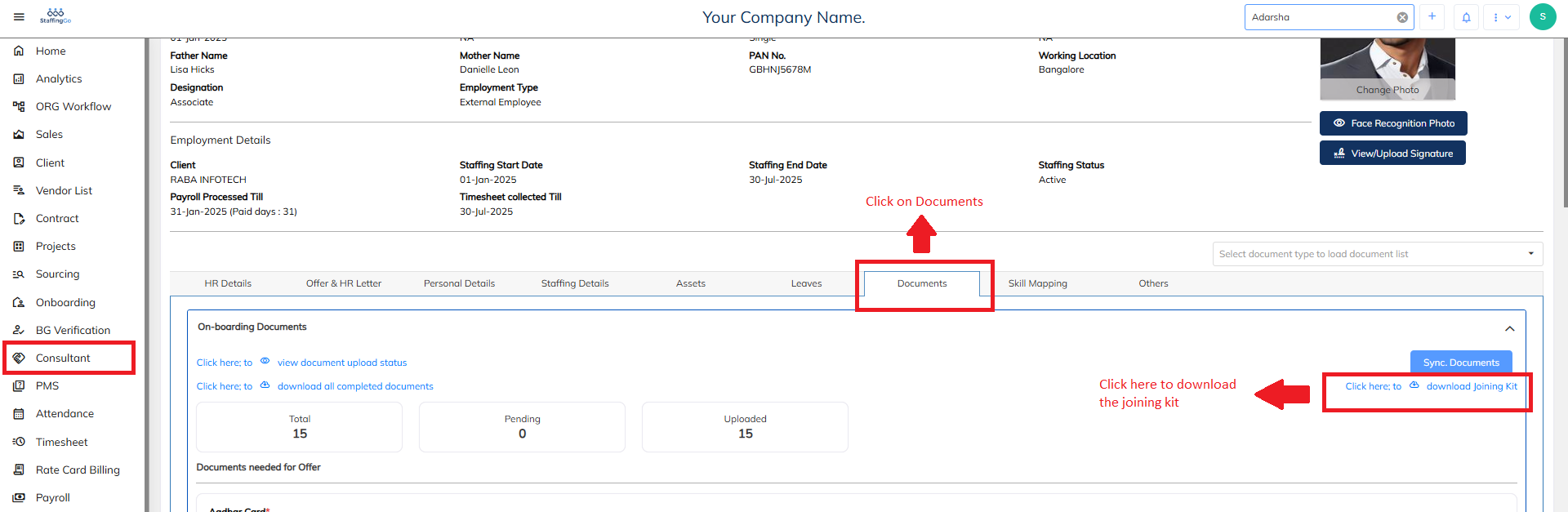
- Navigate to Consultant --> Filter the consultant
- Go to Documents
- Click on "Click here to download Joining Kit"
- The Joining Kit will be download based on the template mapped at the contract level
Was this article helpful?
That’s Great!
Thank you for your feedback
Sorry! We couldn't be helpful
Thank you for your feedback
Feedback sent
We appreciate your effort and will try to fix the article