Timesheet and billing Calendar template updating
l. Click on setting option and select Staffing template. Choose the calendar option to create the calendar for the year 2025

ll. Click on the existing calendar to generate the new calendar template for the year 2025

lll. Click on the forward arrow for the new year and then click on prepare the calendar template

How to Update User defined Calendar
Follow the steps below to update user defined in the calendar:
Prepare the calendar with the required details as mentioned above.
Click Save once the calendar is prepared.
After saving, click on the Calendar icon shown in the Update Particular column.
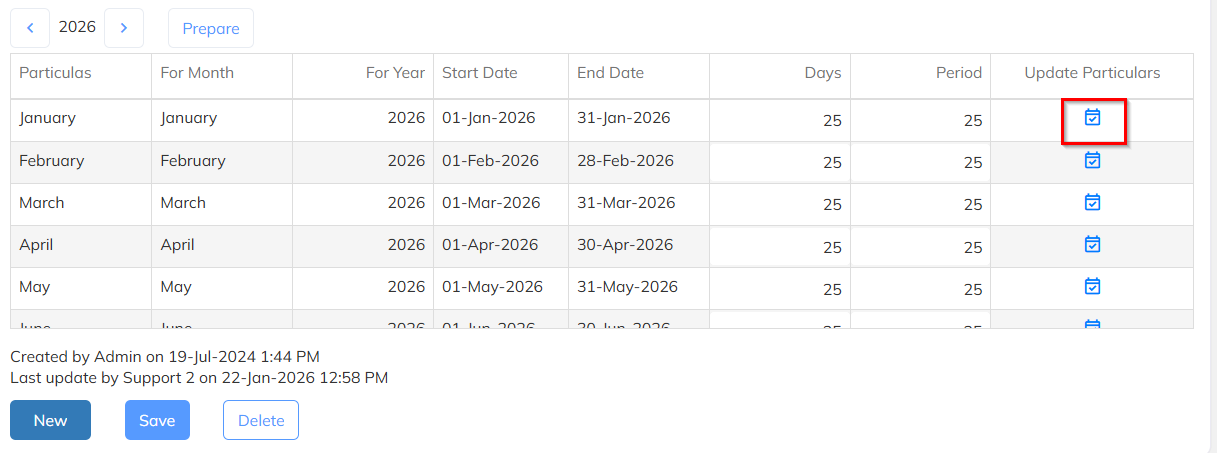
A pop-up window will open as Update Particulars.
In the pop-up, edit the dates, days, and hours as required.
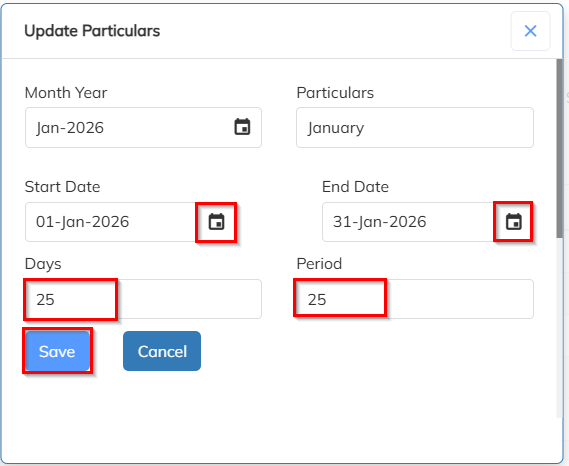
Click Save in the pop-up window after making the changes.
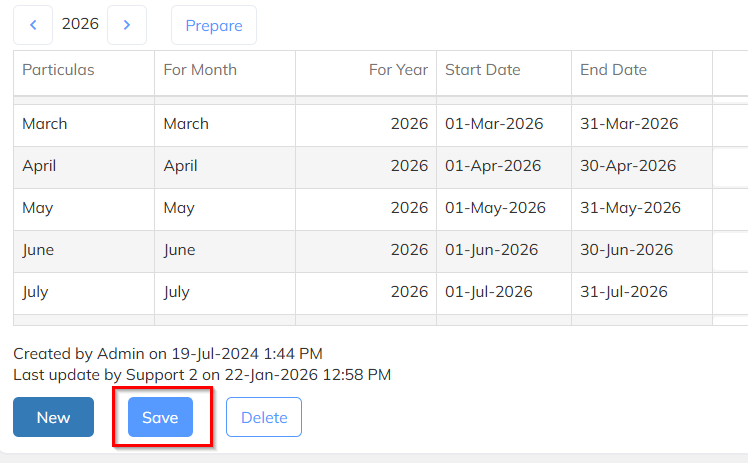
Once all days are edited, click Save to finalize the complete calendar updates.
Was this article helpful?
That’s Great!
Thank you for your feedback
Sorry! We couldn't be helpful
Thank you for your feedback
Feedback sent
We appreciate your effort and will try to fix the article