Overview
This help document explains how to configure the maximum employee age limit in StaffingGo to allow employee creation for employees above 58 years.
The configuration is managed through the HR Option settings and can be mapped to specific contracts as per business requirements.
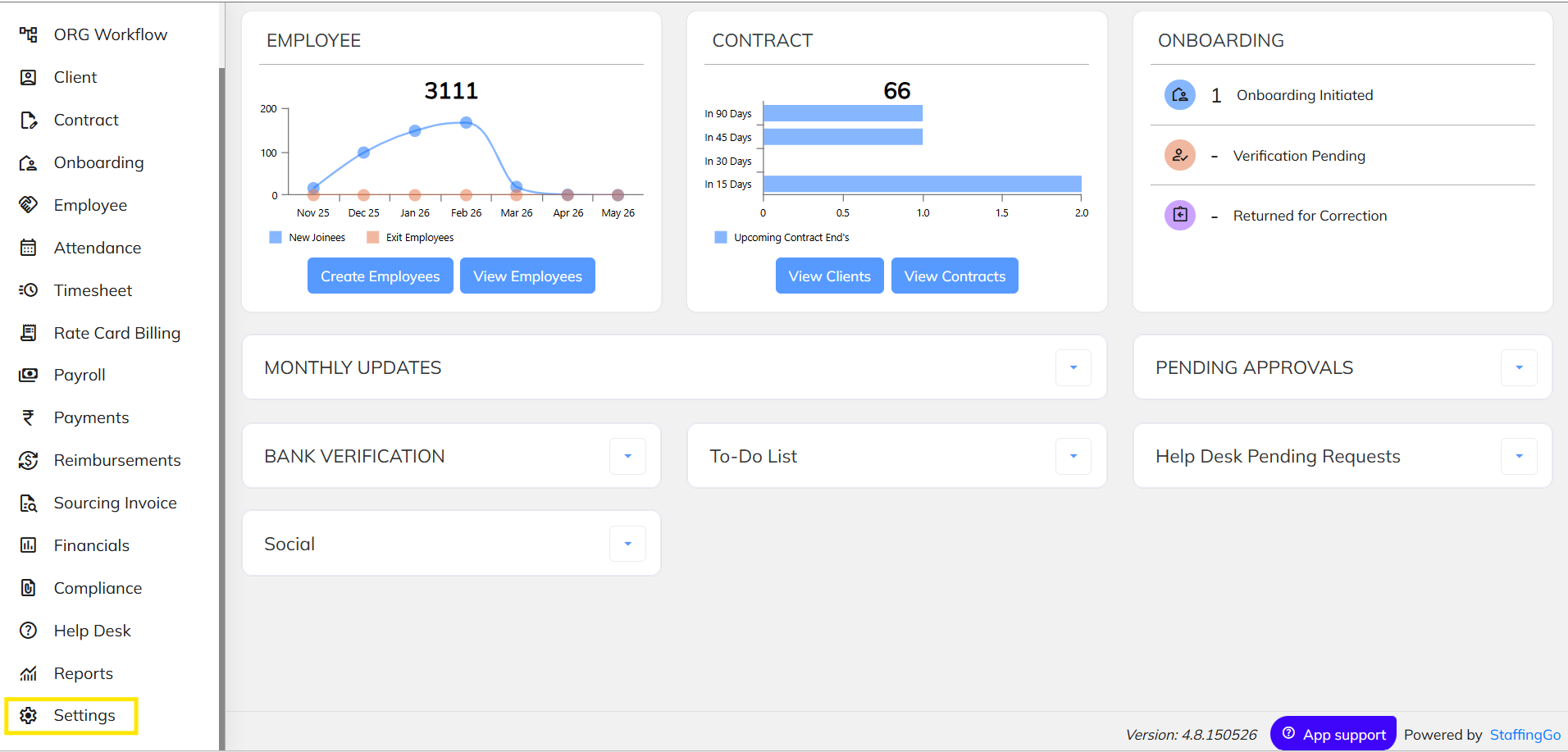
Step 1: Navigate to Settings
Go to:
Settings → Staffing Master
Under Staffing Master, select the HR Option menu.
Navigate to HR Option under Staffing Master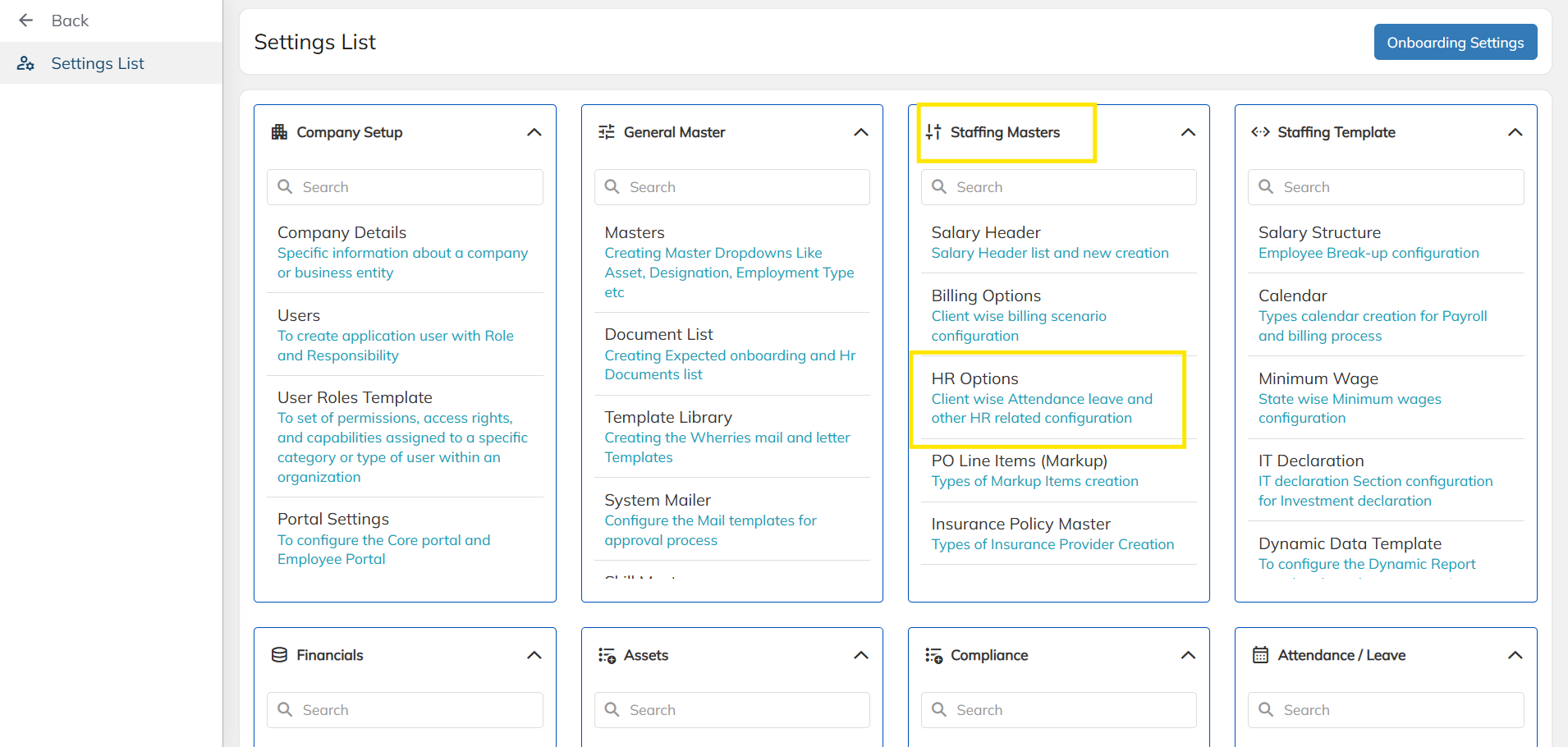
Step 2: Configure Employee Age Limits
Inside the HR Option screen, you will find configuration fields for:
- Minimum Employee Age
- Maximum Employee Age
Update the maximum age limit as per your requirement.
Example:
- Minimum Age: 18
- Maximum Age: 65
This configuration allows the system to accept employee creation up to the configured maximum age.
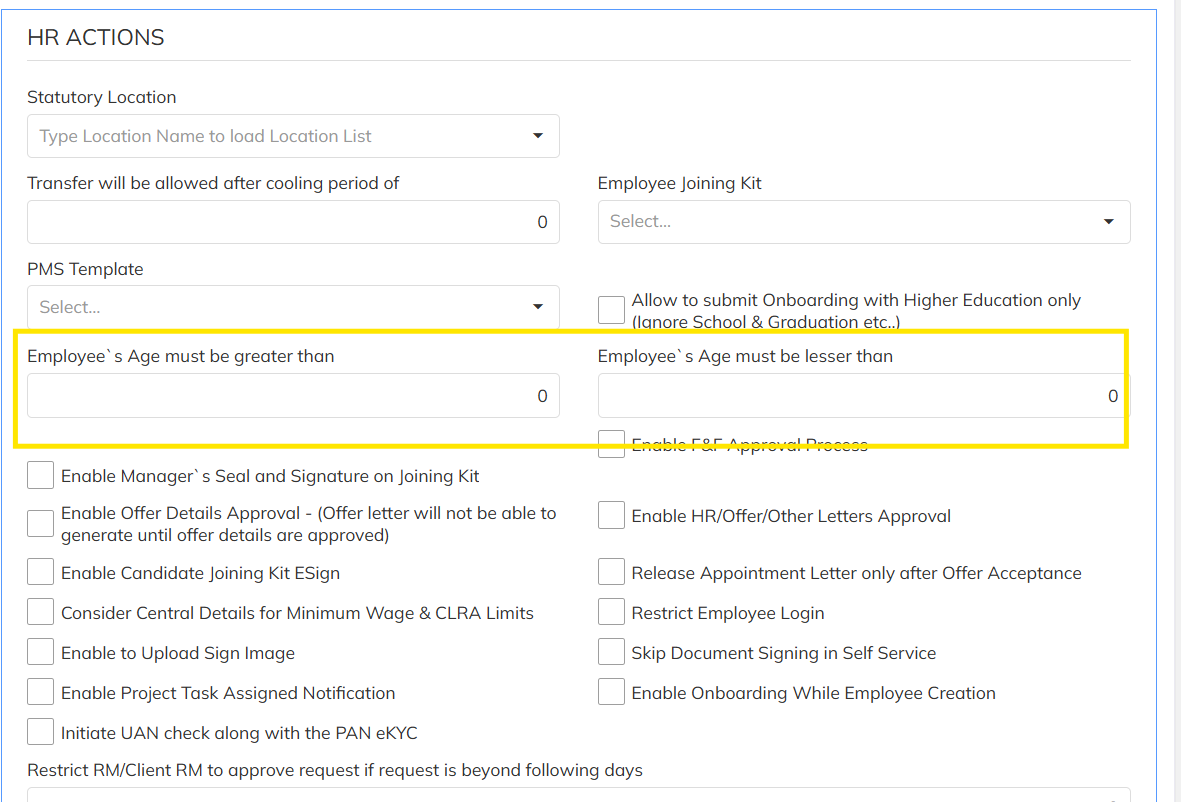
Configure Minimum and Maximum Employee Age Limits
Step 3: Map HR Option to Required Contract
After configuring the HR Option:
- Navigate to the required Contract.
- Select the configured HR Option in the contract setup.
- Save the contract configuration.
This mapping ensures the age validation is applied specifically for that contract.
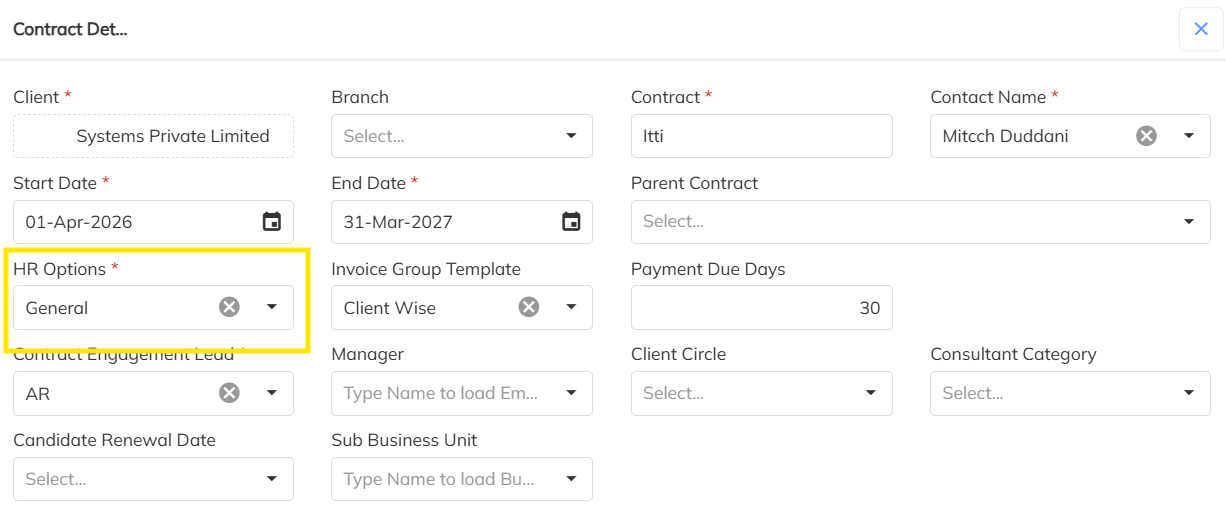
Map HR Option to the Required Contract
Step 4: Employee Creation
Once the HR Option is mapped to the contract:
- The system will allow employee creation based on the configured age limits.
- Employees above 58 years can be created successfully if the maximum age is configured accordingly.
Important Notes
- HR Option configuration is contract-specific.
- Ensure the correct HR Option is mapped to the respective contract before employee onboarding.
- Changes in age limits will impact future employee creations under the mapped contracts.
Support
For any assistance, please contact:
Was this article helpful?
That’s Great!
Thank you for your feedback
Sorry! We couldn't be helpful
Thank you for your feedback
Feedback sent
We appreciate your effort and will try to fix the article