Purpose
This document explains the step-by-step process to identify and view deleted invoices in the StaffingGo application using the All Invoices filter option.
Prerequisites
Valid user access to the Financials module
Permission to view invoice records
Procedure
Step 1: Navigate to the Financials Module
Log in to the StaffingGo application.
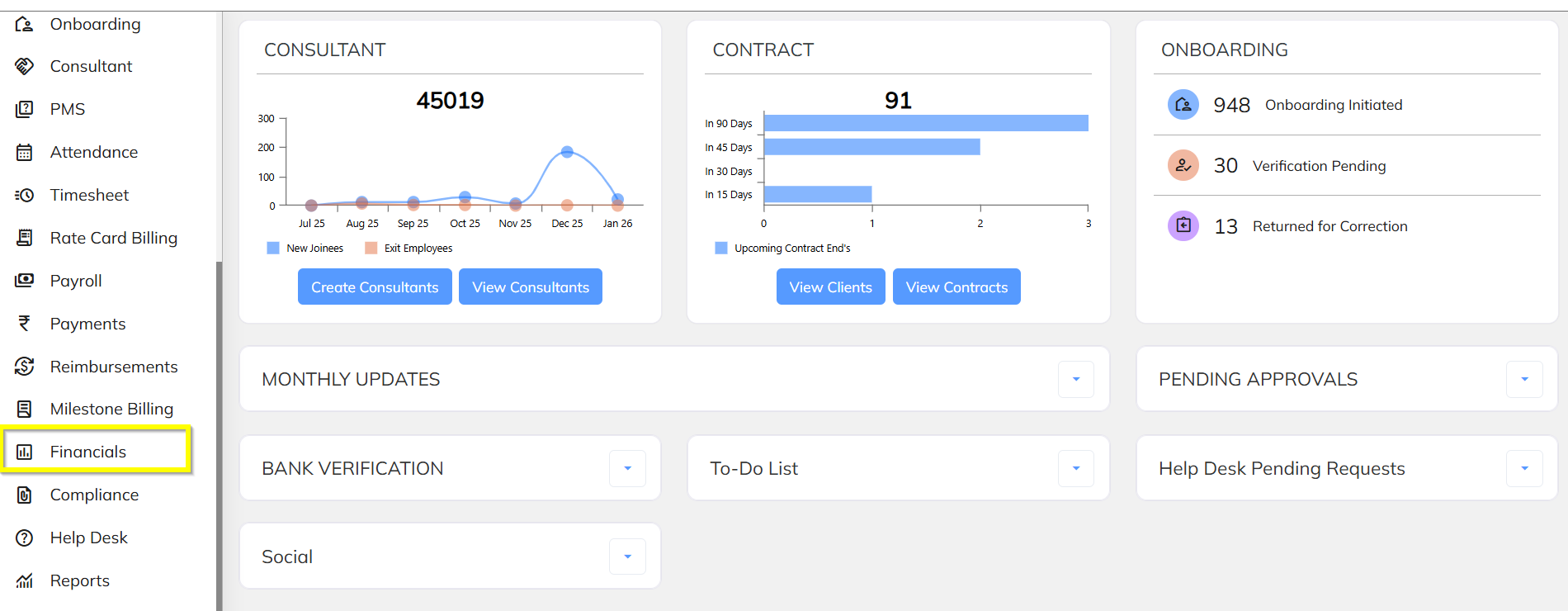
From the main menu, navigate to Financials.
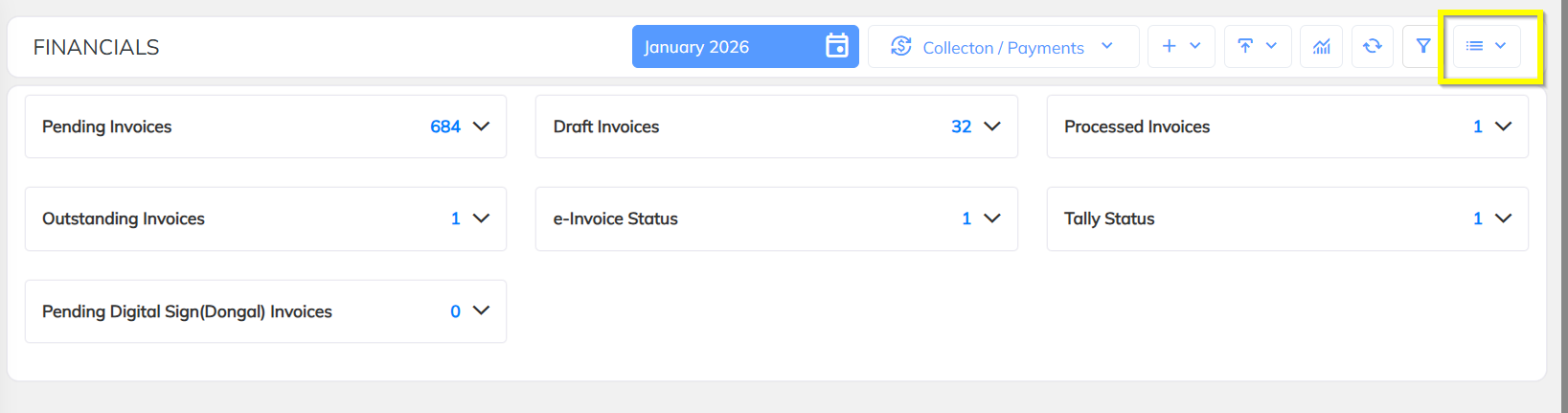
Click on the three-line (hamburger) menu to view additional options.
Step 2: Open All Invoices
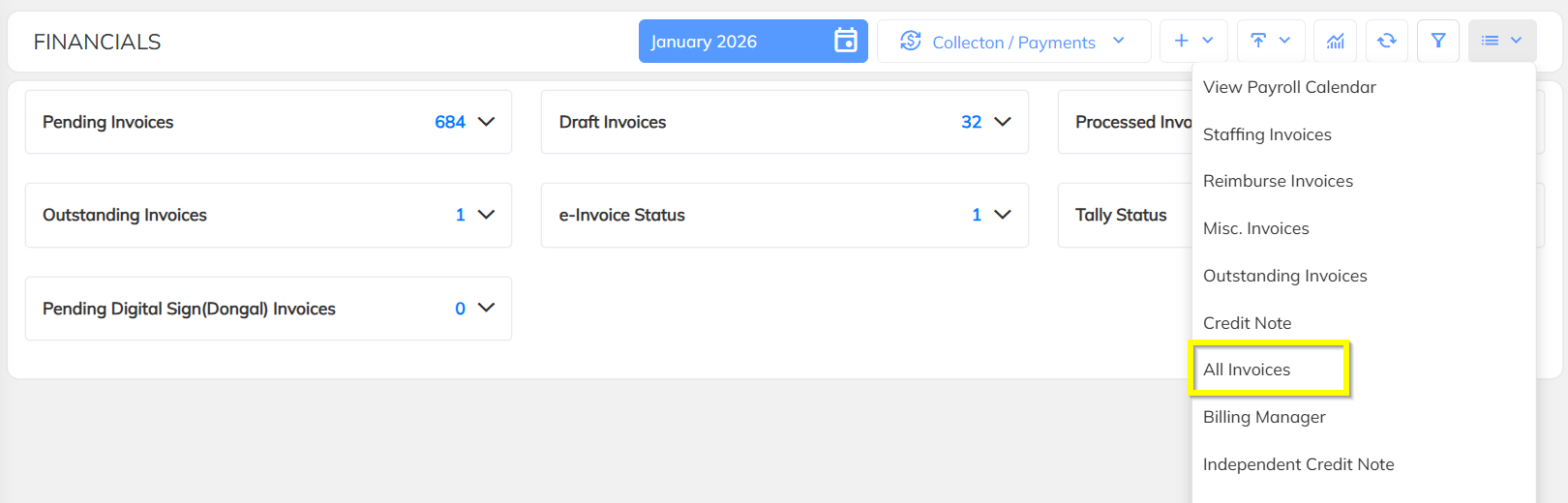
From the dropdown menu, click on All Invoices.
The All Invoices page will open, displaying the list of invoices.
Step 3: Access the Filter Option
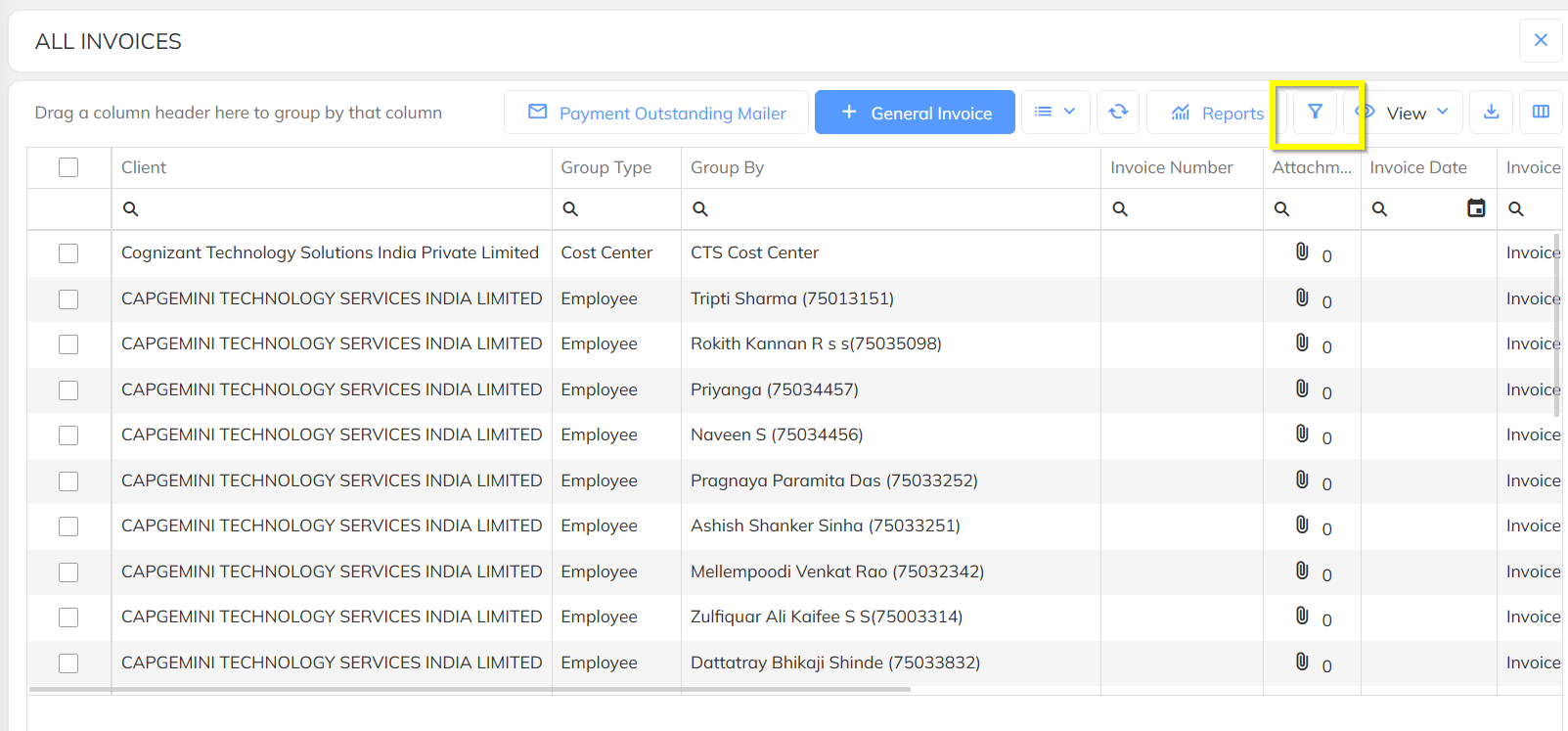
On the All Invoices screen, click on the Filter icon or button.
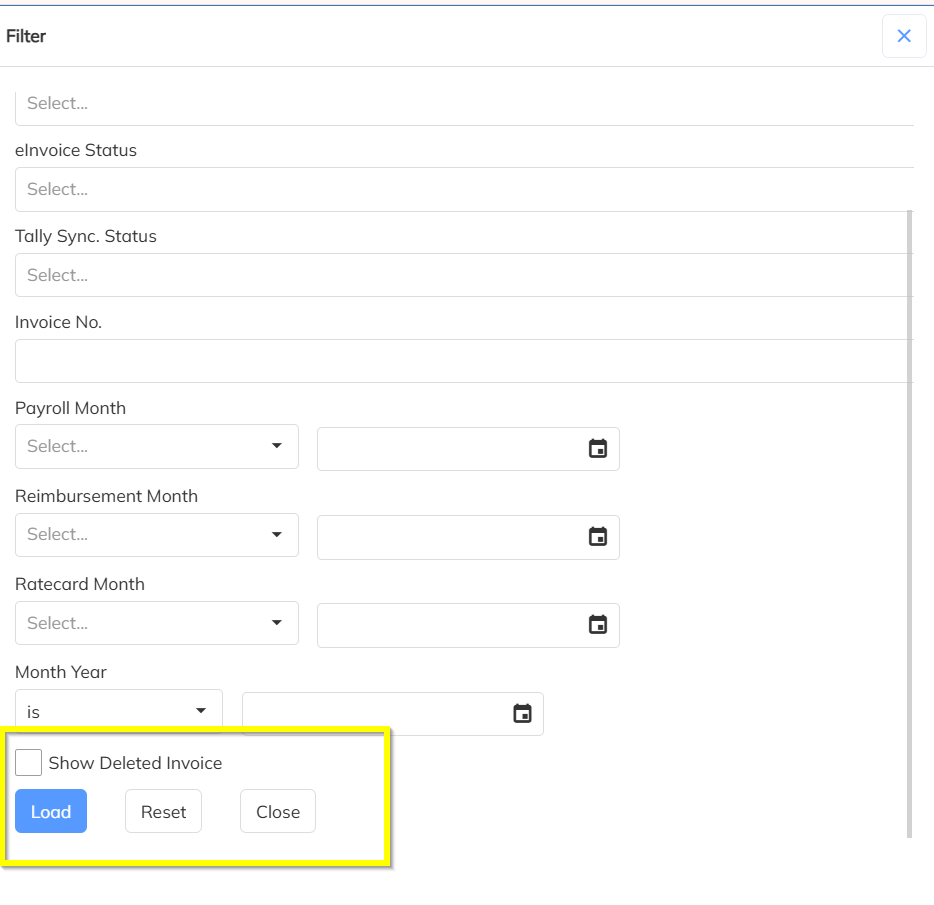
The filter panel will be displayed.
Step 4: Select Deleted Invoice Filter
In the filter options, locate the checkbox labeled Is Deleted Invoice.
Select (check) the Is Deleted Invoice checkbox.
Click on Load or Apply Filter.
Step 5: View Deleted Invoices
Once the filter is applied, the system will display all deleted invoices.
Review the invoice details as required.
Was this article helpful?
That’s Great!
Thank you for your feedback
Sorry! We couldn't be helpful
Thank you for your feedback
Feedback sent
We appreciate your effort and will try to fix the article